Changing Series Colors
Changing Series Colors
You can customize the colors of the lines plotted on your chart, including the default color sequence for standard series (First through Twelfth Series) and specific benchmark tickers such as the S&P 500 and Nasdaq.
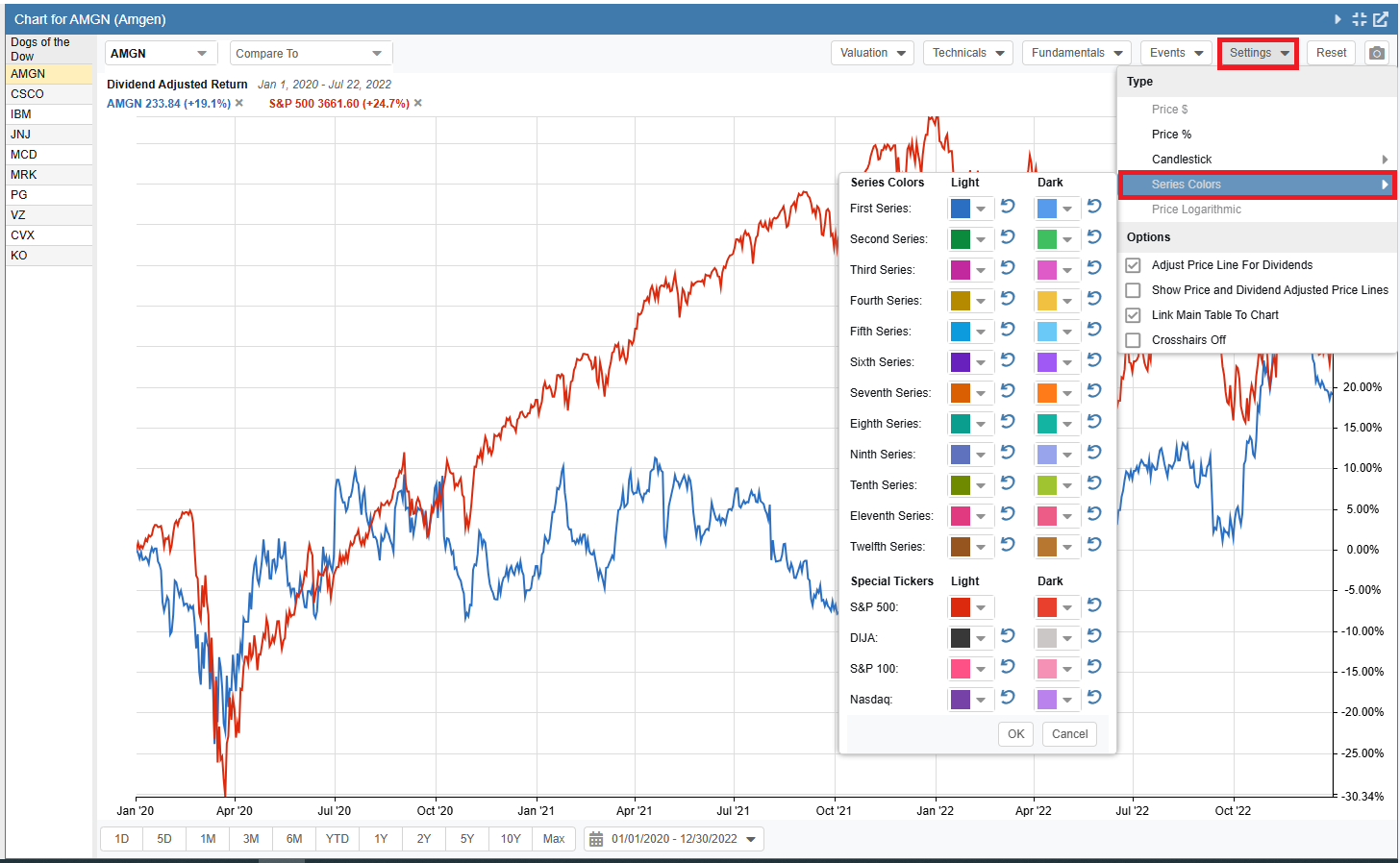
To access these options, click Settings in the chart’s top toolbar and select Series Colors from the dropdown menu. This opens the Series Colors configuration panel, where you can set separate color palettes for both Light and Dark themes.
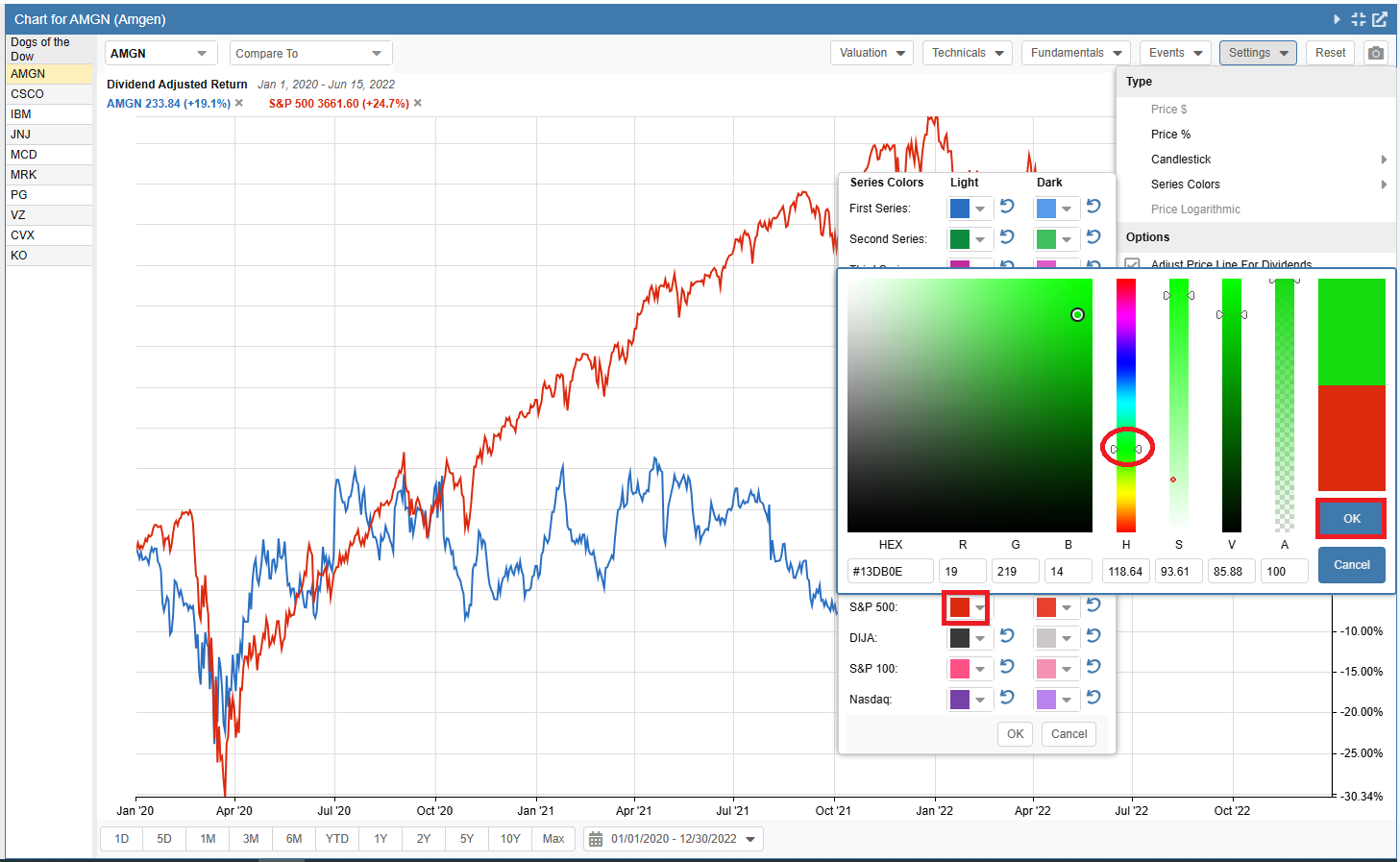
To change a line’s color, click the colored square next to the series or special ticker you want to modify (such as the Light theme swatch for the S&P 500). In the color picker that opens, use the hue slider and gradient box—or enter specific HEX or RGB values—to select your color, then click OK. Click OK in the Series Colors panel to apply your updates.
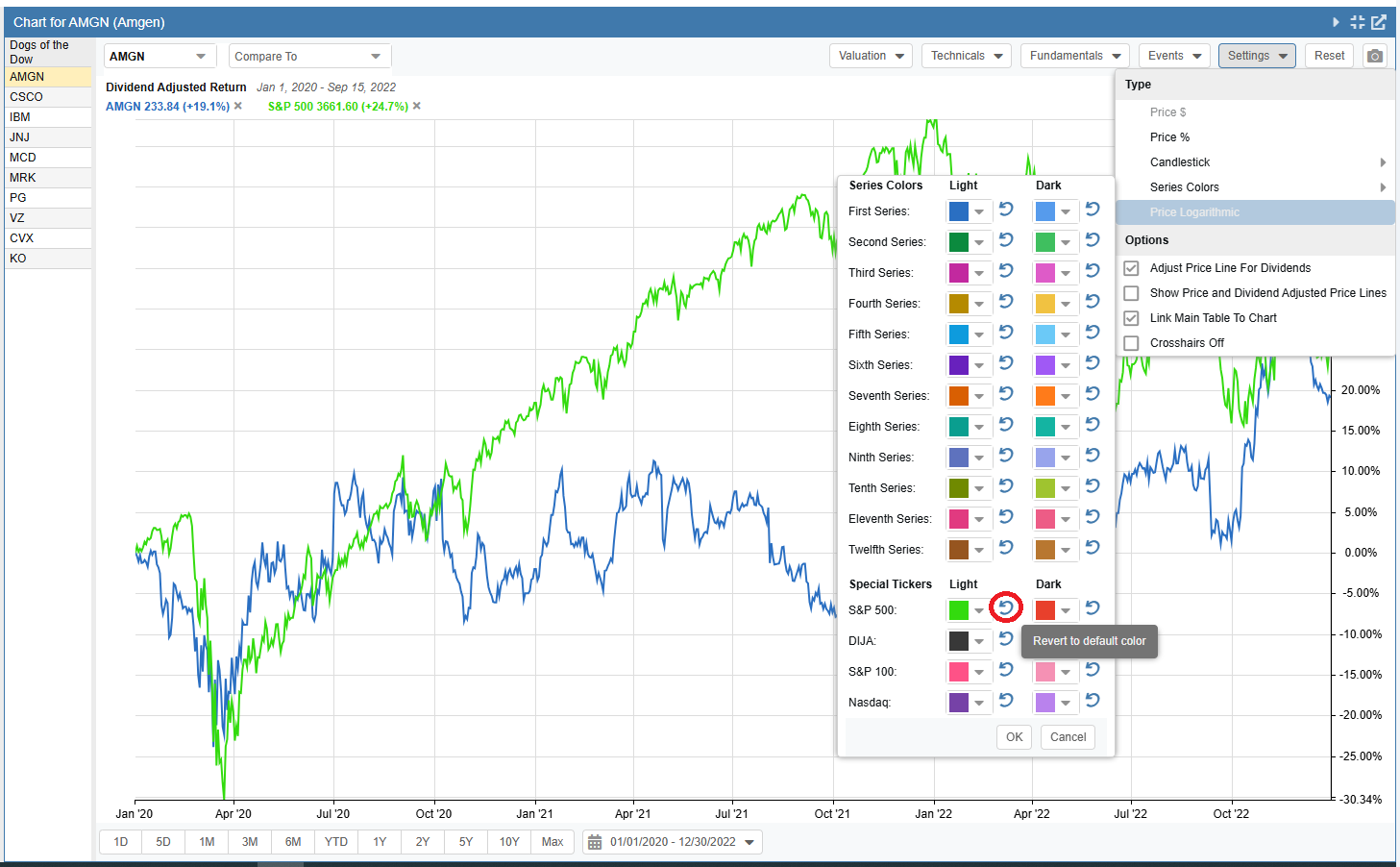
To restore a modified line to its original color, click the circular Revert to default color arrow icon located directly to the right of the color square.