Downloading PDF Research Report
Downloading PDF Research Reports
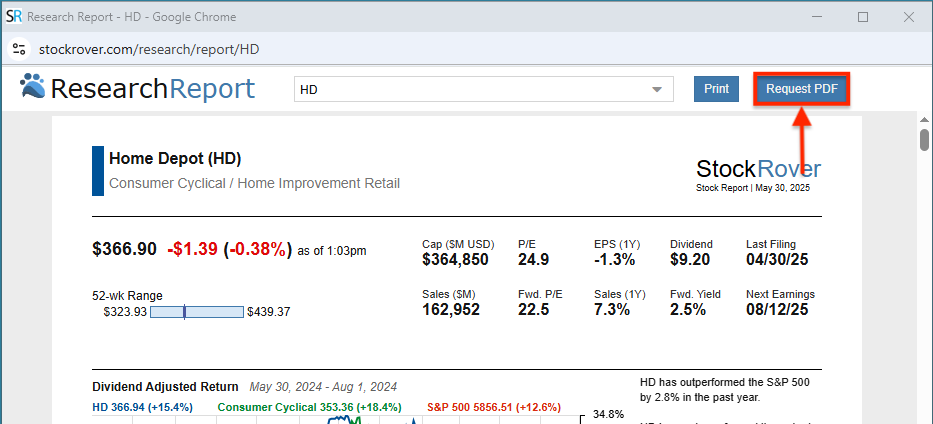
You can download a comprehensive Research Report by clicking the “Request PDF” button at the top of the report interface, as highlighted in the screenshot below.
If you are accessing a Research Report from the Start Menu, you will first need to click the “Expand to a separate browser window” icon. This step is necessary to reveal the Request PDF option. The icon you need to click is highlighted in the image below.

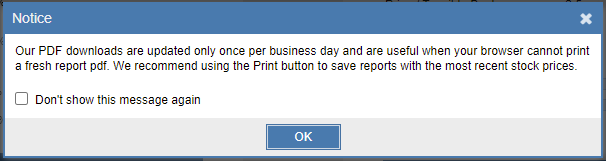
Clicking the Request PDF button will trigger a notice message, as shown below. Please note that these PDF downloads are generated once per day. If you require a report with the absolute most recent intraday data for the same ticker, we recommend using the Print option and selecting “Save as PDF” from your system’s print menu instead.
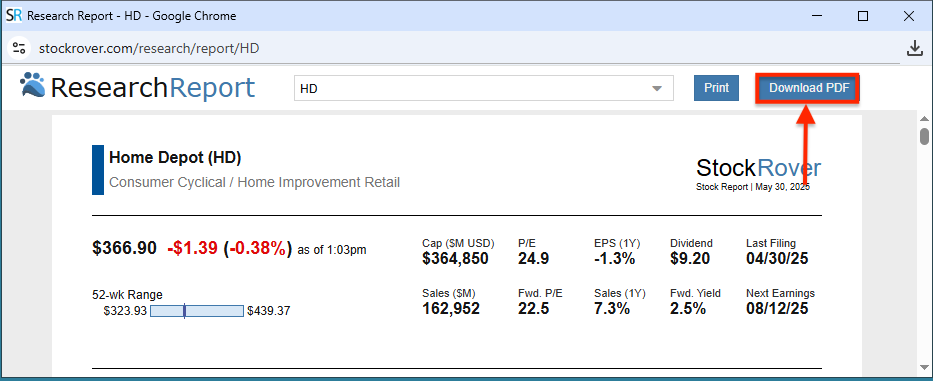
After clicking OK on the notice message, you must then click the “Download PDF” button highlighted in the screenshot below. Once selected, the file will be saved directly to your browser’s default download folder.