

Charting Overview
The Chart is accessible by selecting the Chart icon in the Start Menu. You can then select an object under My Collections (Quotes, Portfolios, Watchlists, Screeners, or World) to see data in the chart.
There is a video that shows an overview of the Chart. The video can be viewed here.
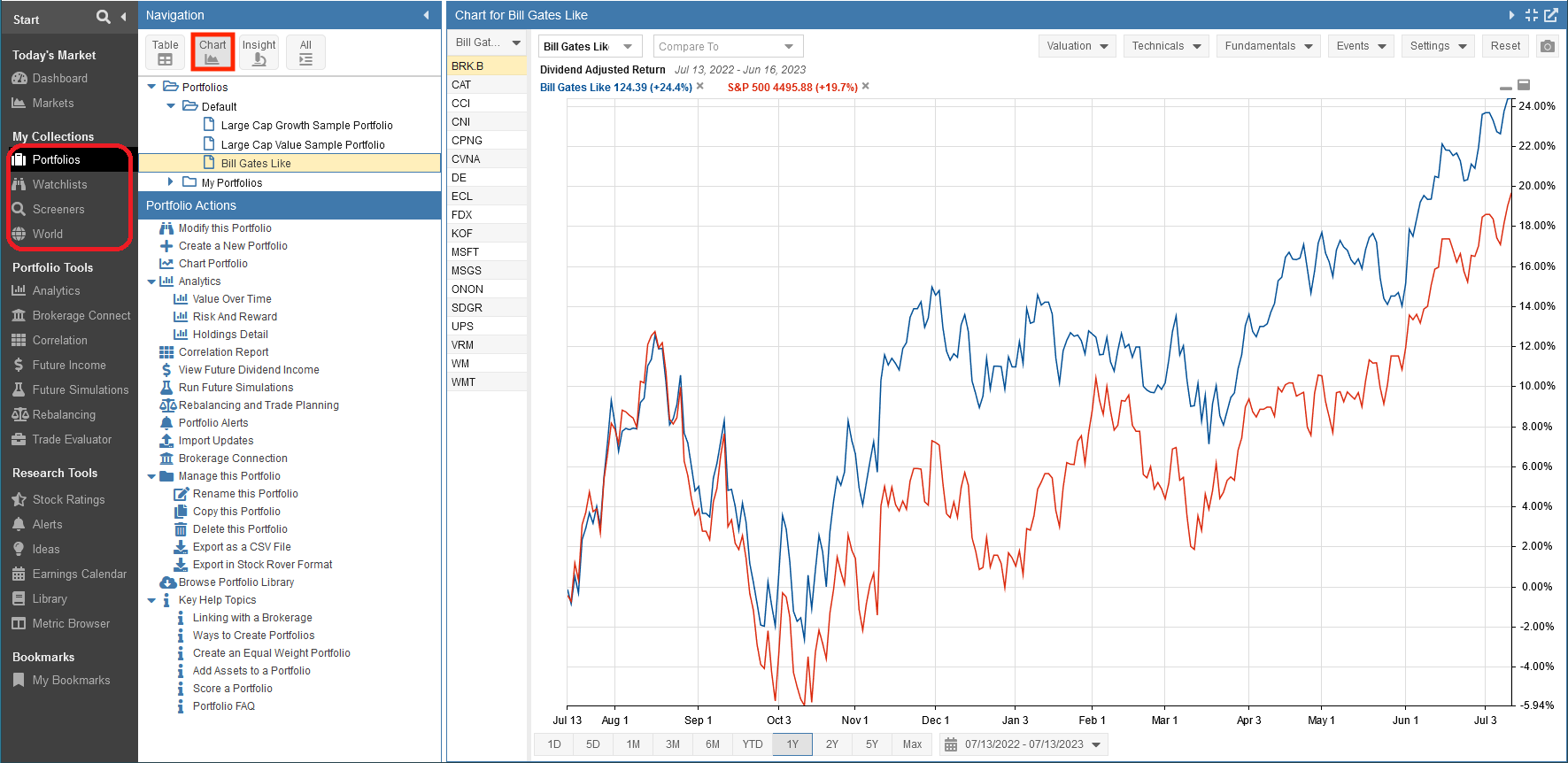
With ‘All’ selected, you can collapse or expand the Chart using the triangle icon in the top right. You can also click the box next to the triangle to maximize the panel.

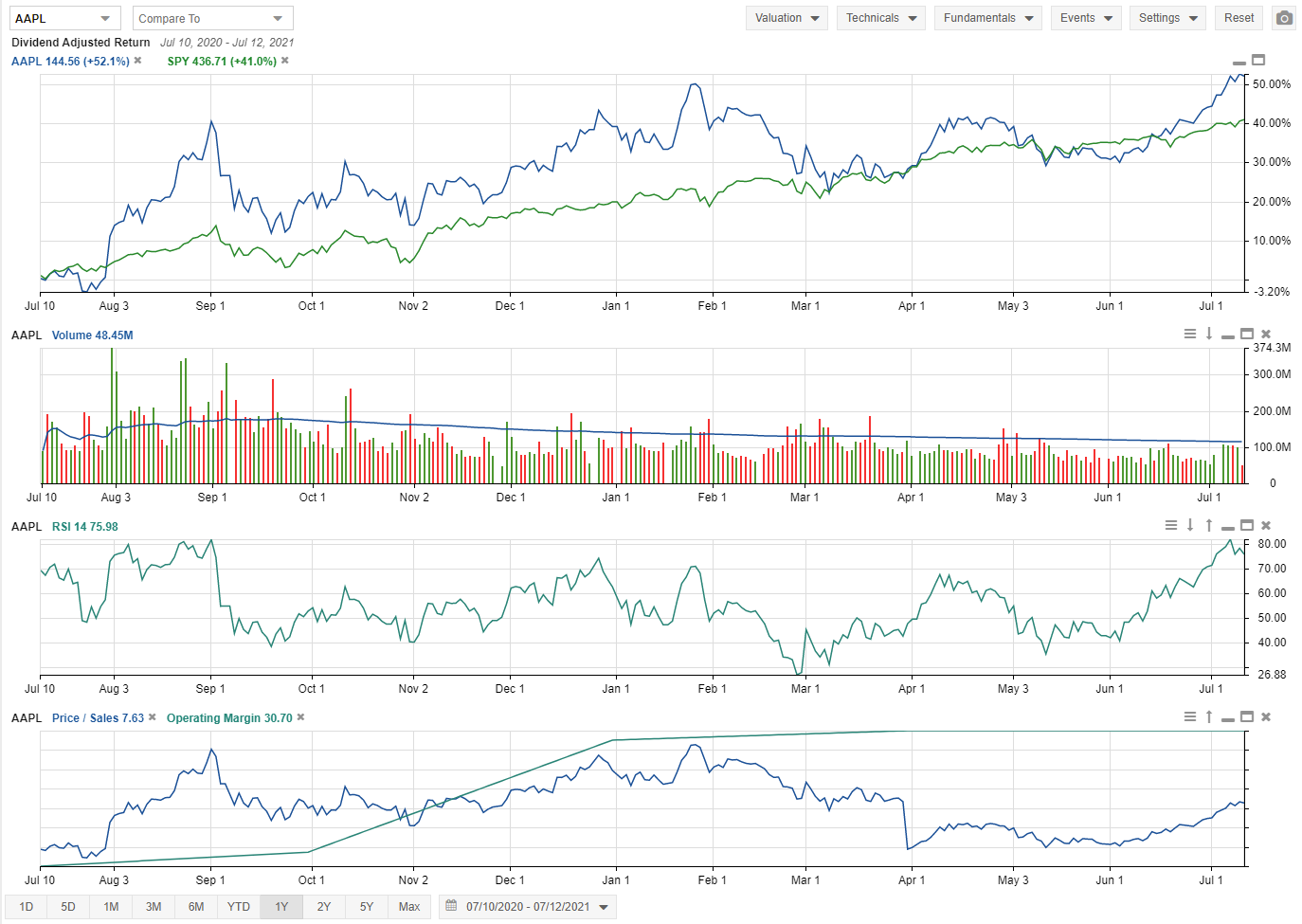
Stock Rover has powerful charting capabilities. You can chart price, over 100 fundamentals, and key technical indicators. You can also baseline stocks for easy relative performance comparison, or chart macro entities such as screeners, portfolios, and watchlists. Charts can be displayed by price, percentage, logarithmically, or as candlesticks. They can include or exclude dividends. Events can be added to charts as well, such as buy/sells, dividends, splits, earnings events, and max drawdowns. You can even export charts as images to take with you. The full capabilities of charting are described in the following sections.
Charting Videos
There are several videos that introduce Stock Rover charting and demonstrate the full range of Stock Rover’s charting capabilities. The charting videos available are as follows: