Modifying a Watchlist
Accessing the Watchlist Manager
Option 1: Right-Click
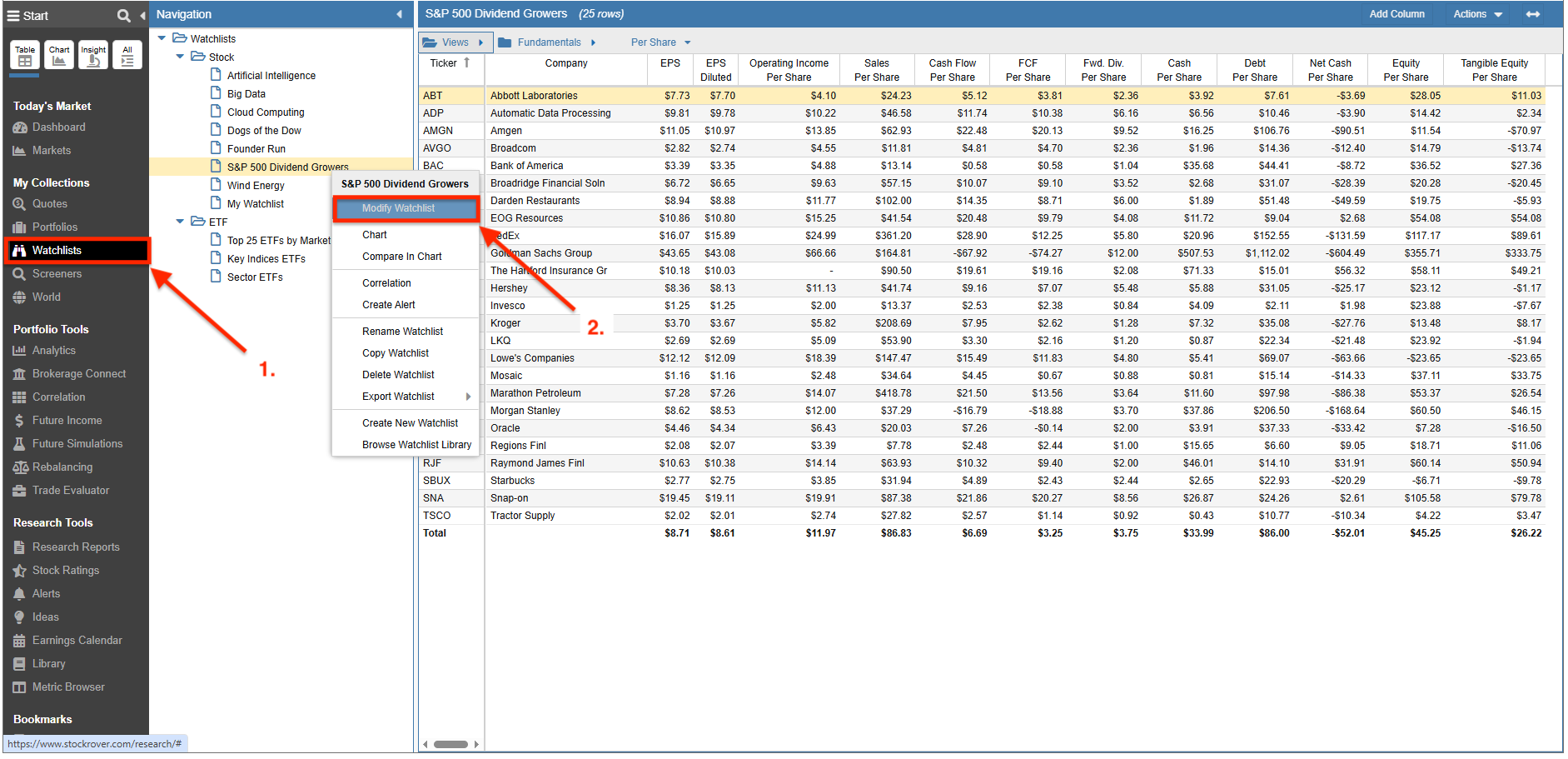
- Select Watchlists from the Start Menu.
- Right-click on the Watchlist in the Navigation Panel and select Modify Watchlist.
Option 2: Actions Panel
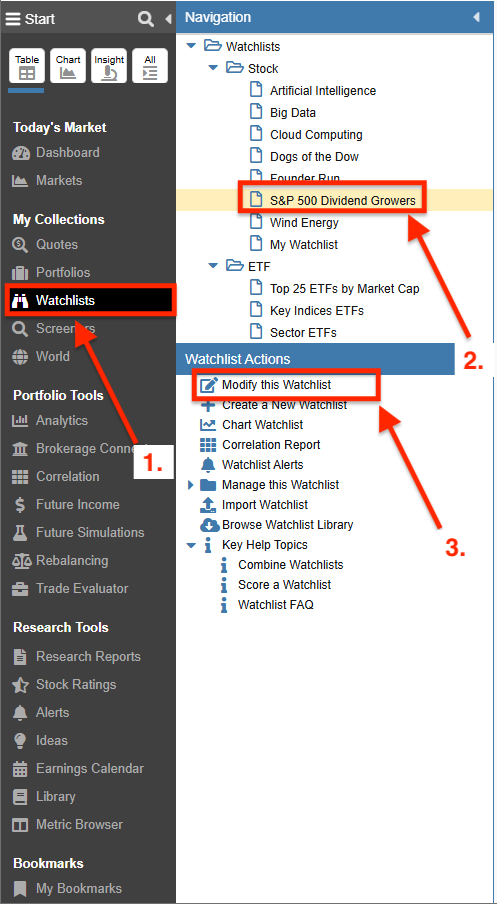
To display the Actions Panel, navigate to Preferences and check “Show actions panel in navigation” under Layout.
- Select Watchlists from the Start Menu.
- Choose the desired Watchlist in the Navigation Panel.
- Select “Modify this Watchlist” under Watchlist Actions.
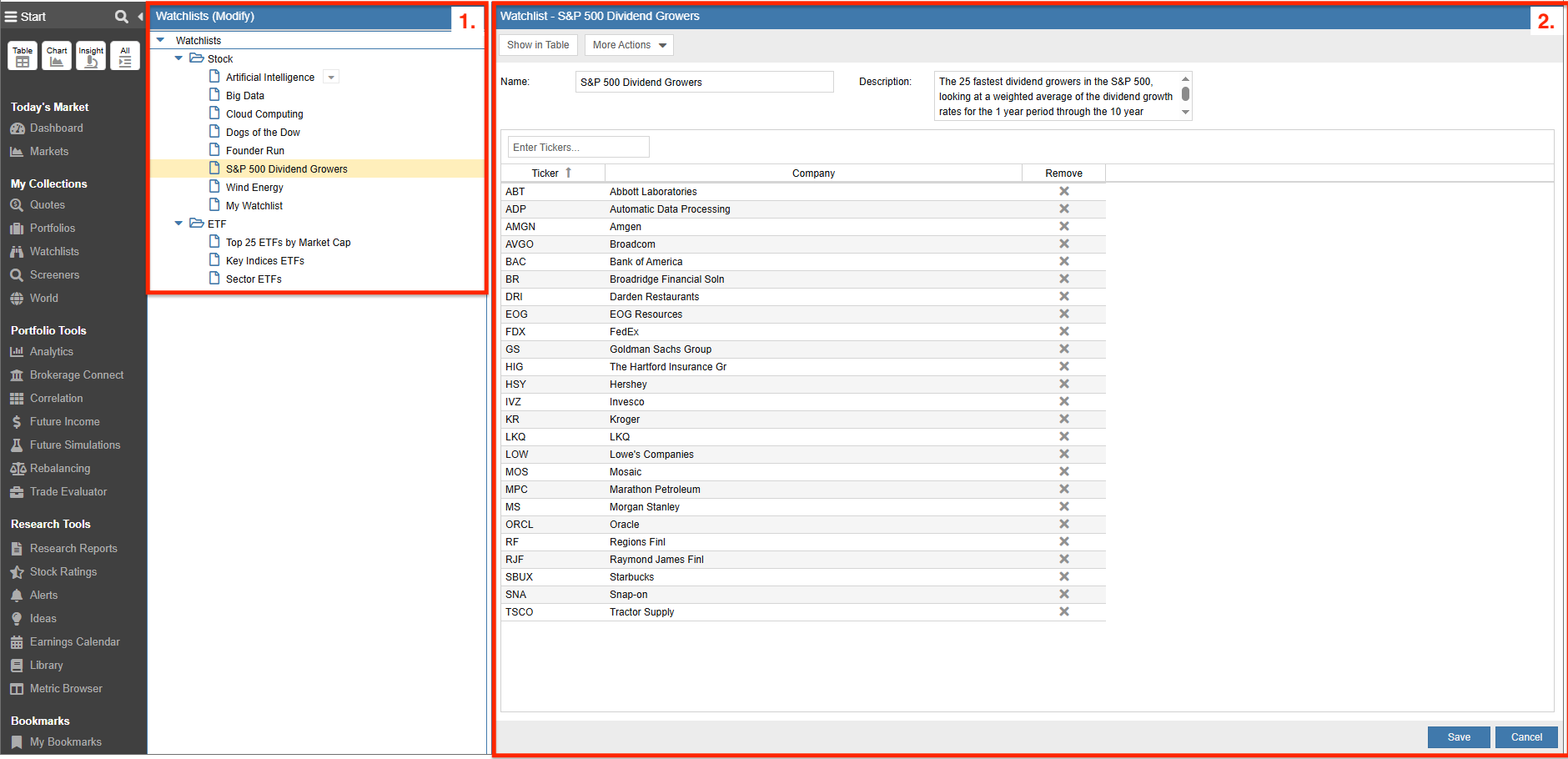
The Watchlist Manager will then launch, displaying two main areas:
- The Watchlists (Modify) panel, which contains your full list of watchlists.
- The Watchlist window, which loads the specific ticker list for the selected watchlist.
Adding a Ticker
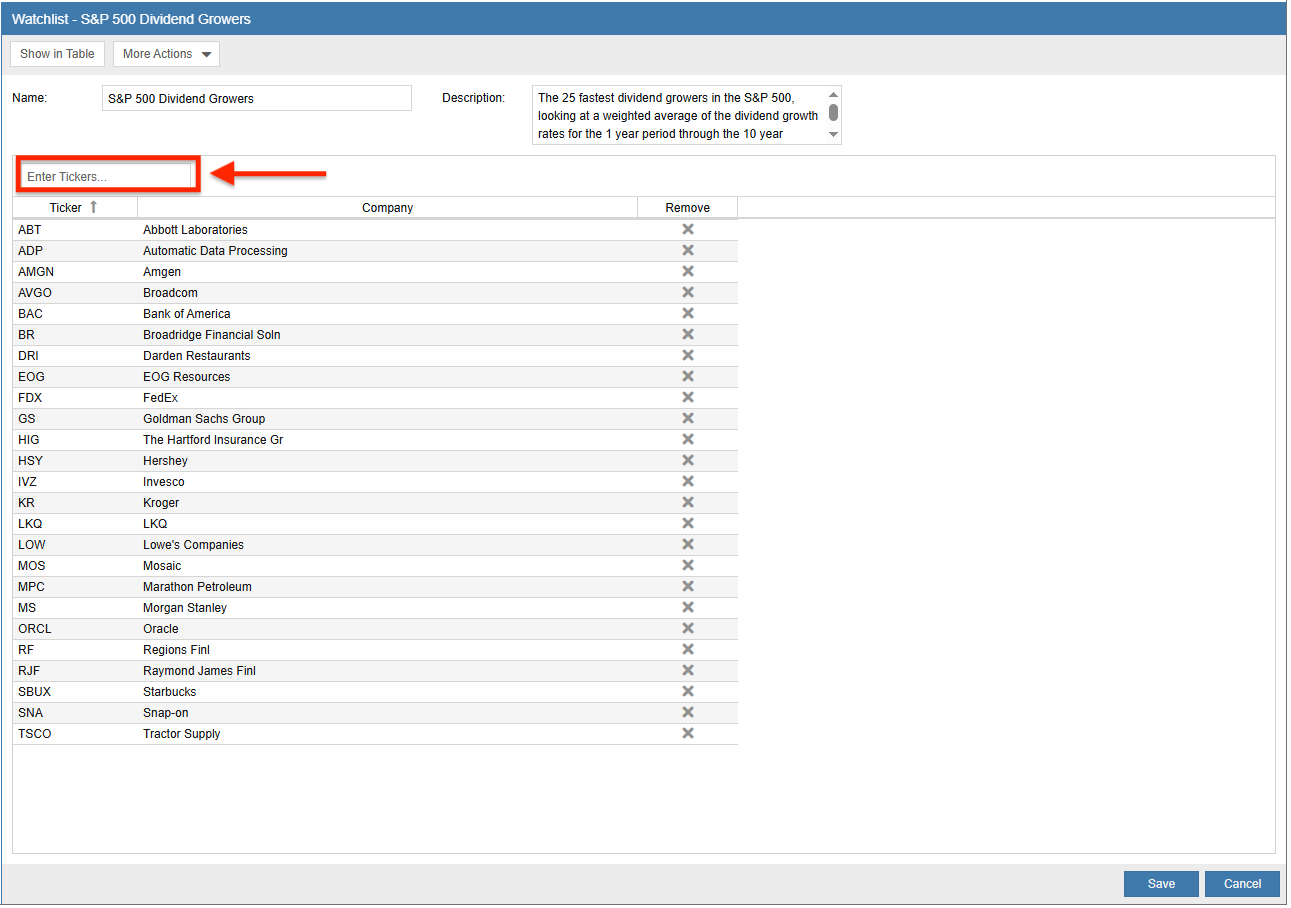
To add a ticker, enter the ticker symbol or company name in the Enter Tickers box (highlighted below) and select the appropriate match from the auto-fill suggestion menu. You can also cut and paste multiple tickers into this box; they can be separated by spaces or commas and can even be pasted from sources containing multiple lines.
Removing a Ticker
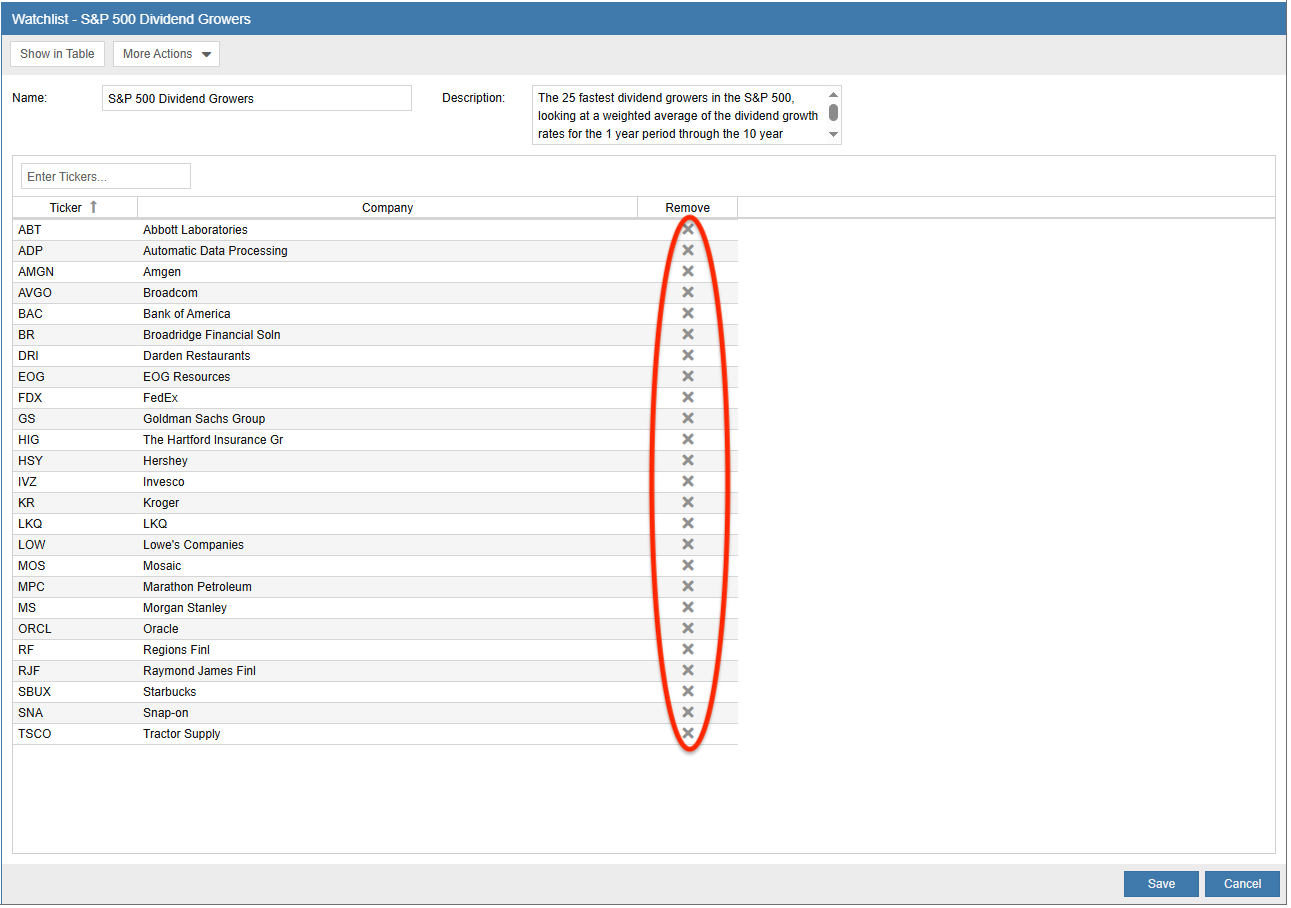
Clicking the ‘X’ in the ‘Remove’ column will instantly flag a ticker for removal. To finalize the change, click Save. If you accidentally remove a ticker, you can click Cancel to close the manager without saving any changes, preserving your original list.