

Insight Panel Overview
You can open the Insight Panel by selecting the layout icon from the Start Menu. Under “My Collections,” you’ll find options like Quotes, Portfolios, Watchlists, Screeners, or World; choosing any of these lets you research a ticker. Alternatively, clicking the ‘All’ icon also brings up the Insight Panel, which appears on the right side of your screen. The content of the Insight Panel updates dynamically based on what you have selected in the main table or the Navigation panel.
There is a video that demonstrates the full capabilities of the Insight Panel. The video can be viewed here.
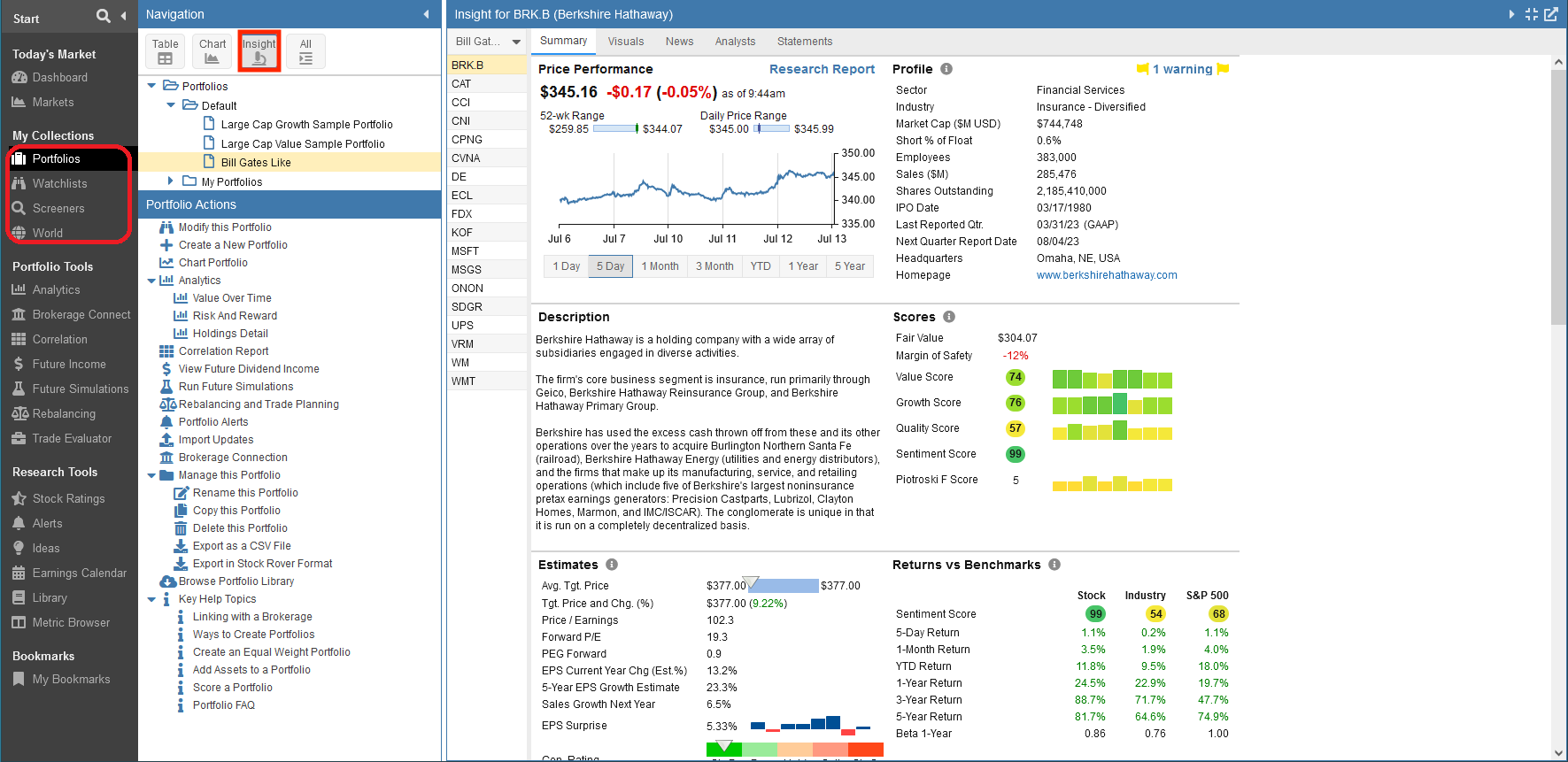
The Insight Panel contains tools for researching stocks in depth. It also provides a section where context-aware links can be made to external research sites.
If you’ve selected the “All” view, you’ll find several ways to control the Insight Panel’s display. You can collapse or expand it using the triangle icon located in the top-right corner. To make the panel fill your screen, simply click the box icon right next to the triangle. In addition, users have the added flexibility to open the panel in a separate window by clicking the diagonal arrow icon.

To organize a wide variety of information, the content of this panel is divided into 13 tabs, shown below. Depending on what is selected, different kinds of information will be available.
- Summary – Provides a snapshot of key company information.
- Analysts – Displays analyst ratings and earnings estimates.
- Options – Displays the options chain for the selected ticker, organizing available contracts by expiration date and key metrics.
- News – Lists relevant news headlines and updates.
- Dividends – Shows the company’s dividend payment history.
- Monthly Returns – Highlights the seasonality of a stock, ETF, or fund.
- EPS – Tracks sales, earnings per share (EPS), and cash flow trends.
- Statements – Contains detailed financials, including income statements, balance sheets, and cash flow statements.
- Insiders – Provides a detailed look into company ownership, tracking insider transactions, key executives, and institutional funds.
- History – Summarizes the company’s past performance.
- Technicals – Displays key technical indicators and signals.
- vs Peers – Offers side-by-side comparisons with similar companies.
- vs Industry – Presents metrics comparing a stock to its industry and the S&P 500.