Creating a Watchlist
Accessing the Create Watchlist Window
There are four ways to create a new Watchlist in Stock Rover. They are as follows:
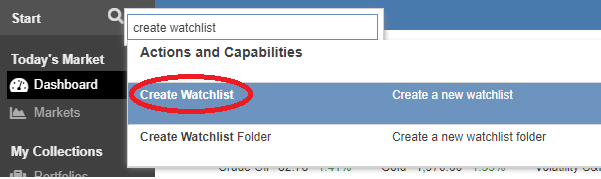
You can use the Search Box at the top of the Start Menu.
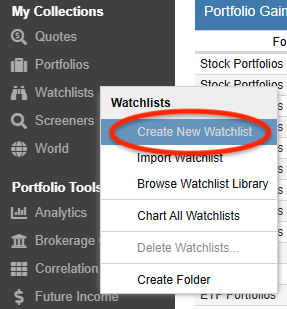
You can right-click on Watchlists in the Start Menu bar.
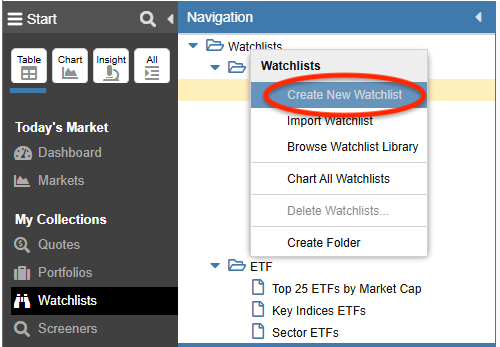
Or, you can right-click on the Watchlists folder in the Navigation Panel.
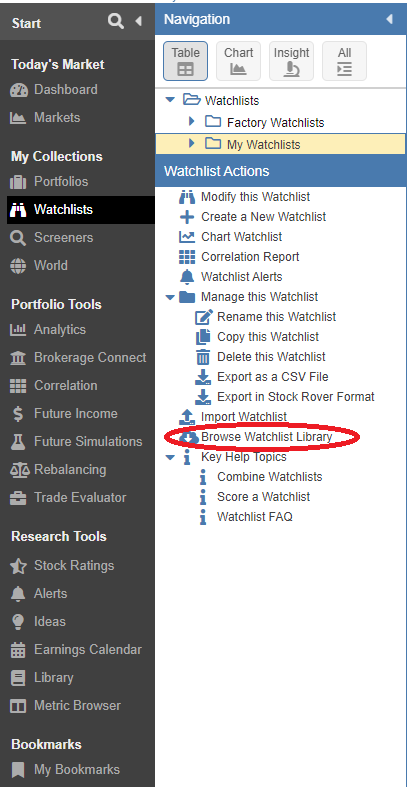
You can also select “Create a Watchlist” under Watchlist Actions. To expose the Actions Panel, navigate to Preferences and check ‘Show actions panel in navigation’ in the Layout panel.
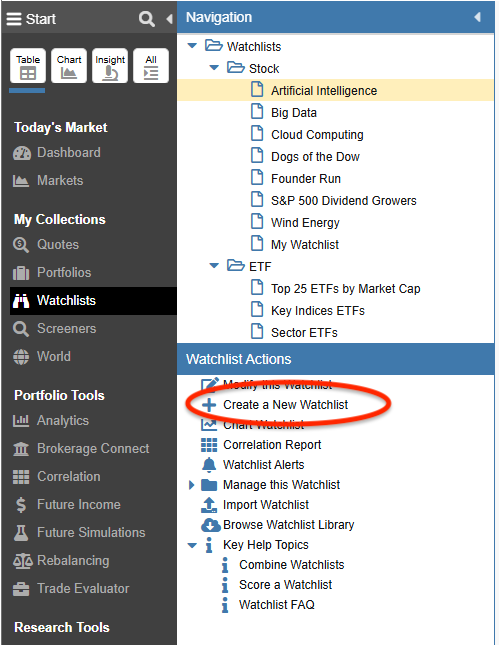
Entering Tickers
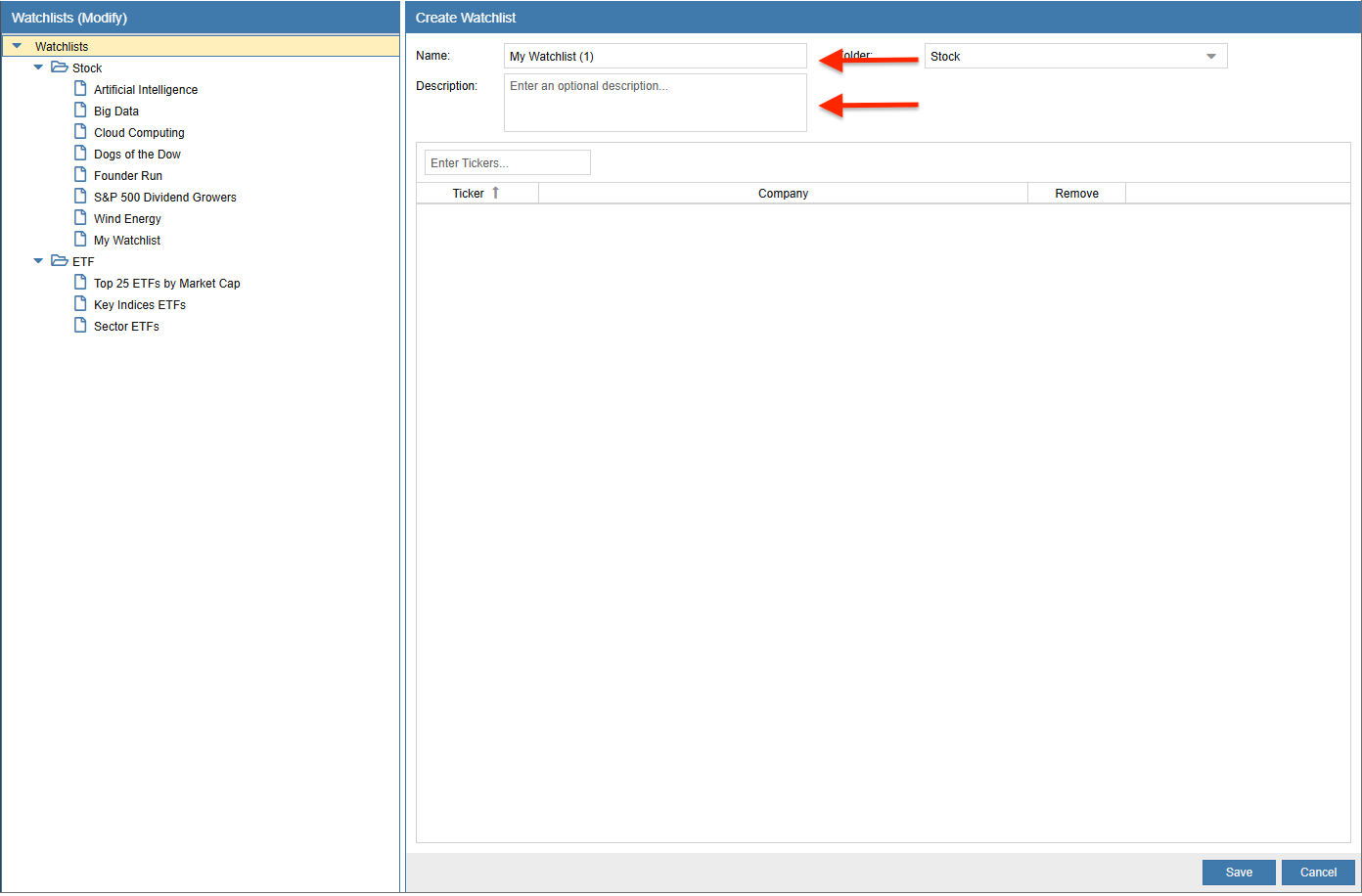
Once you have invoked the Create Watchlist command, you are presented with a Create Watchlist window. To create a new watchlist, first add a name and description to uniquely identify the list.
Then, specify a ticker to add to the watchlist by entering part or all of the ticker symbol or company name in the Search Box. You will be presented with a list of tickers to select from in the auto-fill suggestion menu. Select the appropriate ticker to add it to the watchlist.
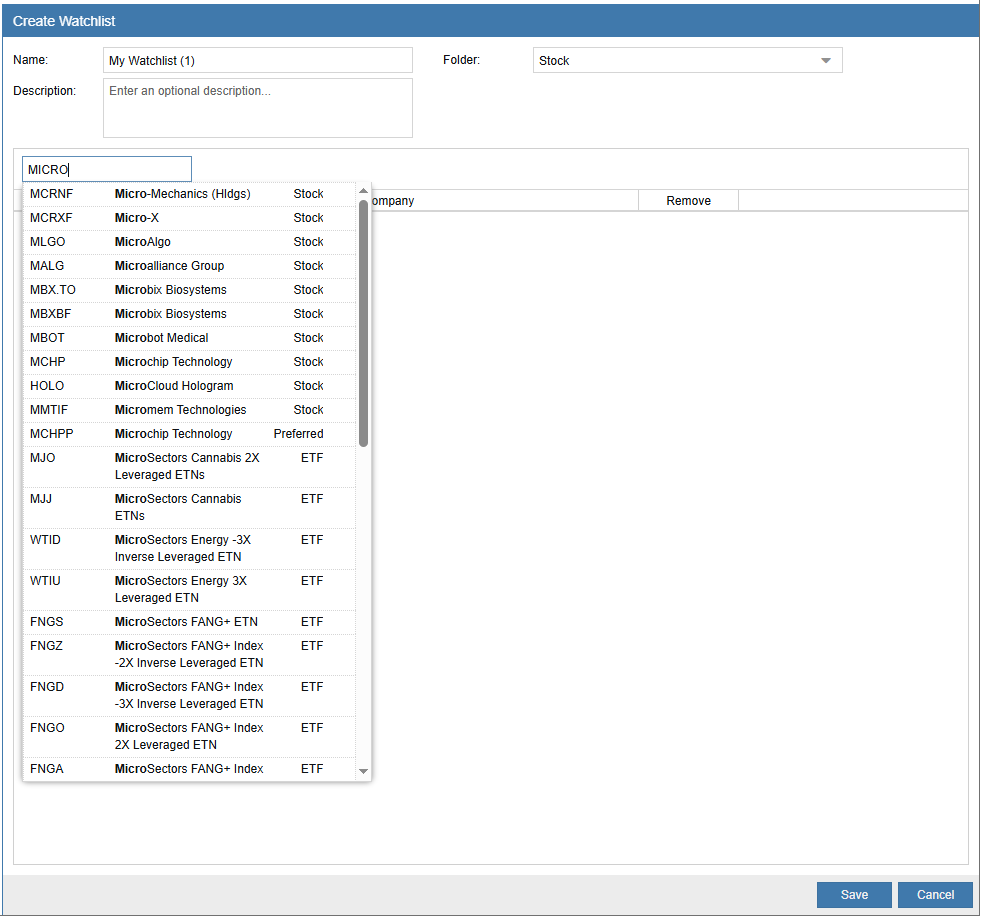
Note that you can cut and paste multiple tickers into the ticker entry box. The tickers can be separated by spaces or commas and can even be pasted from a source that contains multiple lines.
Importing a Watchlist
This section describes how to import a watchlist from an external location.
The first option enables you to import a watchlist that was previously exported from Stock Rover or from a file that contains a list of tickers. If you have many watchlists or iterations of a watchlist, you can save them offline for later import.
The second option is importing watchlists from the Investors’ Library. The Investors’ Library is a repository for investment research resources, including an extensive collection of watchlists that cover various investment strategies.
Importing a Watchlist From a File
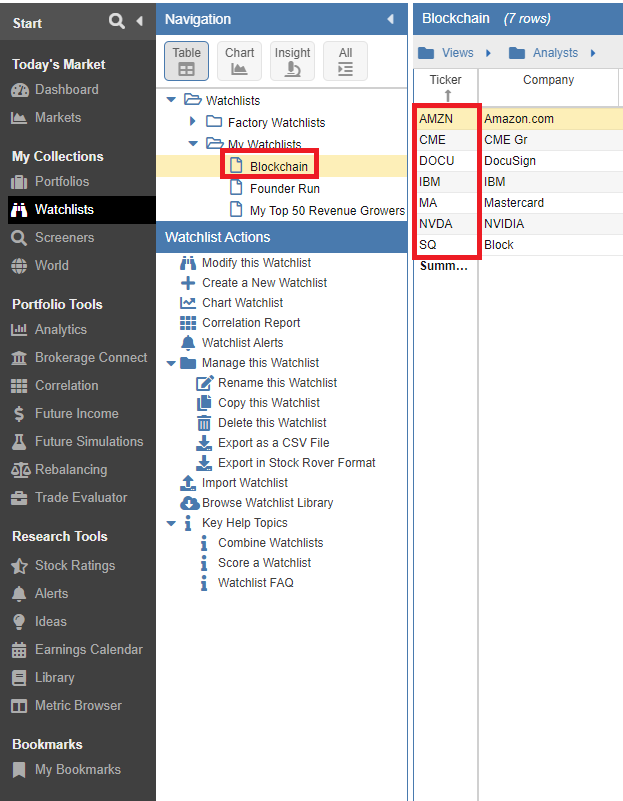
To import a watchlist, select Watchlists in the vertical Start menu on the left side of the screen. Then, right-click on the Watchlists folder and select ‘Import Watchlist’ to open the Import Watchlist window.
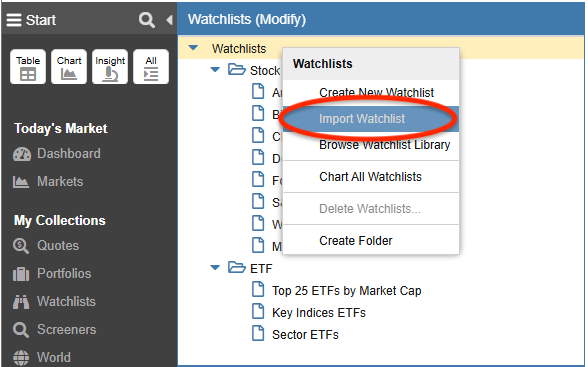
While in the Import Watchlist window, click ‘Browse’ to search for the watchlist file to import. Once a file is selected, the watchlist’s name, description, and tickers are displayed.
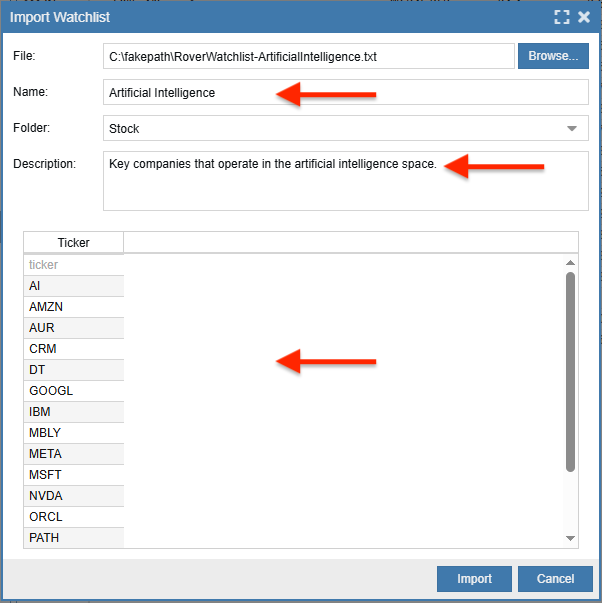
Clicking ‘Import’ loads and displays the watchlist in the selected layout.
Importing a Watchlist From the Investors’ Library
To browse the Watchlist Library, select Watchlists in the vertical Start menu. Right-click on the Watchlists folder and select ‘Browse Watchlist Library’. This brings you to our library, where you can import any of the available watchlists. Please see our Library help for more detail.