

Viewing Alert History
Alerts History
To review all notifications that have been triggered over the past 90 days, navigate to the ‘Alerts History’ tab within the Alerts window. By default, your history is sorted chronologically with the most recent alerts at the top. You can easily re-sort the data by clicking any column header. For a quick summary of the alert’s specific parameters, simply mouse over any row to reveal a detailed tooltip.
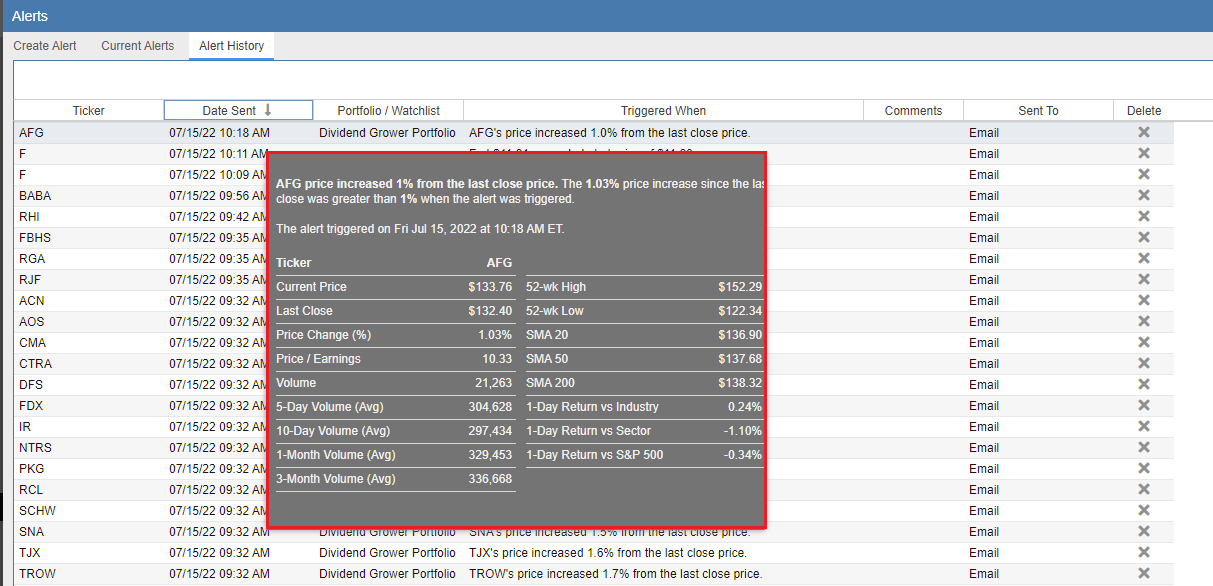
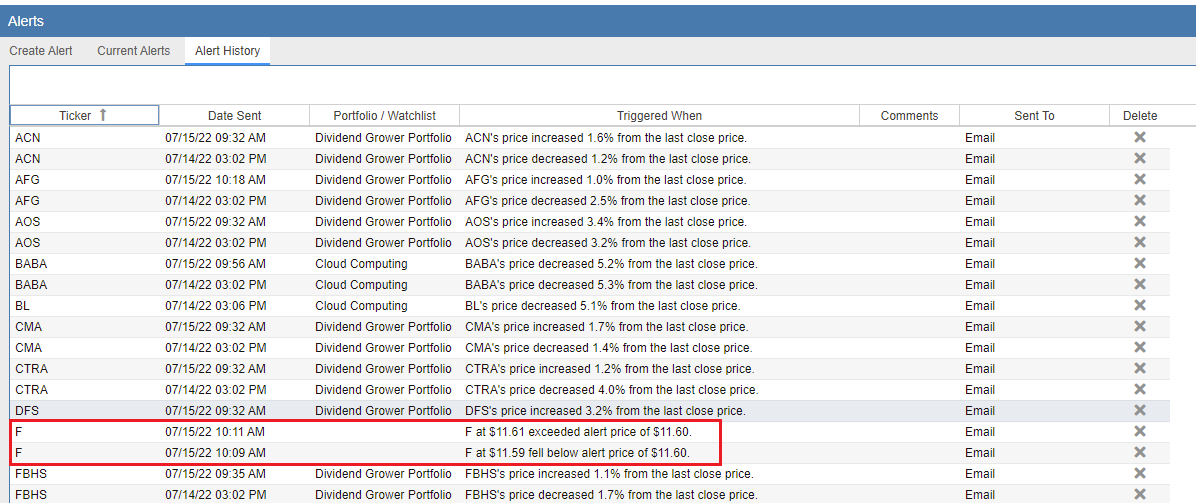
The history view also helps you distinguish the source of an alert. If an alert was triggered for an individual ticker, the ‘Portfolio/Watchlist’ column will remain empty. However, if the alert was triggered because the ticker is part of a monitored group, the specific portfolio or watchlist name will be displayed.
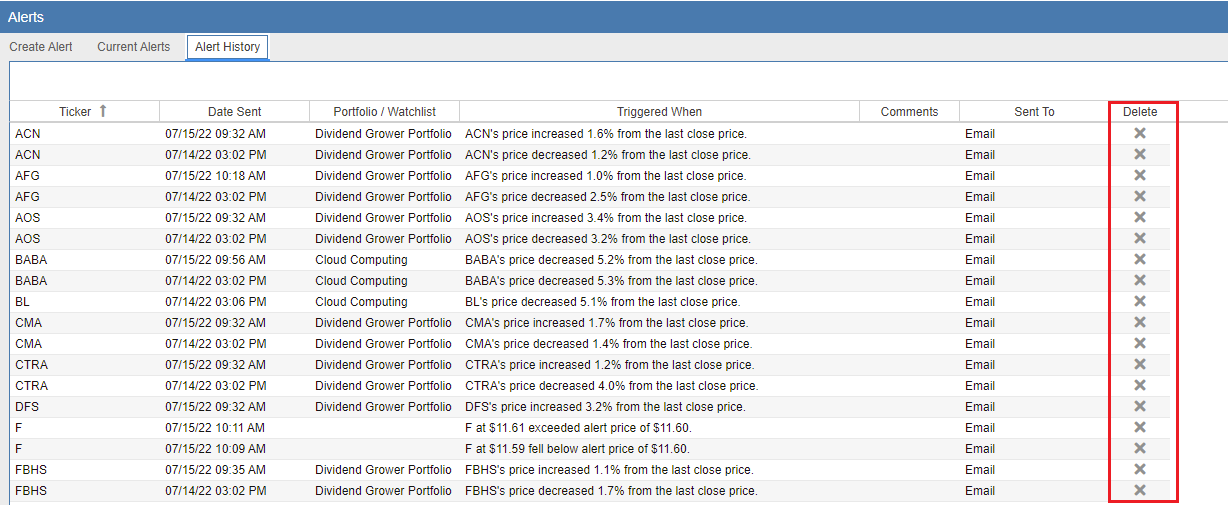
To keep your history organized, you can remove individual entries by clicking the ‘x’ icon in the ‘Delete’ column.
For external analysis or record-keeping, you can export your entire alert history to a .CSV file. Simply click the ‘Export’ button located in the top right-hand corner, as highlighted in the screenshot below.
