Selecting Tickers
Setting a Primary Ticker
There are a couple of ways to add a ticker to the chart. You can add a ticker by typing the ticker name into the ticker box as seen below. You can also add tickers to the Chart while viewing the Table. Please see the following section under Manipulating the Table for more detail.
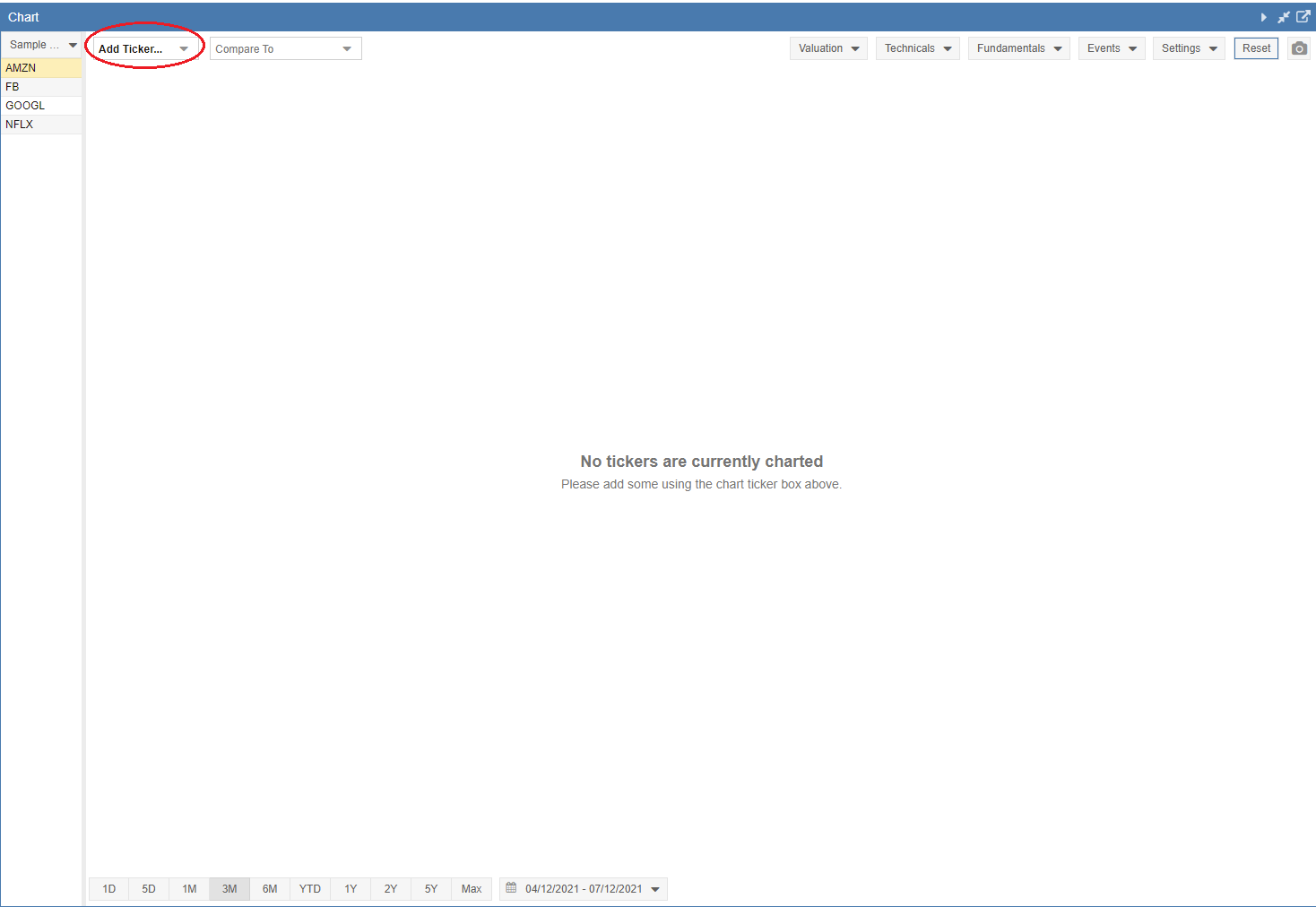
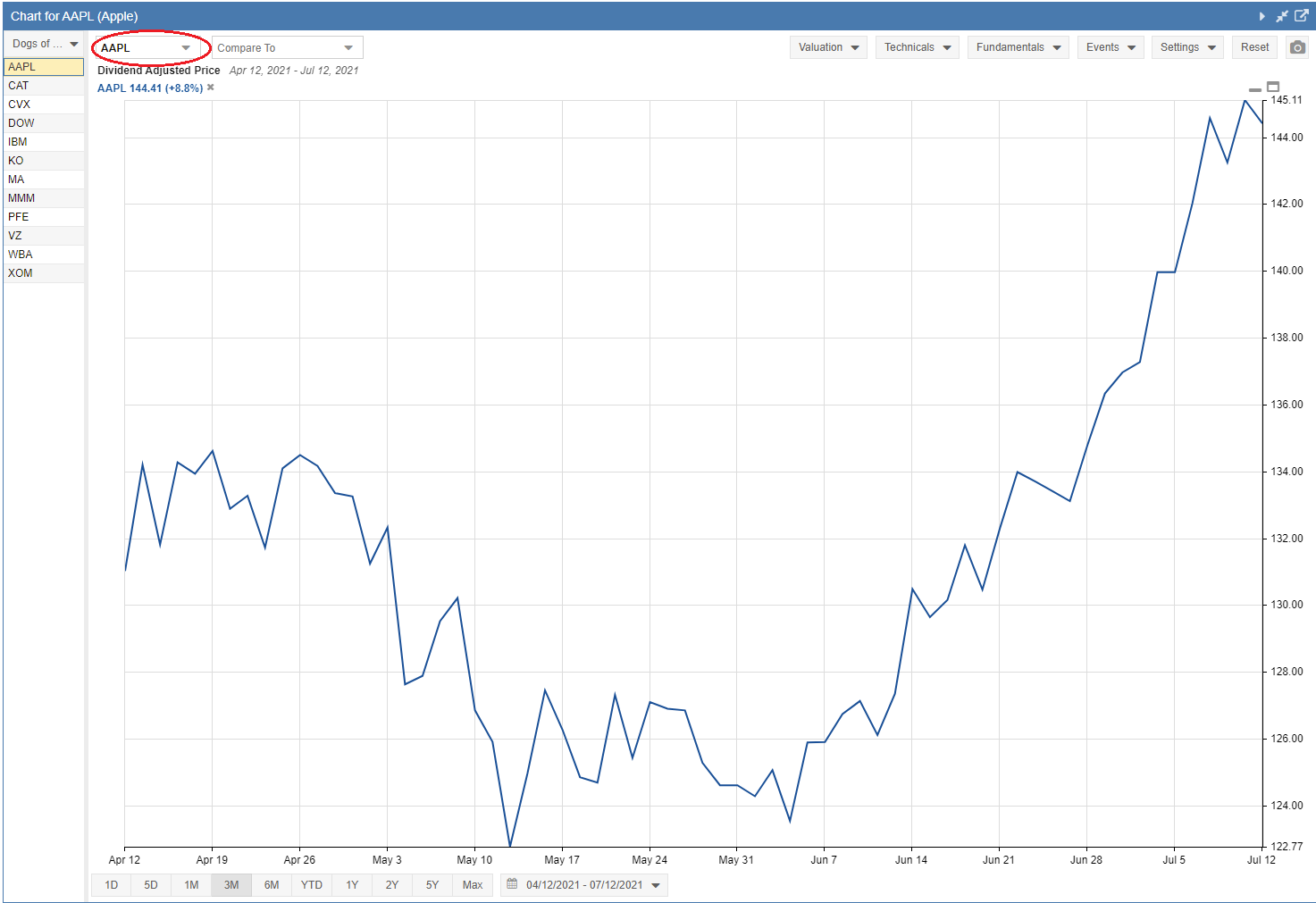
After entering the ticker into the ticker box, it will display the chart as seen below.
Adding Comparison Tickers
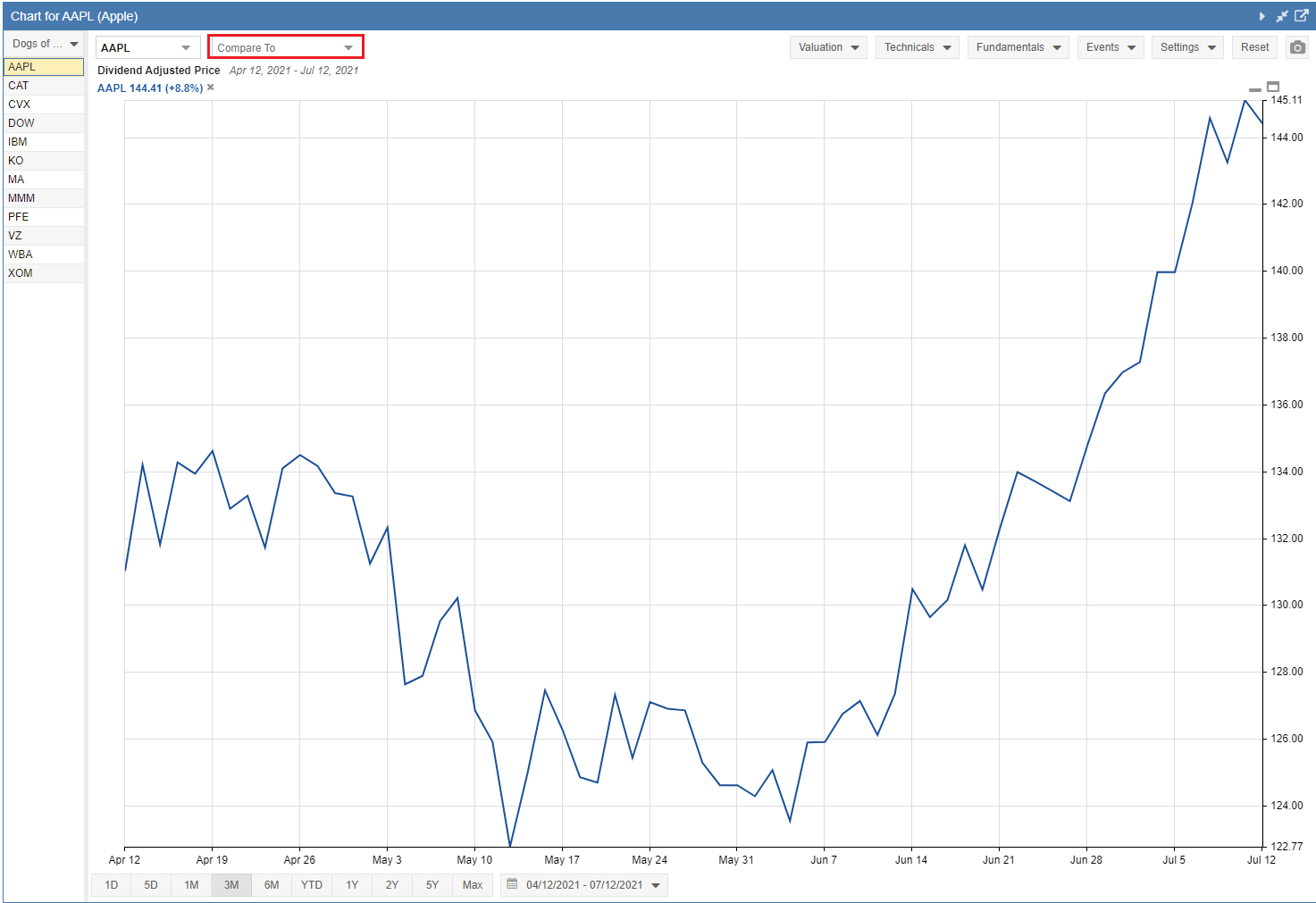
You can compare other tickers to your primary ticker by entering new tickers directly into the ‘Compare To’ box, highlighted in the screenshot below.
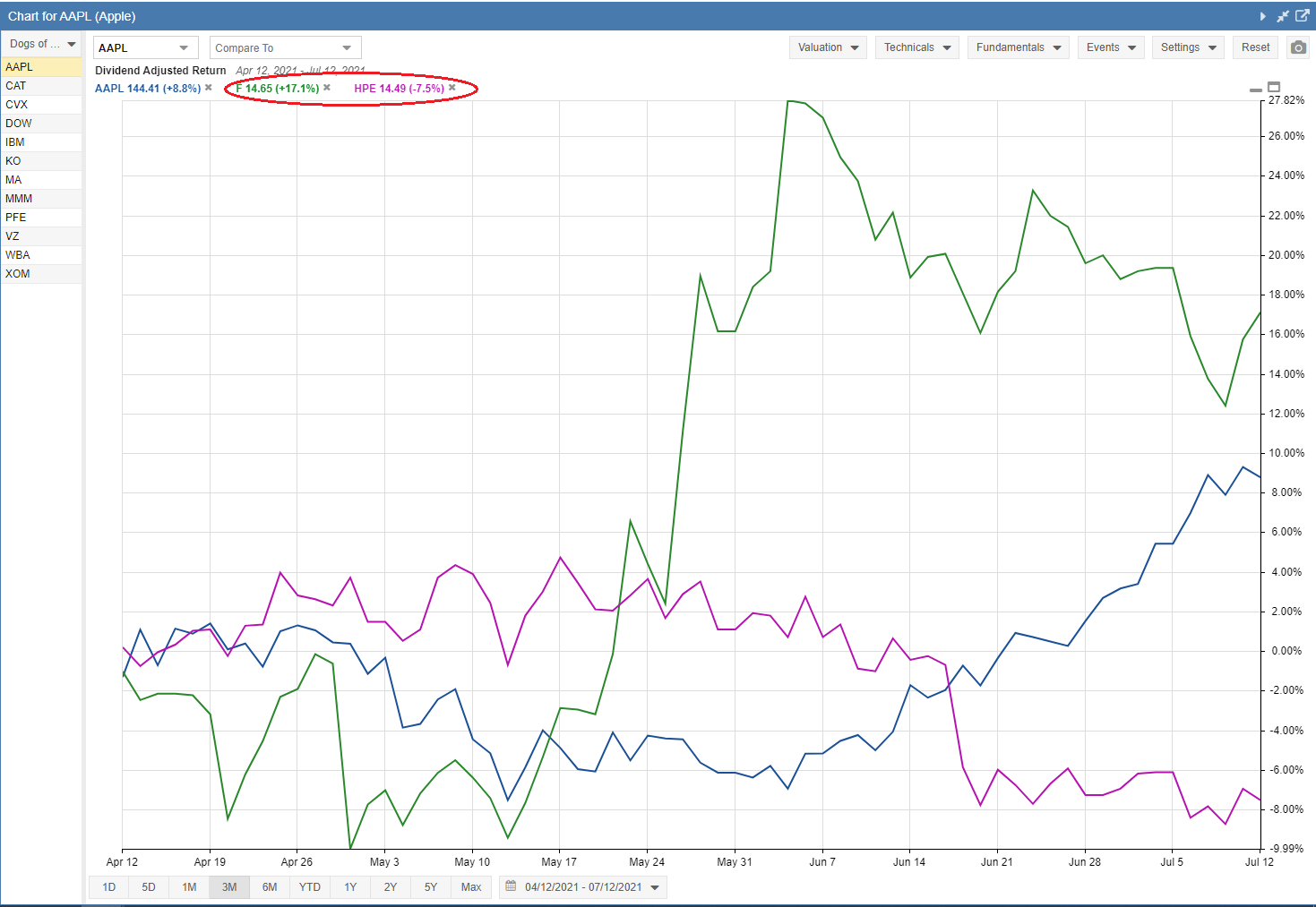
In the screenshot below, you can see the Chart with two comparison tickers added alongside the primary ticker. These tickers appear in the chart as two different colored lines.
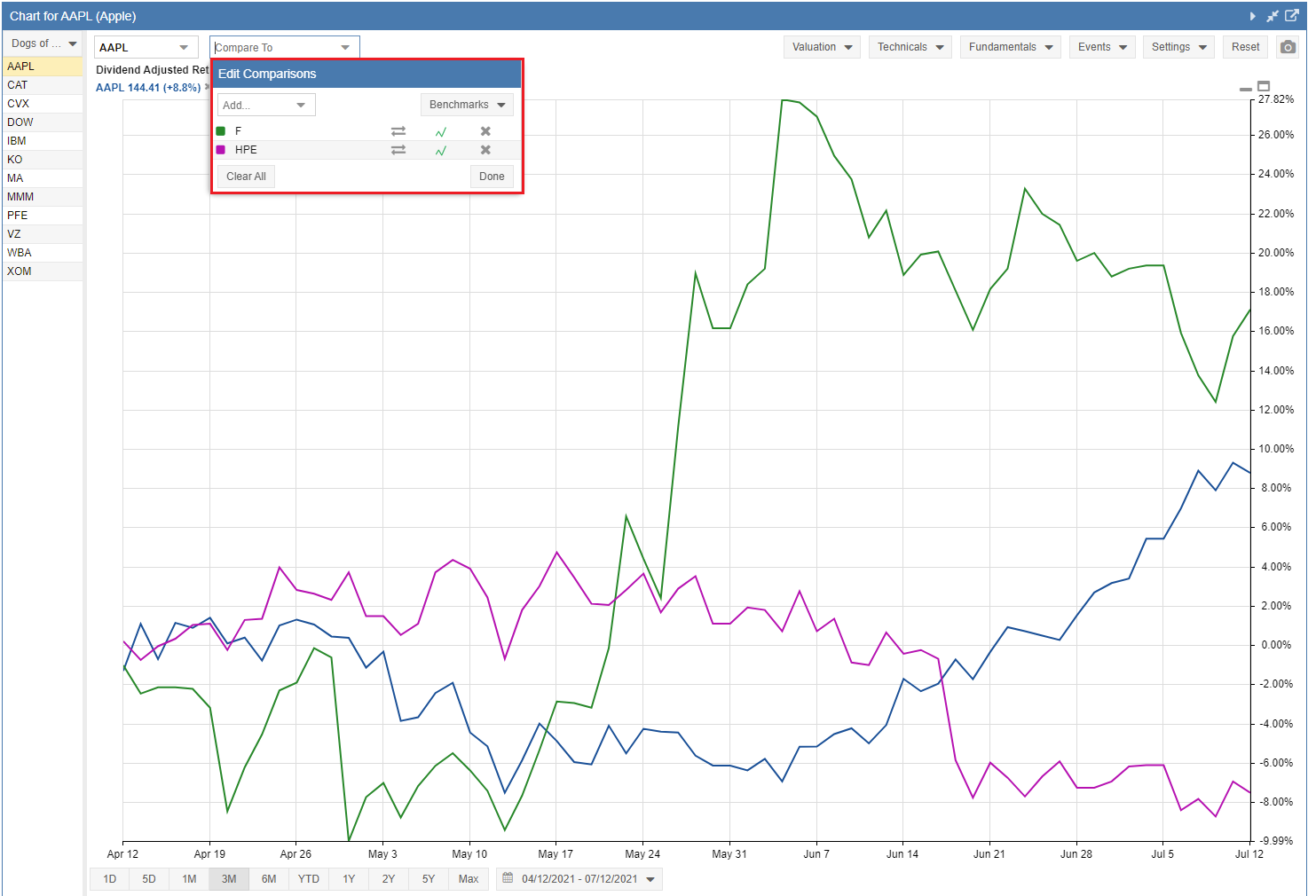
You can edit the comparison tickers by selecting the pull-down menu next to the ‘Compare To’ text. Here, you can remove existing tickers by clicking the ‘x’ to the right of the ticker. You can also add additional tickers by typing the ticker directly into the Add box.
Changing the Primary Ticker
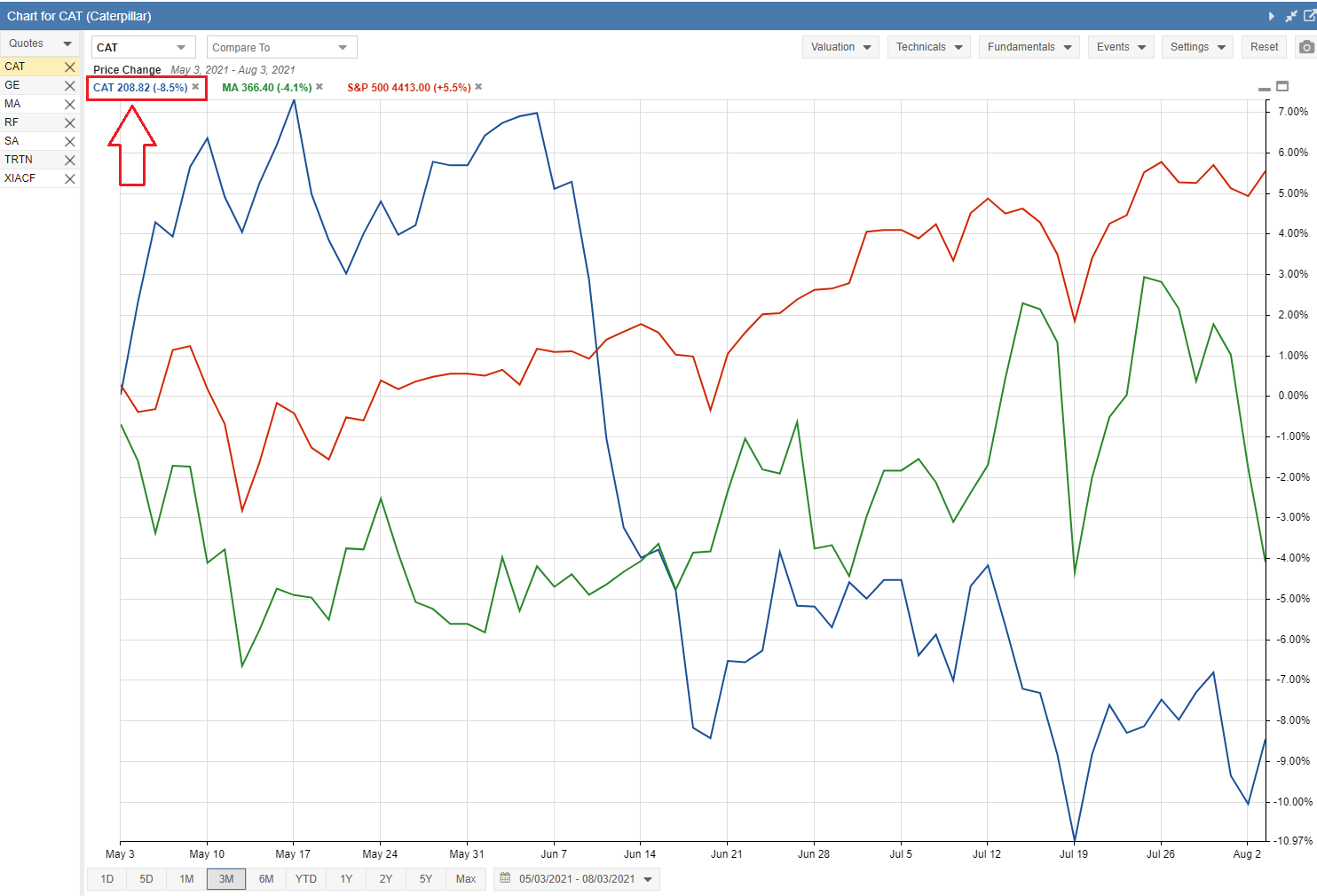
The highlighted ticker on the left is considered the primary ticker. It is the ticker to which any technicals or fundamentals drawn in the chart will apply. You can change the primary ticker by clicking on another ticker in the drop-down list. This list consists of tickers you recently referenced. You can also type a new ticker directly into the box.
Highlighting Tickers
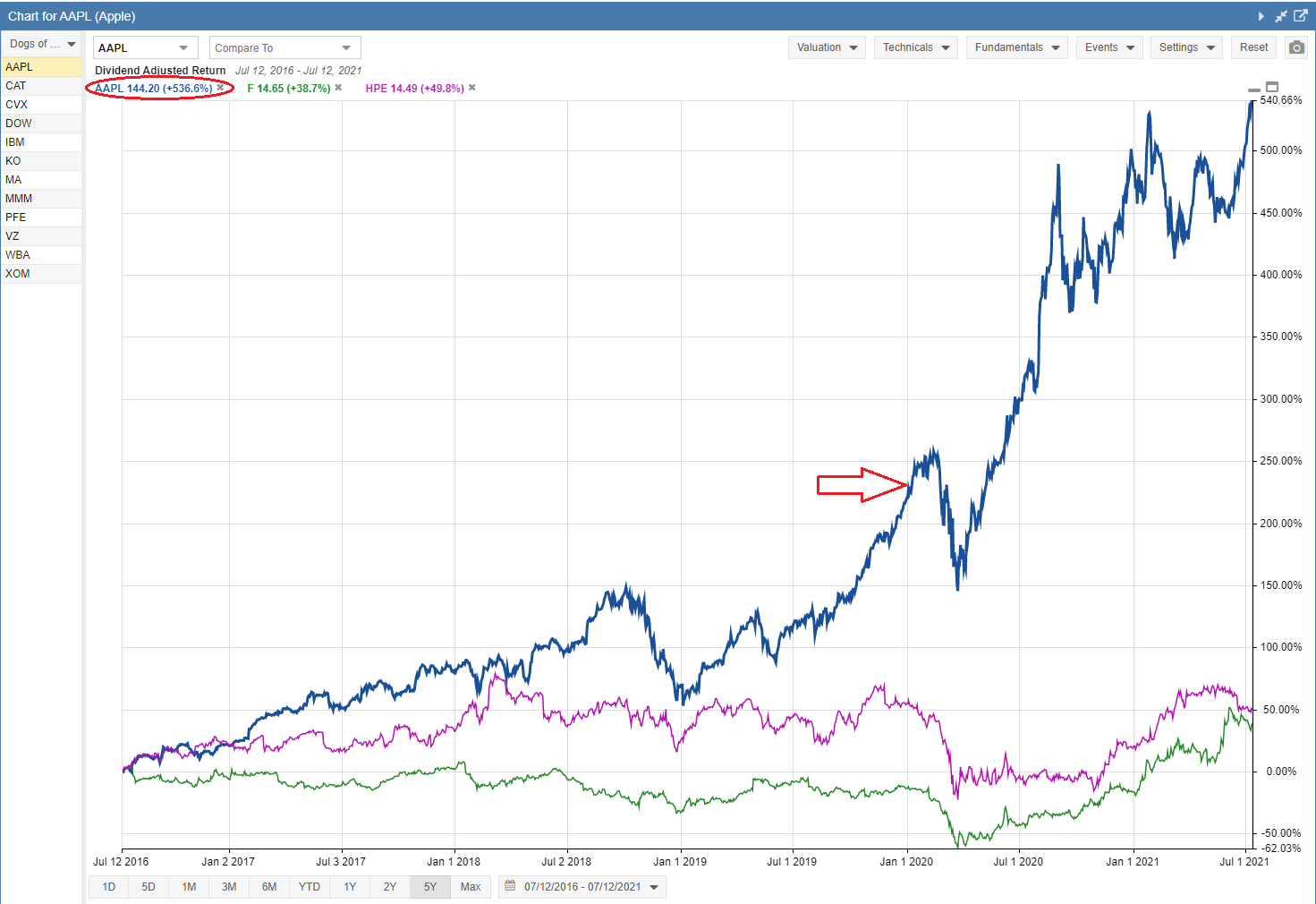
With multiple lines in the chart, if you mouse over a ticker at the top of the chart, it will bold the corresponding line so you can see it better in the graph, as highlighted in the screenshot below.
You can also mouse over a line within the chart, and the ticker that the line belongs to will be highlighted with a box drawn around it at the top of the chart.
Removing Tickers
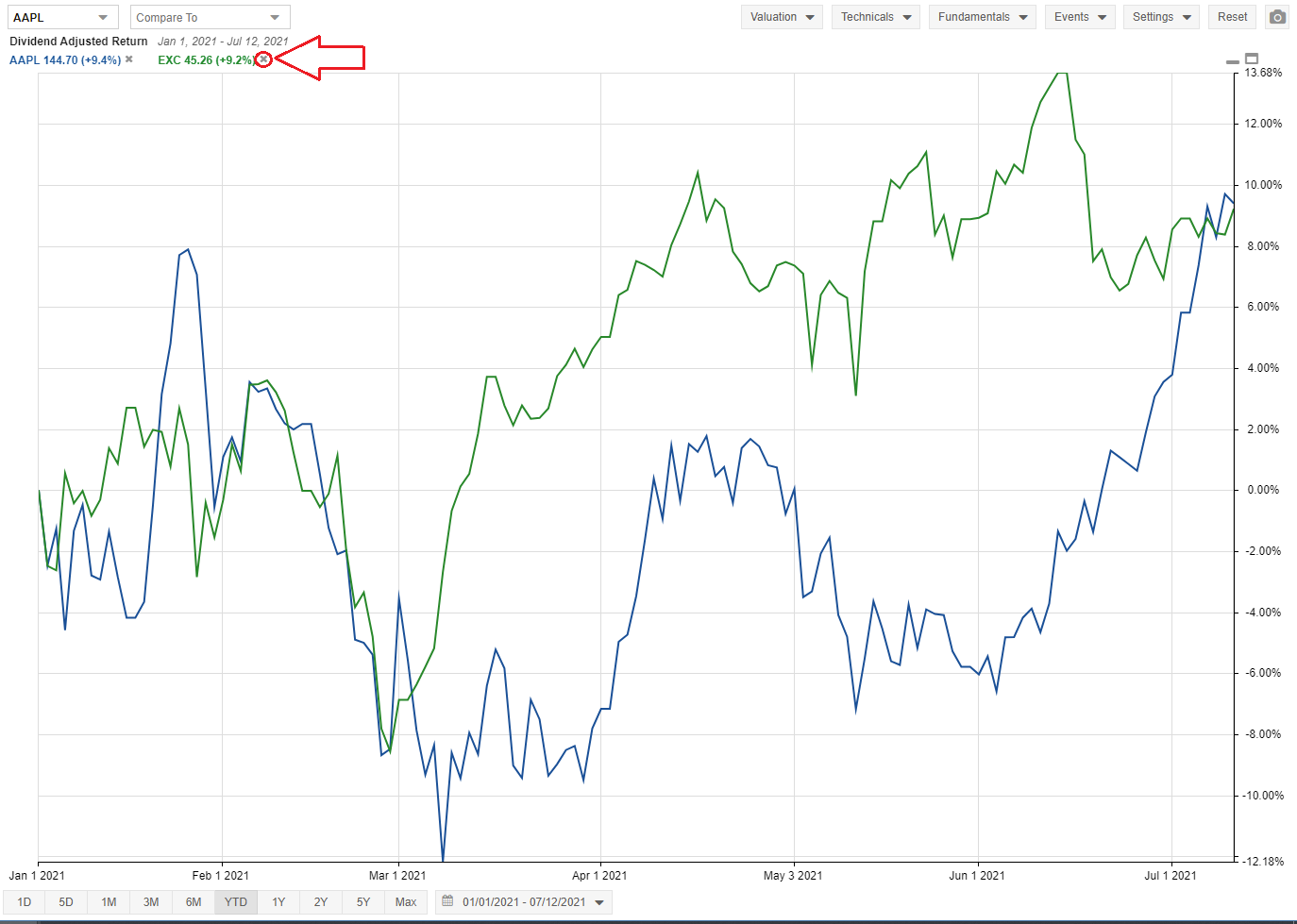
To remove a ticker from a chart, simply click the ‘x’ next to the ticker as shown below.