Setting Chart Options
Changing Chart Options
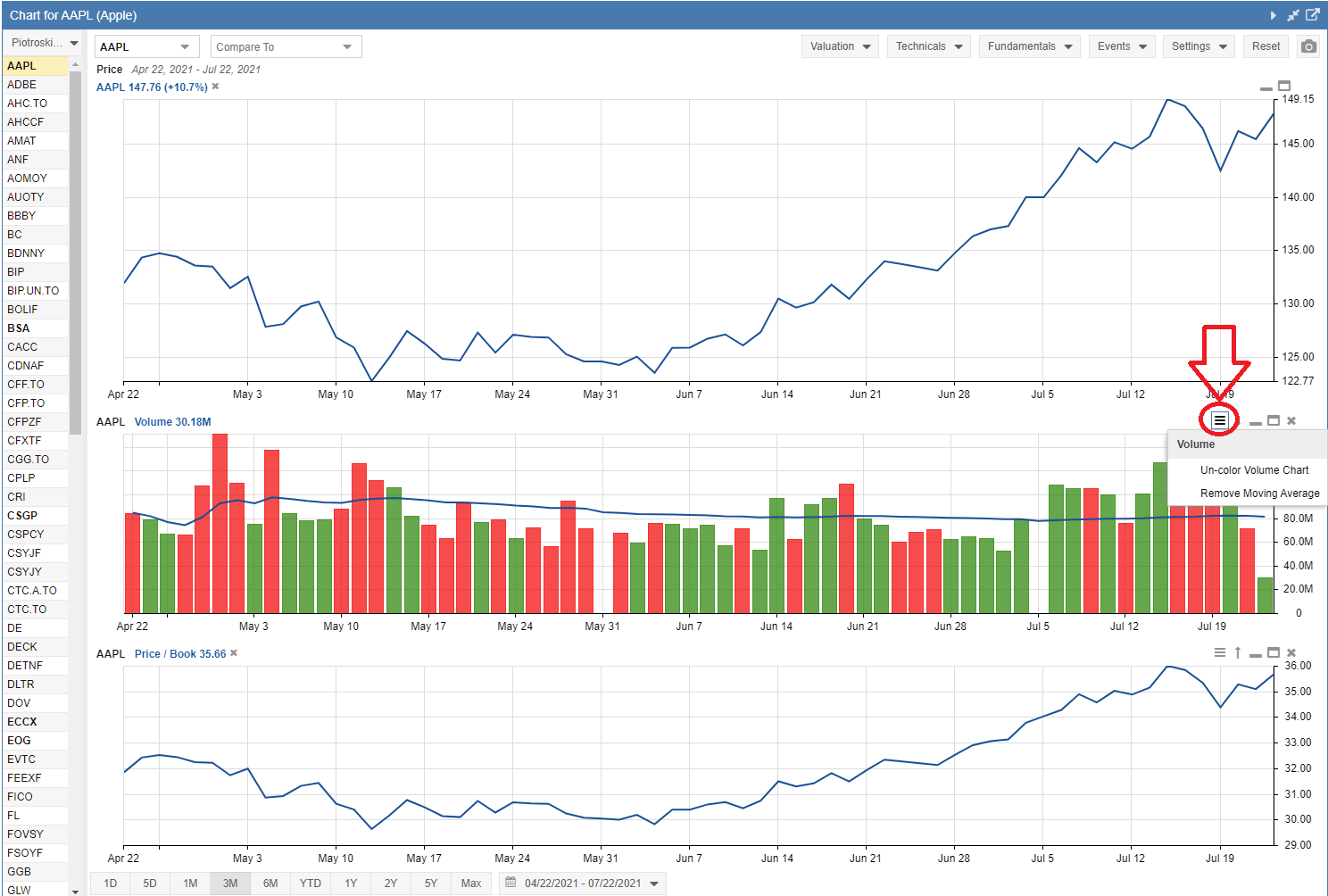
When technicals or fundamentals are displayed, a new chart will appear. Within each chart, a hamburger menu icon can be seen in the top right corner, as shown in the screenshot below. This menu allows you to make changes to the settings of the displayed chart.
The first example shows how you can change the settings in the Volume chart. For Volume charts, you can color or uncolor the volume bars for up and down days, or include or exclude the moving average line.
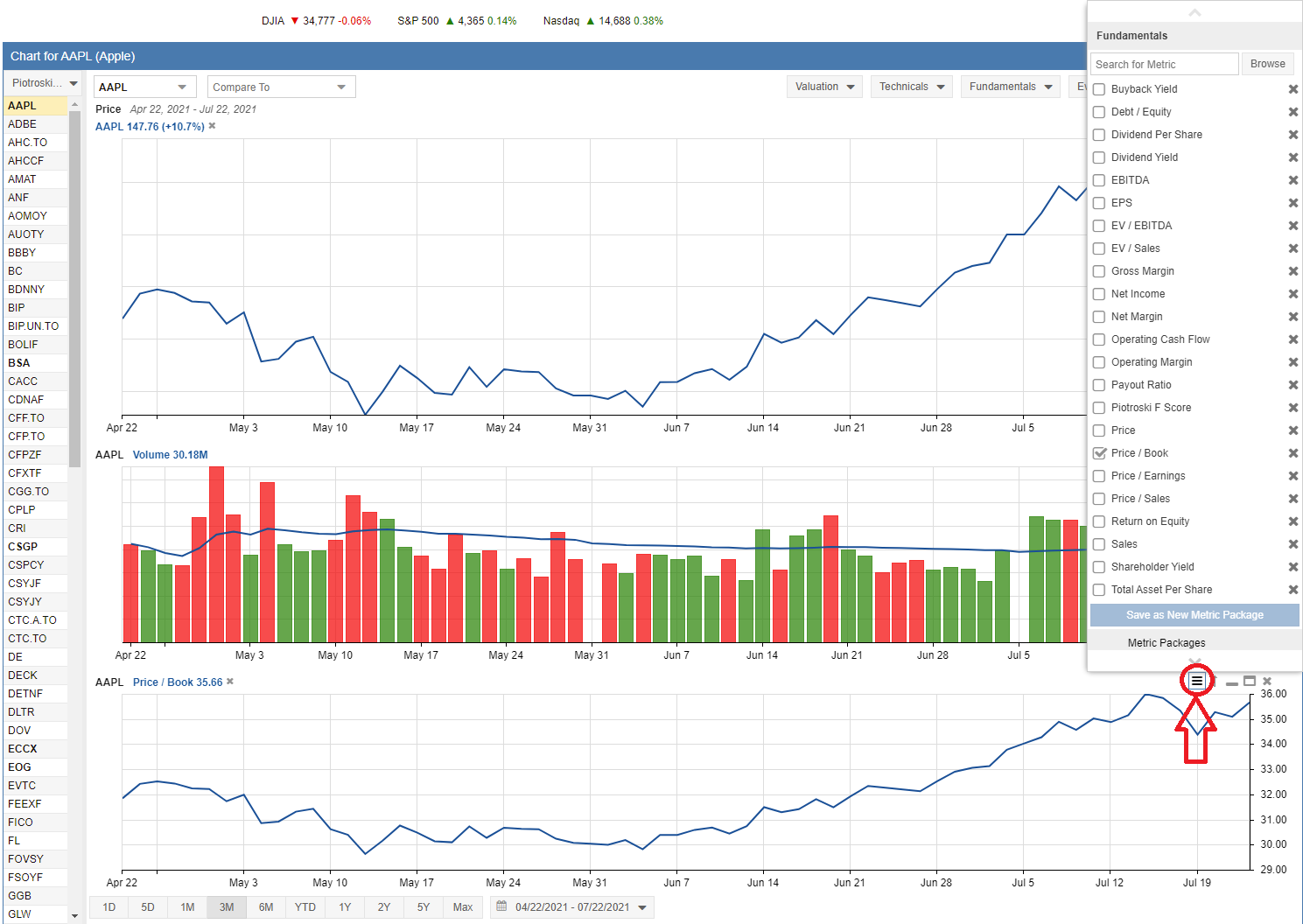
In the second example seen below, the hamburger menu gives you the option to select different fundamentals.
Changing Chart Settings
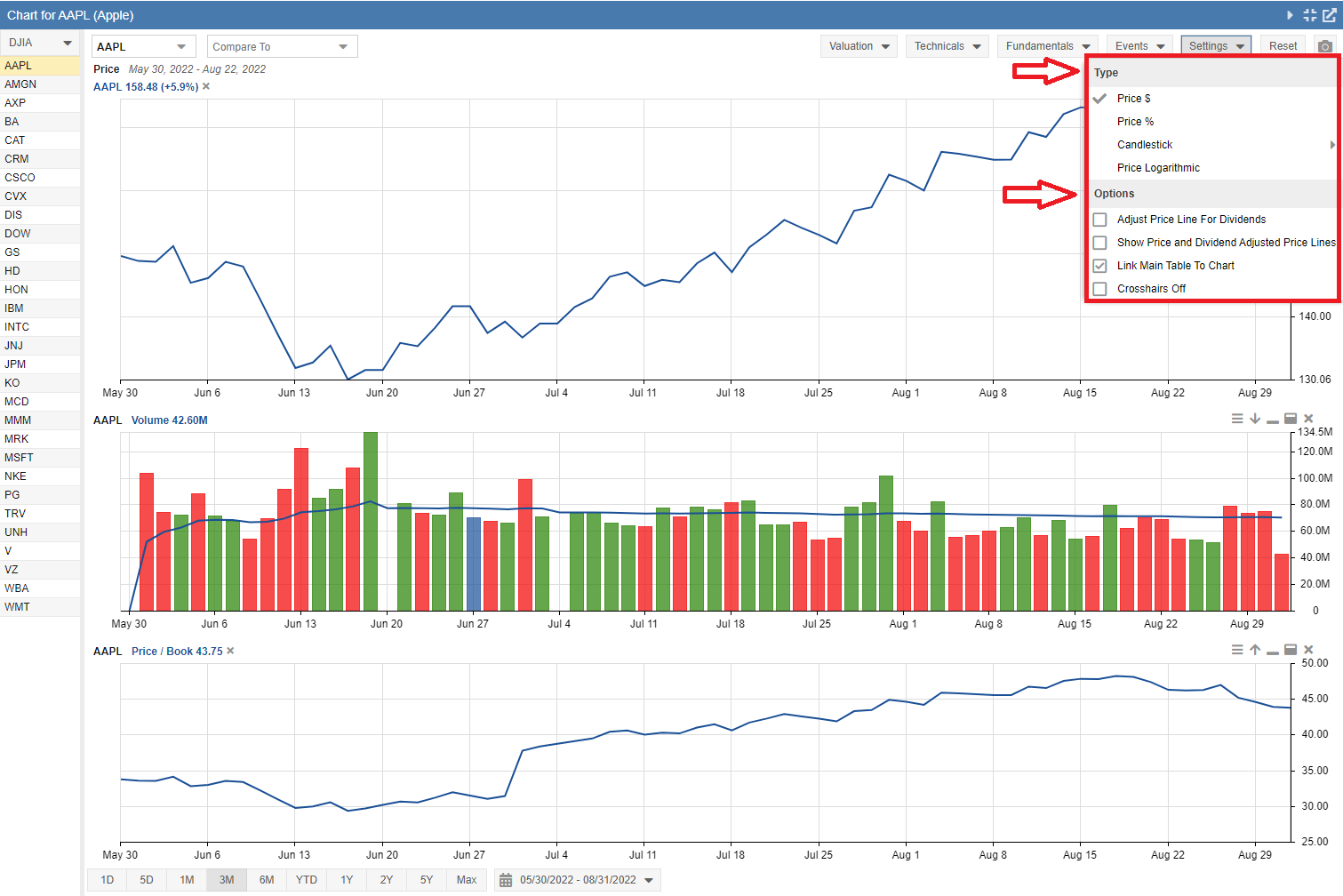
Under the Settings pull-down menu, you have several different options. Under ‘Type’, you can choose whether or not to chart in dollars or percent change. When more than one item is being charted, the y-axis unit will always be percent change in price. However, if you have only one stock in the chart, you can select whether it displays by price (in dollars) or by percent change in price. A Price Logarithmic scale is a linear scale for percent change. The distance between 10 and 15 (a 50% change) is the same as the distance between 100 and 150. The Candlestick and OHLC options are discussed in more detail here.
Also listed under Settings is ‘Options’, where you can choose to Link Main Table to Chart, Adjust Price Line for Dividends, Show Price and Dividend Adjusted Price Lines, or turn Crosshairs off. Linking the chart to the Table means that an item clicked in the Table will automatically be charted as the main ticker in the chart. If the chart is unlinked, you can click freely in the Table without affecting the chart.
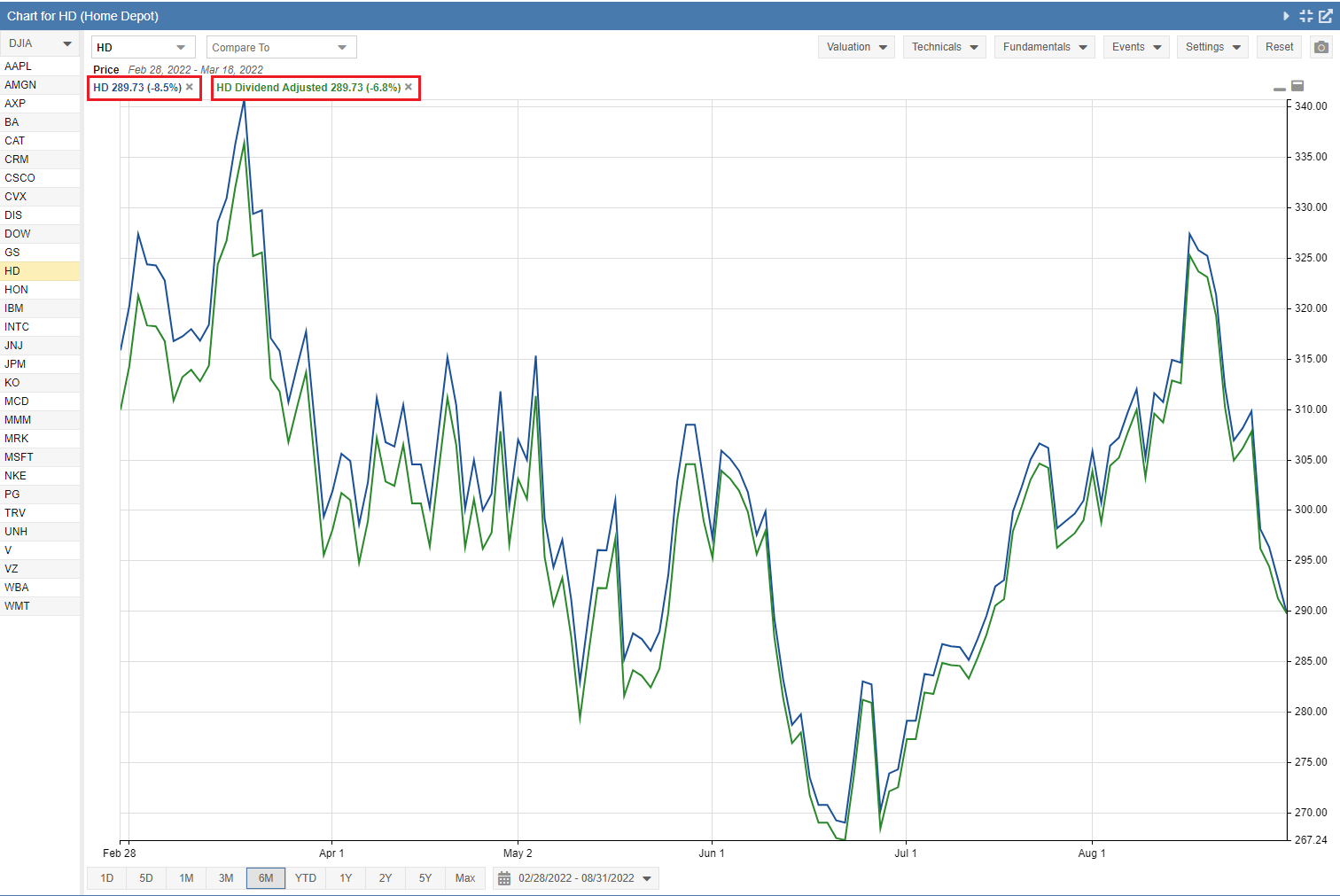
If you select the Show Price and Dividend Adjusted Price Lines option, it will display both lines on the same chart, as seen in the image below.