Additional Screener Actions
Organizing Screeners in Folders
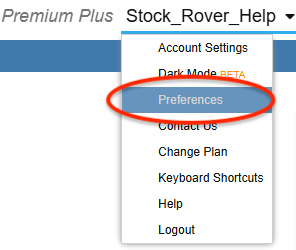
Organizing your screeners into different folders allows you to group your screeners into categories of your choosing. You can create as many folders as you like (for example: Growth, Value, and Momentum, or Ranked and Unranked). To enable screener folders, go to your username in the top right corner, and in the drop-down menu, select the ‘Preferences’ item.
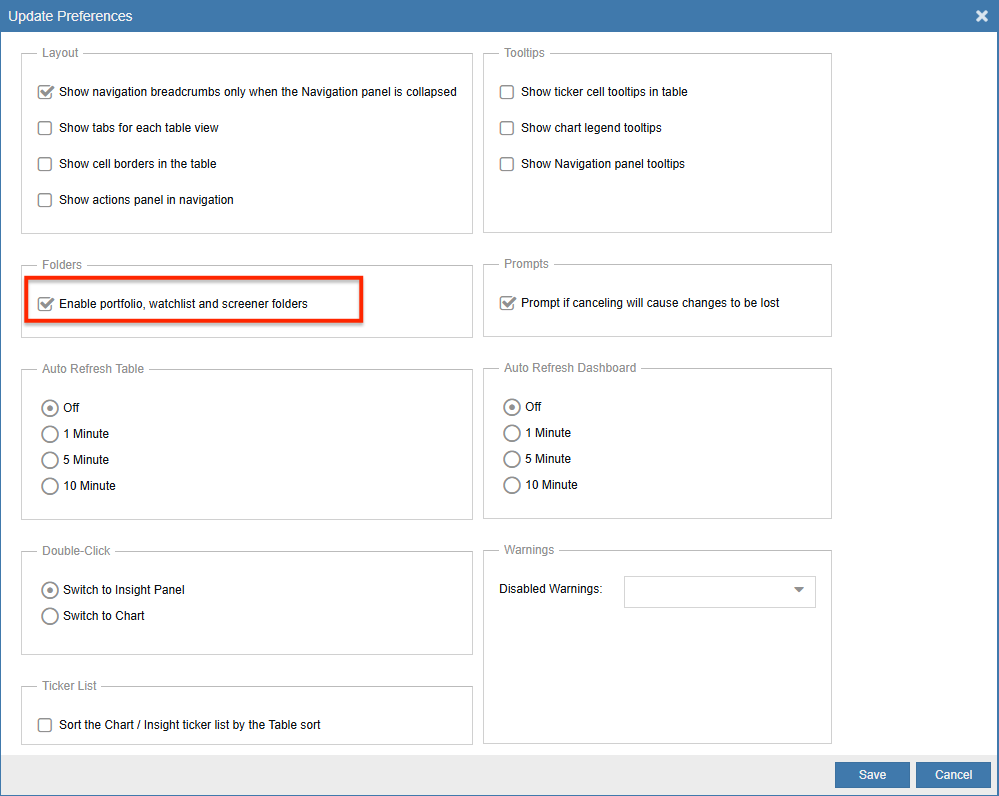
In Folders, check the box to enable screener folders.
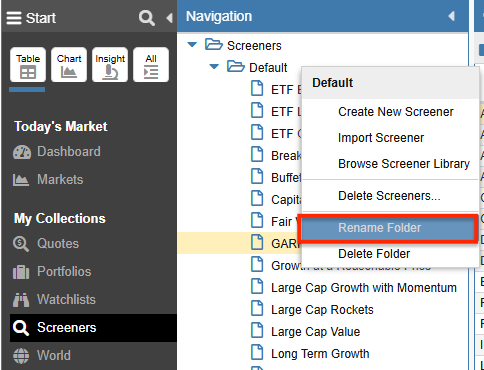
You can right-click on a folder to rename it.
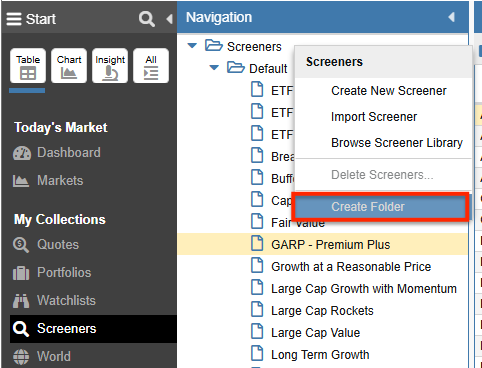
To create more screener folders, right-click on the ‘Screeners’ folder and select ‘Create Folder’ from the drop-down menu. After giving it a name, it will appear under ‘Screeners’ in the Navigation panel.
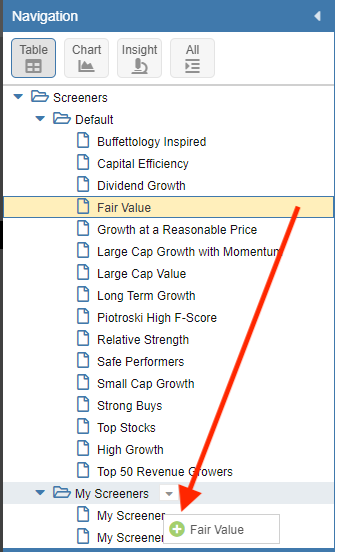
Dragging and dropping the screeners into the different folders is supported. In addition, dragging and dropping the folders themselves enables you to rearrange the folder order.
Renaming a Screener
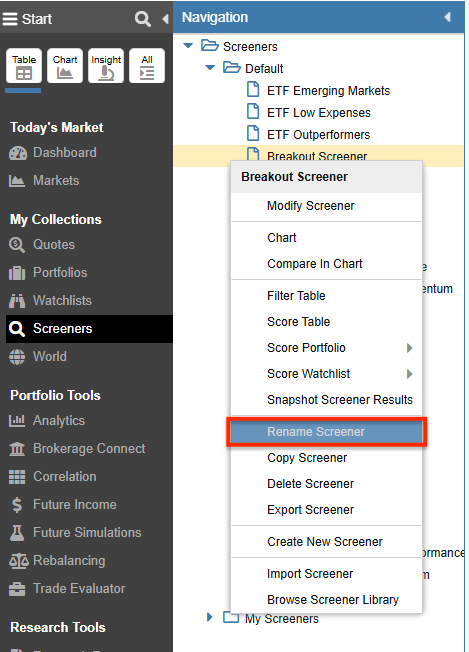
Right-click on a selected screener in the Navigation panel and select ‘Rename Screener’ from the drop-down menu.
Copying a Screener
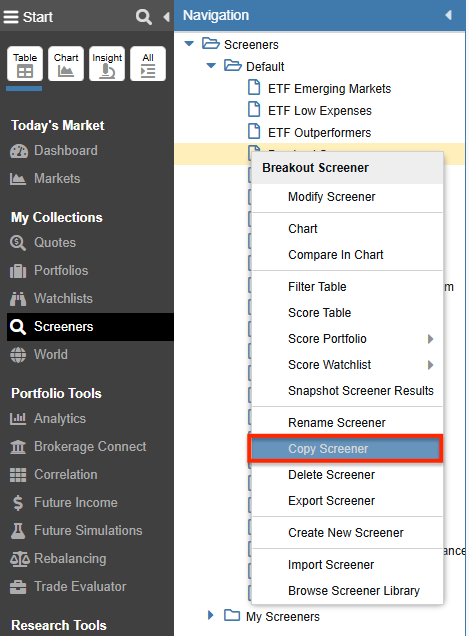
Right-click on a selected screener in the Navigation panel and select ‘Copy Screener’ from the drop-down menu.
Deleting a Screener
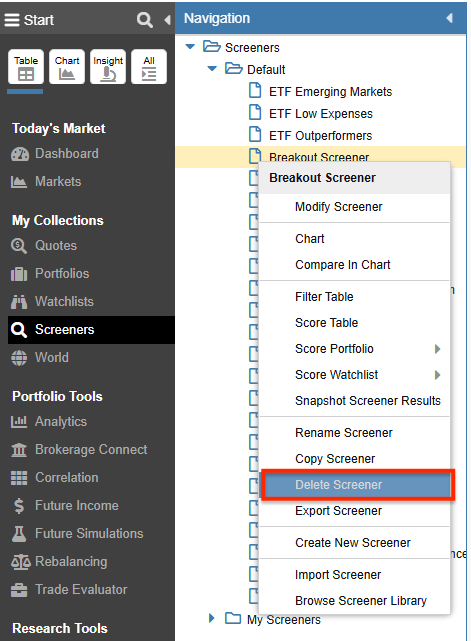
Right-click on a selected screener in the Navigation panel and select ‘Delete Screener’ from the drop-down menu.
Exporting a Screener
Right-click on a selected screener in the Navigation panel and select ‘Export Screener’ from the drop-down menu.
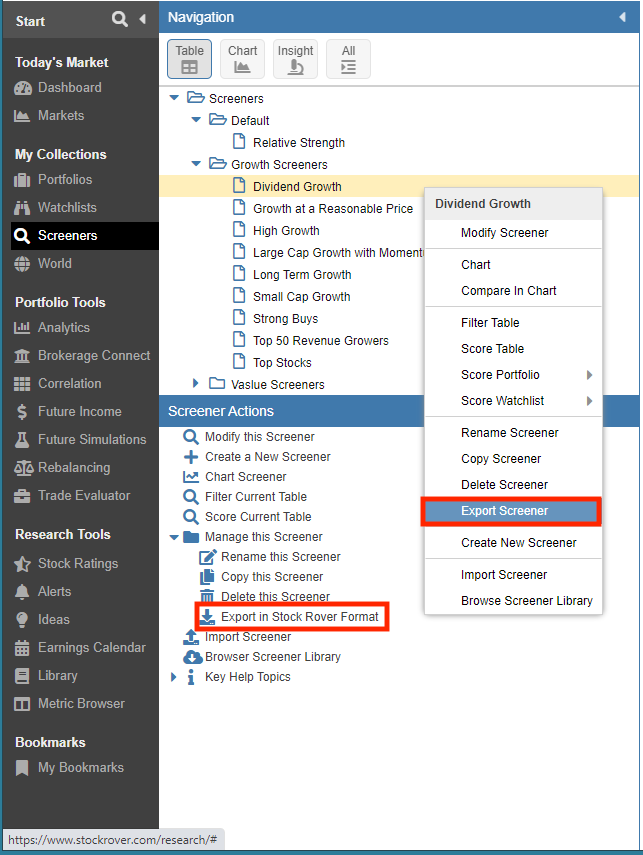
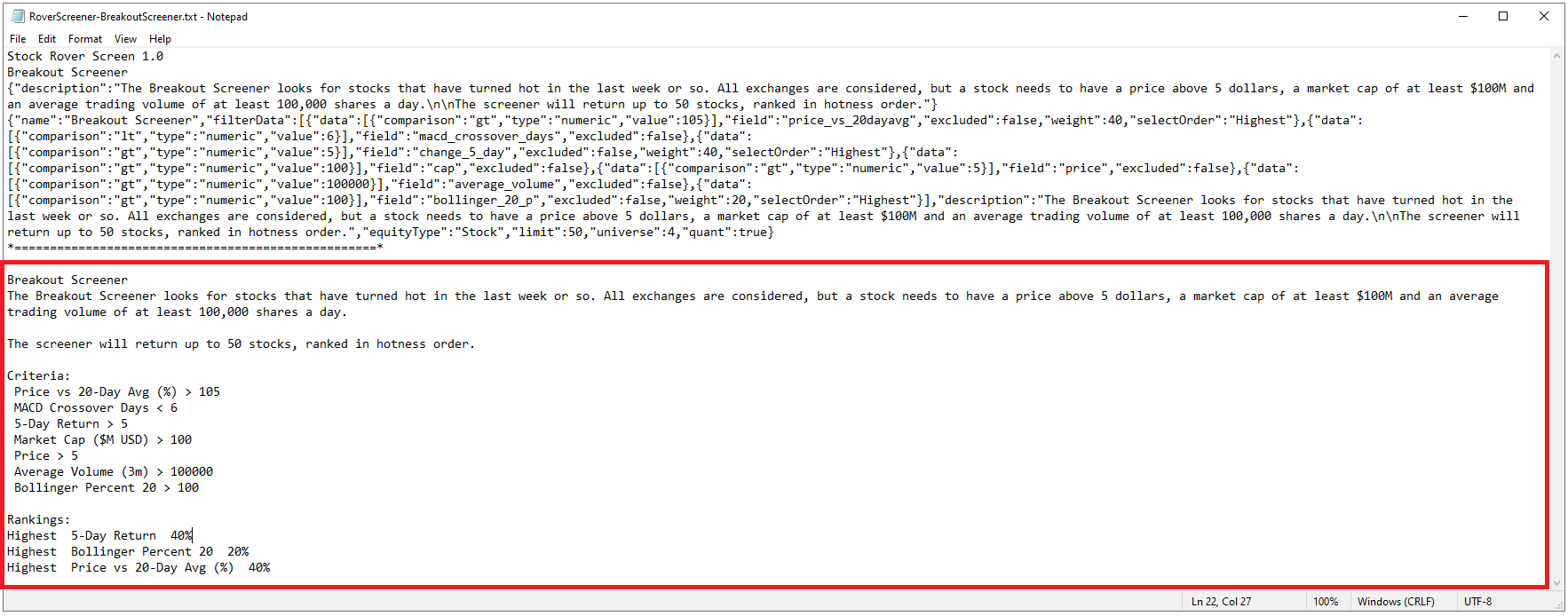
The export downloads the screener to a txt file, which is importable into Stock Rover. The export file also displays a readable version of the screener criteria, as shown below.