

Printing Research Reports
Printing Research Reports
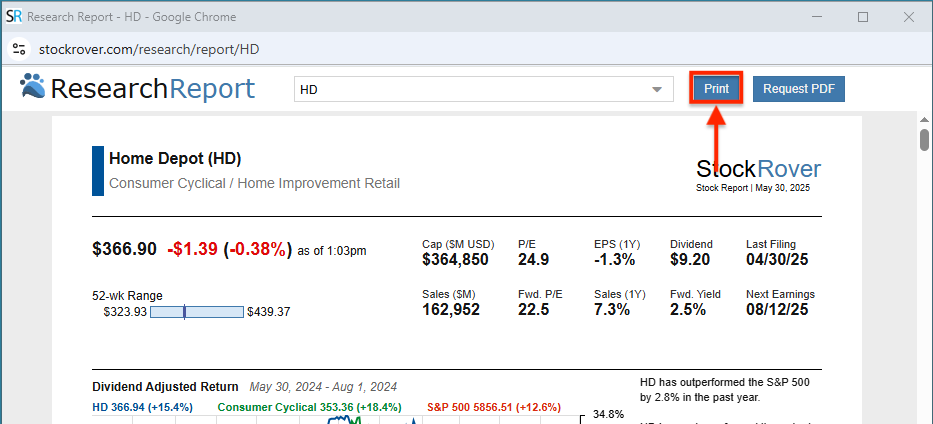
To print a Research Report, click the “Print” button located at the top of the report interface, as highlighted in the screenshot below. This action will launch your system’s print dialog window. If the print window does not appear automatically, you can also use the keyboard shortcut CTRL + P (or Cmd + P on Mac) to open it manually.
If you are accessing a Research Report directly from the Start Menu, the Print option may be tucked away to optimize screen space. In this case, you will first need to click the “Expand to a separate browser window” icon. This step opens the report in a full-view tab, revealing the Print option. The specific icon required for this step is highlighted in the image below.
