Import
Adding Metrics to the Table
The Metric Browser allows you to enhance your current active Table View by importing new metrics directly from the browser interface. This eliminates the need to manually navigate through View settings when you discover a useful metric during your research.
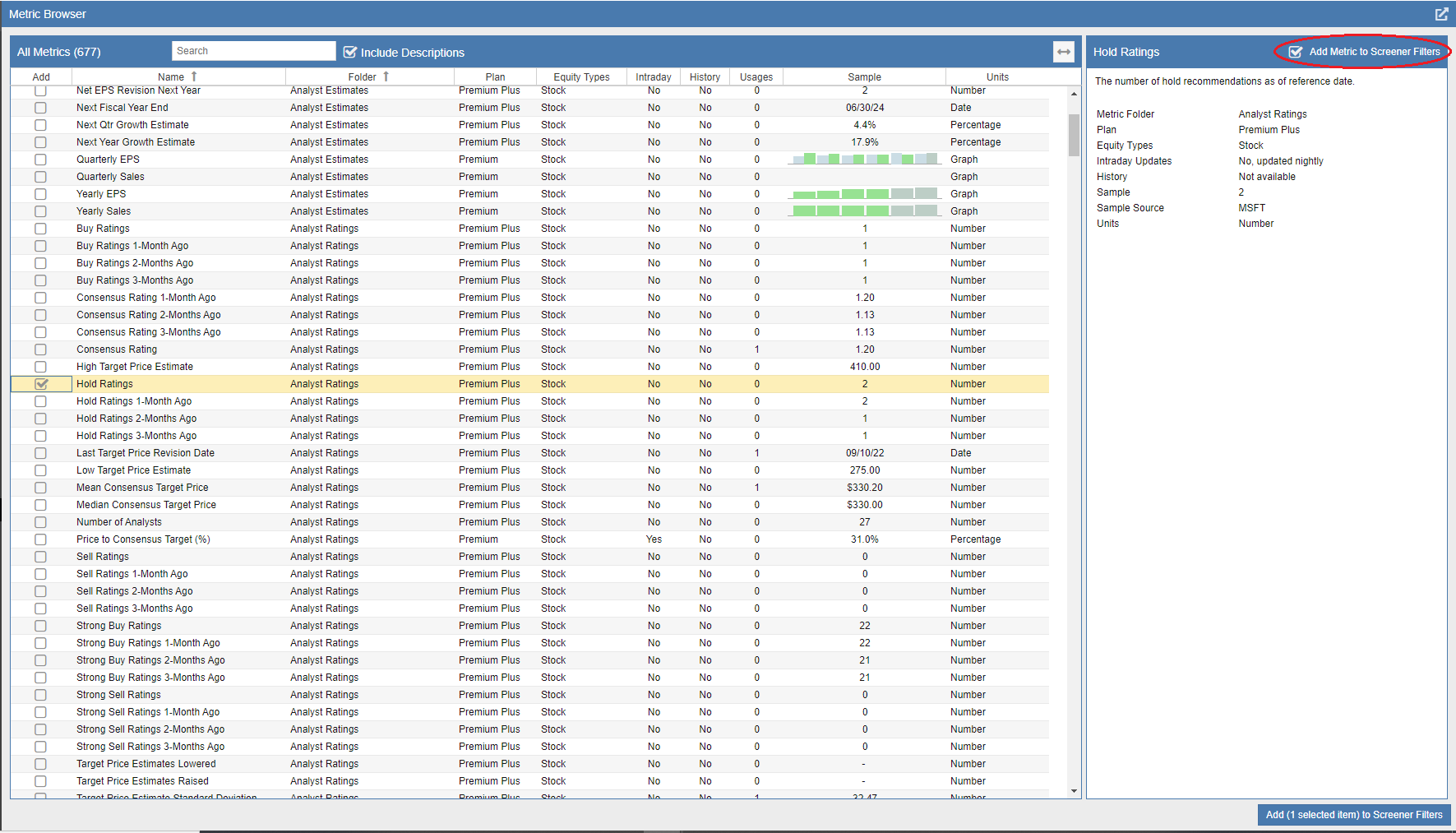
To add a metric to your Table, simply check the box in the ‘Add’ column for the desired metric. As shown in the screenshot below, the right-hand panel will update to display detailed information about the selected metric and confirm which specific Table View it will be added to. To finalize the process, click the Add button located in the bottom right-hand corner.
Checking Metric Usage
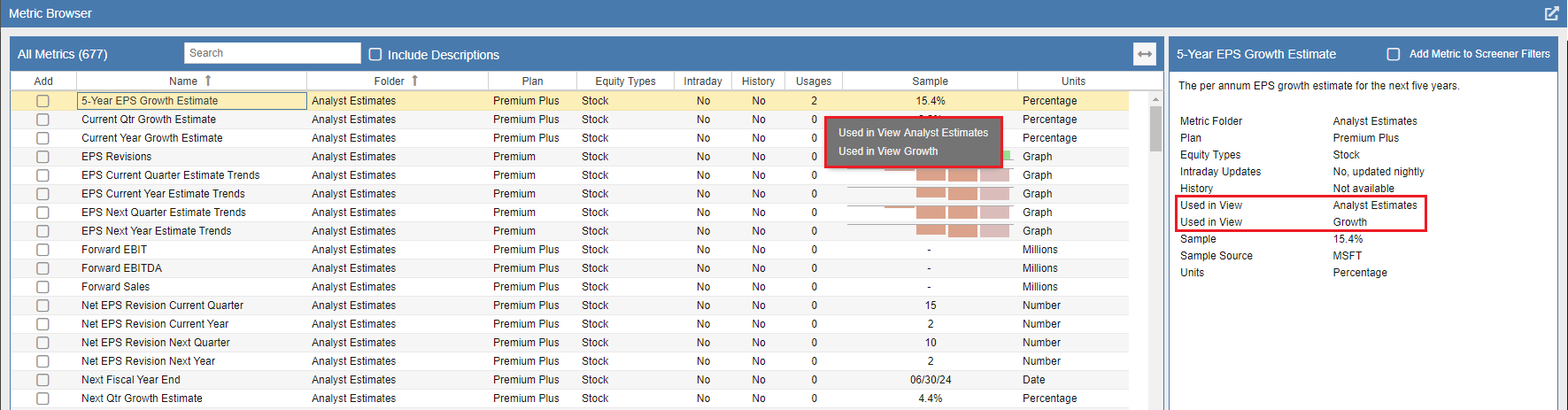
Before adding a metric, you can verify if it is already present in one of your existing views. The Usages column displays a number indicating how many views currently contain that metric. By mousing over this number, a tooltip will appear listing the specific View names. This same information is also conveniently mirrored in the right-hand details panel for the selected metric.