

Navigating Stock Rover
Introduction
This section explains how to use the Start Menu and Navigation Panel in Stock Rover to explore financial data using the Table, Chart, and Insight Panel. Whether you are analyzing tickers from a portfolio, watchlist, or screener, these components work together to streamline your research process.
The Start Menu provides access to all of Stock Rover’s features and capabilities, while the Navigation Panel allows you to select specific datasets. From there, you can choose a layout that suits your workflow—whether focused on tabular data, charting, or detailed company research. The Table, Chart, and Insight Panel are linked for seamless navigation, allowing you to analyze and compare tickers from multiple perspectives in a unified interface.
The Start Menu and Navigation Panel are used to determine which data you see and how it is organized within the workspace.
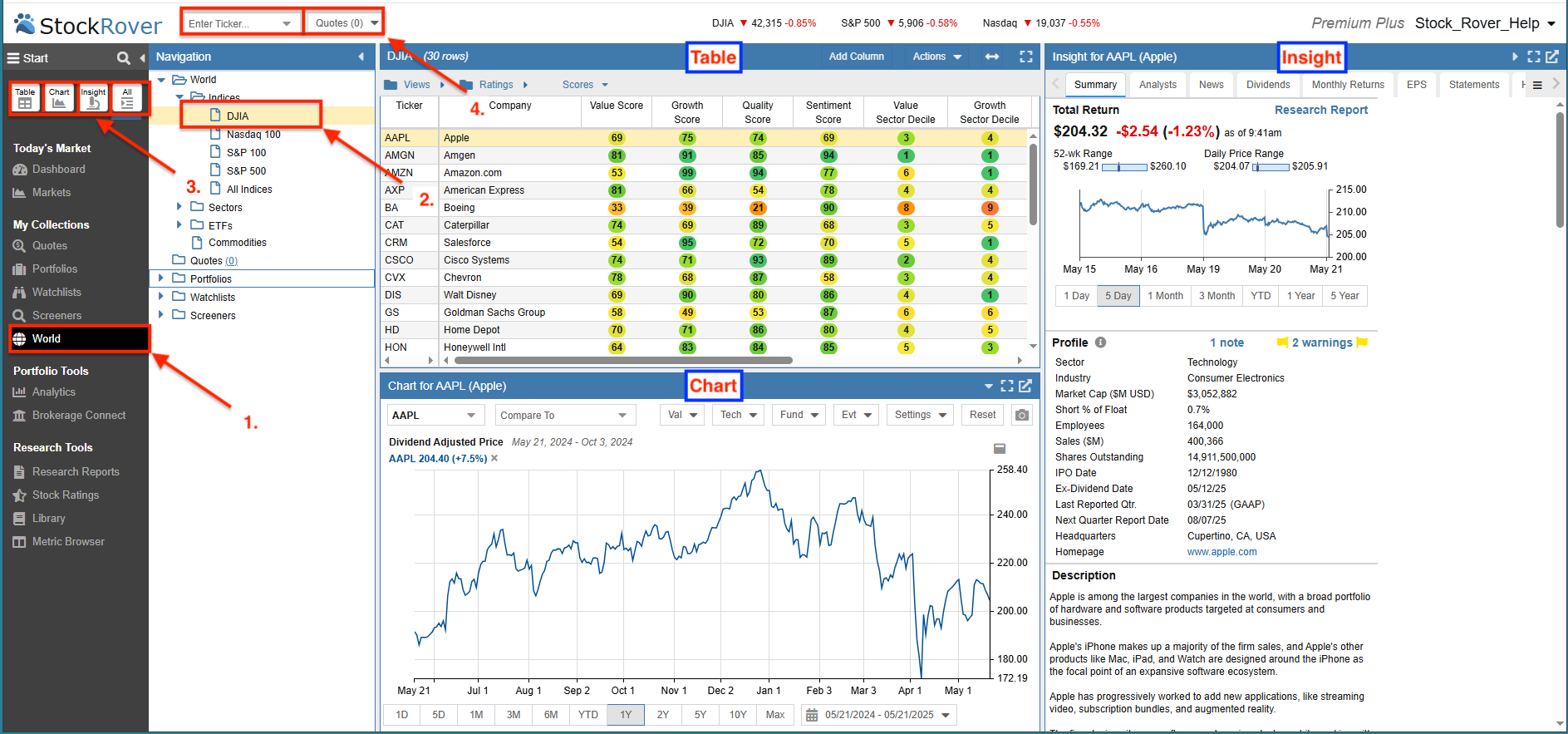
1. Select a Dataset Type: To begin, navigate to the Start Menu and choose the desired category from the My Collections section. Options include Quotes, Portfolios, Watchlists, Screeners, and World. The “World” menu encompasses all datasets, along with indices, sectors, and ETFs.
2. Select a Specific Dataset: Choose the specific item you wish to analyze from the Navigation Panel tree.
3. Choose a Layout: Select your preferred layout for viewing the data: Table, Chart, Insight Panel, or the “All” view.
4. Add Ad-hoc Quotes: If you want to add a quote to your current dataset, use the Quote box located in the header.
Note: The Table and Chart are linked by default. When a row is selected in the Table, the corresponding ticker data is automatically displayed in the Chart. Additionally, selecting a parent item in the Navigation Panel (such as the “Portfolios” folder) will display summary rows for each child item within the Table.
Layouts
The layout buttons located in the Start Menu control how your research results are displayed in the main window.
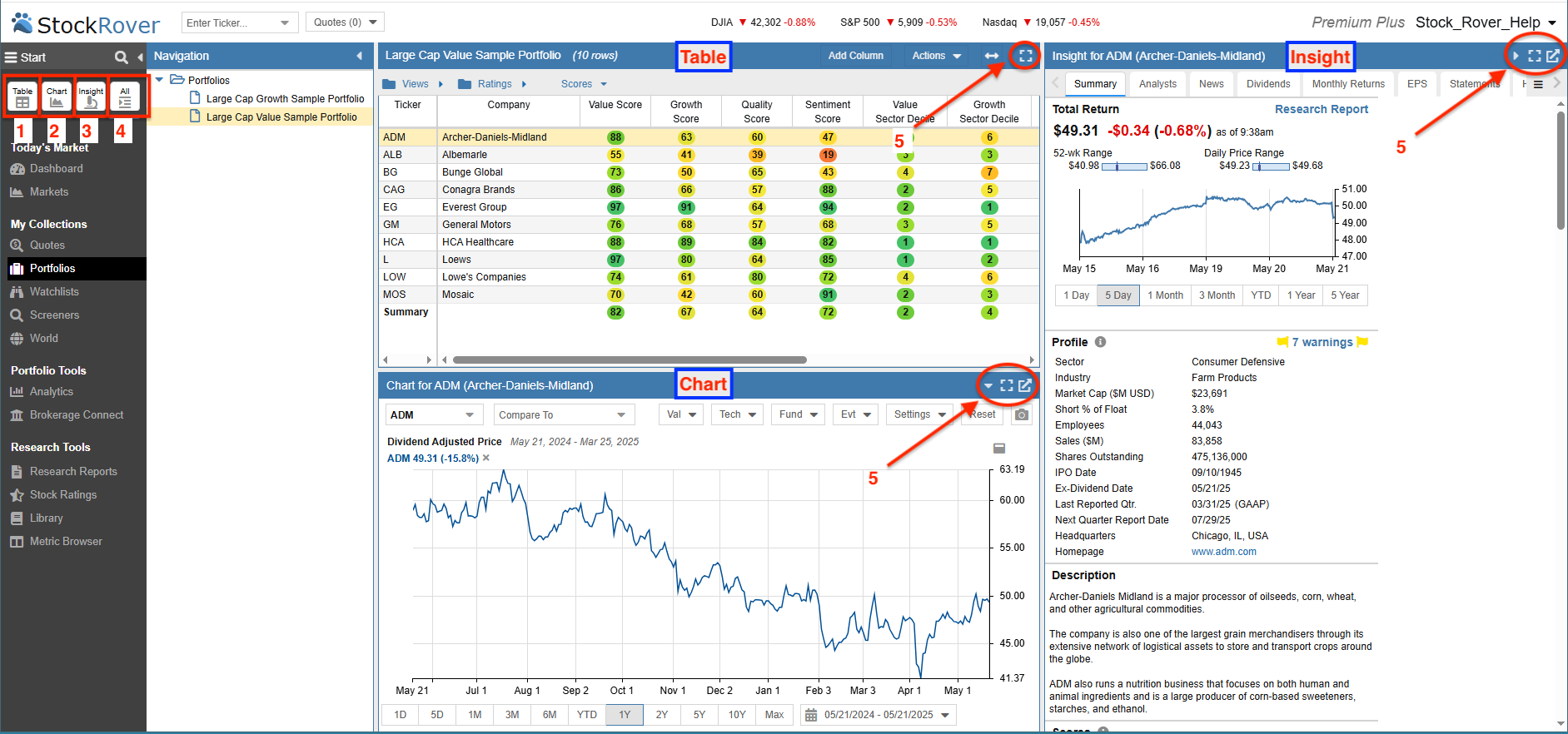
- Table – Displays only the Table for spreadsheet-style analysis.
- Chart – Displays only the Chart for technical and fundamental visualization.
- Insight – Displays only the Insight Panel for in-depth company research.
- All – Displays the Table, Chart, and Insight Panel concurrently.
- More Options – Allows you to expand, collapse, or detach each layout section for a custom workspace.
“All” Layout Example
Below is an example of the All layout, showing the Table, Chart, and Insight Panel together while researching a specific portfolio.
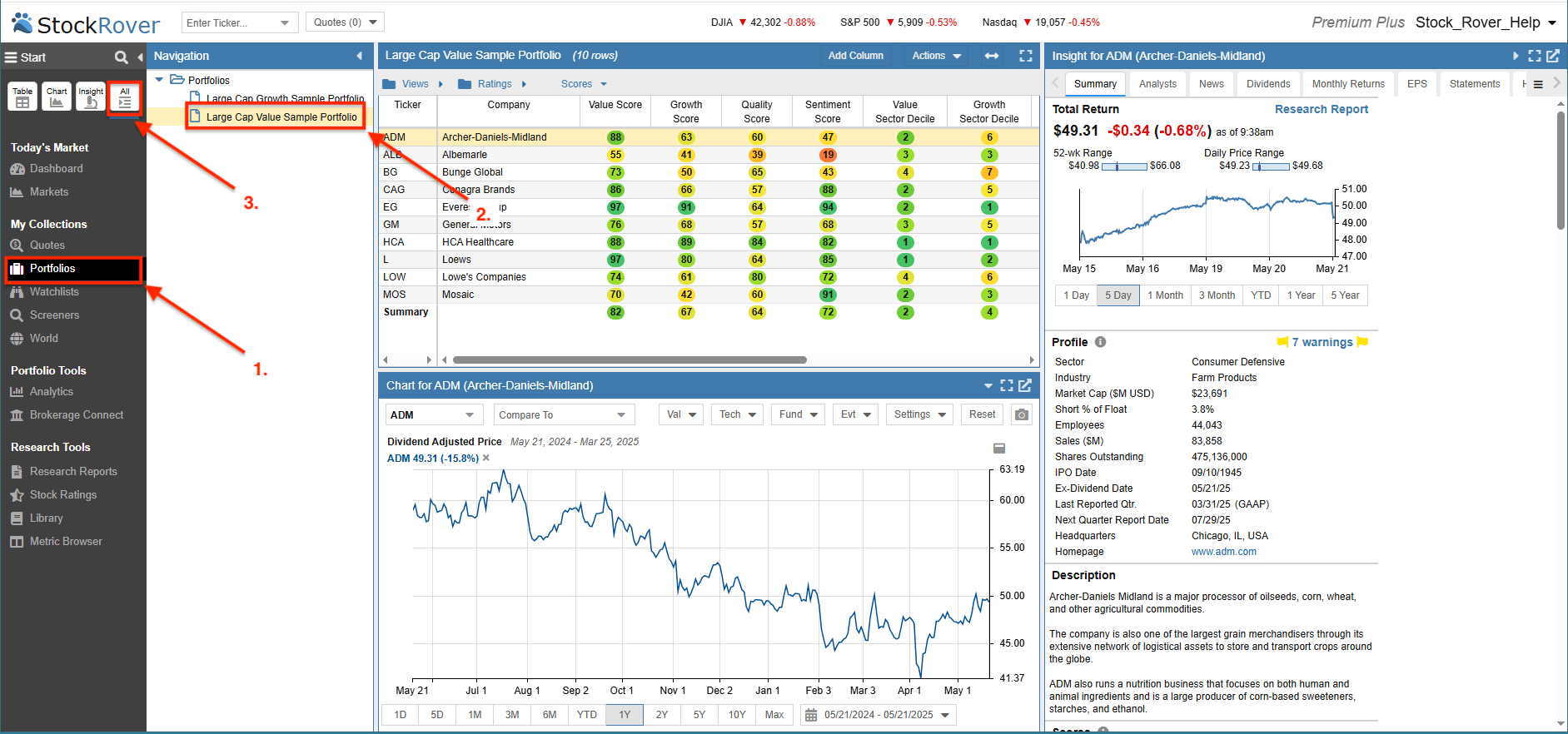
- Selection: “Portfolios” is selected from the Start Menu under My Collections.
- Navigation: We select the “Large Cap Value Sample” portfolio from the Navigation Panel.
- Display: The “All” layout presents the portfolio’s tickers across the Table, Chart, and Insight Panel simultaneously.
Table Example
The Table is populated based on your selection in the Navigation Panel. In this example, the Table rows contain the tickers within the “Large Cap Value Sample Portfolio.”
The Table uses a spreadsheet-like paradigm to compare investment opportunities across hundreds of financial, operational, and price performance metrics.
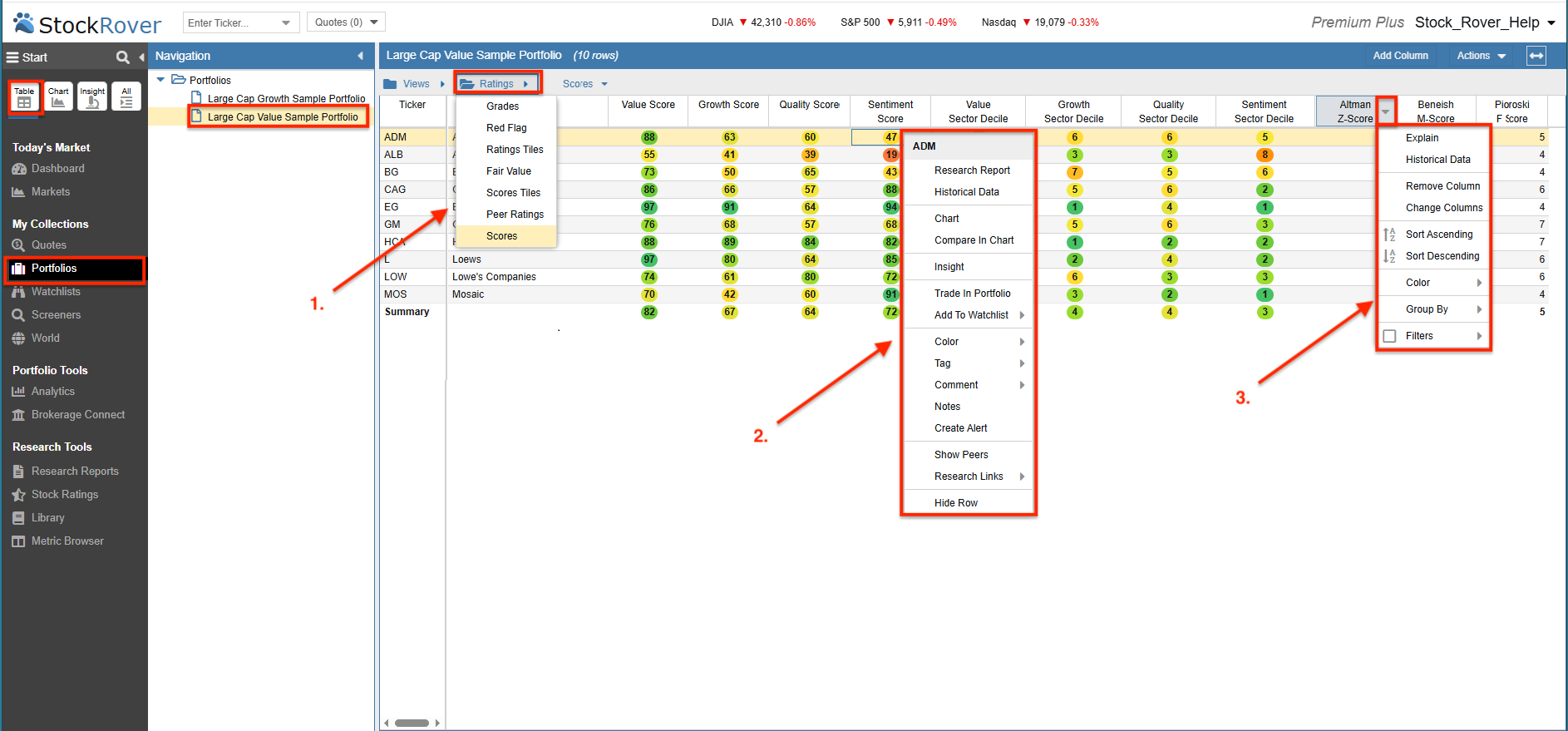
- Views: The Table is comprised of Views, which are logically organized into folders. Each View displays a different set of metrics as columns. Here, the “Scores” view is selected from the Ratings folder.
- Row Options: Right-click on any row to access specific actions for that ticker.
- Column Options: Right-click on any column header to modify the metric or sort the data.
The Table also features Tile Views, which combine tabular and graphical data. For instance, the “Scores Tiles” View shows both scoring metrics and a 2-year price change chart for each ticker.
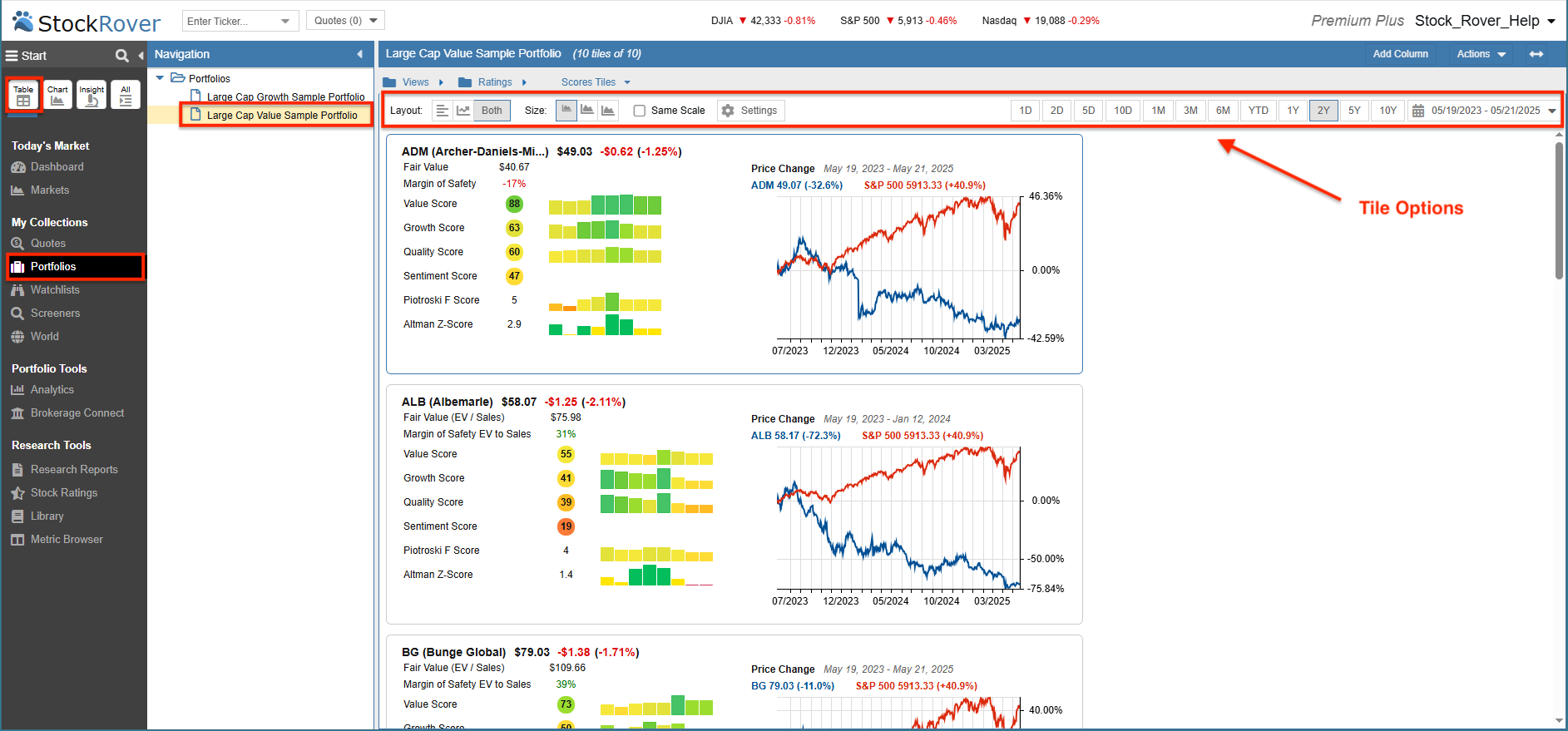
Chart Example
The Chart allows you to visualize price, over 100 fundamentals, and key technical indicators. You can also chart macro entities such as entire Portfolios, Screeners, or Watchlists for relative performance comparison.
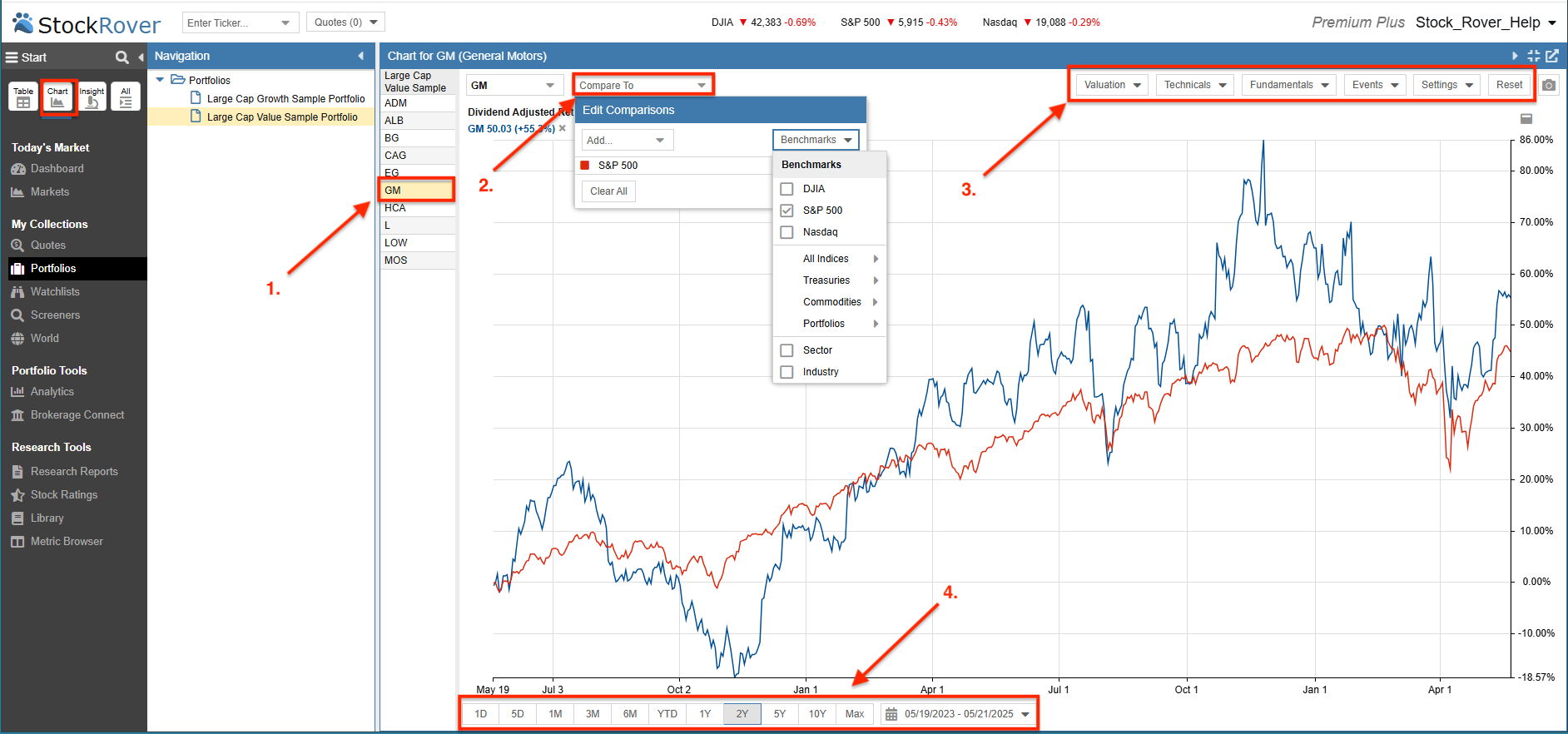
- Linked Selection: When a row (e.g., GM) is selected in the Table, the ticker is instantly charted.
- Comparisons: Add more tickers or benchmarks to the current chart for relative analysis.
- Configuration: Choose from a broad list of technicals, fundamentals, and events.
- Timeframes: Select from preset date ranges or enter a custom range.
Insight Panel Example
The Insight panel contains tools for researching a stock in depth. When a ticker is selected in the Table, its data is automatically loaded here.
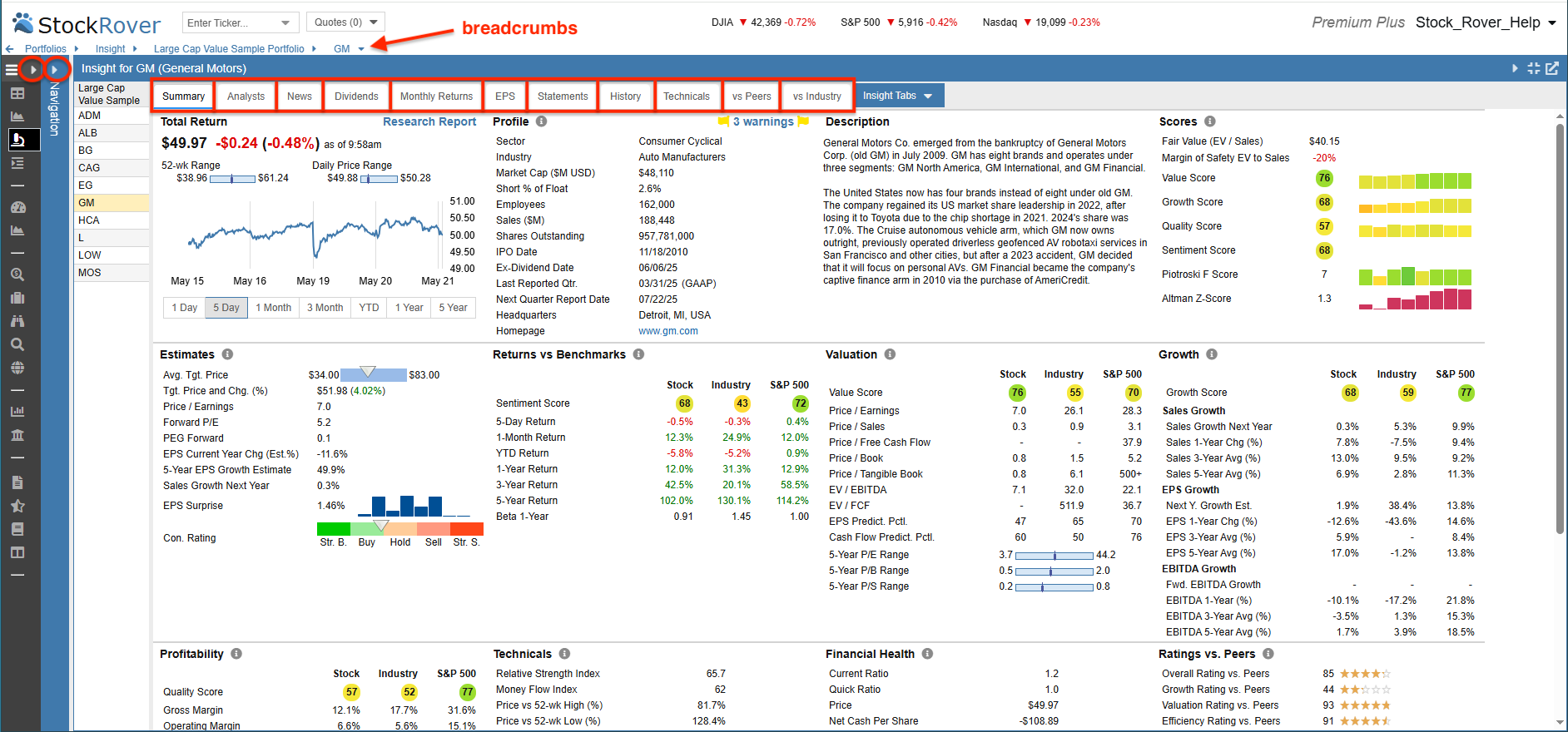
To maximize screen real estate, you can collapse the Start Menu and Navigation Panel. The breadcrumb trail at the top allows for quick navigation back to previous collections.
The Insight Panel is organized into several tabs, including:
- Summary – Basic company information and profile data.
- Analysts – Analyst ratings and earnings estimates.
- News – Recent pertinent news articles for the selected ticker.
- Dividends – Detailed dividend performance and historical trends.
- Statements – Complete financial statements, including Income, Balance Sheet, and Cash Flow.