Account Management
Introduction
The Stock Rover interface is highly customizable and designed to optimize your workflow. This section details various methods for managing your account, including security settings, subscription management, and personal preferences. Essential tools such as Multi-factor Authentication, billing history access, and interface customization through Preferences are also covered to ensure a streamlined experience.
Account Settings
Change Your Password
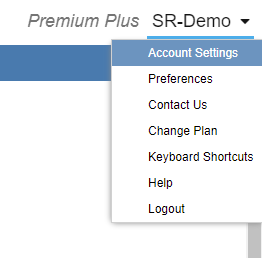
To change your password, navigate to the dropdown menu with your account name found in the top right-hand corner of the Stock Rover screen. Select the Account Settings menu item.
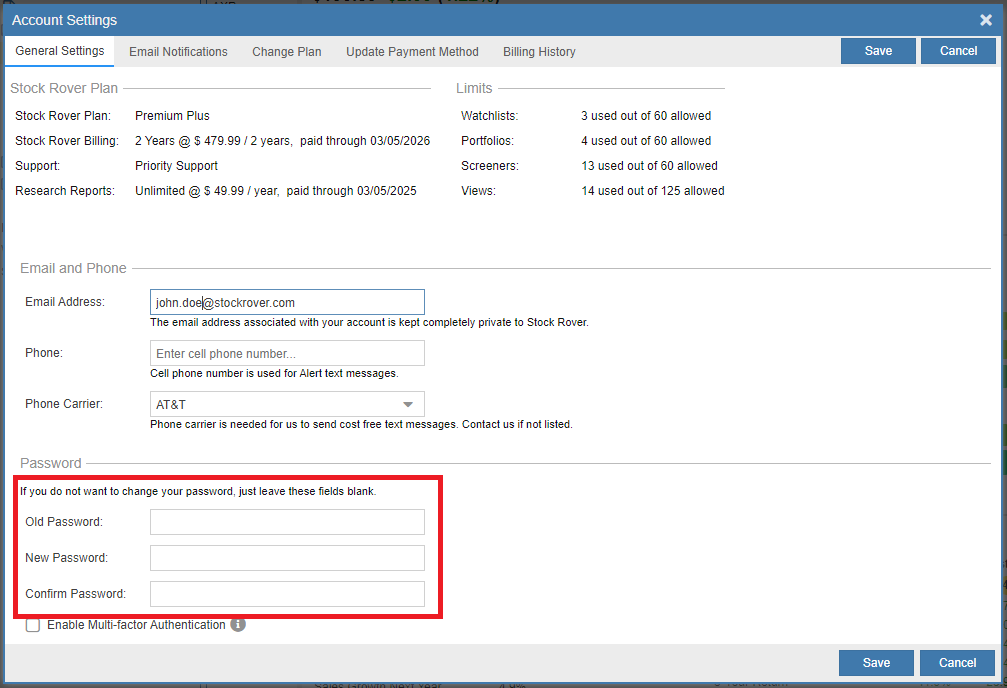
Selecting this will bring up the following window where you can change your password. You can also update your contact information through this window.
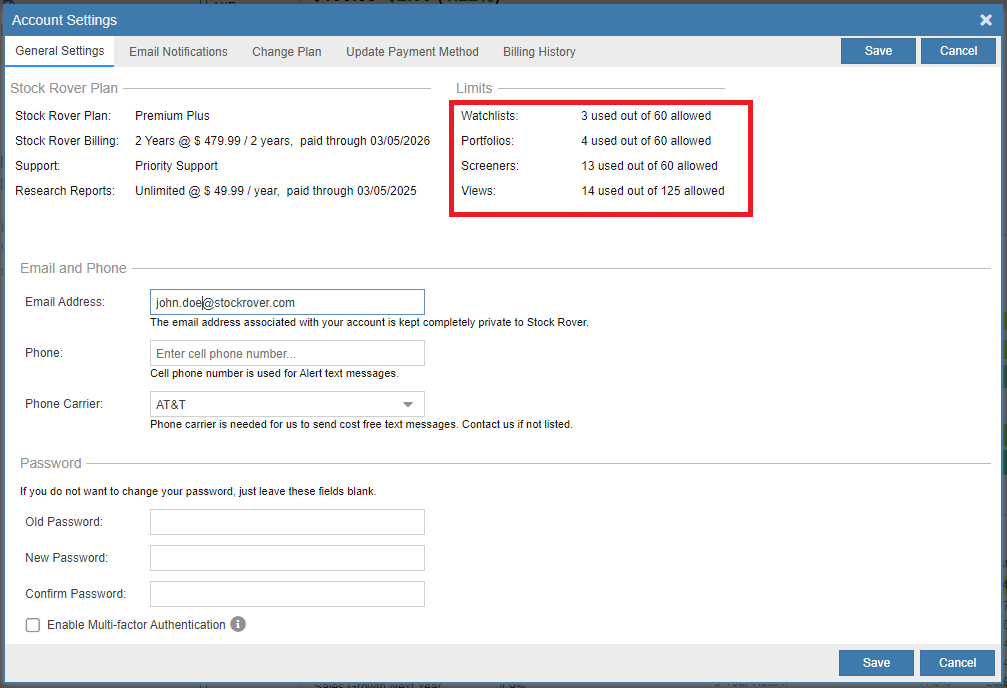
Note that in this view, you can also see the number of portfolios, watchlists, and screeners that are in use compared to your maximum plan limits.
Change Your Email Address
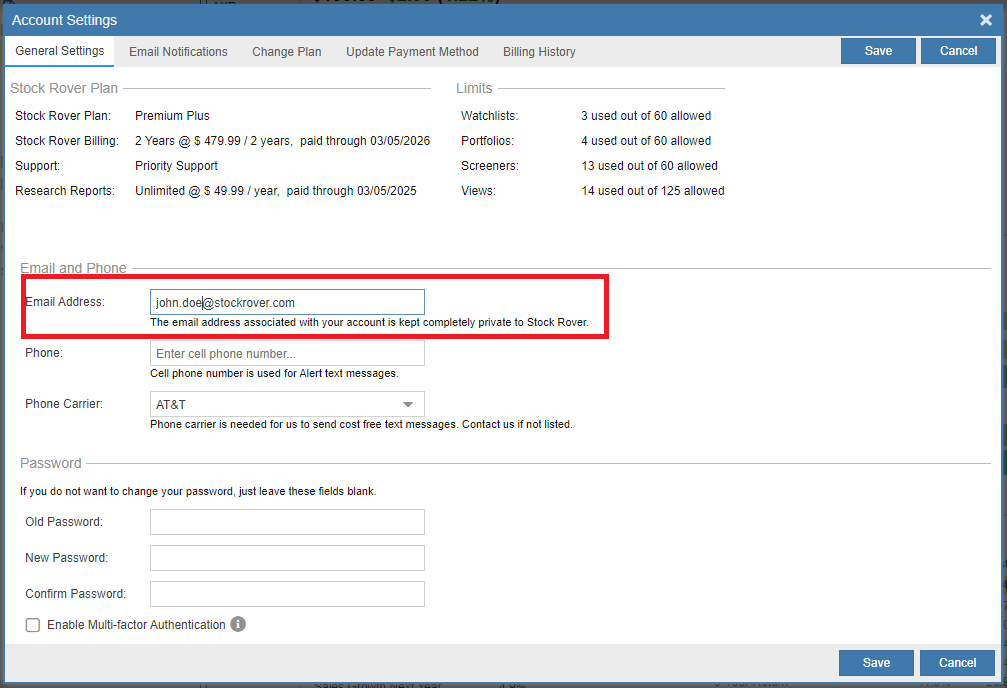
To change your email address, go to the dropdown menu with your account name found in the top right-hand corner of the Stock Rover screen and select Account Settings.
This will bring up the following window under the General tab where you can change your registered email address.
Change Your Phone Number and Carrier
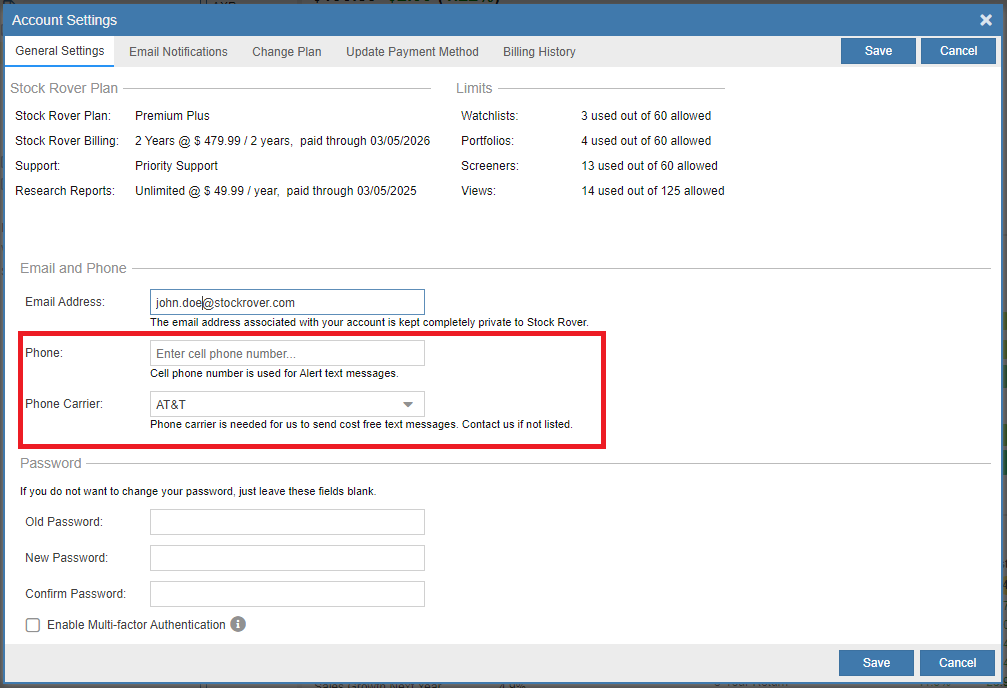
To update your phone number or carrier for SMS notifications, go to the account dropdown menu in the top right-hand corner and select Account Settings.
This will bring up the window shown below where you can update your phone number or select your phone carrier from the dropdown list.
Enable Multi-factor Authentication
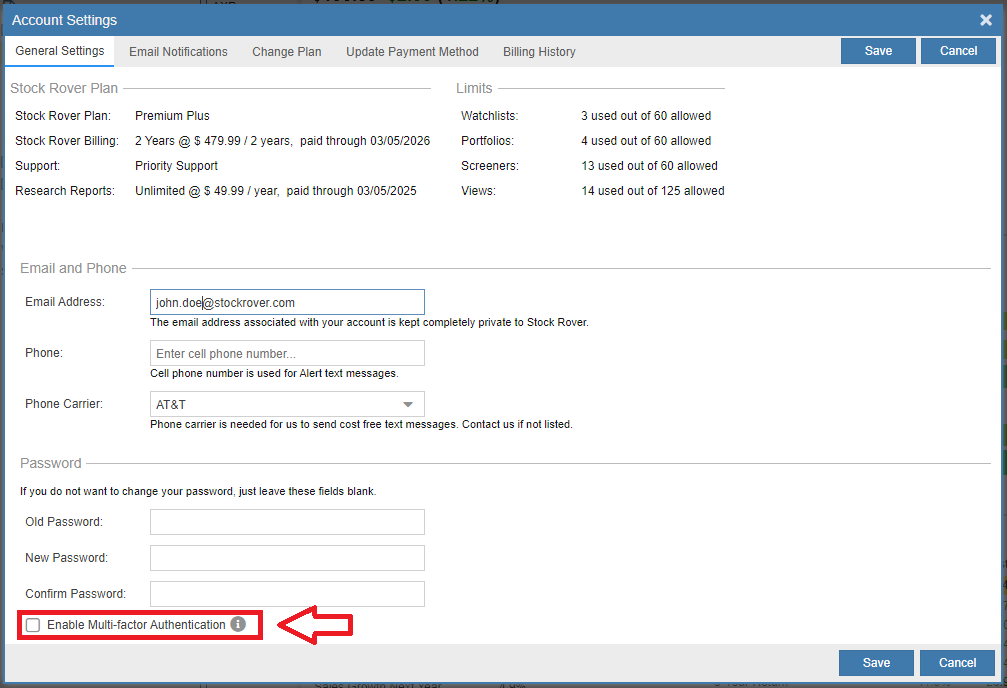
To enable Multi-factor Authentication (MFA), go to the dropdown menu with your account name and select Account Settings.
This will bring up the following window where you can check the box to Enable Multi-factor Authentication.
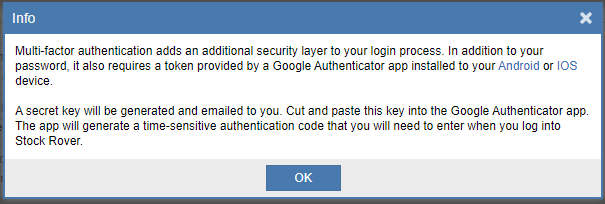
Clicking on the info icon next to the setting will provide you with additional information on how this authentication works.
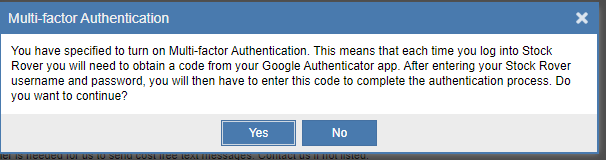
After clicking Save on the settings, you will receive a warning that you are turning on Multi-factor Authentication. You must confirm by clicking Yes to activate it.
Once you click Yes, a new window will appear with a secret key needed to set up the Google Authenticator app. This code is also emailed to you, but we recommend copying it immediately.
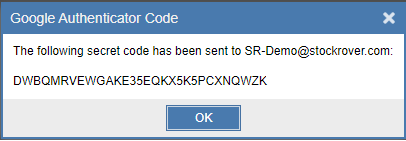
You will need to install the Google Authenticator app on your device, which is available for Android or iOS. Open the app, select Enter a Setup Key, and enter your Stock Rover username and the key provided. This will produce a time-sensitive code to use during login.
Update Email Preferences
To change your email preferences, select Account Settings from the account dropdown menu and then navigate to the Email Notifications tab.
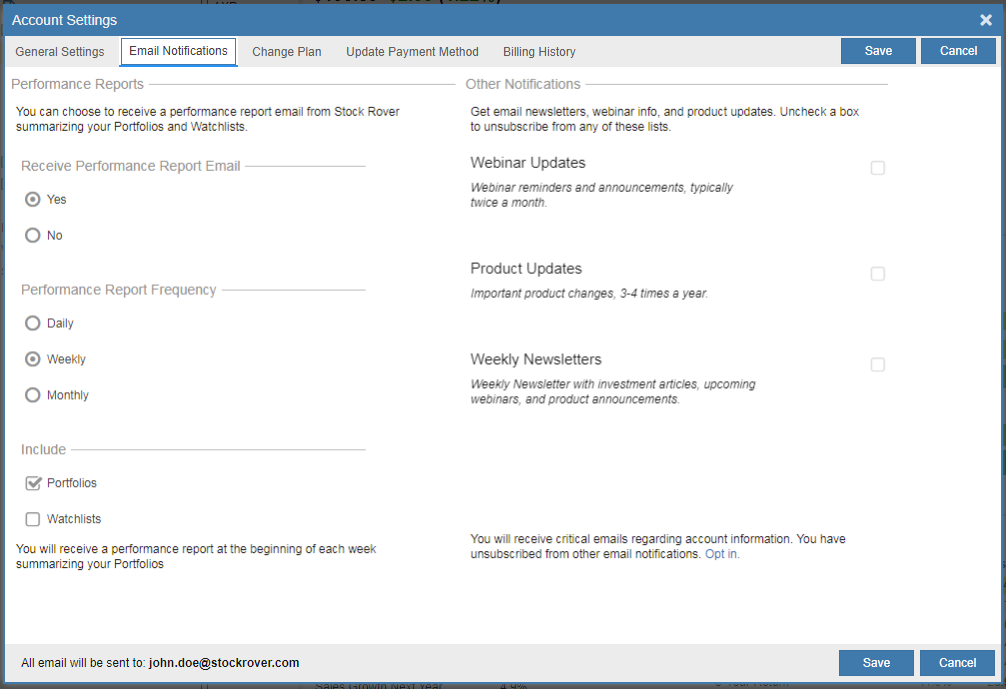
Email Notifications allows you to configure automated Performance Reports for your portfolios and watchlists on a daily, weekly, or monthly basis. You can also manage subscriptions for newsletters and webinar reminders. Please allow 7-10 days for these changes to be processed. Note that essential account updates will still be sent regardless of these settings.
Change Your Plan
To change or cancel your plan, go to the account dropdown menu and select Account Settings, then navigate to the Change Plan tab. If you are a Free user, you will be directed to our website to sign up for a Paid Subscription. If you are already a paid subscriber, a window will open allowing you to modify your subscription.
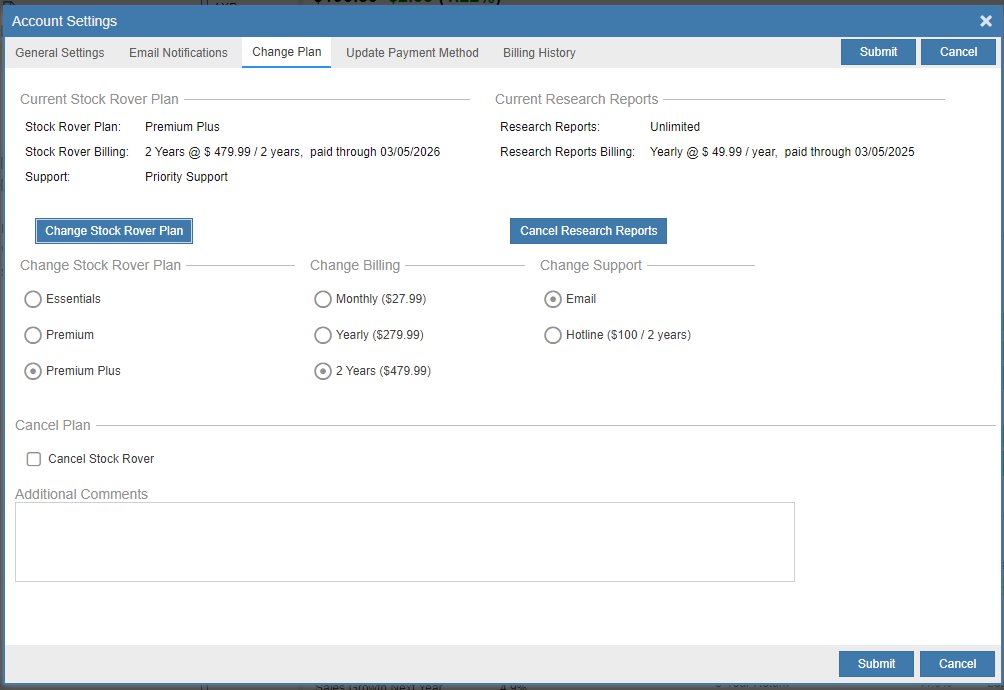
You can upgrade your plan level or the duration of your plan for a better rate. The cost of an upgrade is the difference between the remaining value of your current subscription and the cost of the new one. Most changes are processed automatically, and you will receive a confirmation email. If you cancel, you will retain subscription plan features until the end of your paid period, as we do not issue refunds.
Change Your Payment Method
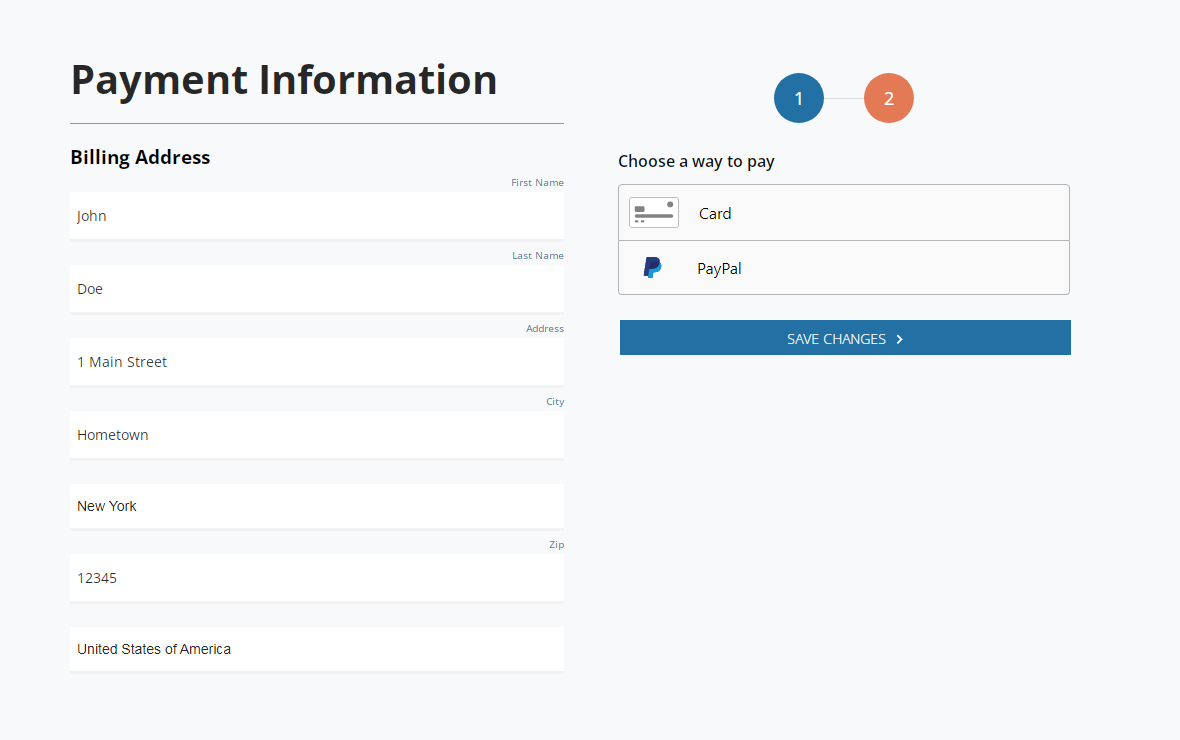
Stock Rover supports payment via credit card or PayPal. To change your method, select Account Settings and go to the Update Payment Method tab. Click the Change Your Payment Method button.

Then select Card or PayPal as seen in the screenshot below. Enter the updated details and click Save Changes.
Update Credit Card
To specifically update your credit card information, navigate to Account Settings and select the Update Payment Method tab. Click on the Change Your Payment Method button.
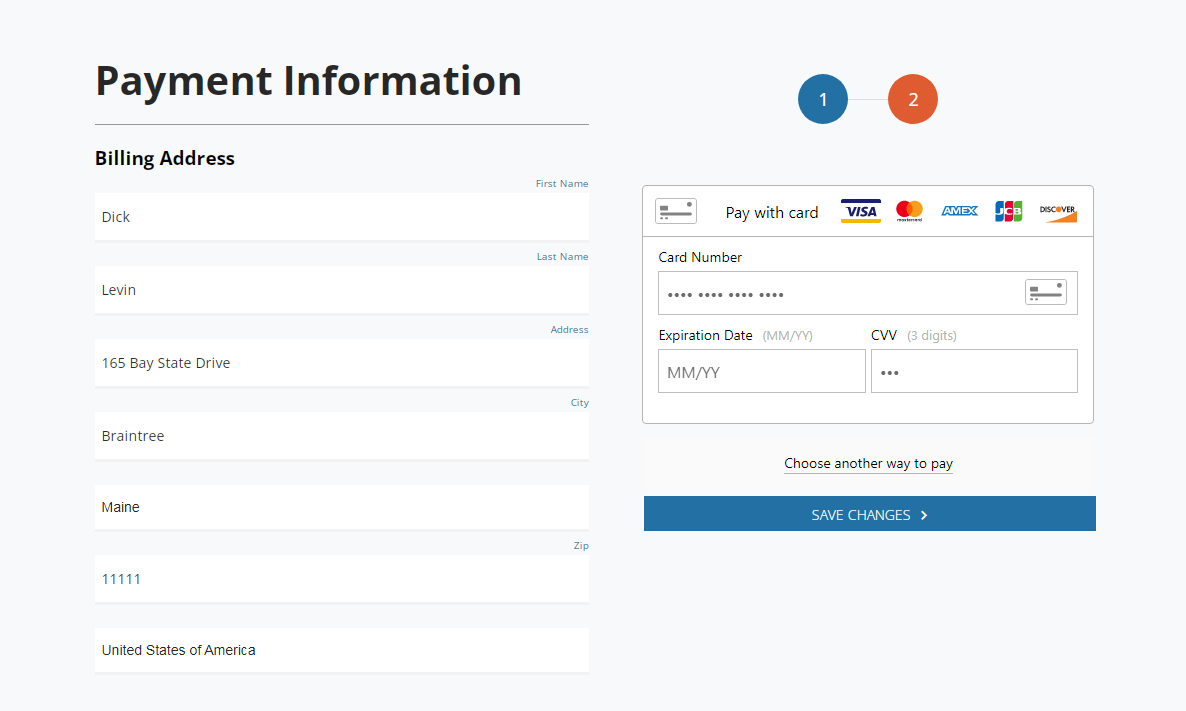
Select the Card option to reveal the credit card entry fields.
Here you can update your card number, expiration date, and CVV, then click Save Changes to finalize the update.
View and Download Billing History
To view your billing history, navigate to Account Settings and select the Billing History tab. You can export this history as a CSV file by clicking the Export button.
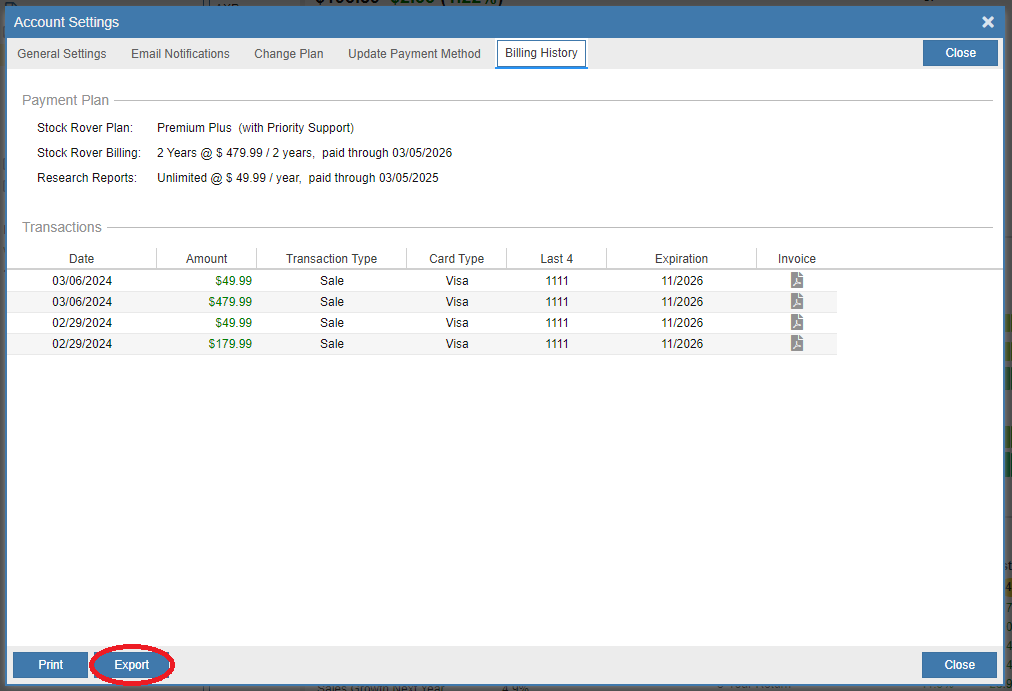
You can also print your records directly by clicking the Print button located to the left of the Export button.
Download Invoice
To download a PDF invoice, select Account Settings from your account dropdown menu and navigate to the Billing History tab. Click on the Invoice icon next to the desired billing entry.
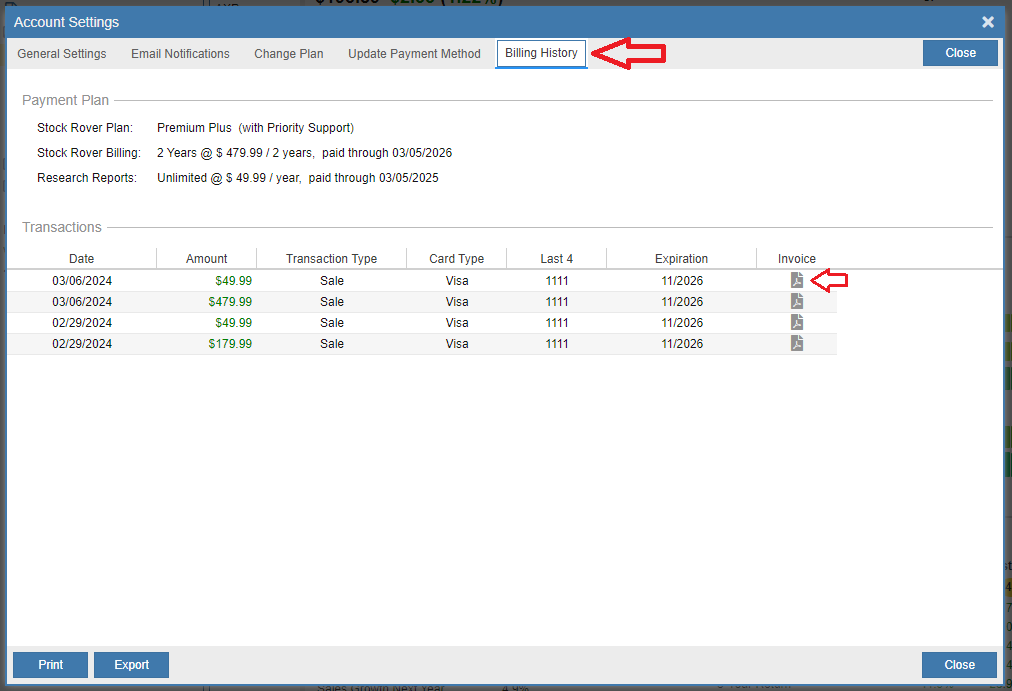
The PDF invoice for the selected transaction will be downloaded immediately to your computer.
Dark Mode
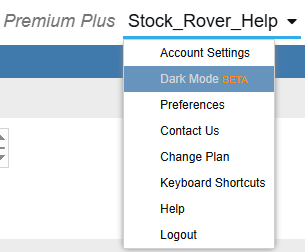
To switch to Dark Mode, go to the account dropdown menu and click on Dark Mode. This setting changes the interface to use dark backgrounds and light text for a more comfortable viewing experience.
Preferences
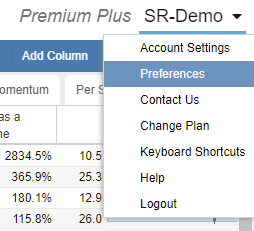
To modify your user preferences, select Preferences from the account dropdown menu in the top right-hand corner of the screen.
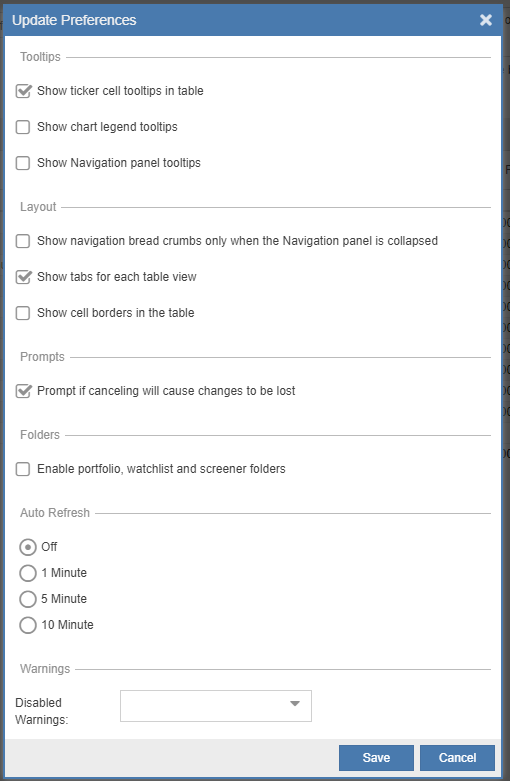
Preferences allows you to change settings for the following categories:
- Layout – Controls organizational elements like breadcrumb visibility, table view tabs, and cell borders.
- Tooltips – Enables detailed hover information for tickers, legends, and collection items.
- Folders – Allows for the creation of nested folders within the navigation tree for better organization.
- Prompts – Provides confirmation warnings before abandoning actions to prevent loss of work.
- Auto Refresh Table – Automatically updates ticker prices when you are logged in and inactive.
- Auto Refresh Dashboard – Automatically updates portfolio and market data in the Dashboard when inactive.
- Double-Click – Customizes the action triggered when double-clicking a row (e.g., switching to Chart or Insight).
- Warnings – Allows you to selectively disable specific warnings from the Warnings Facility.
- Ticker List – Determines if tickers in the Chart and Insight Panel follow the Table’s sorting order.
Contact Us
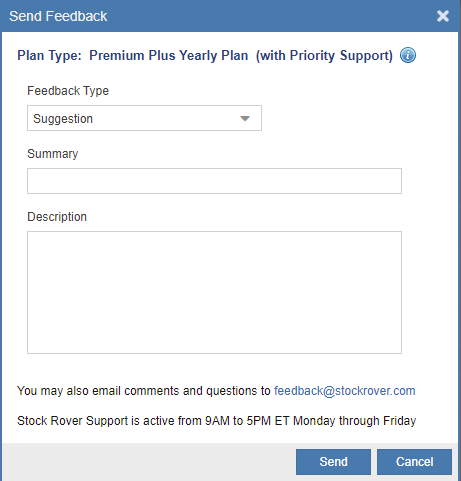
To send feedback or submit a question, select Contact us from the account dropdown menu. Select the type of feedback, fill out the form, and click Send.
Change Plan
To change or cancel your subscription plan, select Change Plan from the account name dropdown menu in the top right-hand corner of the screen.
If you are a Free user, you will be taken to our website where you can sign up for a Paid Subscription (Premium, Premium Plus, or Ultimate) on a monthly, yearly, or 2-year basis. If you are already a paid subscriber, this will open the Change Plan tab in Account Settings. For more details, refer to the Change Your Plan section above.
Change Trial
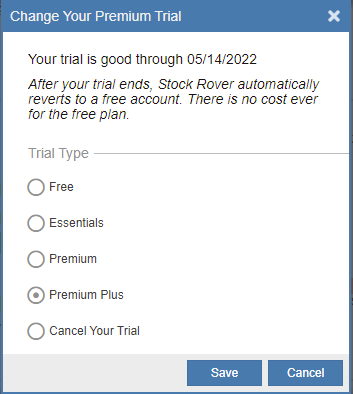
You can switch between four Stock Rover plans during your trial to test each tier’s features. By default, trials begin with Ultimate, but you can switch to Premium Plus, Premium, or Free as many times as you like.
To change your trial, select Change Trial from the account dropdown menu and choose your desired plan. This option is only visible during an active trial.
Delete Account
You can delete your account from within Stock Rover if you are using a Free account or a trial. Paid subscribers must first cancel their subscription before deleting their account.
Free User
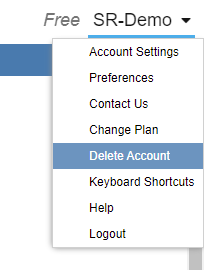
Free users can delete their account by clicking on the down arrow next to their username and selecting Delete Account as shown below.
Trial User
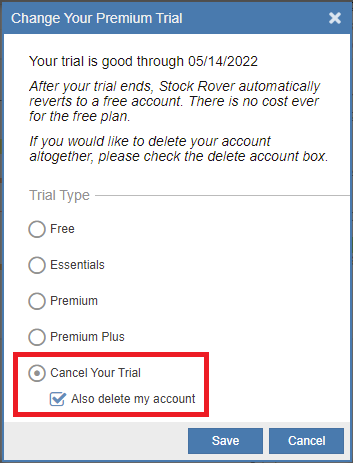
Trial users can cancel their trial and delete their account by selecting Change Trial from the account dropdown menu.
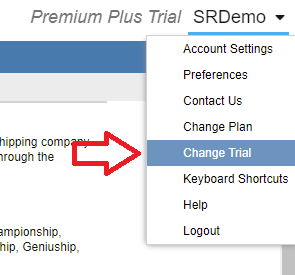
Then, follow the prompt to cancel the trial and delete your account data permanently.