Accessing Research Reports
Accessing Research Reports
Stock Rover offers multiple convenient access points for Research Reports—including the Start Menu, Table, and Insight Panel—ensuring you can quickly reach them from anywhere within the platform.
Start Menu
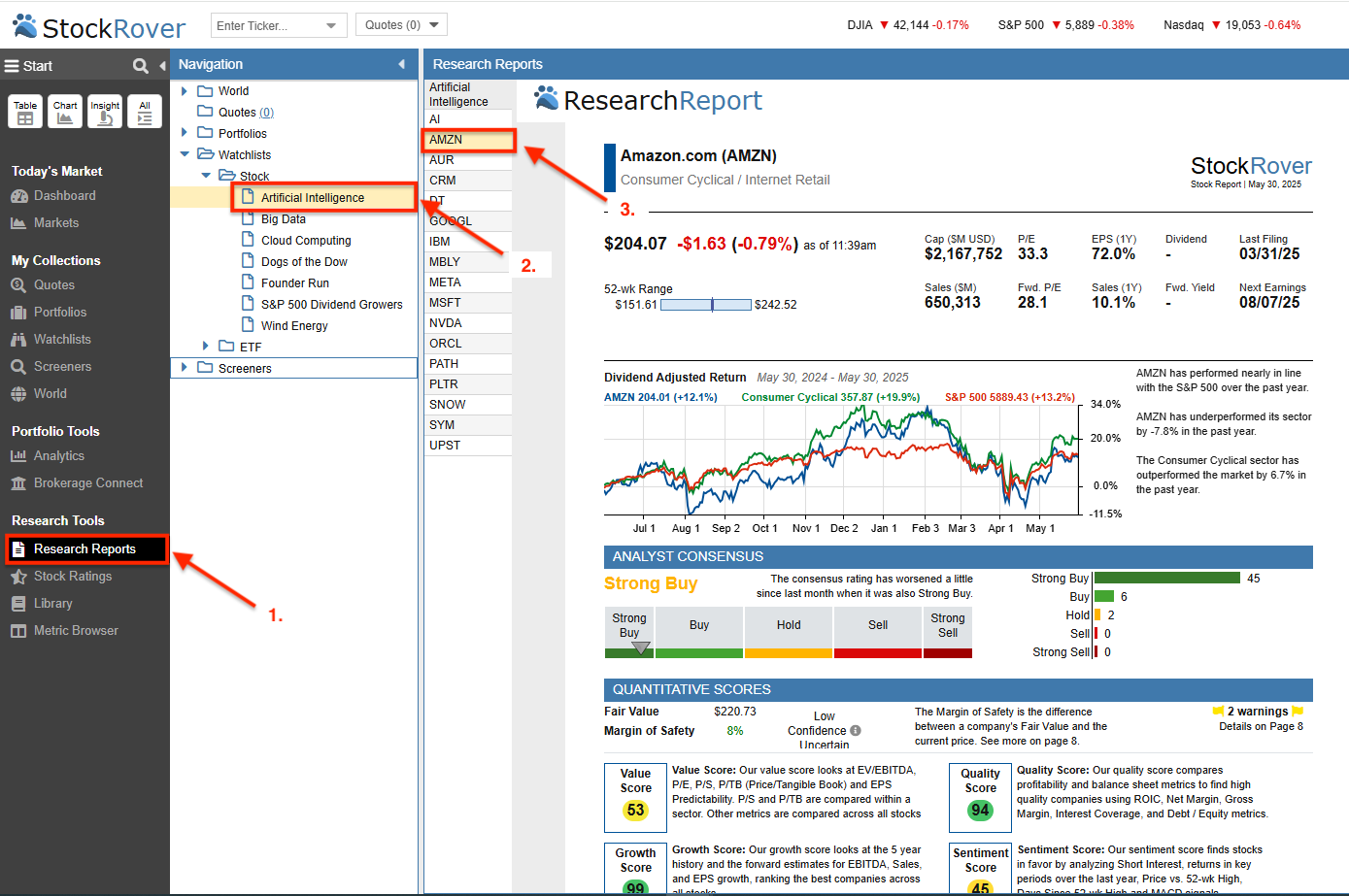
You can access Research Reports by selecting Research Reports from the Start Menu. This is often the most efficient method for users with a Research Reports-only subscription, as it simplifies navigating through various tickers in your data set to view multiple reports in sequence.
- Select Research Reports from the Start Menu.
- Select a data set (such as a Portfolio or Watchlist) from the Navigation Panel.
- Click on any ticker to immediately load its corresponding Research Report.
Table
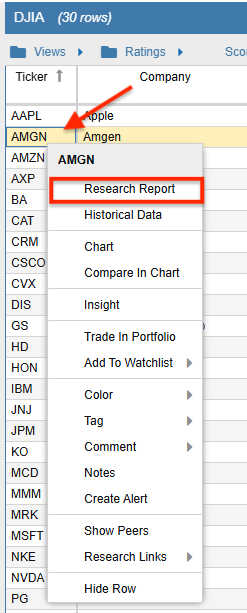
Alternatively, you can generate a Research Report while performing deep-dive analysis in the Table. Simply right-click on any stock ticker and select “Research Report” from the context menu, as illustrated below.
Insight Panel
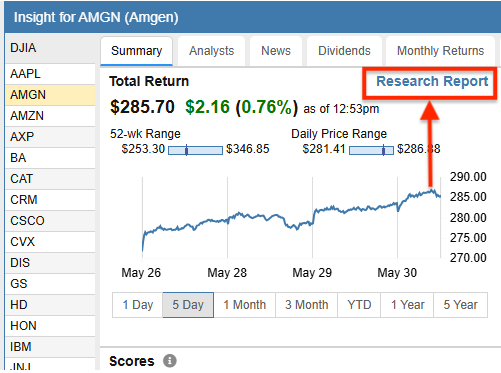
Reports can also be initiated directly from the Insight Panel. This allows you to transition seamlessly from a high-level overview to a comprehensive PDF-style report with a single click, as indicated in the image below.