

Using Stock Rover Effectively
Introduction
Stock Rover features a highly customizable interface designed to optimize workflow. This section details various methods for managing Stock Rover’s panels—including resizing, collapsing, detaching, and maximizing them—to suit individual preferences. Essential navigation tools such as Breadcrumbs and the efficiency of right-clicking for quick access to functions are also covered.
Additionally, powerful features like multi-select for applying actions to multiple items, drag-and-drop for effortless organization, auto-resizing columns for optimal display, and convenient keyboard shortcuts are available for a streamlined experience.
Right-Clicking
Stock Rover offers right-click functionality throughout its interface, providing instant access to many capabilities. You can right-click on an object to bring up a menu of all possible operations that can be performed on that object. Examples include columns and rows in a table, or individual portfolios, watchlists, and screeners in the Navigation Panel.
Start Menu
Right-clicking directly on an item like Portfolios, Watchlists, or Screeners displays a menu with actions specifically tailored to that feature.
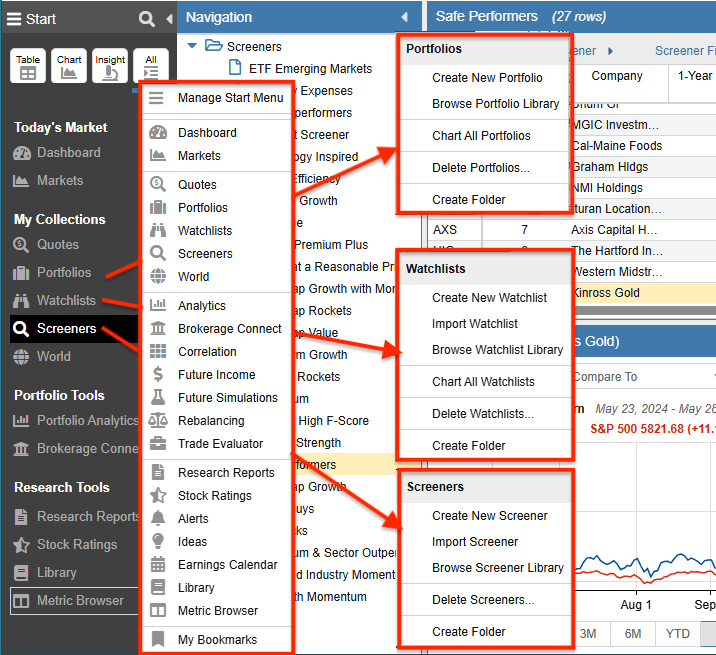
Right-clicking anywhere else in the Start Menu brings up a global menu that provides access to all available features.
Dashboard
You can access display options by right-clicking on any column. The available options will change based on where you right-click on the Dashboard.
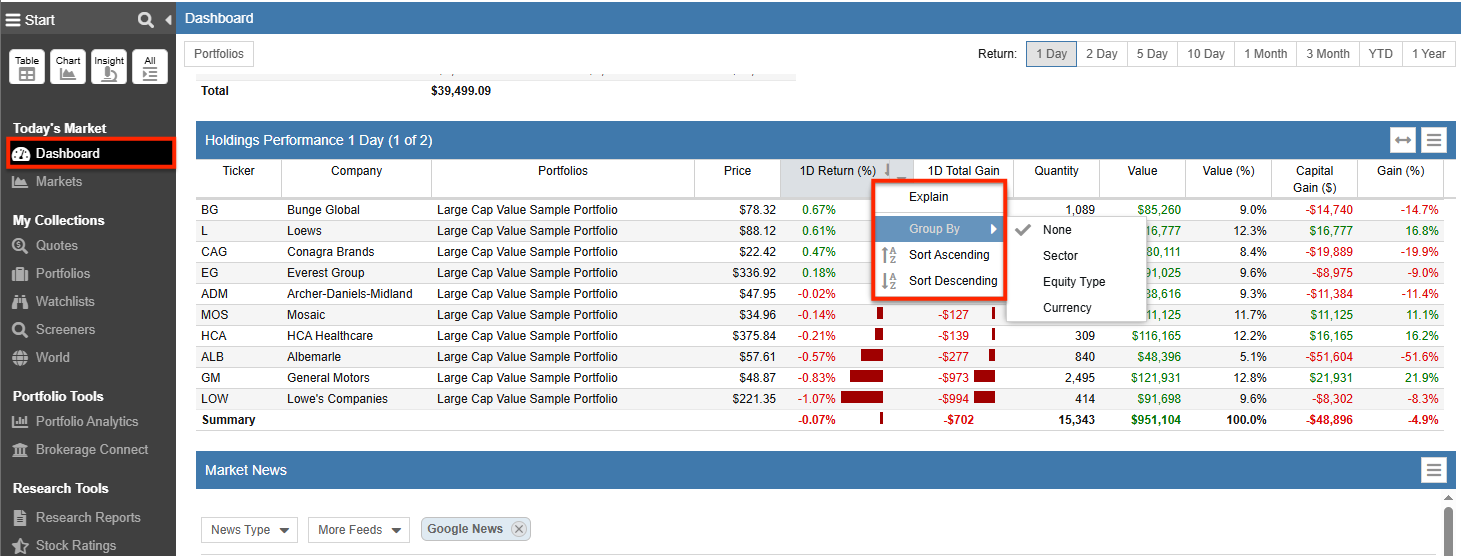
For instance, right-clicking on a column heading or using the pull-down menu in the Current Holdings section will show sorting and grouping options.
Navigation Panel
You can right-click on both a folder and an item within a folder. Below, you’ll see the right-click options for Screeners; there are also unique right-click options for Portfolios and Watchlists.
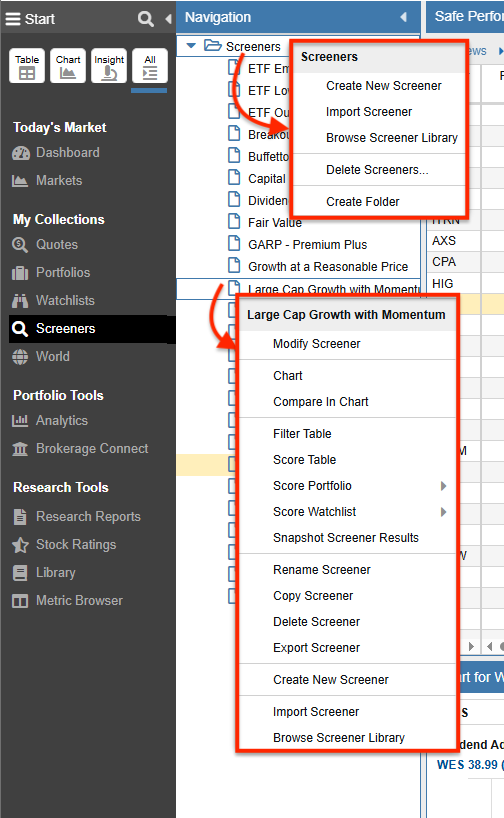
In this example, right-clicking a folder presents general Screener management functions, while selecting a specific screener reveals capabilities unique to that screener.
Table
You can right-click on columns and rows. Right-clicking a column reveals a number of capabilities, including sorting and grouping options.
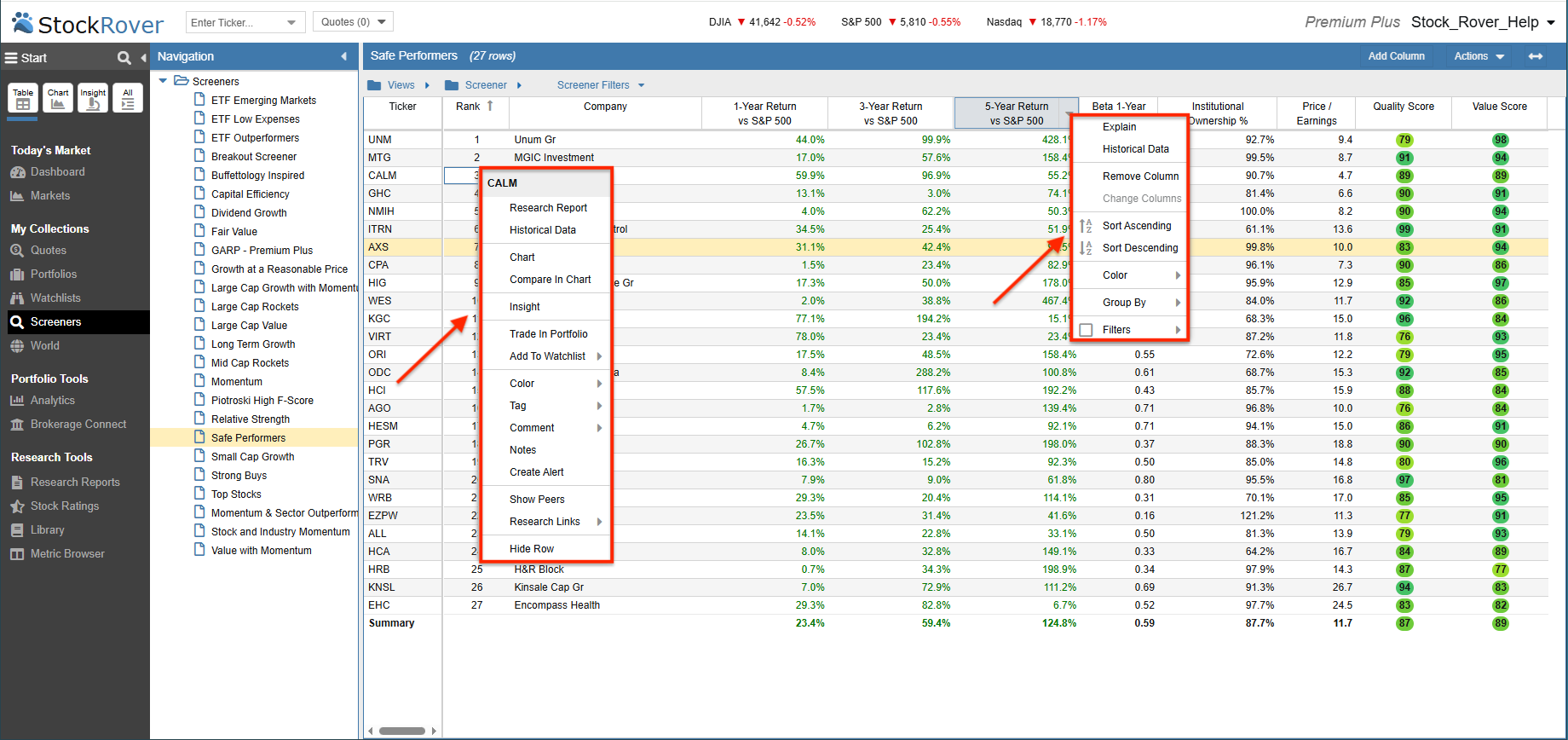
Right-clicking on a row presents configuration and display options unique to the ticker selected.
Portfolio Tools
Portfolio Analytics, Future Income, Future Simulations, Rebalancing, and the Trade Evaluator all display their results in a tabular format. As a general rule, whenever you see tabular results, right-clicking or selecting the pull-down on a column heading will expose additional display options.
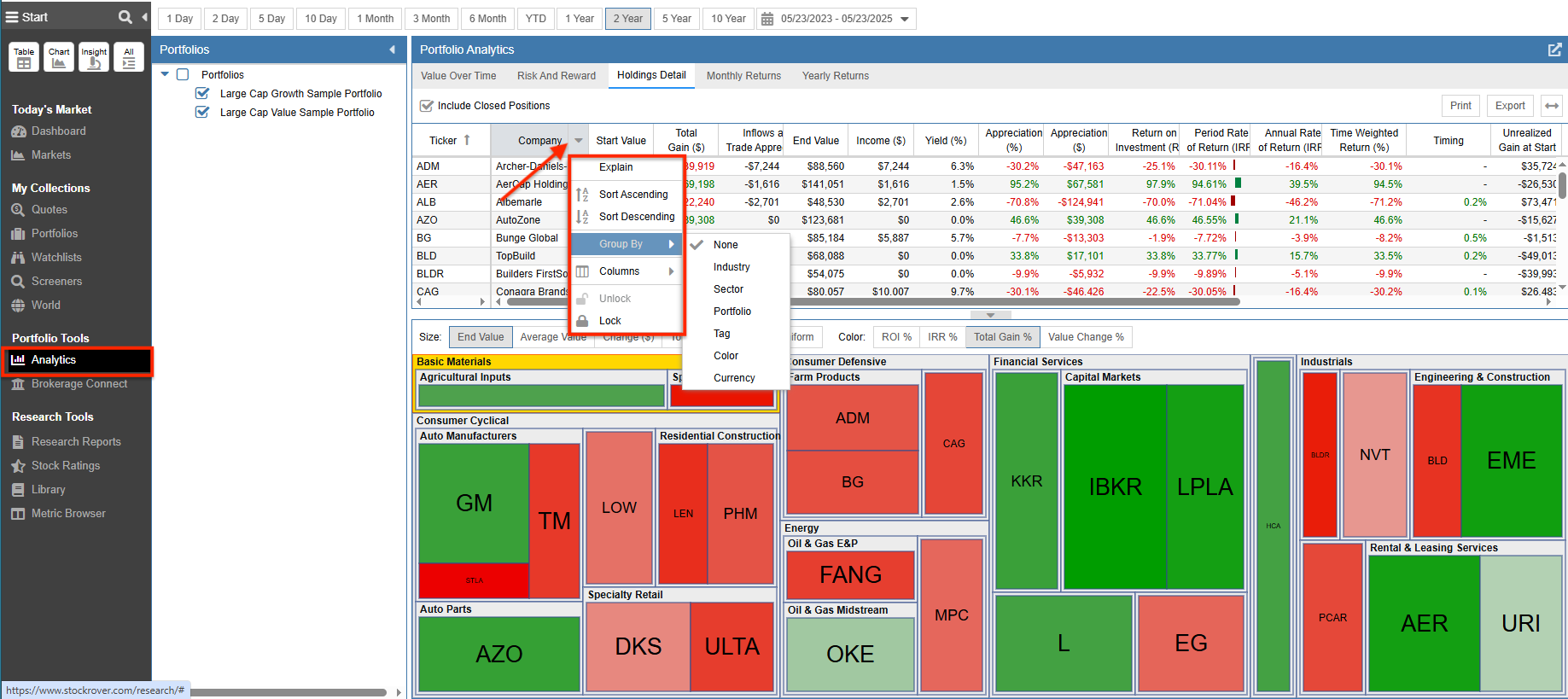
In the example above, a column heading in the Portfolio Analytics Tool was right-clicked to access specific sorting and grouping preferences.
Managing the Panels
The panels in the Stock Rover user interface are designed for easy manipulation, allowing you to optimize screen real estate.
Resizing a Panel
You can resize all panels by dragging their edges with your cursor. Keep in mind that some panels may have a minimum width to ensure data remains readable.
Collapsing a Panel
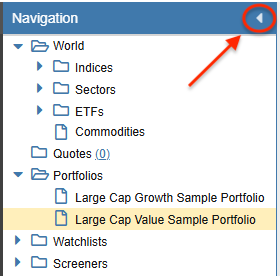
Most panels, including subpanels like the Navigation Panel, can be fully collapsed by clicking the triangle button, as shown below.
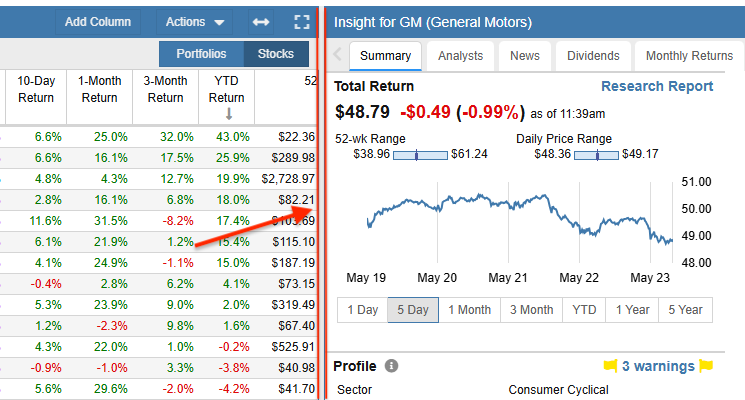
Panels can also be fully collapsed by double-clicking the white border between them, as shown below. To reopen a collapsed panel, simply click the triangle button again.
Detaching a Panel
Users have the ability to detach the Chart and Insight Panels from the home screen, allowing you to spread Stock Rover panels across multiple windows. Other detachable features include Markets, Stock Ratings, Analytics, Correlation, Future Income, Future Simulations, Rebalancing, Alerts, Earnings Calendar, and Metric Browser.

To detach any detachable window, click the button shown above, which is located on the rightmost part of the blue header bar in the panel you wish to detach. Closing the detached window will return the panel to its original location.
Maximizing a Panel
Users can also maximize the Main Table, Chart, and Insight Panels, making the maximized panel occupy the entire home screen.

To maximize any of these panels, click the button found on the right side of the blue header bar in the panel you want to maximize.
Restoring All Panels
To restore panels to the home screen, click on All in the Start Menu on the left side of the screen.
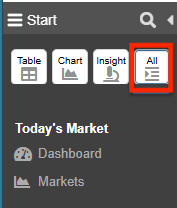
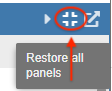
If the Insight or Chart Panel has been maximized, a “restore all panels” icon is available. Clicking this icon will restore all three panels: Insight, Chart, and Table.
Multi-select
Overview
The multi-select capability allows for quick and easy selection of multiple items for research and display.
- Multi-select at the Portfolio, Watchlist, or Screener level: This option simplifies combining a selected set of Portfolios, Watchlists, or Screeners into the Table for research.
- Multi-select at the ticker level: This streamlines performing the same action on a group of tickers or items within the Table. It is useful for operations like tagging, coloring, adding a set of tickers to a watchlist, or deleting alert history.
Checkboxes
Checkboxes provide an option to select multiple portfolios, watchlists, or screeners for inclusion in the Table. When you click on a folder or subfolder, checkboxes appear next to the folder items.
Select All
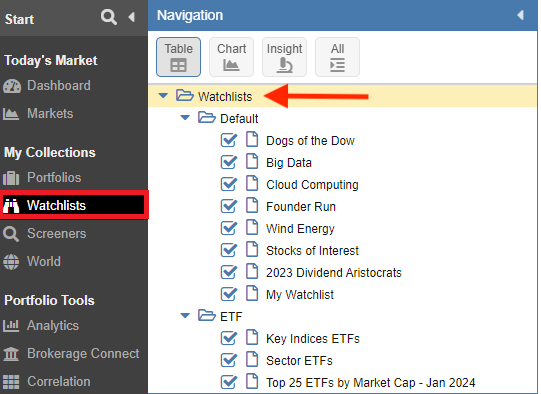
In the example below, the Watchlist folder was selected, and all watchlists across all subfolders are now selected.
Select One
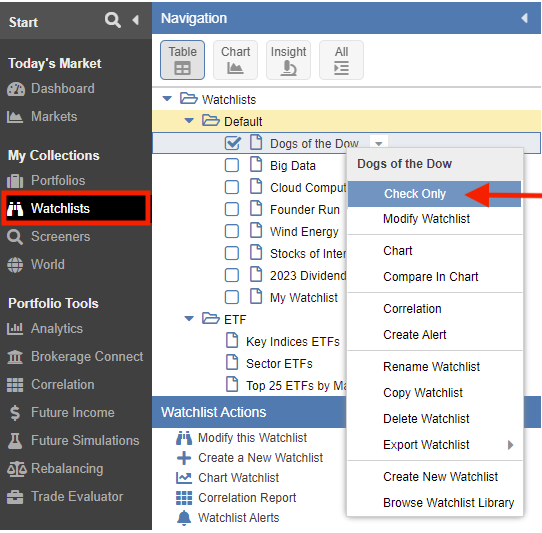
To clear the list of checked objects, right-click on a specific object and select Check Only. This will select only the highlighted object.
Select Multiple
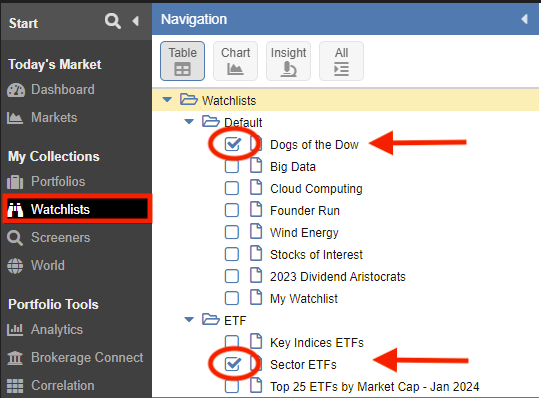
To select more than one item, first select one item as described above, then check the additional items you want to select, as shown below.
Multi-select Rows
Multi-select allows you to highlight several items in a Table simultaneously to perform a single batch action. You perform a multi-select operation by holding down the Shift or Control (Ctrl) key on the keyboard.
1. Selecting a Continuous Block (The Shift Key): Use the Shift key when the tickers you want to select are all listed next to each other in a row. First, click on a ticker in the Table to establish the top row. Then, scroll down to the last item in your desired group, hold the Shift key, and select the last item.
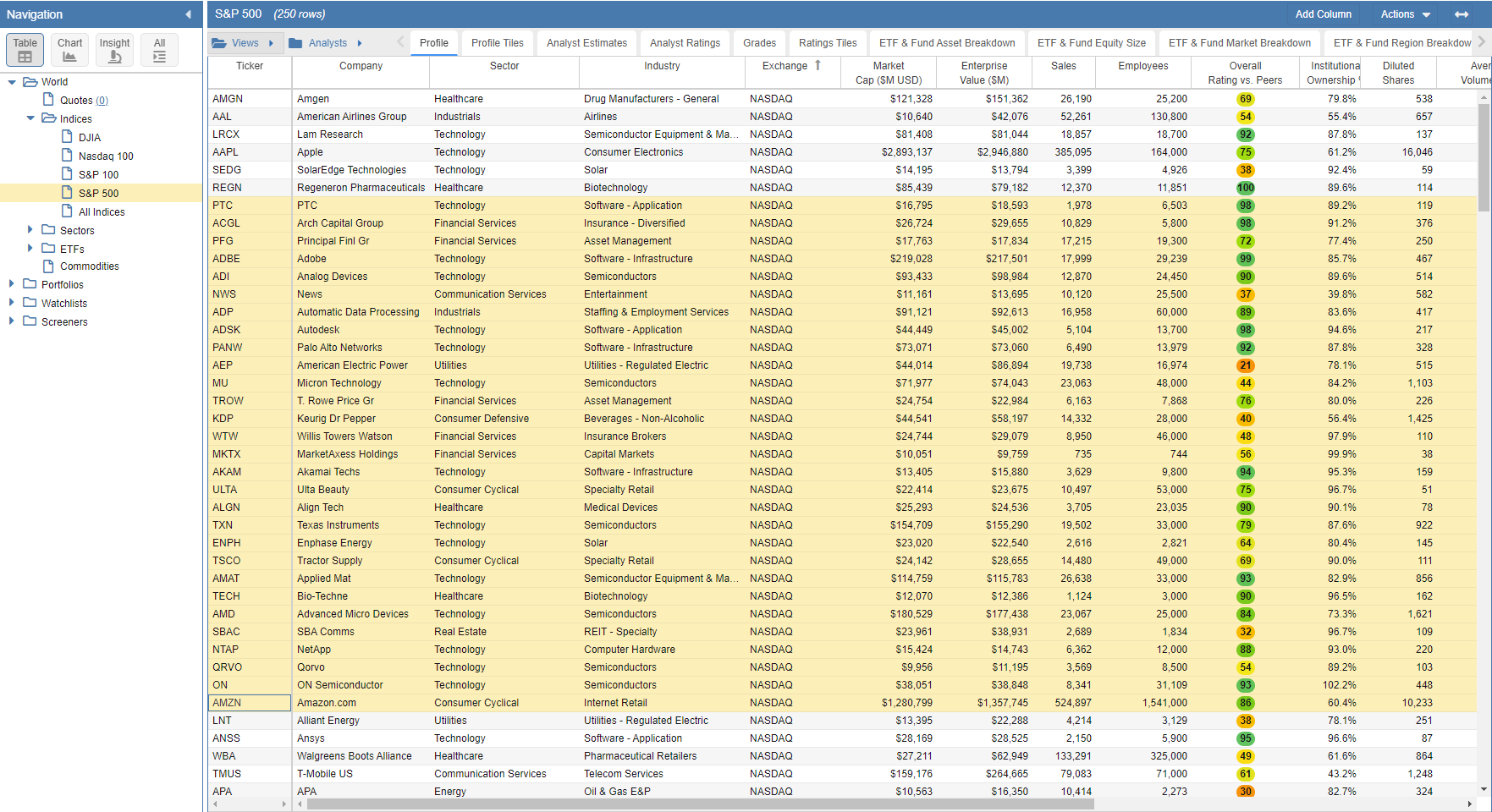
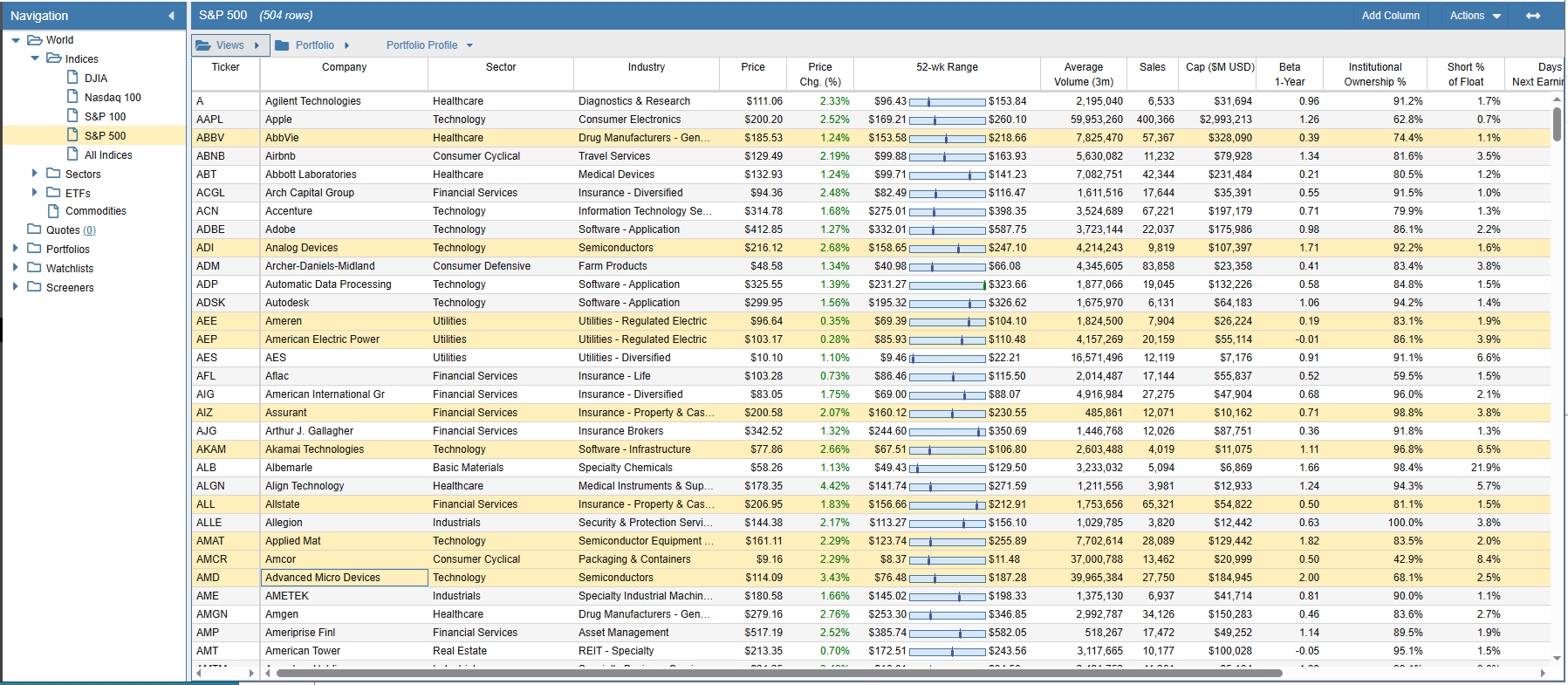
2. Selecting Scattered Items (The Ctrl Key): Use the Control (Ctrl) key (or Command ⌘ on Mac) when the tickers you want to select are separated by other rows. Hold down the Ctrl key and then click on each individual item you want to perform the action on.
Drag and Drop
Overview
The Drag and Drop feature simplifies moving items and organizing Stock Rover to your preference. You can use it to add tickers to the Chart, Portfolios, or Watchlists, and reorganize your View structure.
Reorganizing the Navigation Panel
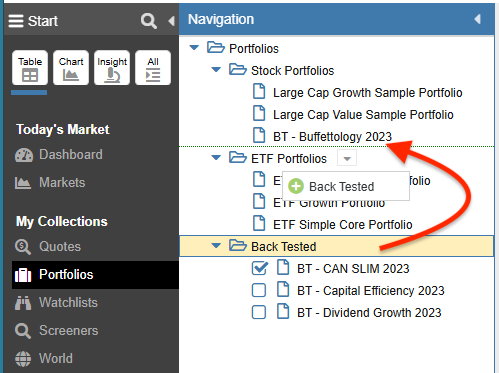
When you select Portfolios, Watchlists, or Screeners under My Collections, you can reorder the display by dragging and dropping a specific item or folder.
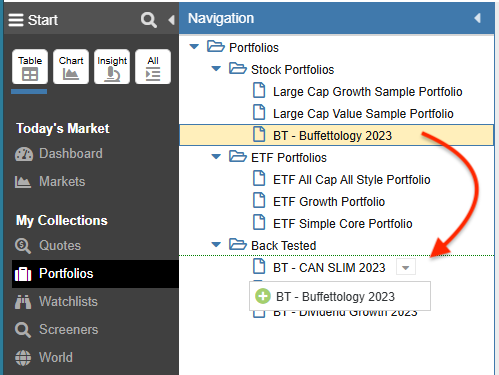
In the example above, a portfolio is being moved to a different folder. Below, the folders under Portfolios are being reordered.
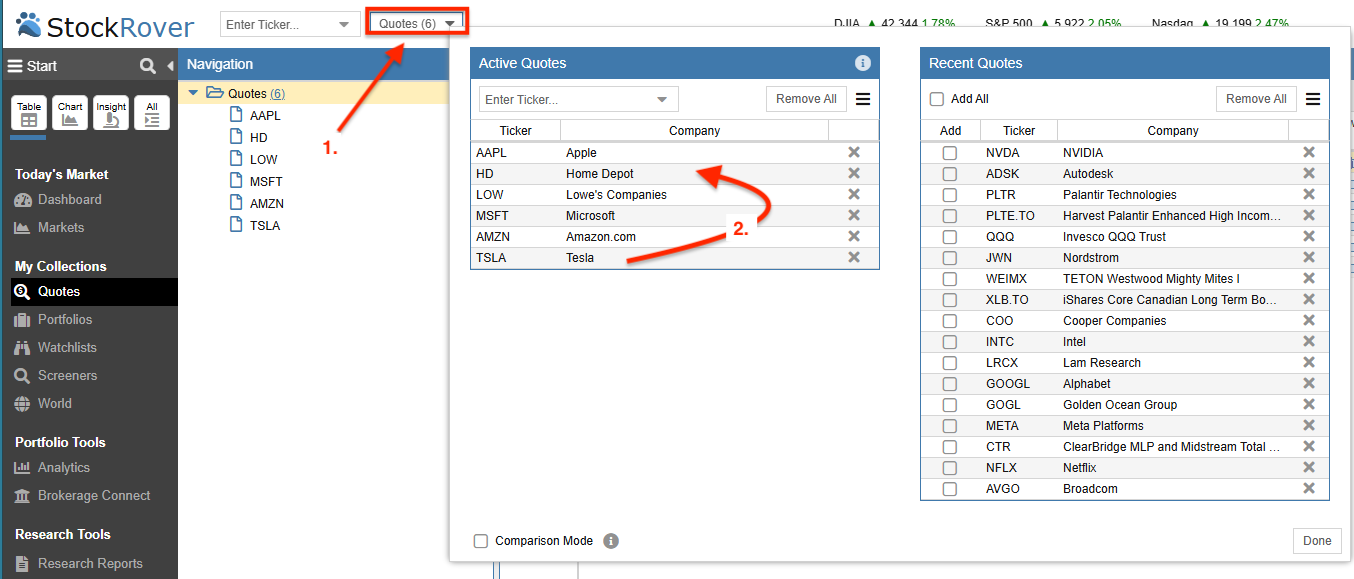
Changing the Quote Order
Using Drag and Drop, you can reorder the Active Quotes list.
- Select the Quotes box.
- In the Active Quote list, click and hold down the mouse to drag and drop a ticker to a different position.
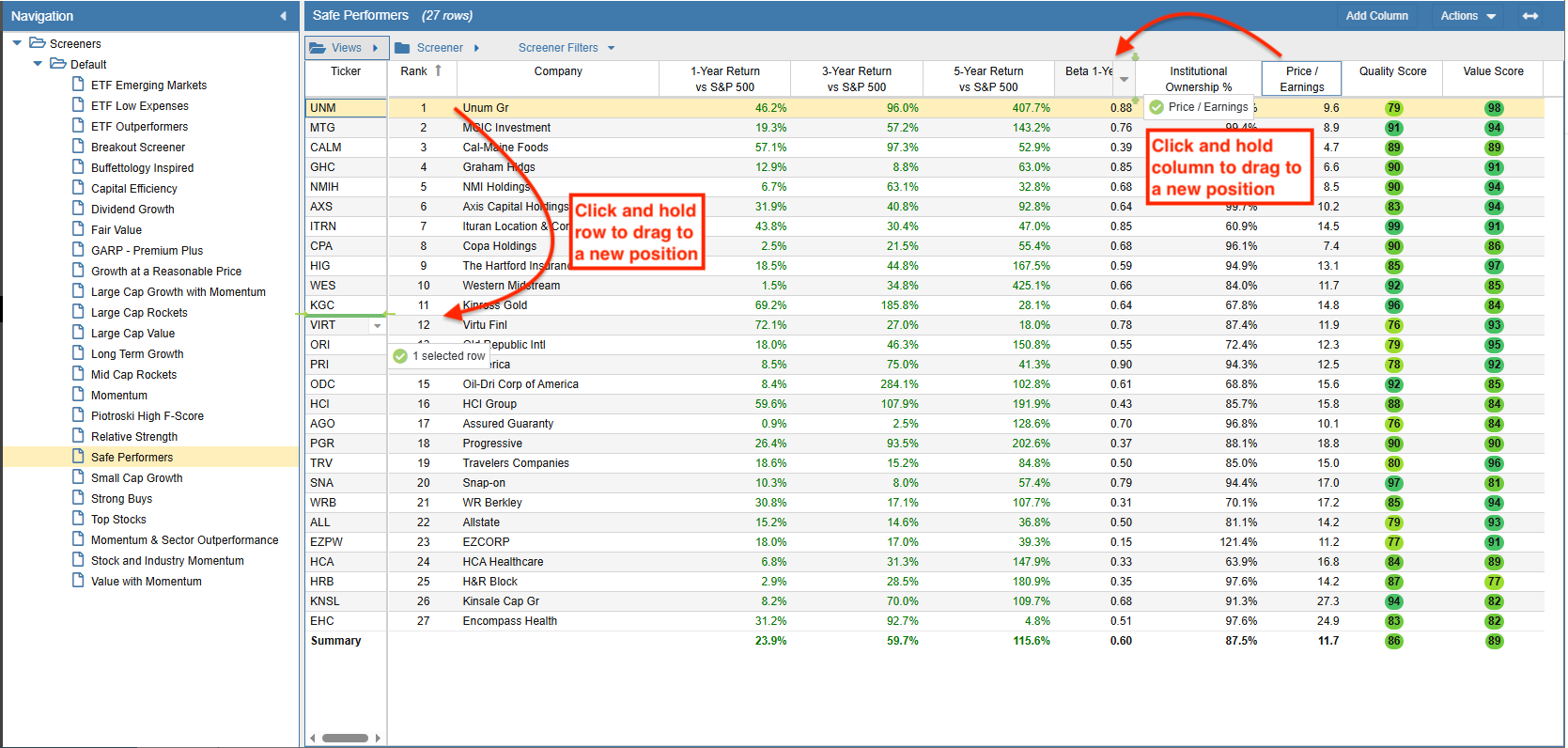
Reorganizing Table Columns and Rows
To drag a column in the Table, click and hold a column header to move that column to a new spot. To drag a row, click on its ticker or name cell and hold down the mouse to reposition it.
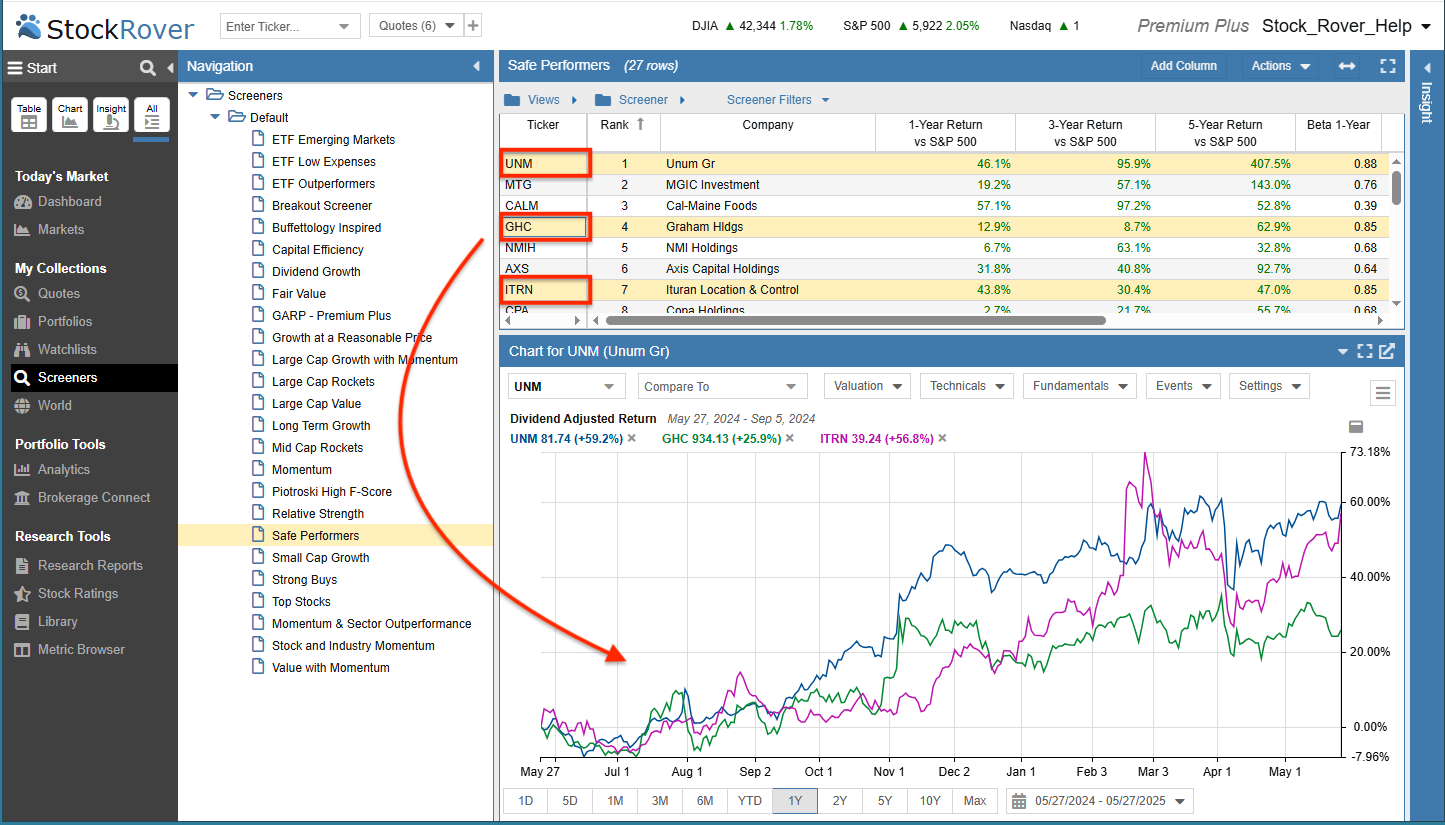
Dragging Tickers to the Chart
To add items to the chart, click on a selected ticker in the Table, hold down the mouse, and drag it directly to the Chart area.
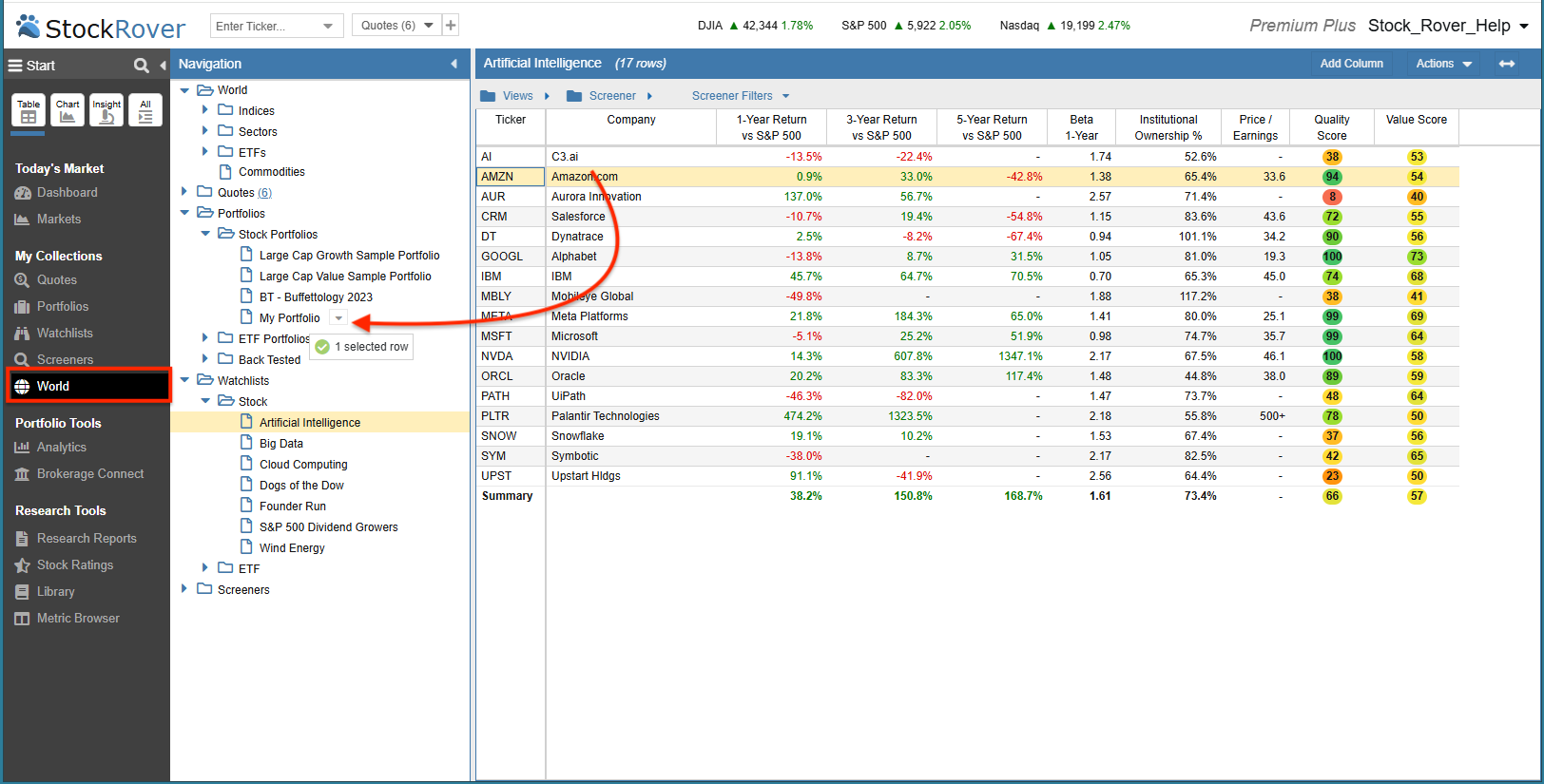
Adding Tickers to a Watchlist or Portfolio
First, ensure the target folder is expanded. When you drag a ticker into a portfolio, you’ll be prompted to enter a quantity and purchase details.
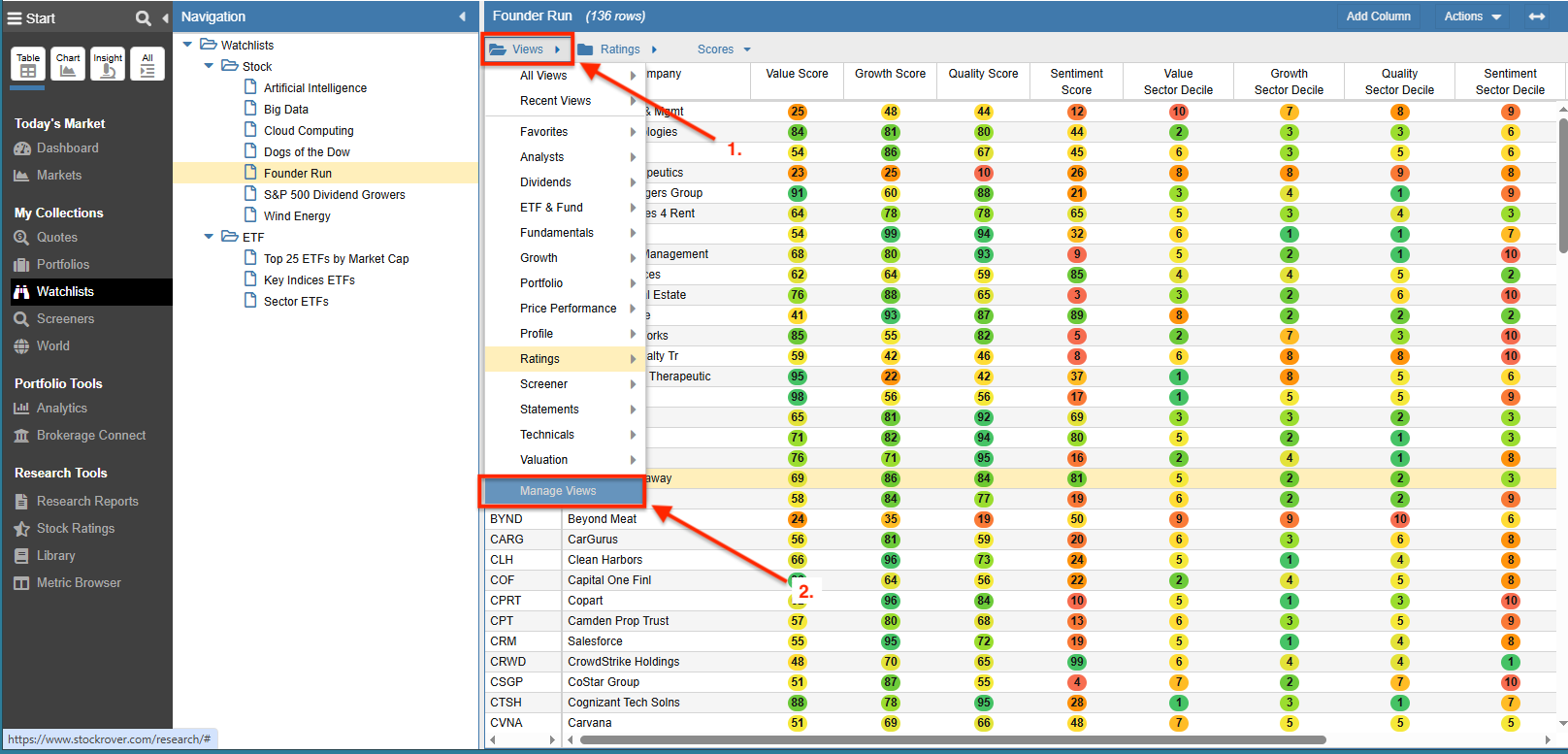
Reorganizing Views
- Select the Views Folder.
- Click on Manage Views.
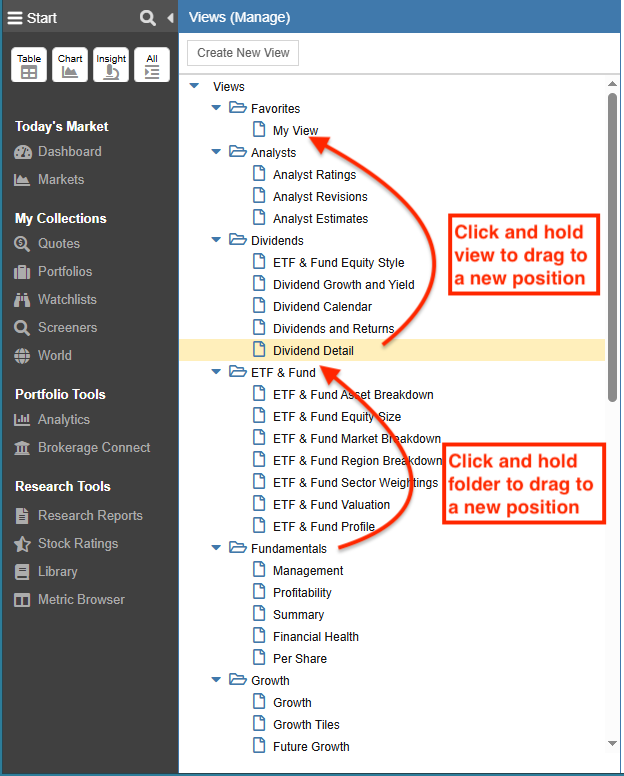
A common use case is to create a Favorites folder and drag and drop the views you use most often into it.
Breadcrumbs
Overview
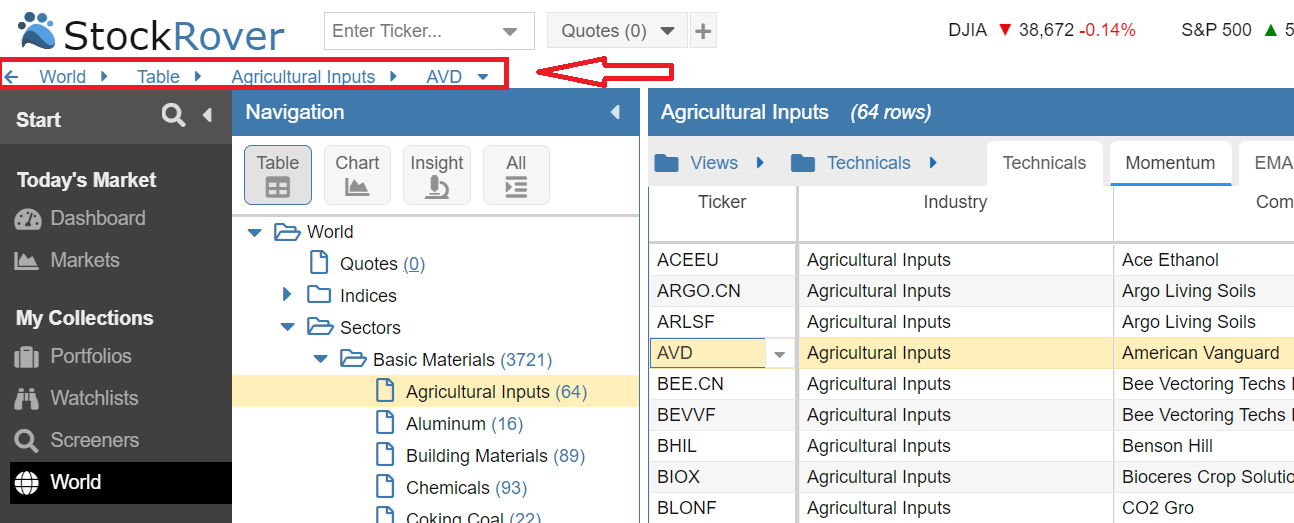
The breadcrumb trail in the header indicates your current location within Stock Rover. These breadcrumbs are clickable, enabling quick navigation to any function.
Configuring Breadcrumb Behavior
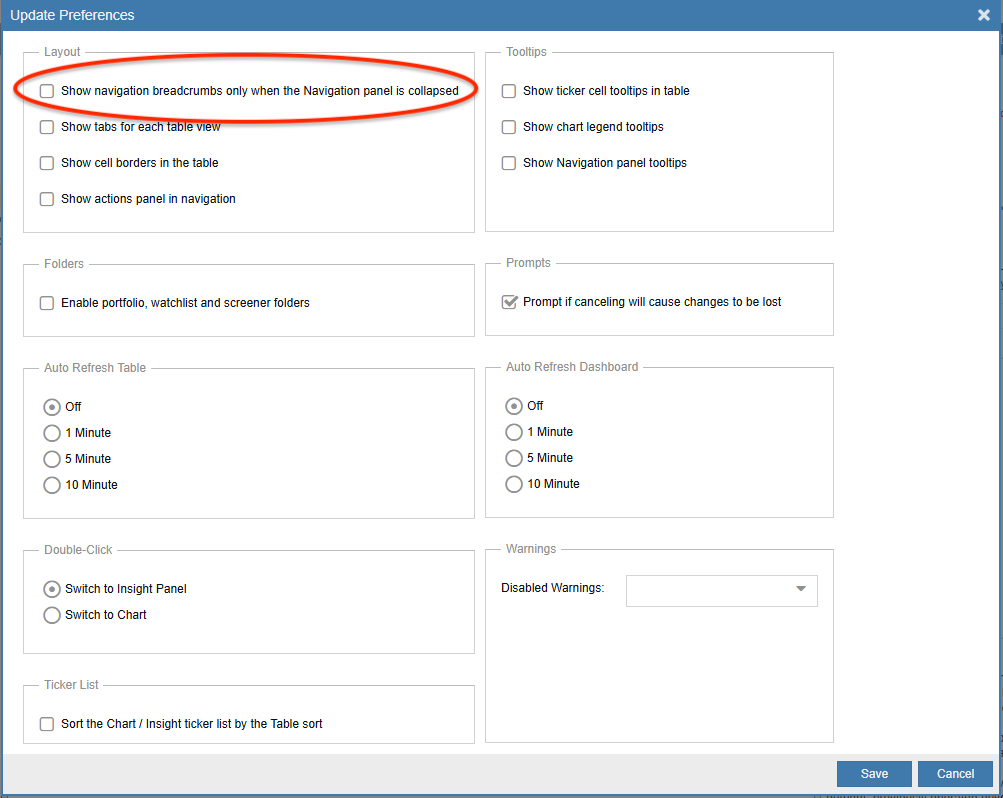
You can configure whether breadcrumbs are always visible or only appear when the Start Menu and Navigation Panel are collapsed under preferences.
The Breadcrumb Trail
Below, both the Start Menu and Navigation Panel are collapsed. The breadcrumb trail clearly shows your exact location in Stock Rover:
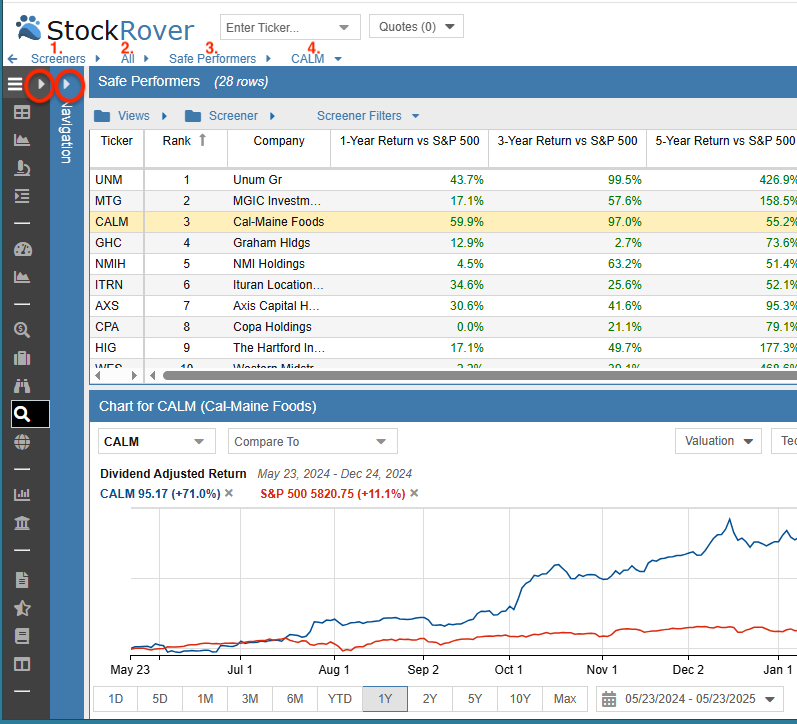
- Screeners – You are currently evaluating Screener results.
- All – You are displaying All Layouts, which include the Table, Chart, and Insight Panel together.
- Safe Performers – This refers to the screener results you are currently researching.
- CALM – This is a ticker that passed the screener and was selected for research from the Table.
Selecting from the Trail
The breadcrumb trail enables you to navigate virtually anywhere in Stock Rover with a single click.
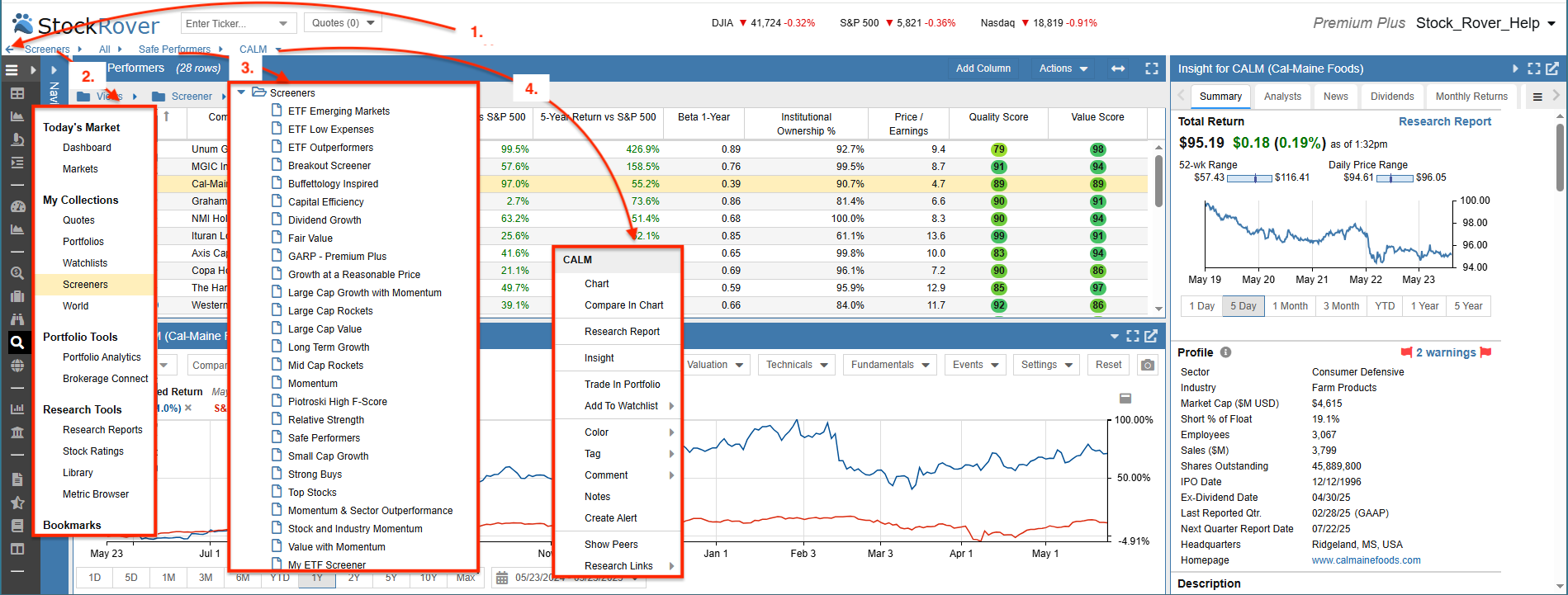
- Back Arrow – Will take you “back” to your previously selected Stock Rover function.
- Feature Name (e.g., Screeners) – Launches the Start Menu to select a different function.
- Dataset Name (e.g., Safe Performers) – Allows you to switch to a different collection or screener.
- Ticker Name (e.g., CALM) – Launches ticker-specific research functions.
Auto-Resize Columns
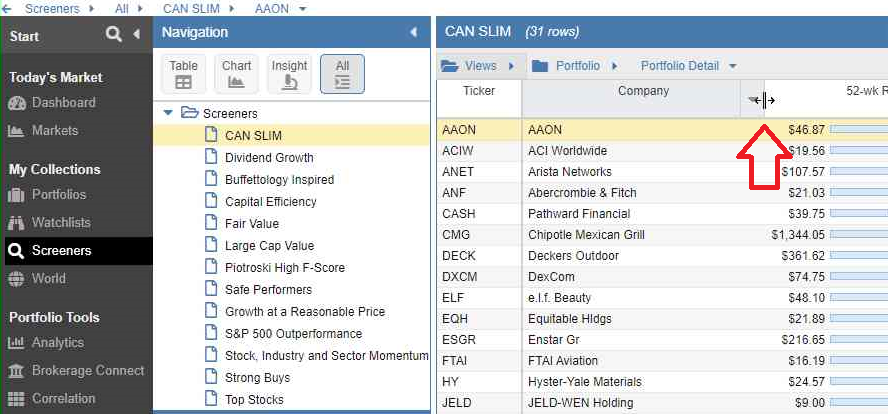
To fit all your columns into the window and avoid horizontal scrolling, a ⟷ button is available in the Dashboard, Table, Historical Data, Trade Planning, Portfolio Analytics, and Metric Browser.

The auto-resize function only applies to the current view. While you cannot undo this action, you can manually resize any column by dragging the edges of its header.
Keyboard Shortcuts
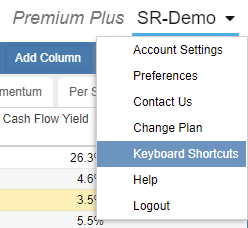
Stock Rover offers a set of useful keyboard shortcuts to make common tasks fast and easy. These can be viewed from the account pull-down menu.
Common keyboard shortcuts include:
| Alt-G | Expand/Collapse Start Menu |
| Alt-N | Expand/Collapse Navigation Panel |
| Alt-T | Switch to Table |
| Alt-C | Switch to Chart |
| Alt-I | Switch to Insight |
| Alt-A | Switch to All |
| Alt-R | Resize Columns to Fit |
| Alt-D | Detach the Window |
| Alt-S | Export the Table |
| Alt-H | Display Help |
Auto Login
To enable auto-login, first bookmark an internal page in your browser (for example, Markets Summary). Then log in and ensure the “Stay Signed in” option is checked.
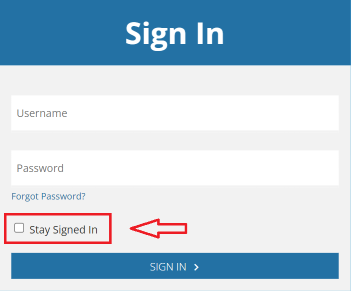
To keep auto-login active, exit by closing the browser rather than logging out. Note that auto-login will expire after approximately two weeks of inactivity.