Creating a Bookmark
Creating a Bookmark
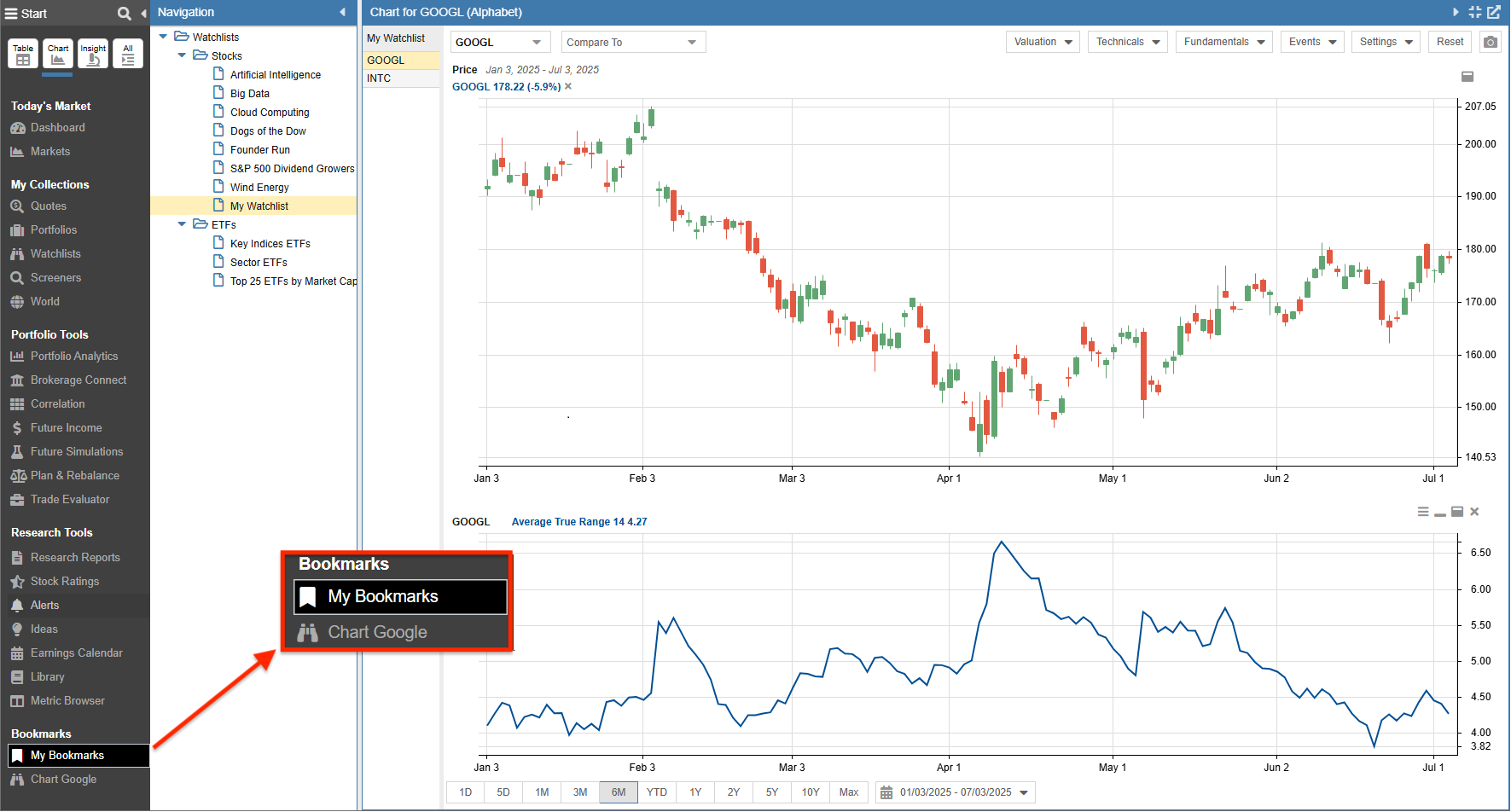
Bookmarks are most powerful when used to save specific configurations that you revisit frequently. For example, if Google (GOOGL) is your largest holding and you want to monitor its technical setup—such as a 6-month candlestick chart with the Average True Range (ATR) indicator—you can save this exact view as a one-click shortcut.
To create a custom bookmark, follow these steps:
- Configure your Workspace: Set up the specific Chart, Table, or Screener exactly how you want it to appear when the bookmark is launched.
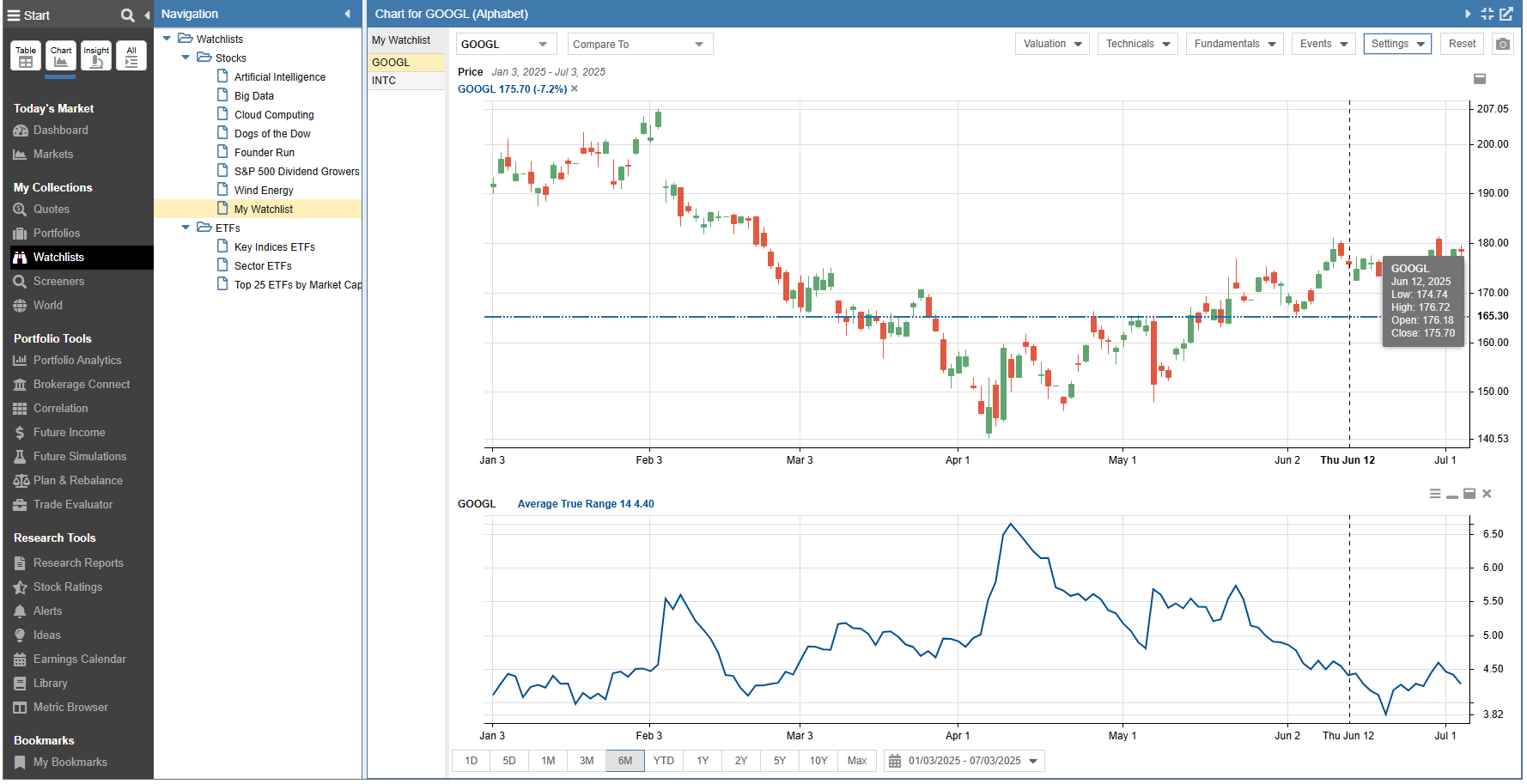
- Access the Bookmark Tool: Click on My Bookmarks at the bottom of the Start Menu to initiate the saving process.
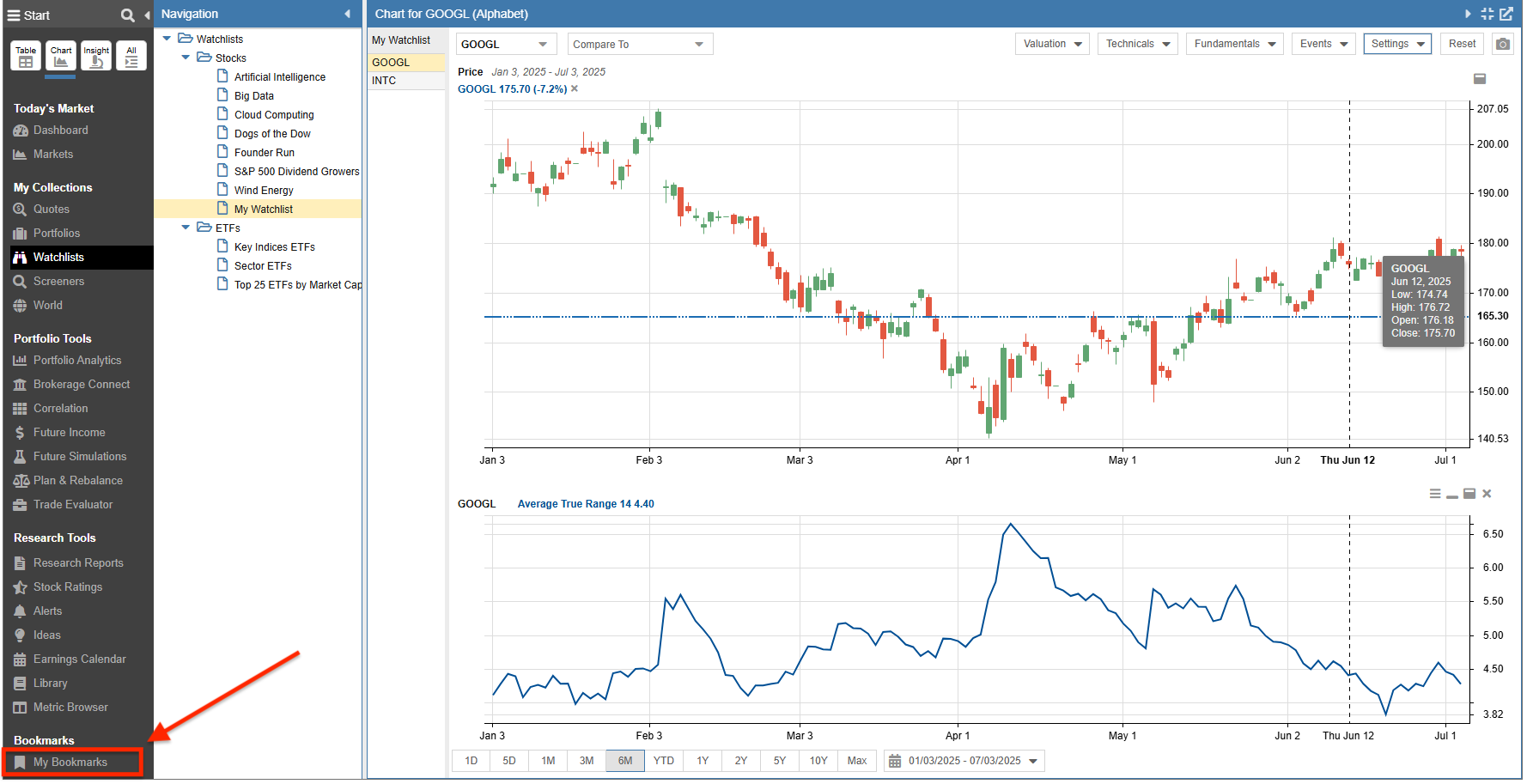
- Define the Bookmark: In the Create Bookmark window, provide a clear Name and a brief Description of the view. Click Add to move it to your active list.
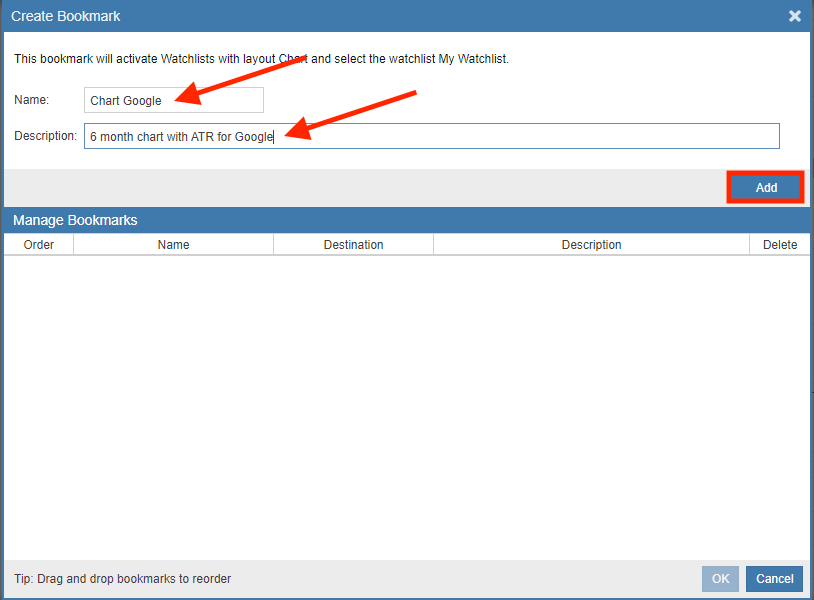
- Finalize: Click OK to confirm and save the bookmark to your profile.
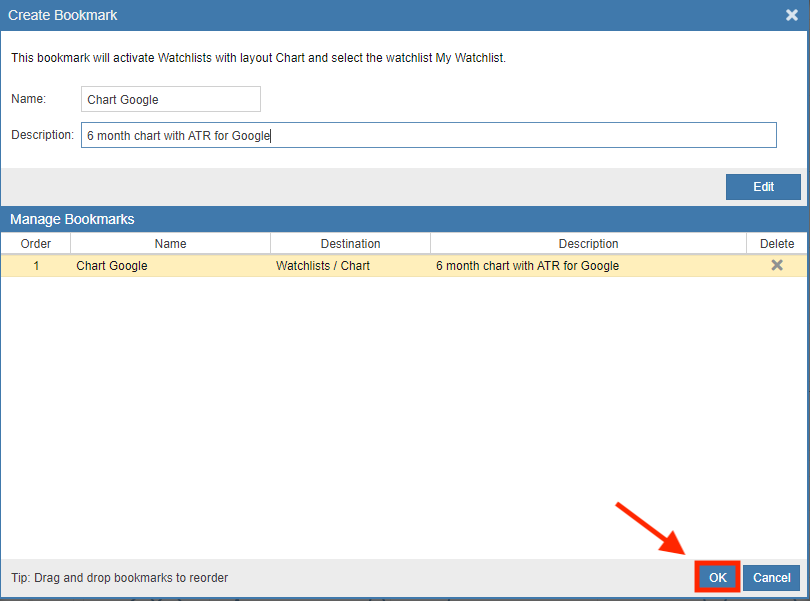
Once saved, your new shortcut (e.g., “Chart Google”) will appear under the My Bookmarks section. Clicking it at any time will instantly recreate your saved chart settings and technical indicators.