Checkboxes
Overview
Checkboxes are an option used to select multiple Portfolios, Watchlists, or Screeners for inclusion in the Table. This feature is useful when you want to perform research across Portfolios or Watchlists, or when you want to run multiple Screeners at the same time.
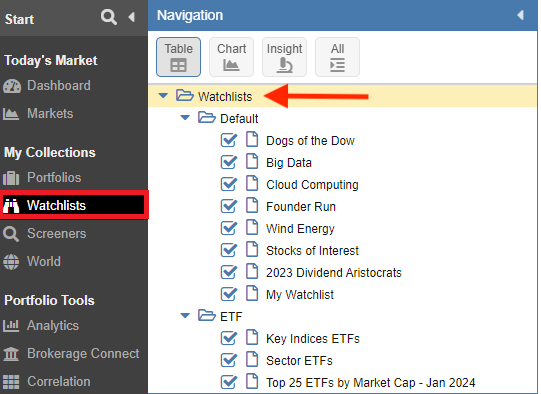
When you click on a folder or subfolder, checkboxes appear next to the folder items. You can either select all folder items or a specific subset.
Select All
Using Watchlists as an example: when we select the Watchlist folder, all watchlists across all subfolders will be selected.
Select One
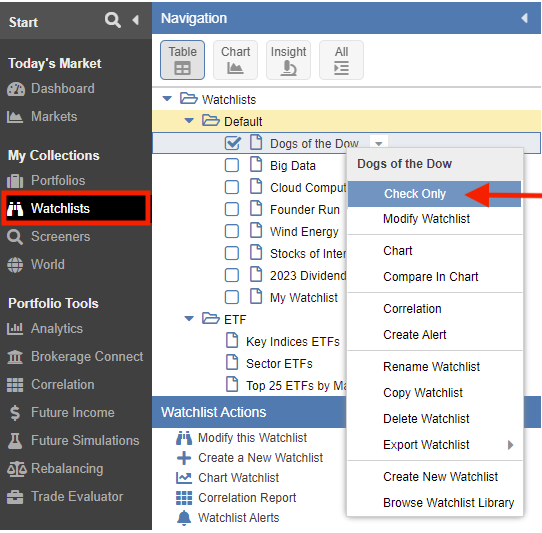
To clear the list of checked objects except for a selected one, right-click on a specific object and select Check Only. This will select only the highlighted object.
Select Multiple
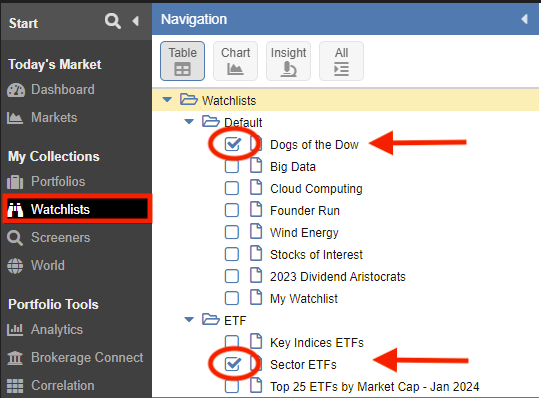
To select more than one item, first select all items as described above, or use the Check Only feature on the first item and then manually check the additional items you want to select, as shown below.
Grouping by Container
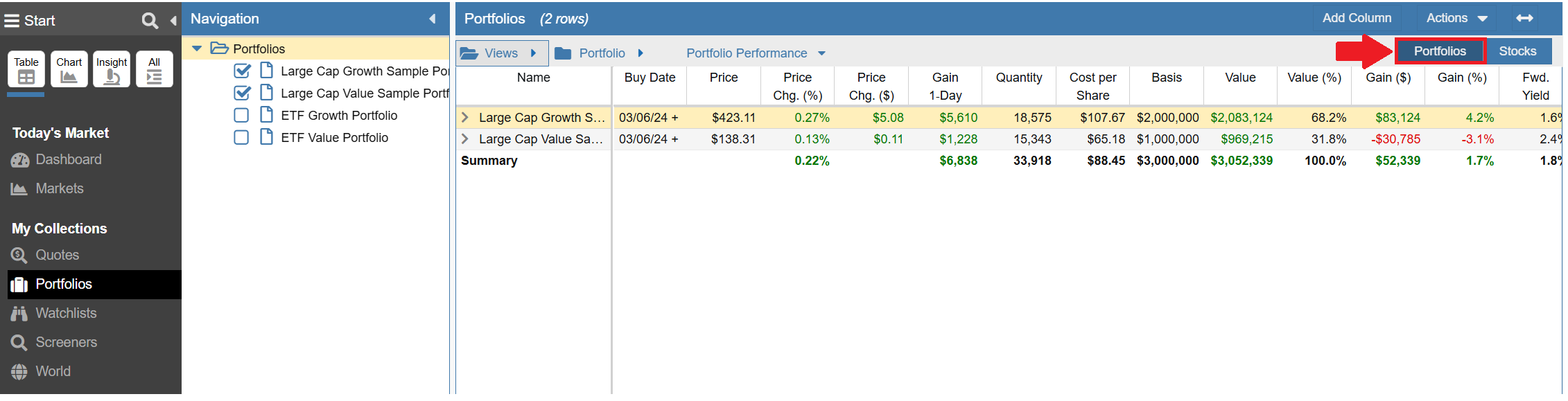
Select the first button to display metrics at the Container level. This button changes context based on what is selected in the Navigation Tree, showing either Portfolios, Watchlists, or Screeners in the Table.
This Portfolio Performance view is showing key metrics at the Portfolios level.
Grouping by Ticker
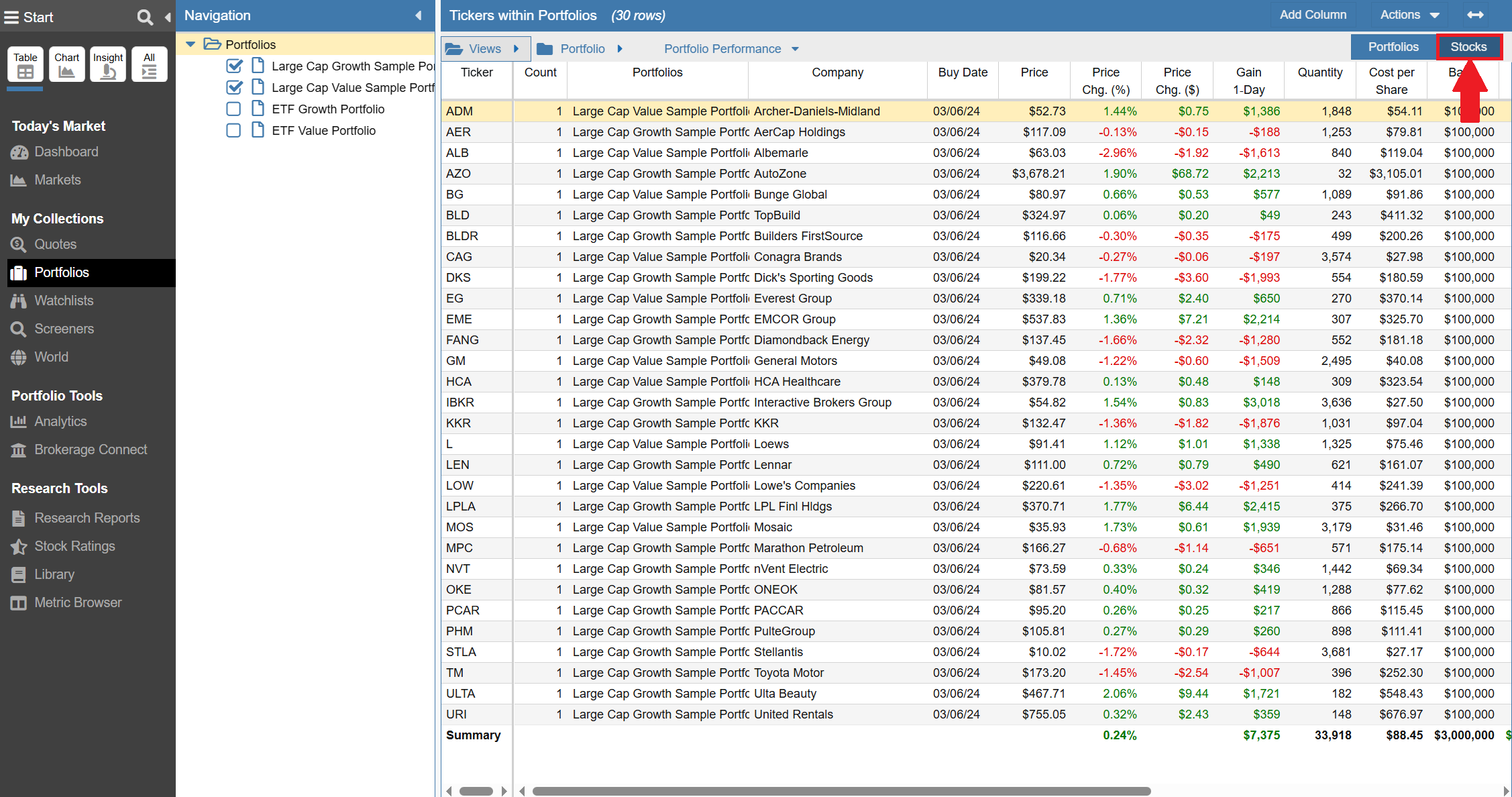
Select the second button, “Stocks,” to show all the tickers for the selected Containers in the Table. This Portfolio Performance view in the Table shows key metrics for the tickers that comprise the selected Portfolios.
Dynamic Columns
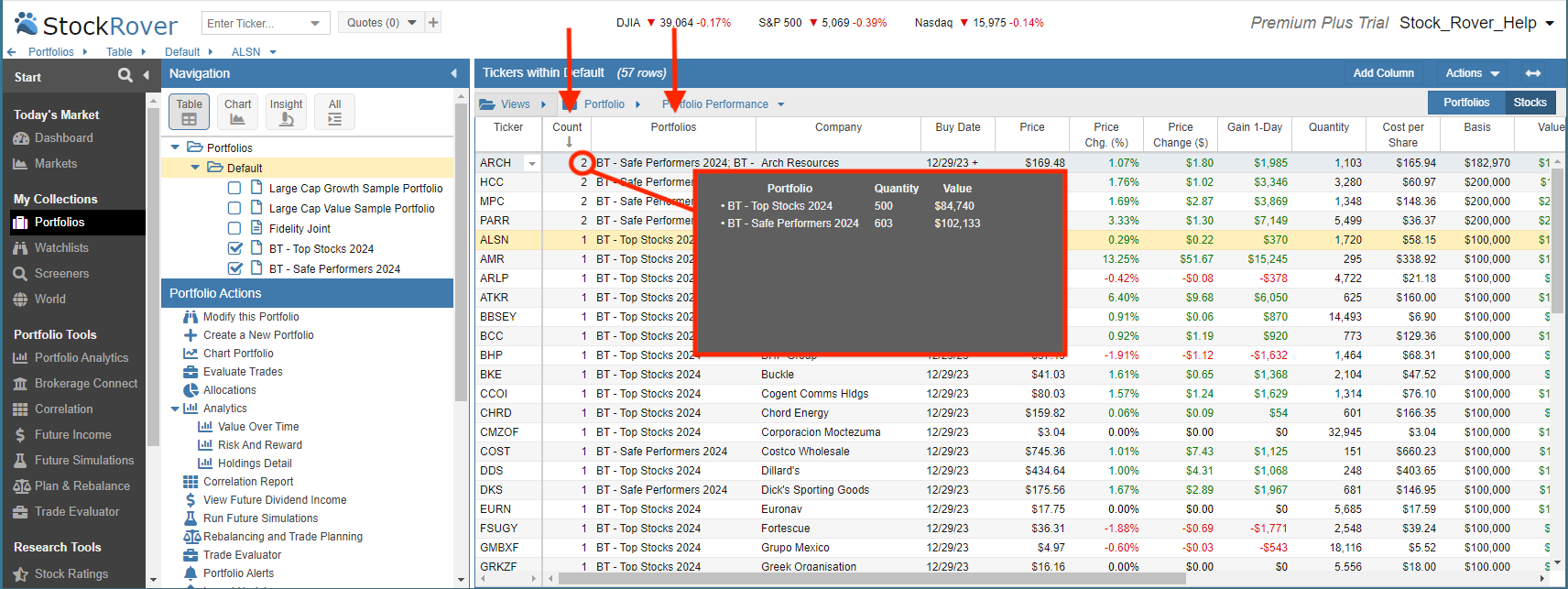
When you are viewing rows in the Table at the ticker level, two columns are dynamically added to provide additional information.
The Count column displays the number of selected Portfolios, Watchlists, or Screeners that contain the ticker.
The Containers column shows a list of Portfolios, Watchlists, or Screeners that include the ticker from the checked set. When you hover over this column for a given row, a tooltip pops up with additional information. For example, when showing portfolios, the tooltip shows the quantity and value of the ticker for each selected portfolio.
Move Last / Move First Column Options
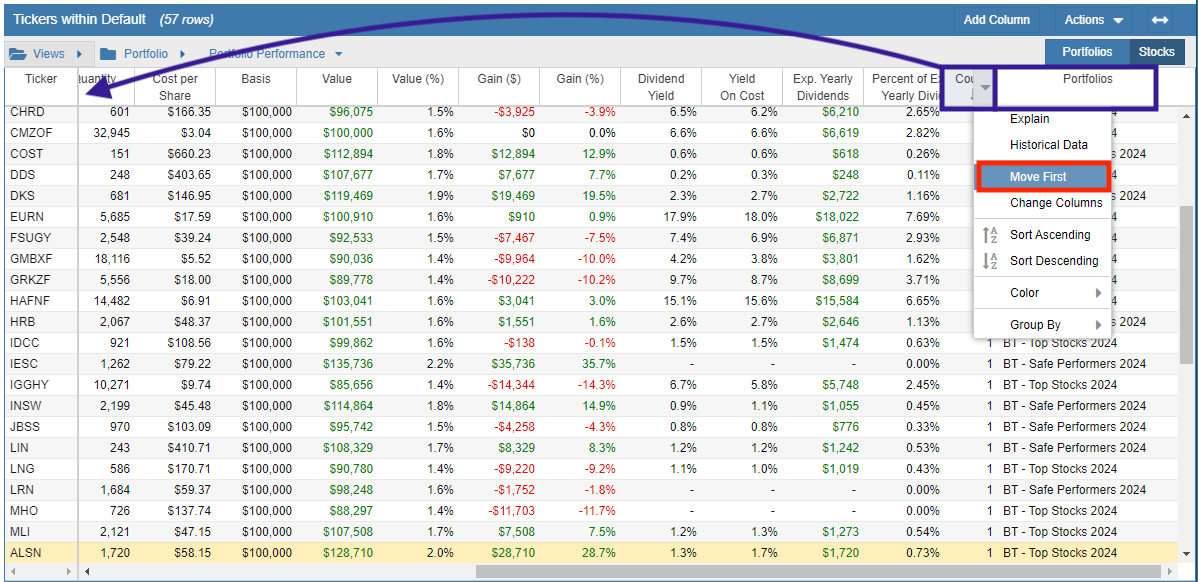
The Move Last column option is available when clicking on the heading for the Count or Container column. This configuration option will move the Count and Container columns to the end of the Table.
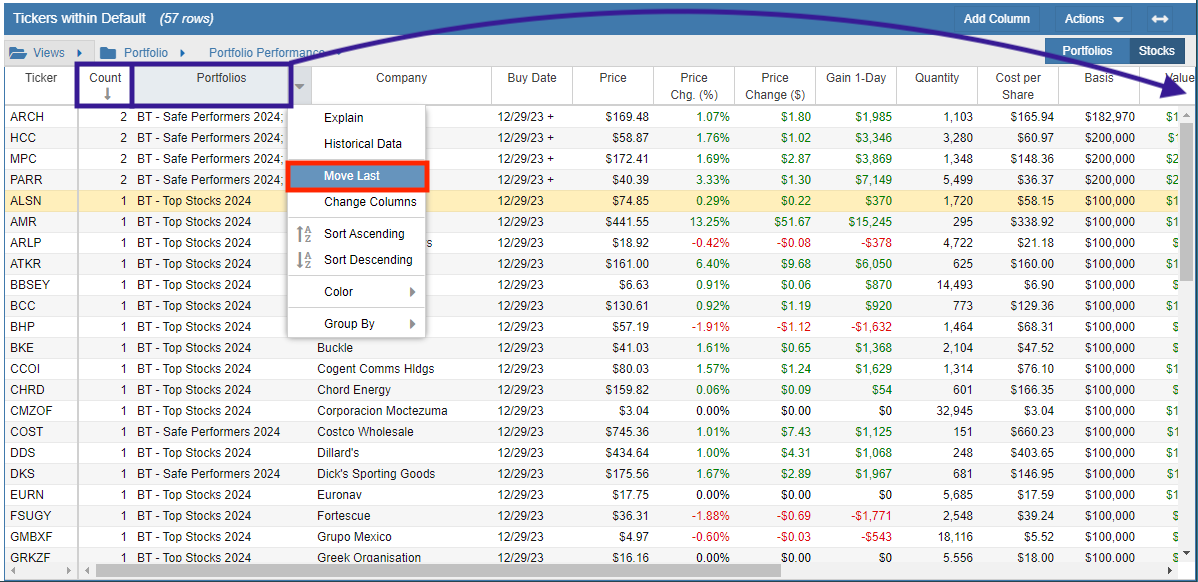
If the columns are moved to the end, the Move First column option becomes available to move them back to the beginning of the Table.