Viewing a Watchlist
Introduction
You can view the tickers in a watchlist from two different perspectives:
- View the tickers in the Table to utilize the full research power of Stock Rover Views and Metrics.
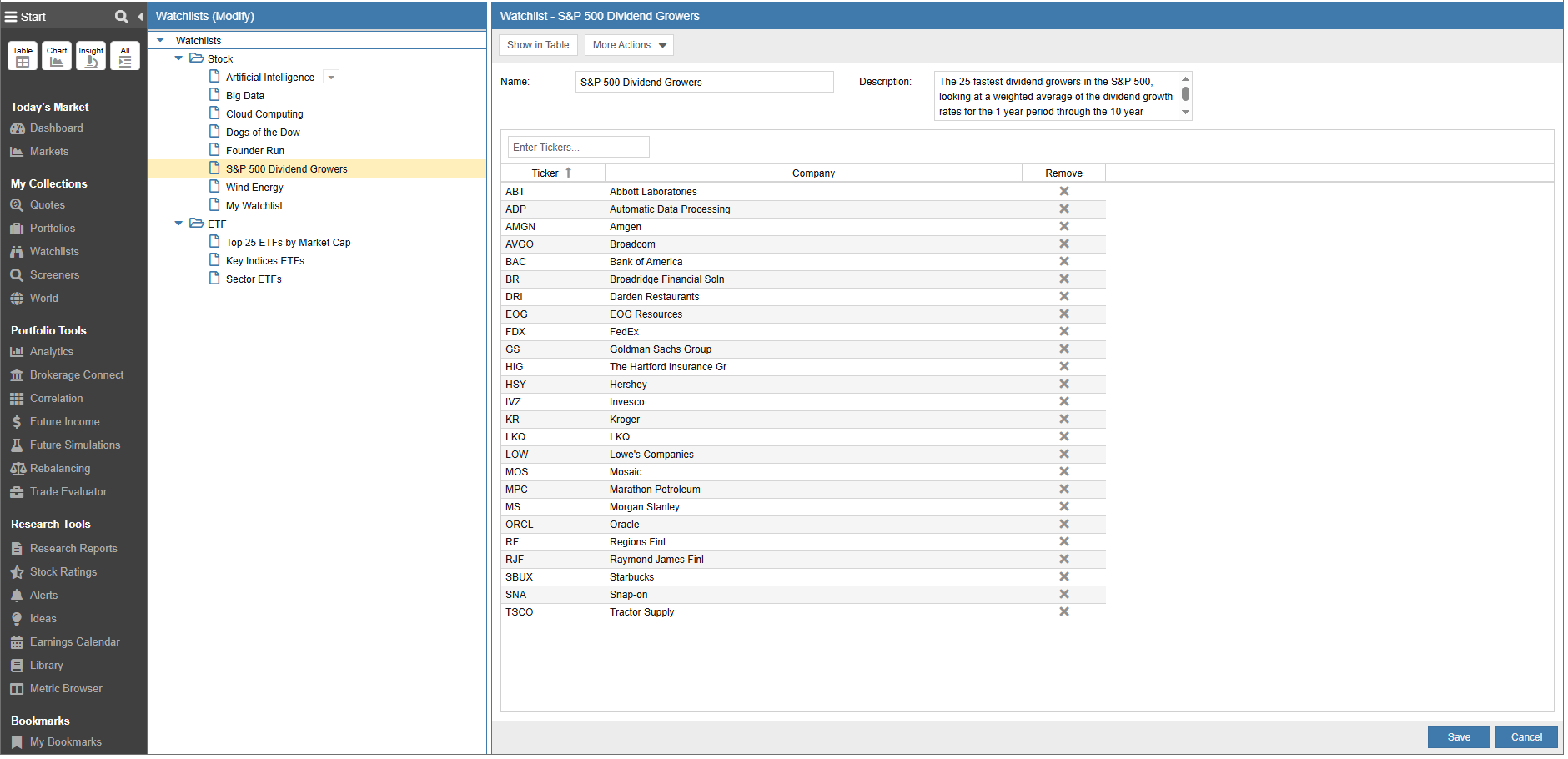
- View and modify the watchlist directly using the Watchlist Manager.
Viewing Holdings in the Table
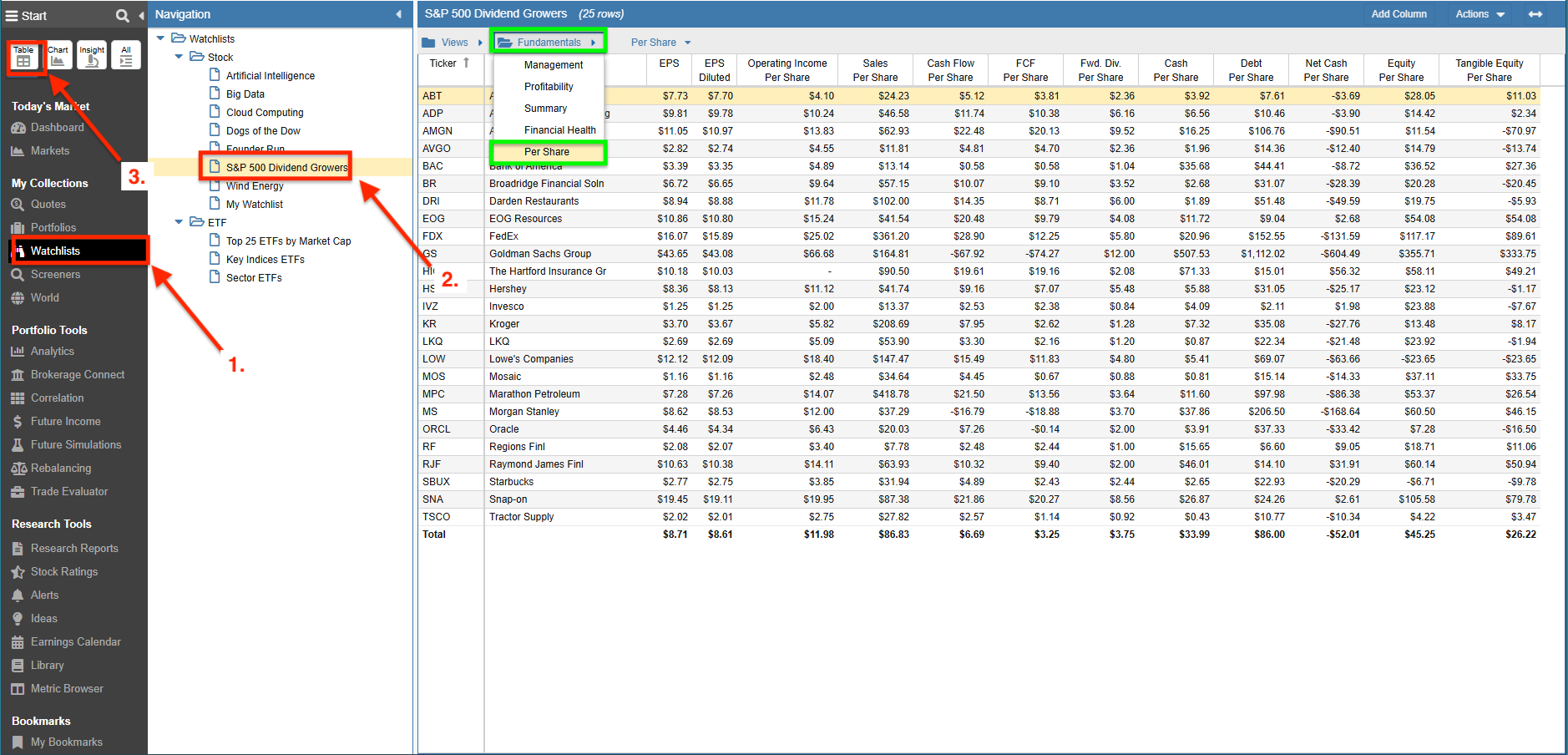
To view a watchlist’s tickers in the Table:
- Select Watchlists from the Start Menu.
- Choose the Watchlist you wish to view from the Navigation Panel.
- Select Table in the Start Menu.
The Table’s Views are logically organized into folders. Each row in a View corresponds to a ticker, and each column represents a specific metric.
In our example, we selected the Fundamentals folder, which contains five Views, and then chose the Per Share View.
Viewing Holdings in the Watchlist Manager
To view the tickers in a watchlist using the Watchlist Manager:
- Select Watchlists from the Start Menu.
- Right-click on the Watchlist in the Navigation Panel and select Modify Watchlist.
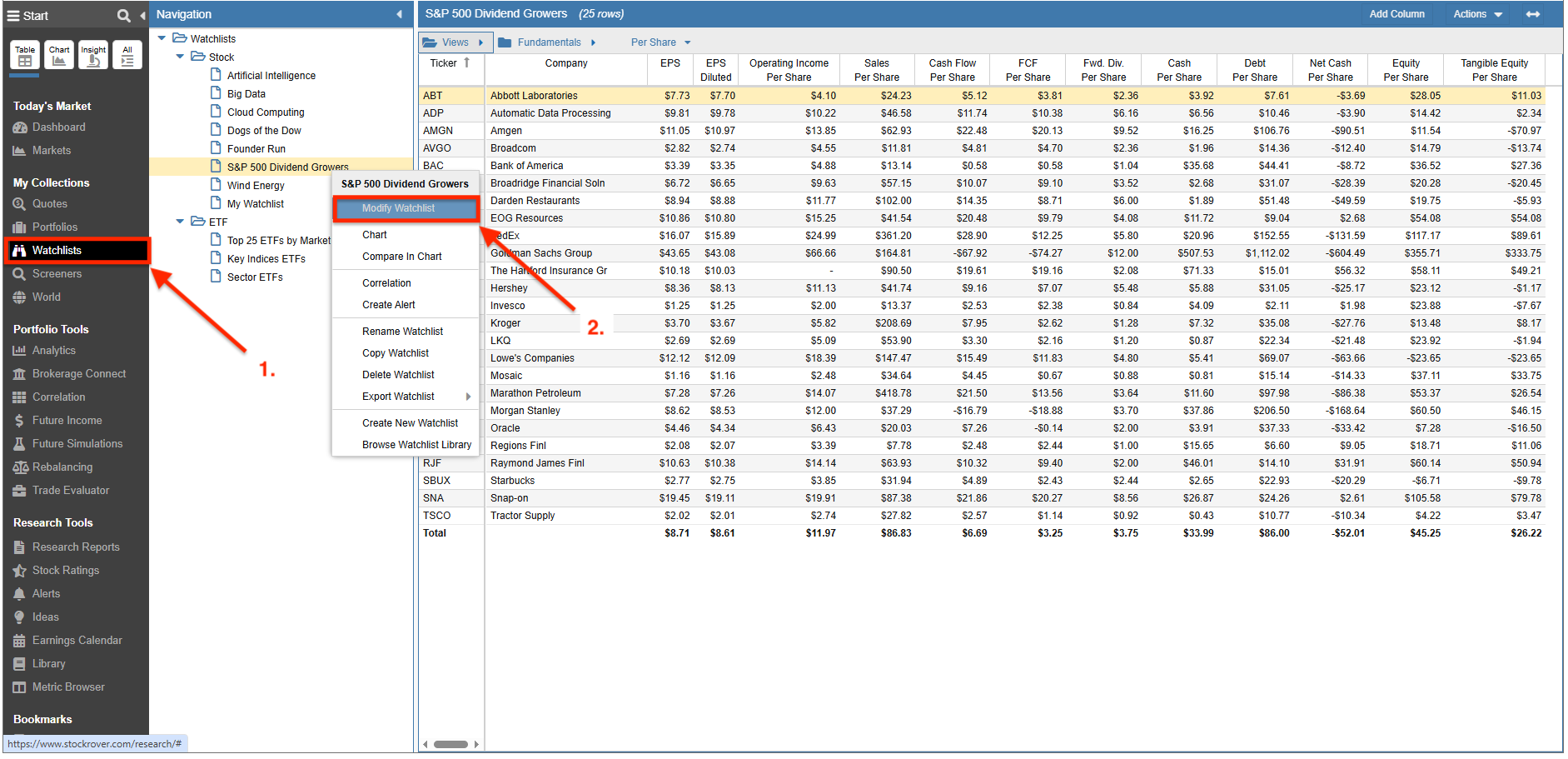
The Watchlist Manager displays all tickers for the selected Watchlist. This interface is also where tickers can be added or removed, as covered in the next section.