Updating a Trade Bundle
Contents
Introduction
You can easily keep your Trade Bundles current using the Trade Evaluator. Updating a bundle involves adding new transactions, modifying existing trade details, or deleting specific trades to ensure your analysis remains accurate.
Adding Trades
New trades can be added to a specific Trade Bundle either through manual entry or by importing data from existing sources.
Via Manual Entry
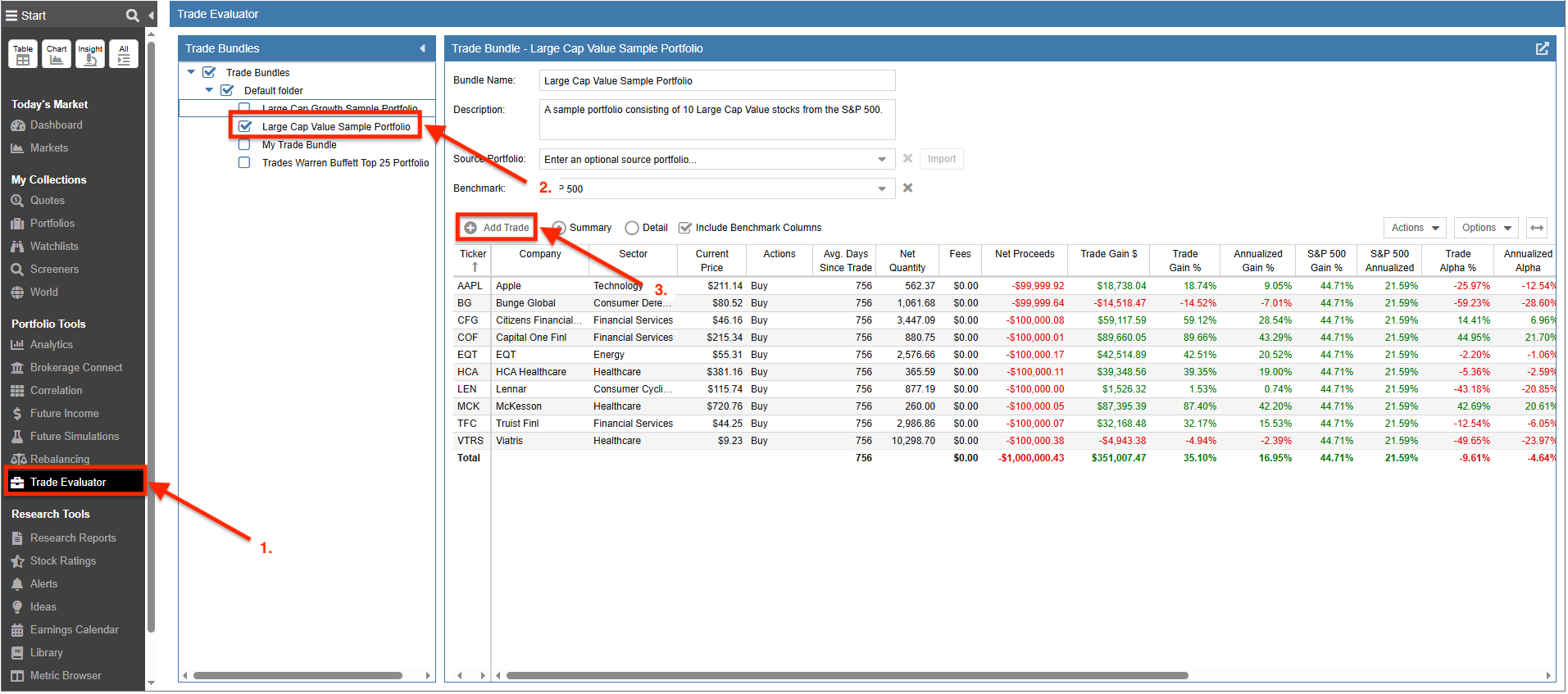
- Select Trade Evaluator from the Start Menu
- Select the specific Trade Bundle you wish to update
- Click ‘Add Trade’ to manually enter individual transactions
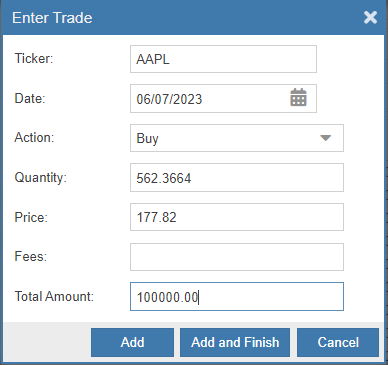
In the Enter Trade window, you can input the Ticker symbol, the Date, the Type (Buy or Sell), and the Quantity. The Price field defaults to the closing price of the selected date (or the current price for today’s date), but it can be manually edited. You can also include any applicable trading fees.
Once the details are finalized, click ‘Add’ to include another transaction or ‘Add and Finish’ if you have completed your entries for that session.
Note: The Total Amount is automatically calculated when you enter the Price and Quantity. However, as shown below, if you enter the Price and the Total Amount instead, Stock Rover will calculate the resulting Quantity for you.
Via Import
The Import feature allows you to update a bundle using trades from an existing Stock Rover Portfolio or an external .CSV or .XLSX file.
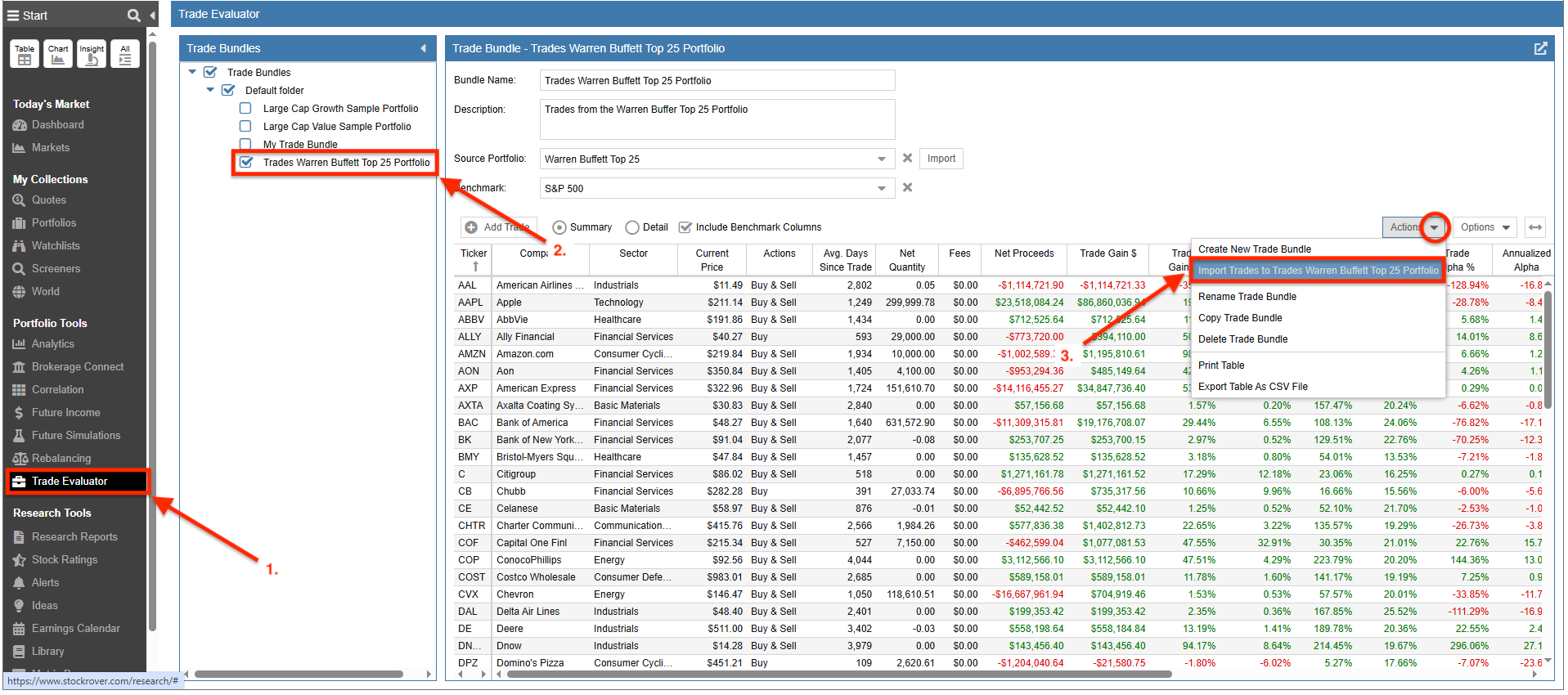
- Select Trade Evaluator from the Start Menu
- Select the Trade Bundle you want to update
- Click the Actions pulldown menu and select ‘Import Trades to [Bundle Name]’
Importing from an Existing Stock Rover Portfolio
This is the fastest way to sync a Trade Bundle with activity already recorded in a Stock Rover Portfolio.
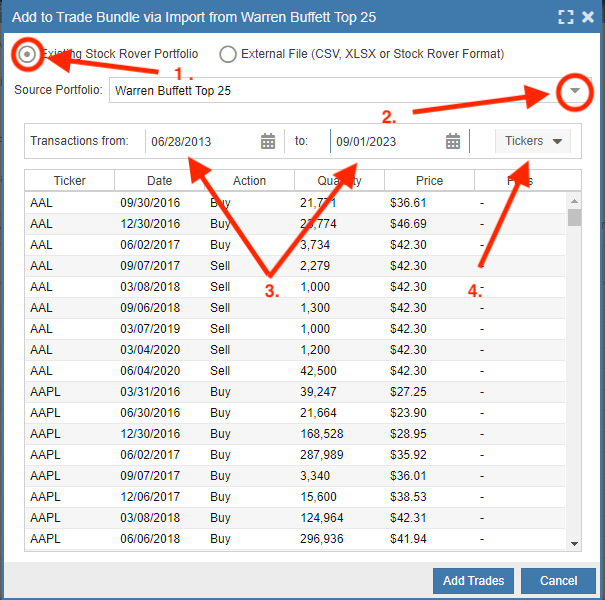
- Select Existing Stock Rover Portfolio
- Choose your Source Portfolio from the list
- Optionally specify a date range for the trades
- Optionally filter for specific tickers
After clicking ‘Add Trades’, a confirmation popup will display the number of trades successfully imported. Note that duplicate trades will be automatically identified and excluded from the import.
Importing from an External File
Use this option to batch-upload trades from a spreadsheet or brokerage export.
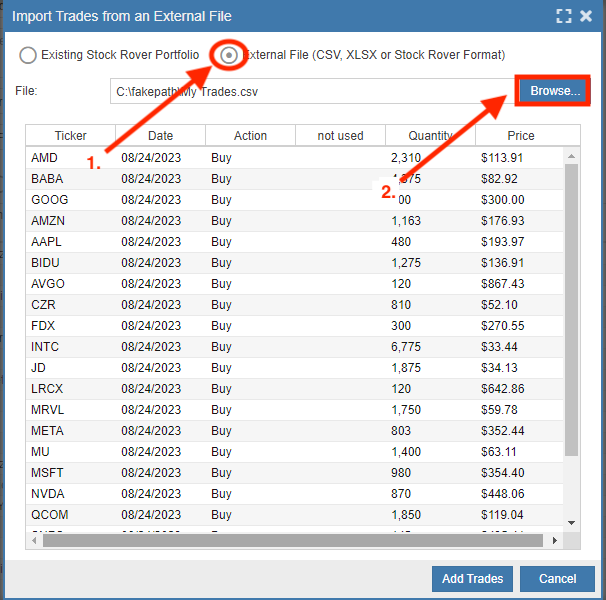
- Select External File
- Choose the relevant .CSV or .XLSX file from your computer
- Click ‘Add Trades’
Stock Rover will notify you of the total trades imported and filter out any duplicates. To ensure a successful upload, your file must contain a title row with the following headings: Ticker, Date, Action, Quantity, Price, Fees.
Each individual trade row must include:
- A valid ticker symbol
- The trade date (YYYY-MM-DD or MM/DD/YYYY format)
- The action (“Buy” or “Sell”)
- The trade quantity
- The execution price
- (Optional) Any associated commissions or fees
Modifying Trades
Every transaction within a Trade Bundle remains fully editable if you need to correct historical data.
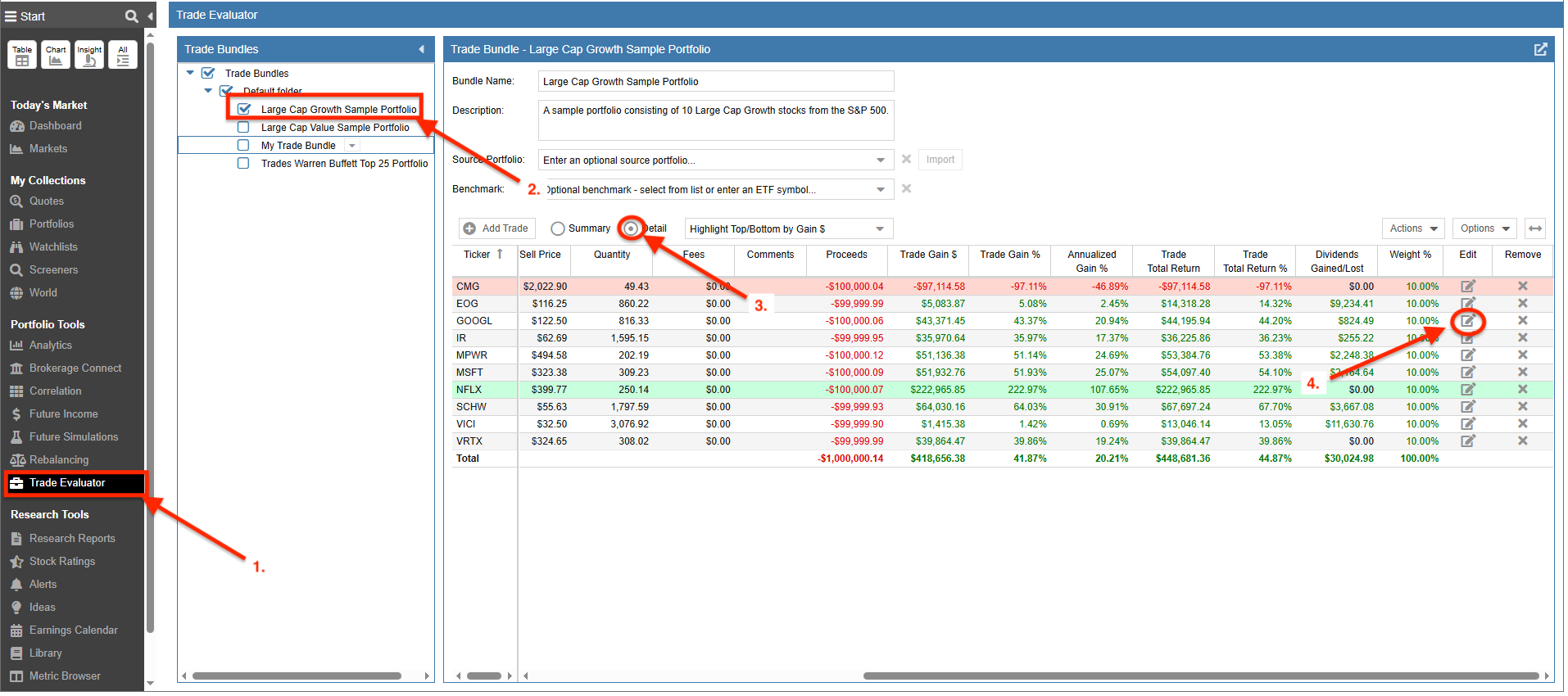
- Select Trade Evaluator from the Start Menu
- Select the Trade Bundle you wish to modify
- Click on the ‘Detail’ tab to view individual transactions
- Scroll to the right of the specific trade and click the Edit button
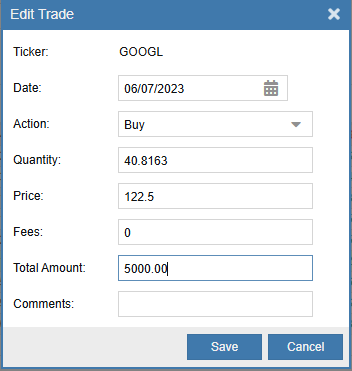
You can adjust the Date, Type, Quantity, Price, and Fees. As with manual entry, the Total Amount and Quantity fields are linked and will update based on your inputs. Click ‘Save’ to apply your changes.
Deleting Trades
You can remove data either by position (aggregating all trades for a ticker) or by individual transaction.
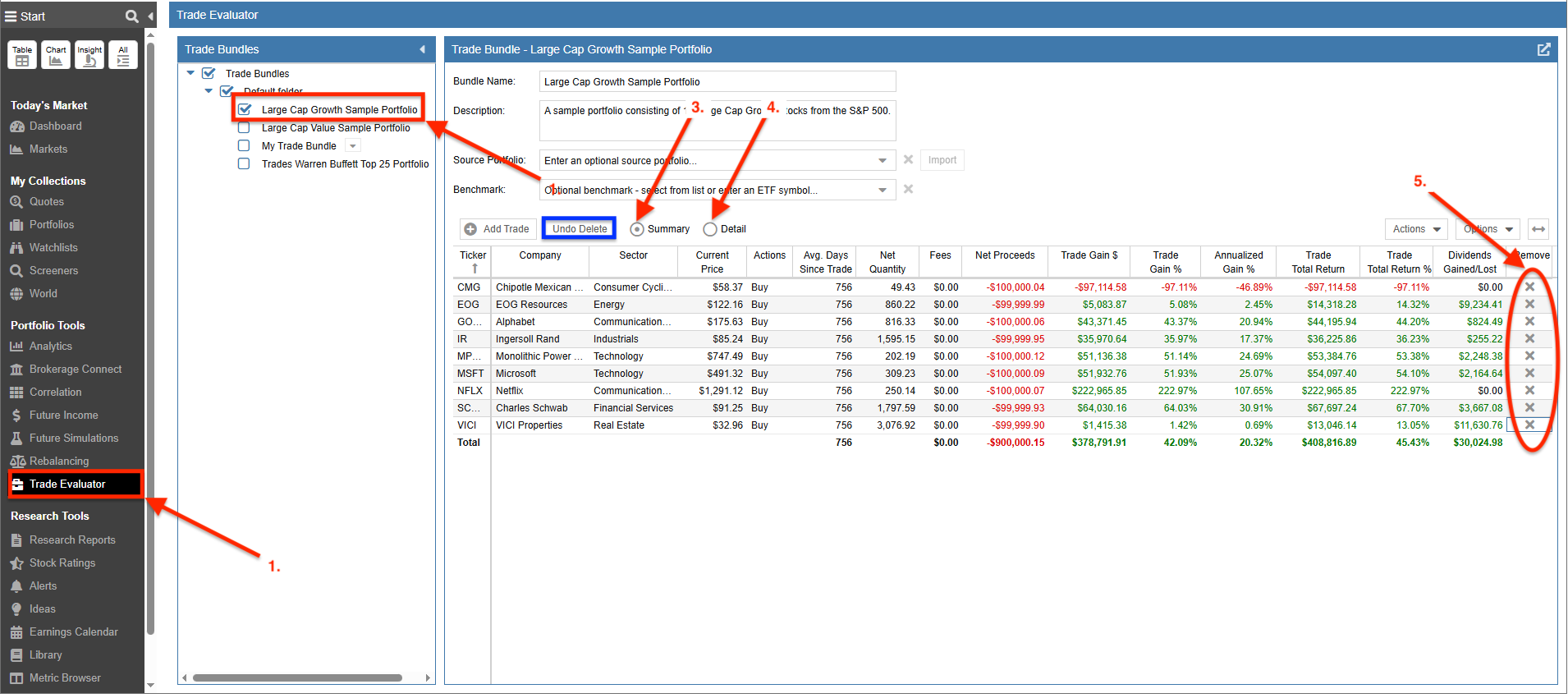
- Select Trade Evaluator from the Start Menu
- Select the relevant Trade Bundle
- To delete an entire position, select the ‘Summary’ view
- To delete a specific transaction, select the ‘Detail’ view
- Click the “X” icon in the Remove column to delete
If you accidentally remove a position or trade, click ‘Undo Delete’ to restore it. Clicking this multiple times will restore your items in reverse chronological order (from the most recent deletion back to the first).