Table Action Menu
Overview
The Actions Menu is available at the top of the Table and gives you access to different tasks related to the Table. The menu provides access to the ability to create custom metrics and export data from the Table. It also gives you quick access to actions on items you have selected in the left-hand Navigation Panel and the ticker selected in the Table. This menu is context-specific; the items in the action menu will change depending on the type of item you have selected in the Navigation Panel or if a ticker is highlighted in the Table. Additional actions are added when the item you select in the Navigation Panel is a portfolio, watchlist, screener, or ticker.
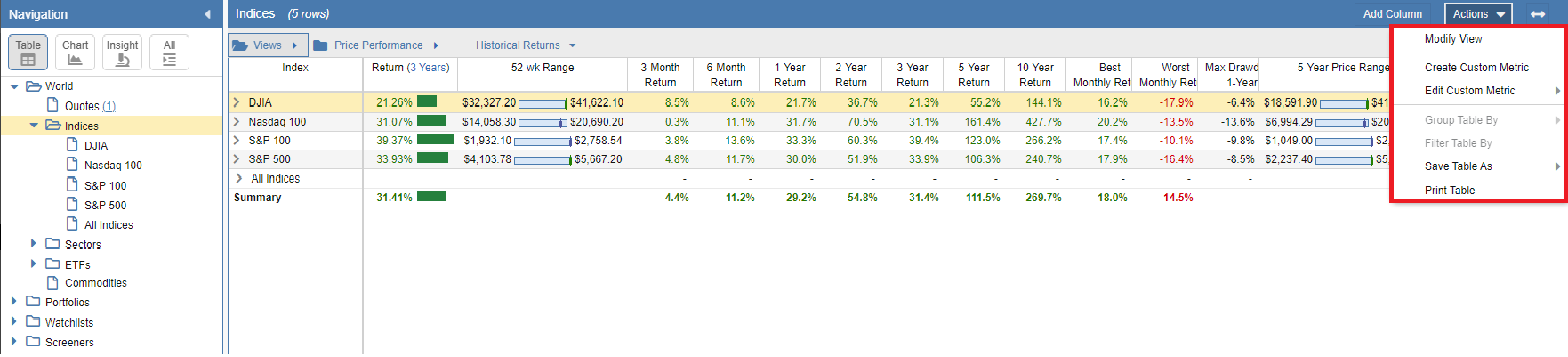
The screenshot below shows the default menu when a folder is selected under World in the Navigation Panel.
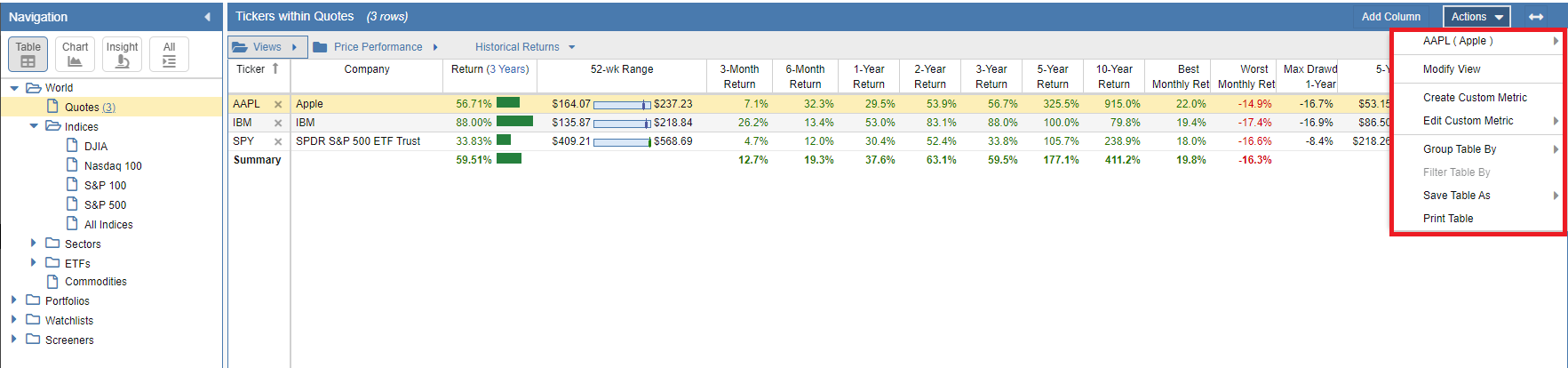
The screenshot below shows an example of the menu when a ticker is selected from Quotes. Note the addition of a ticker-specific menu for the selected ticker, in this case, Apple (AAPL).
This screenshot shows an example of the menu when Portfolios are selected. Note the addition of portfolio-specific menu options.
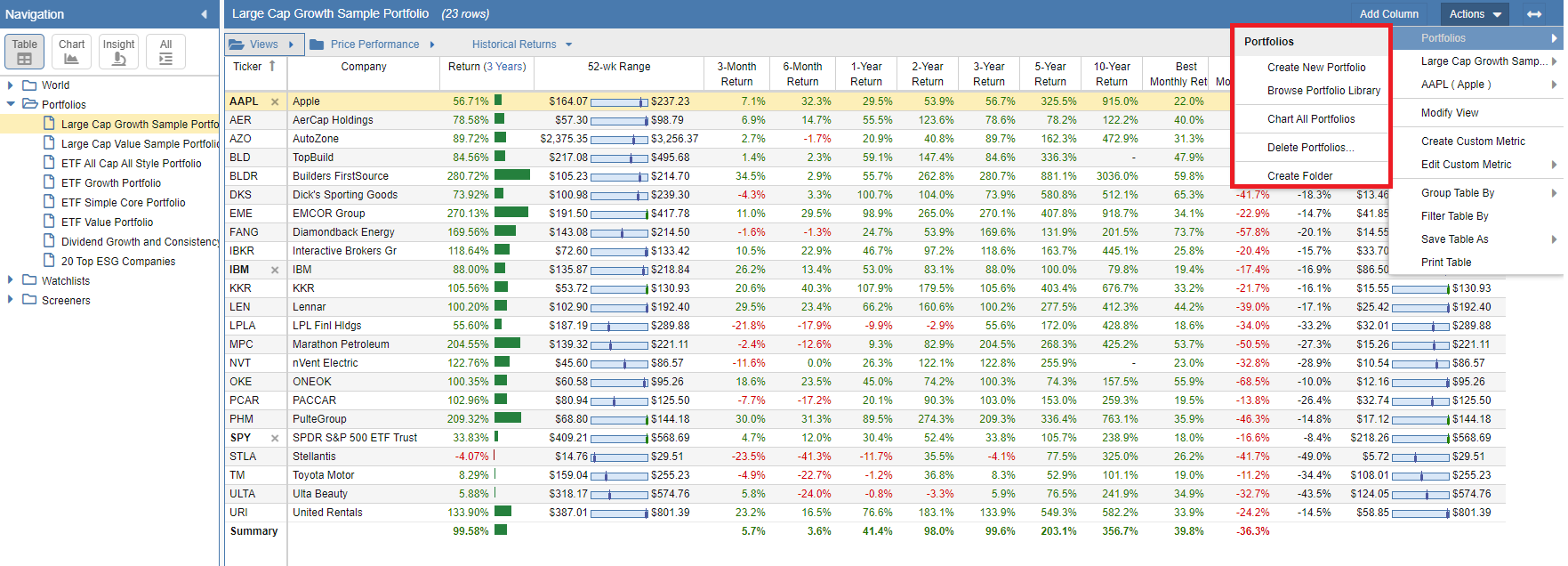
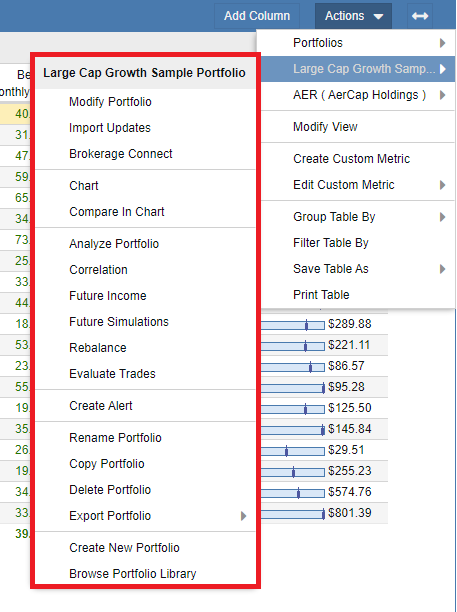
If a specific item is selected in the navigation menu, quick actions related to the item will be presented. In the example below, where the “Large Cap Growth Sample Portfolio” is selected, quick actions related to portfolios are displayed.
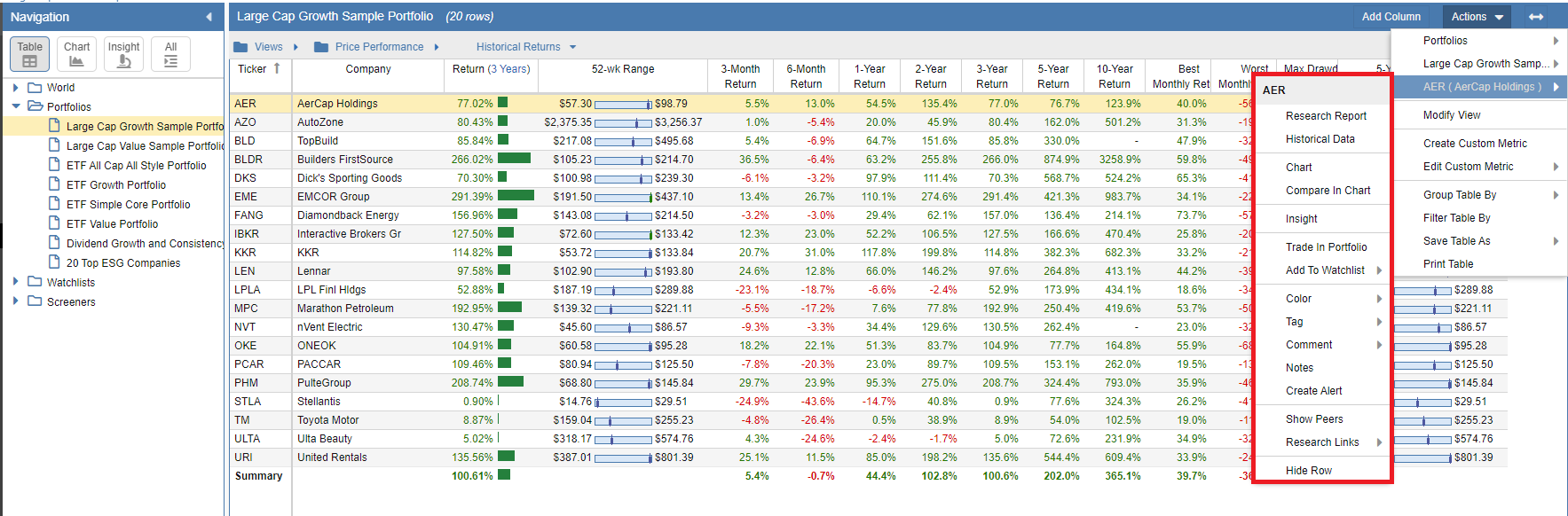
When a specific ticker is selected in the Table, quick action items related to tickers are displayed, as seen in the example below where “AER” is selected in the Table. This same menu will appear when a ticker is selected for watchlists as well as screeners.
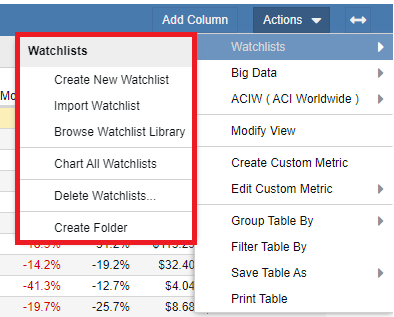
This screenshot shows an example of the menu when Watchlists are selected, with watchlist-specific options displayed.
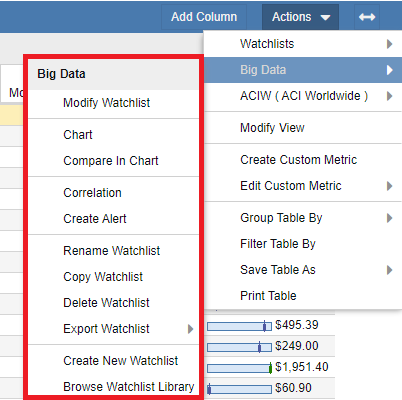
When a specific watchlist is selected in the navigation menu, quick action items related to the watchlist are displayed, as seen in this example below where “Big Data” is the watchlist selected in the navigation menu.
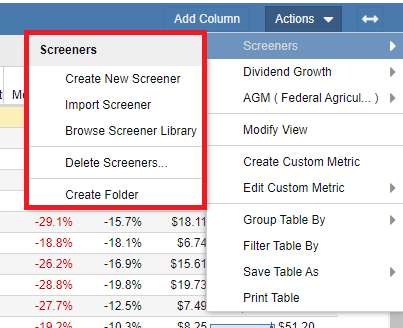
This screenshot shows an example of the menu when Screeners are selected; it displays specific screener options.
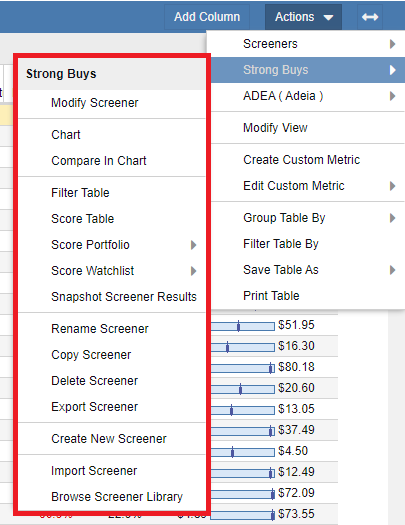
When a specific screener is selected in the navigation menu, quick action items related to the screener are displayed, as seen in this example below where the “Strong Buys” Screener is selected in the navigation menu.
Modifying a View
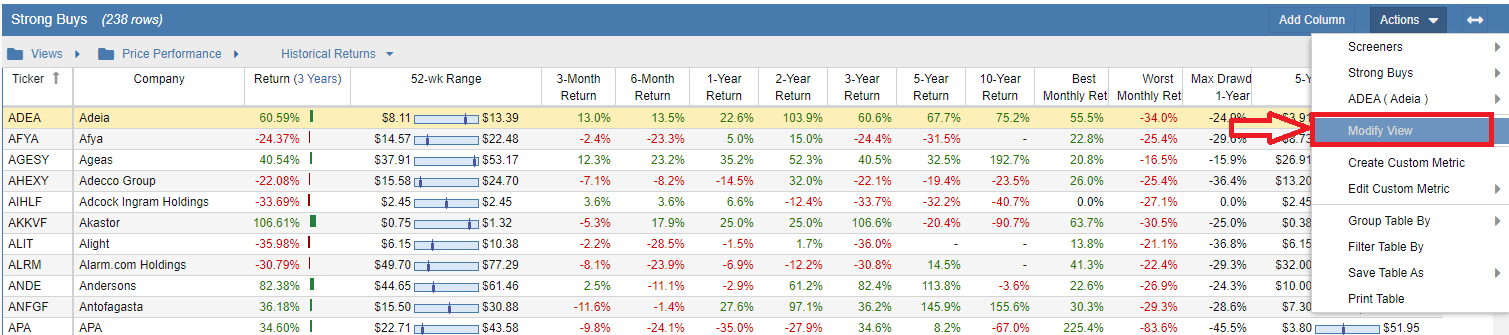
Selecting the Modify View option will display the modify view window, where you can manipulate the view and add or remove columns to the selected view.
Creating a Custom Metric
The Custom Metric facility allows you to create new metrics from existing Stock Rover metrics. The possibilities range from creating a simple ratio of two existing metrics you often compare to creating a brand new formula from our existing metrics. The Custom Metric facility works very similarly to the Equation Screener in the Stock Rover Screening facility. The custom metrics facility allows you to use arithmetic operators (+ – * /), comparison symbols (>, <, >=, <=, !=, =), parentheses, Boolean operators (and, or), and functions like ifnull. The section below describes some of the different functions that can be used.
Note: Boolean operators and functions must be specified in lower case.
Note: To help you learn more about Custom Metrics, we have also created a guide for creating Custom Metrics. It is available in PDF and Word format.
There is also a video that demonstrates the custom metrics facility in action. The video can be viewed here. Please note that this video was recorded on a slightly earlier version of Stock Rover, so there may be some minor differences between the product you experience and this video.
Note: Custom Metrics are available for Premium Plus and Ultimate users only.
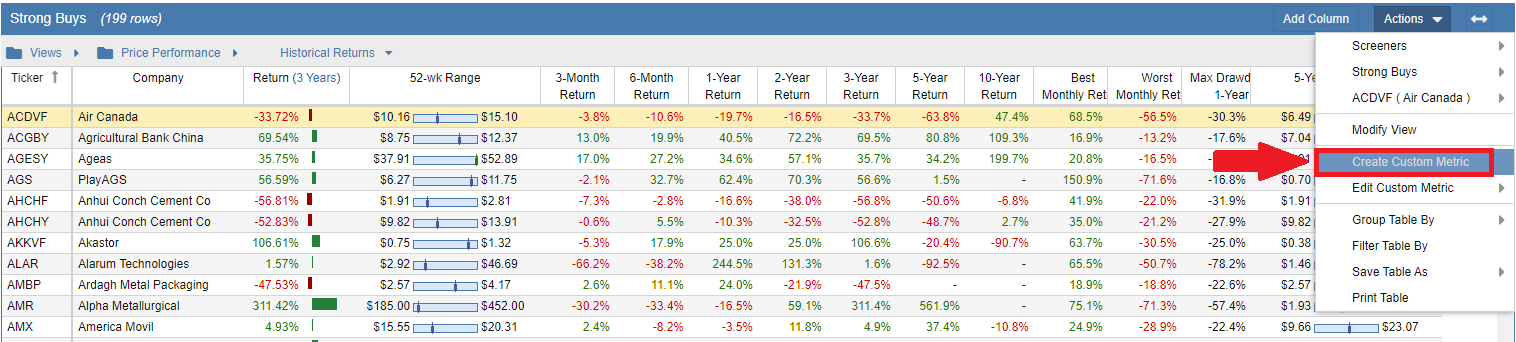
The first screenshot below shows how you can access the facility:
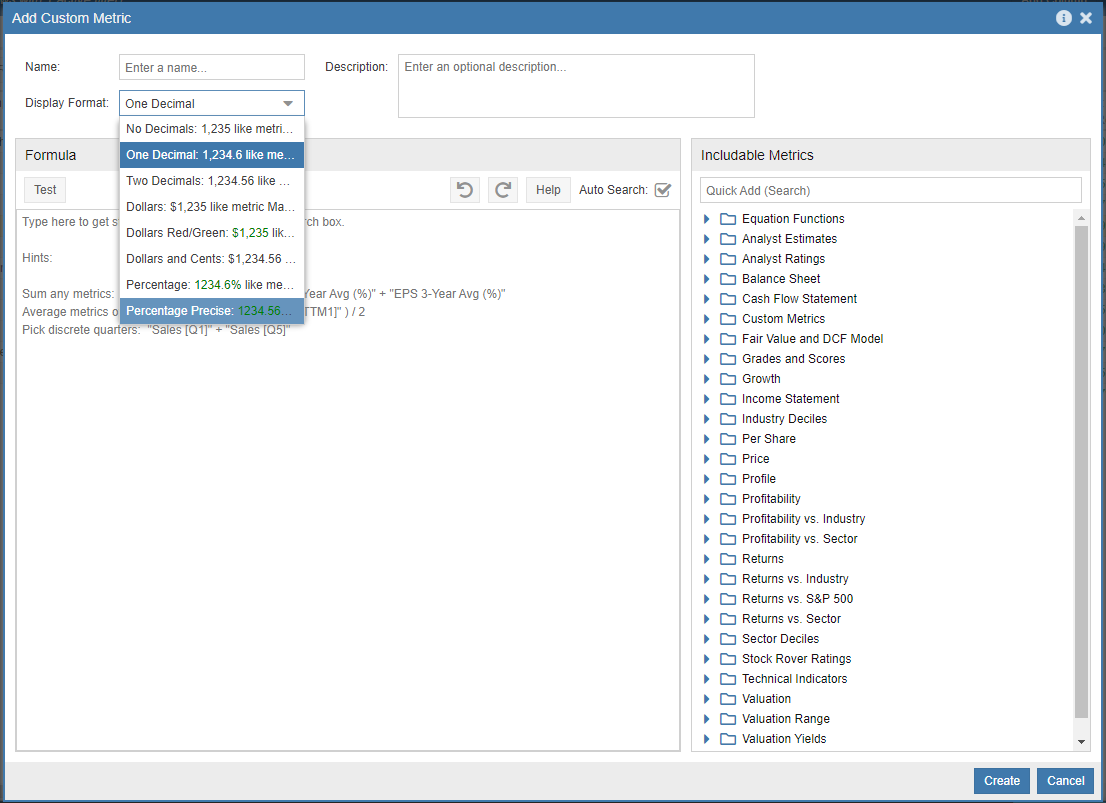
This will display a new window where you can create a new metric. To start, give the metric a name and a description, and select a display format (decimal value, percent, or dollar value). The screenshot below shows all the display format options.
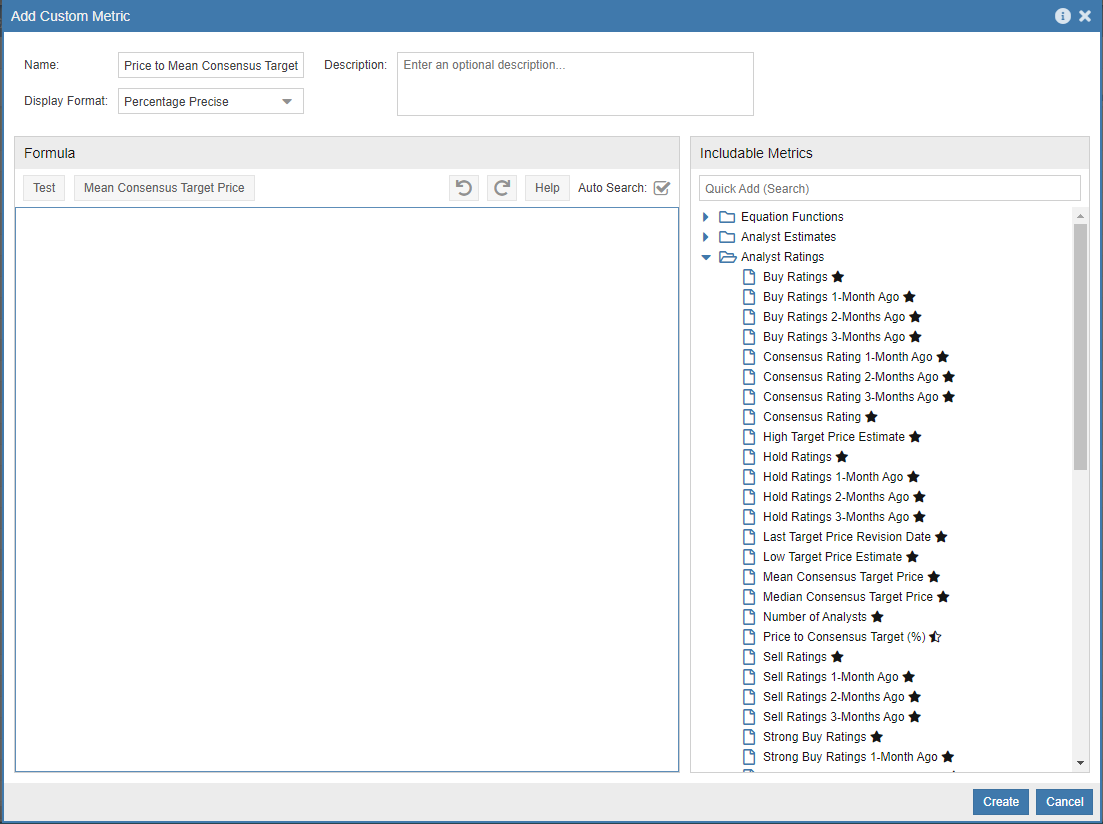
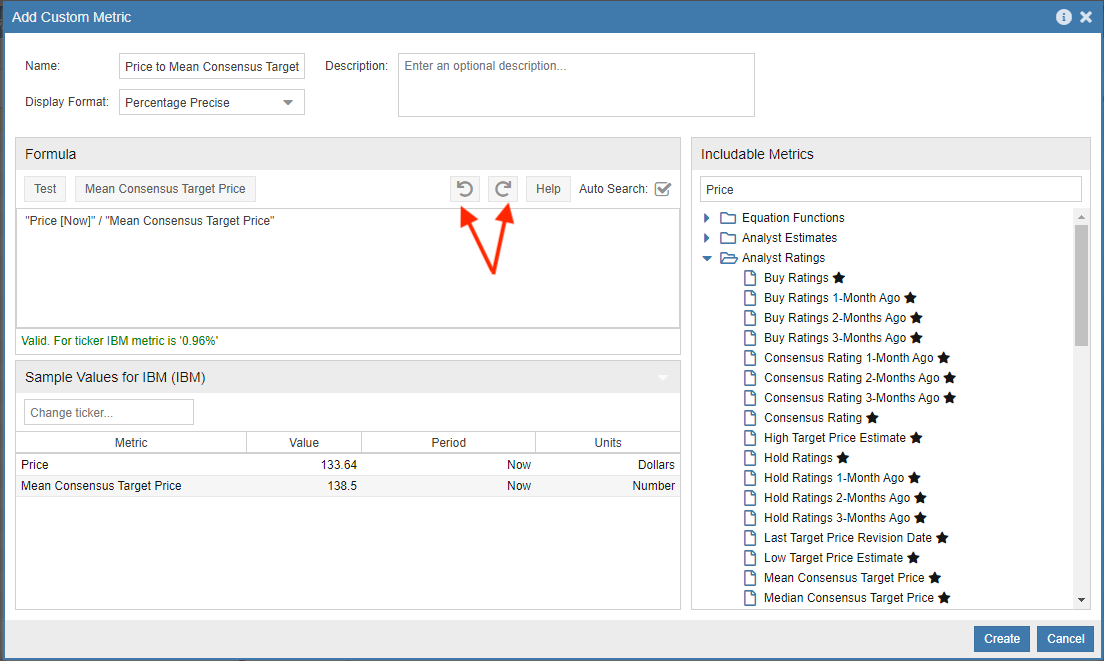
Below is an example of a simple custom metric that compares a stock’s price to the mean consensus target price put out by analysts. We will call it Price to Mean Consensus Target(%).
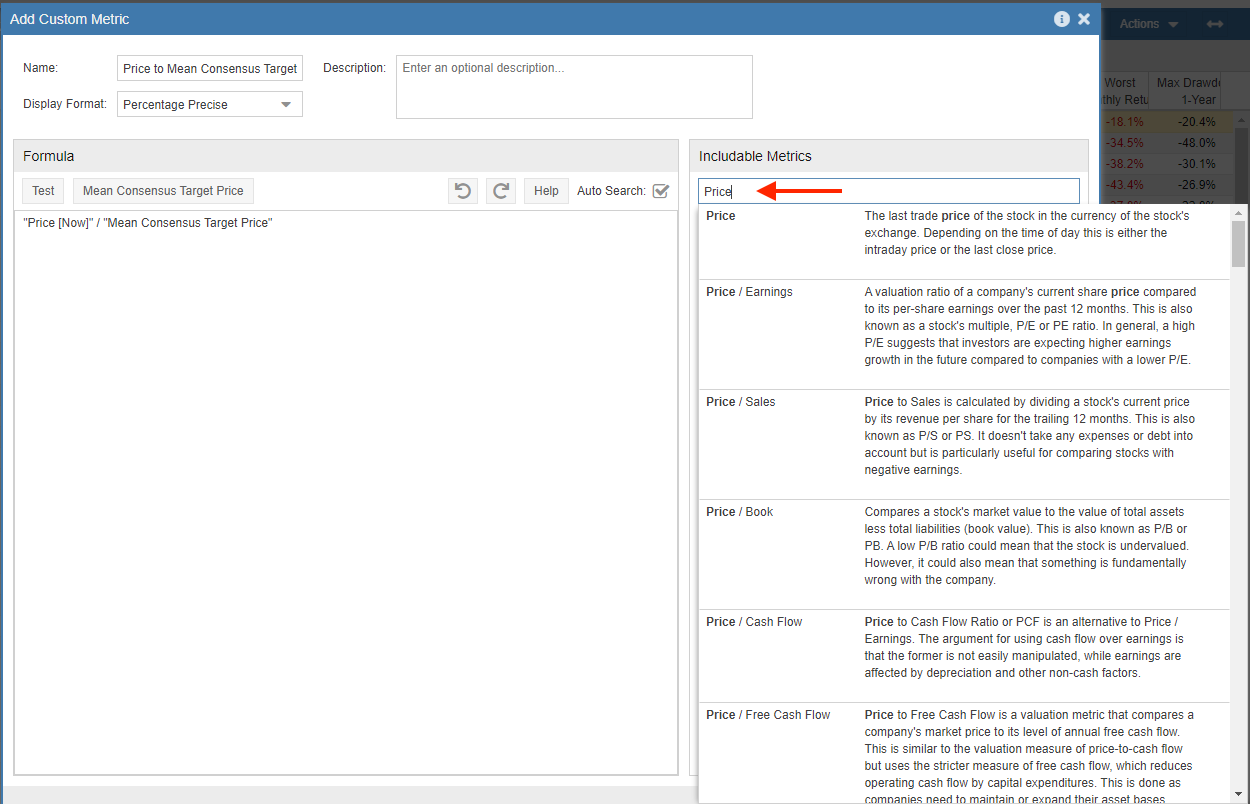
Then enter the formula for your custom metric into the formula box. You can add metrics using the ‘Quick Search’ menu on the right (search or browse to the metric you want), or simply by typing the metric’s name into the formula box and selecting from the menu that appears, as shown here:
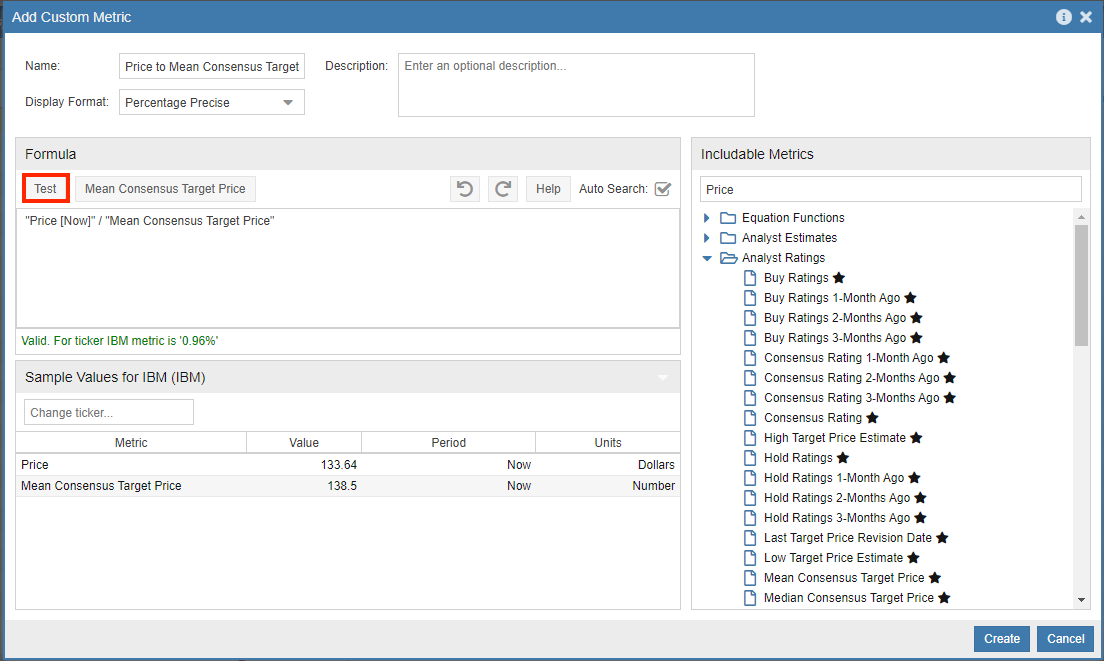
Create equations with the same formatting that you would in a spreadsheet cell, using symbols like * / + – = with parentheses as needed. Once you have your equation entered, make sure it works using the ‘Test’ button at the top of the metric editor. You can see more detail and you can also change your test ticker through the ‘Sample Values’ box, highlighted by the red arrow in the screenshot below.
If at any time you make edits that you want to reverse, you can click the ‘Undo’ button to reverse each change made, one by one. To go in the other direction and restore changes after using the ‘Undo’ button, click on the ‘Redo’ button as needed. Both buttons are highlighted below.
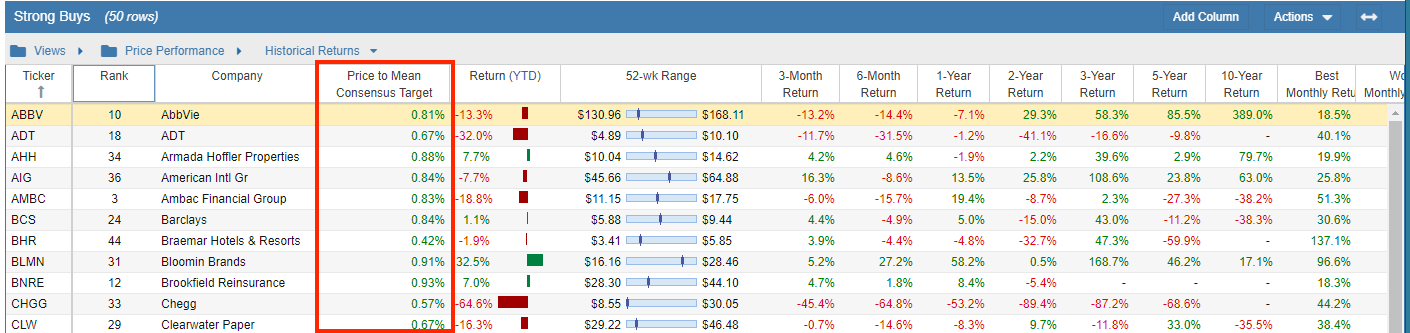
Click Create and you can then use this metric like any other in Stock Rover. For example, here is the new metric shown in the Table:
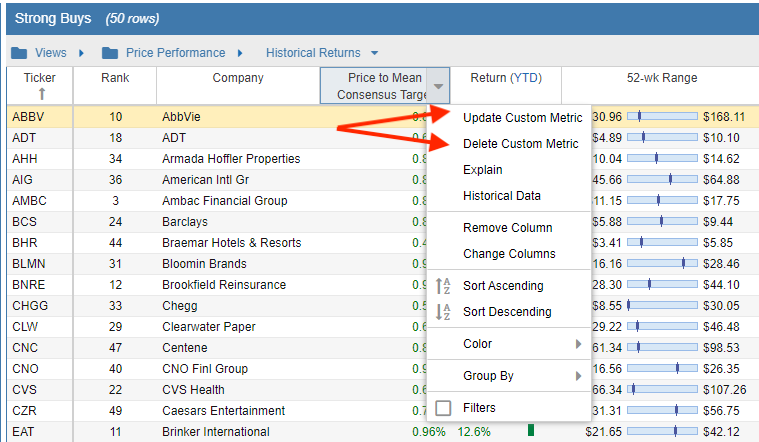
After a custom metric is added to a view, you can right-click on the column and select ‘Update Custom Metric’ to make changes or ‘Delete Custom Metric’ to delete the metric altogether.
Custom metrics can also be edited in the Metric Browser; see the following help topic for more information.
Editing a Custom Metric
Once the custom metric is created, you can always go back and edit the metric if needed. The ‘Edit Custom Metric’ option is available from the same Actions pull-down menu as the Create Custom Metric option. Once you select this option, you will see the list of custom metrics and you can select the metric you would like to edit.
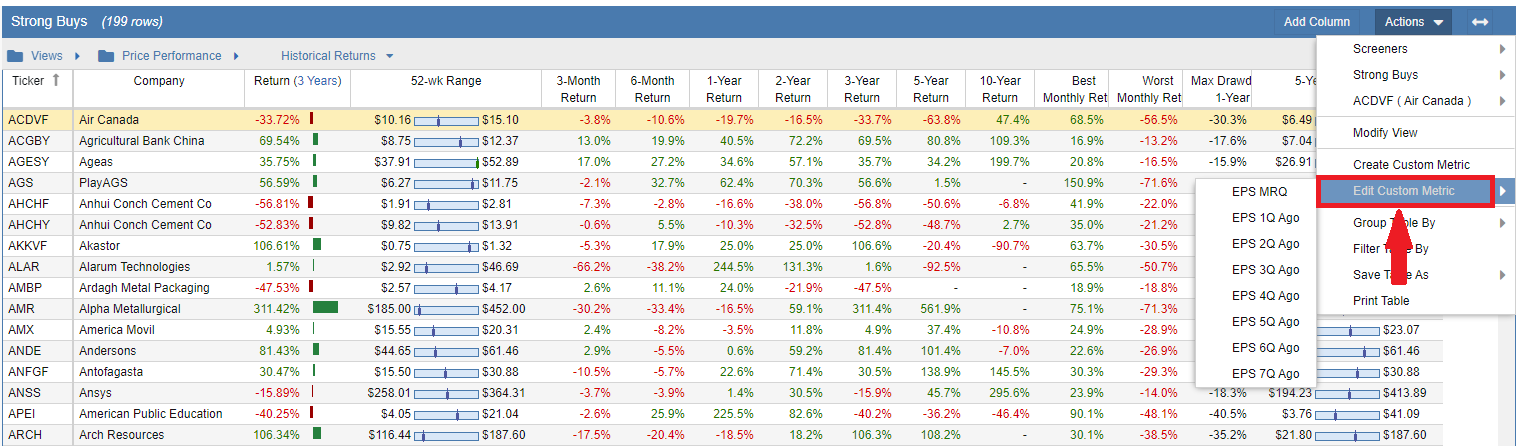
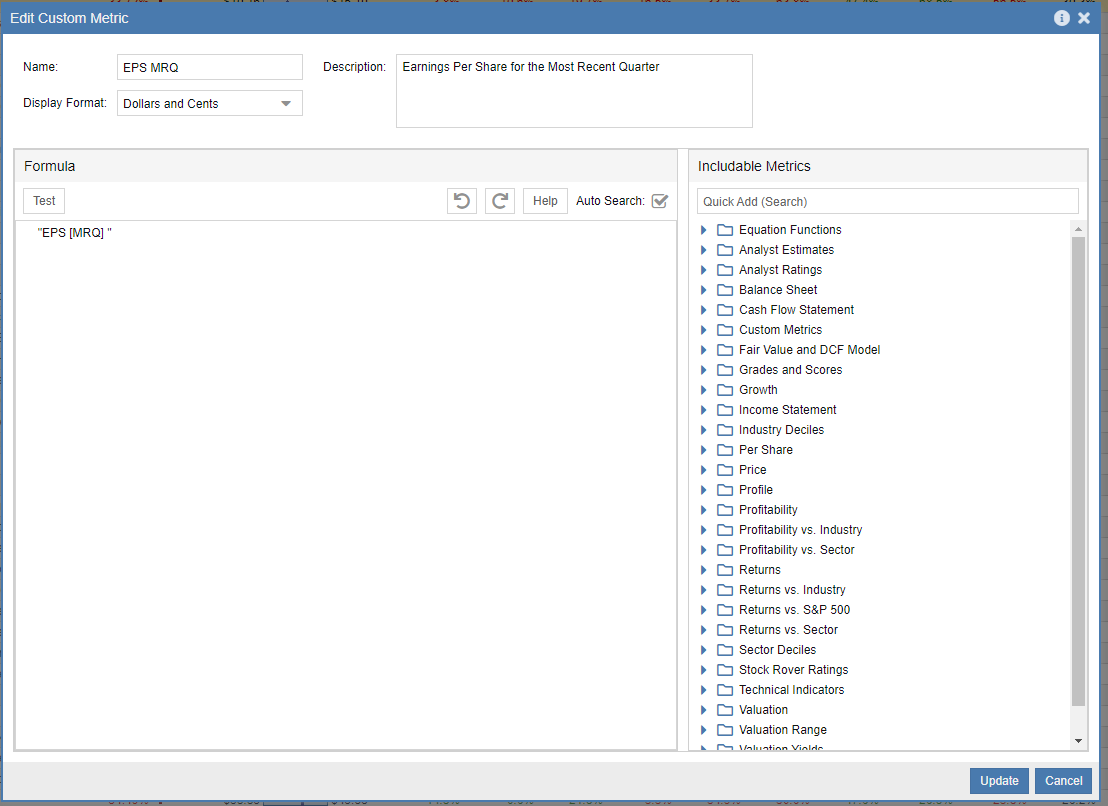
Selecting the metric from the list will launch the Edit Custom Metric window where you can make the necessary edits.
Custom Metric Functions
Here is a list of functions available in the custom metric and equation screener facilities:
Note: The functions are case sensitive and must be written in lower case.
| Function Name | Description | Example |
|---|---|---|
| abs | Returns the absolute value of a value. | abs(-1.5) returns 1.5 |
| case when then else end | This function lets you evaluate conditions and return a value when the first condition is met (like an IF-THEN-ELSE statement). | case when x > 0 then 1 else 0 returns 1 if x is greater than 0; otherwise, it is 0. |
| greatest | Selects the greatest of a set of values. | greatest(“EPS[Q1]”,”EPS[Q2]”,”EPS[Q3]”) |
| ifnull | Returns the second value if the first value is null. | ifnull(null,0) returns 0. A Stock Rover example: if you want to find companies that have good long-term returns but have not existed for a long time, you can use: ifnull(“Annualized 10-Year Return”, “Annualized 3-Year Return”) > 10 |
| least | Selects the least of a set of values. | least(“EPS[Q1]”,”EPS[Q2]”,”EPS[Q3]”) |
| null | A special term for values that are unavailable or not applicable. Metrics will commonly evaluate as null when trying to compute a growth rate of negative values or when comparing historical values that go further back than the stock’s history. | null can be used within the nullif and ifnull functions. |
| nullif | Returns null if the first and second values are equal; otherwise, it returns the first value. | 100 * “Interest Expense [Now]” / nullif(“Total Debt [Now]”, 0) |
| pow | Returns the value raised to the nth power. | pow (8,3) returns 512. A Stock Rover example to get the 5-year EPS growth rate: 100 * (pow(case when “EPS [Now]” / “EPS [Y5]” <= 0 then null else "EPS [Now]" / "EPS [Y5]" end, 1/5) - 1) Note: The case statement is used because the pow function does not accept negative numbers. |
Custom Metric Examples
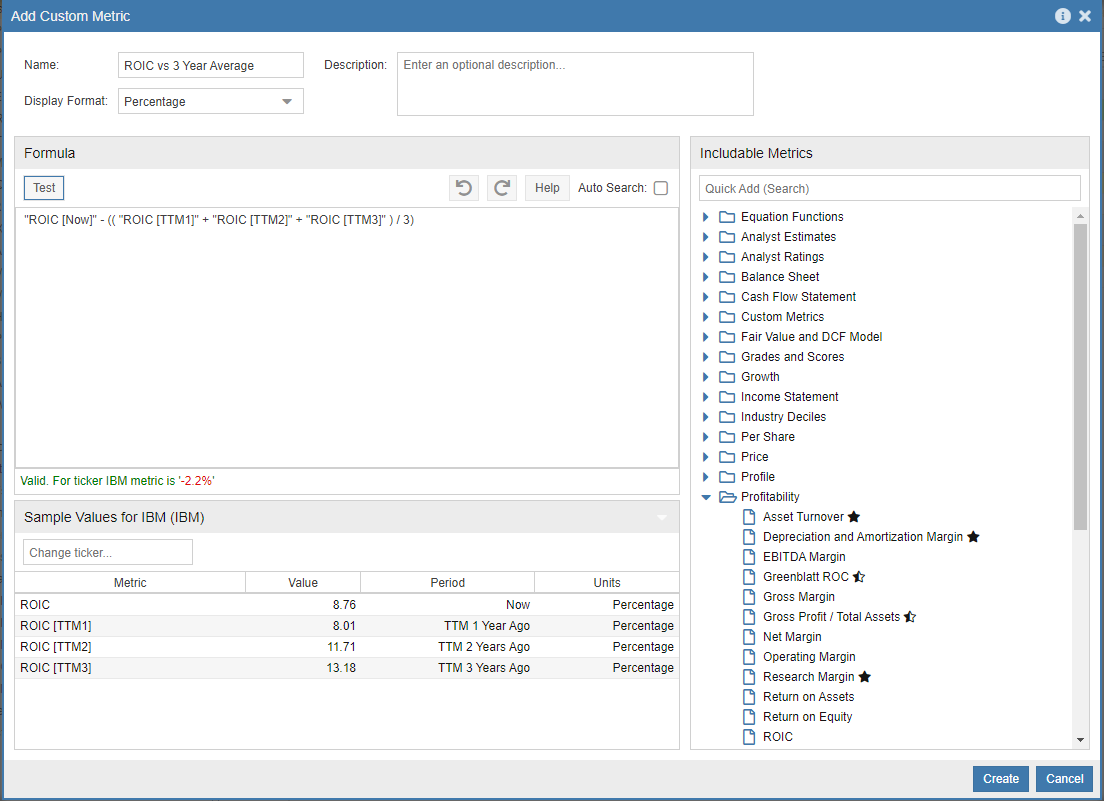
Listed below are three different examples of custom metrics. The second example includes a screenshot of what the example looks like in the Custom Metric editor. Note that the tag inside the brackets indicates the time period to use for each metric in the expression. For example, Now refers to the most current trailing twelve-month period. TTM1 refers to the trailing twelve-month period one year ago, so 12 months prior to the Now period. Likewise, TTM2 refers to the trailing twelve-month period two years ago. To specify calendar years, you would use a tag like Y2 to specify the calendar year two years ago.
Long Term Debt over Operating Income
“Long Term Debt [Now]” / “Operating Income[Now]”
Return on Invested Capital vs. Prior 3 Years’ Average
“ROIC[Now]” -(( “ROIC [TTM1] ” + “ROIC [TTM2] ” + “ROIC [TTM3] ” )/3)
Here is what the custom metric looks like in the interface:
The Graham Number
The Graham Number is a figure that measures a stock’s fundamental value by taking into account the company’s earnings per share and book value per share. The Graham number is the upper bound of the price range that a defensive investor should pay for the stock. According to the theory, any stock price below the Graham number is considered undervalued and thus worth investing in. The formula is as follows:
Square Root (22.5 x Earnings per share x Book Value per share)
Custom Metric when Negative Numbers need to be Ignored
In this example, we want to take the square root of a number, but the POW function only accepts numbers greater than or equal to zero. To ensure the number we pass to POW is positive, we use a Case statement inside of the POW function. It is a little tricky, but it does the job. The formula is as follows:
100 * (pow(case when “EPS [Now]” / “EPS [Y5]” <= 0 then null else "EPS [Now]" / "EPS [Y5]" end, 1/5) - 1)
Grouping by Industry, Sector, Tag, Color or Currency
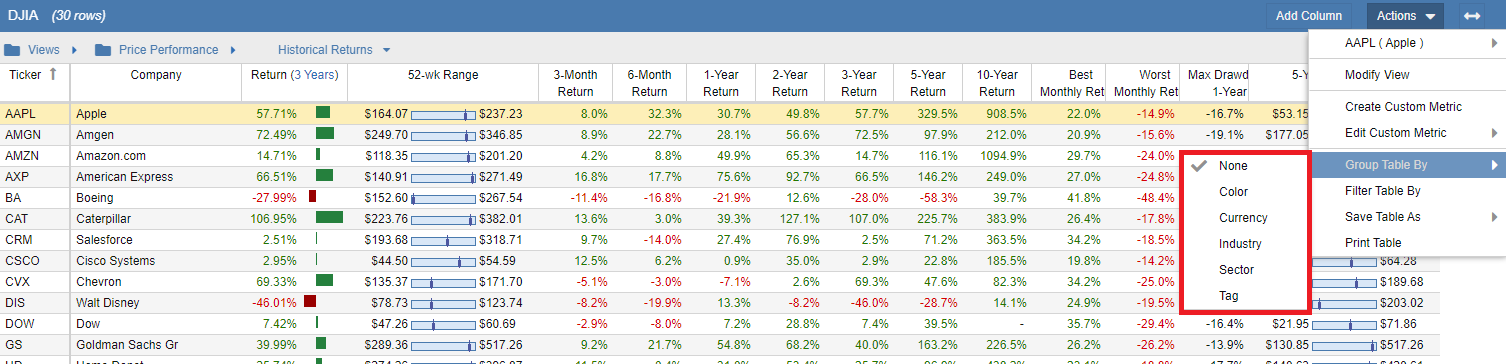
To group the stocks in the Table by industry, sector, tag, color, or currency, click the ‘Actions’ button in the Table’s toolbar, select ‘Group Table By’, and select from the menu.
Filtering a Table
A filter reduces the number of tickers displayed in the Table to only those that meet the filter criteria.
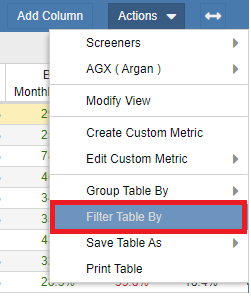
To filter the Table, select the ‘Filter Table by’ option from the Actions pull-down menu seen in the screenshot below.
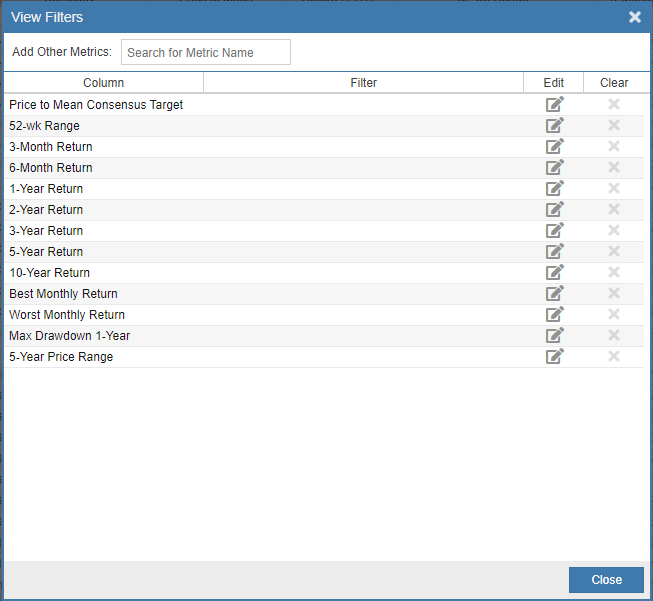
This will open the window where you can apply filters to the columns in the Table; see the screenshot below.
Saving filters as a Screener
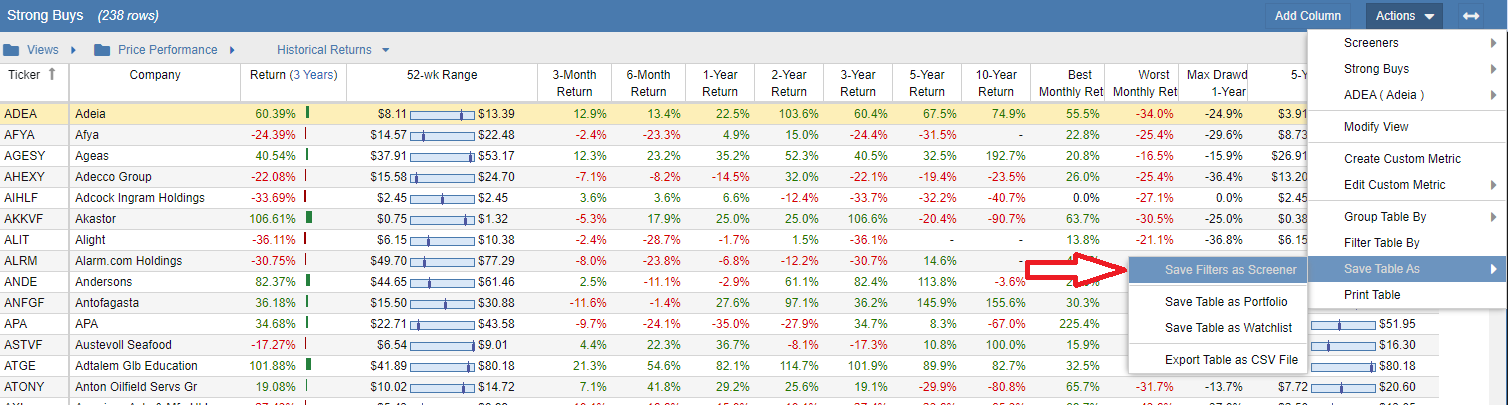
If you set up any filters on your columns (see filtering on columns for more information), you can then save these filters as a screener. To save the filters as a screener, click the ‘Actions’ button in the Table’s toolbar, mouse over ‘Save Table As’, and select ‘Save Filters as Screener’ from the menu.
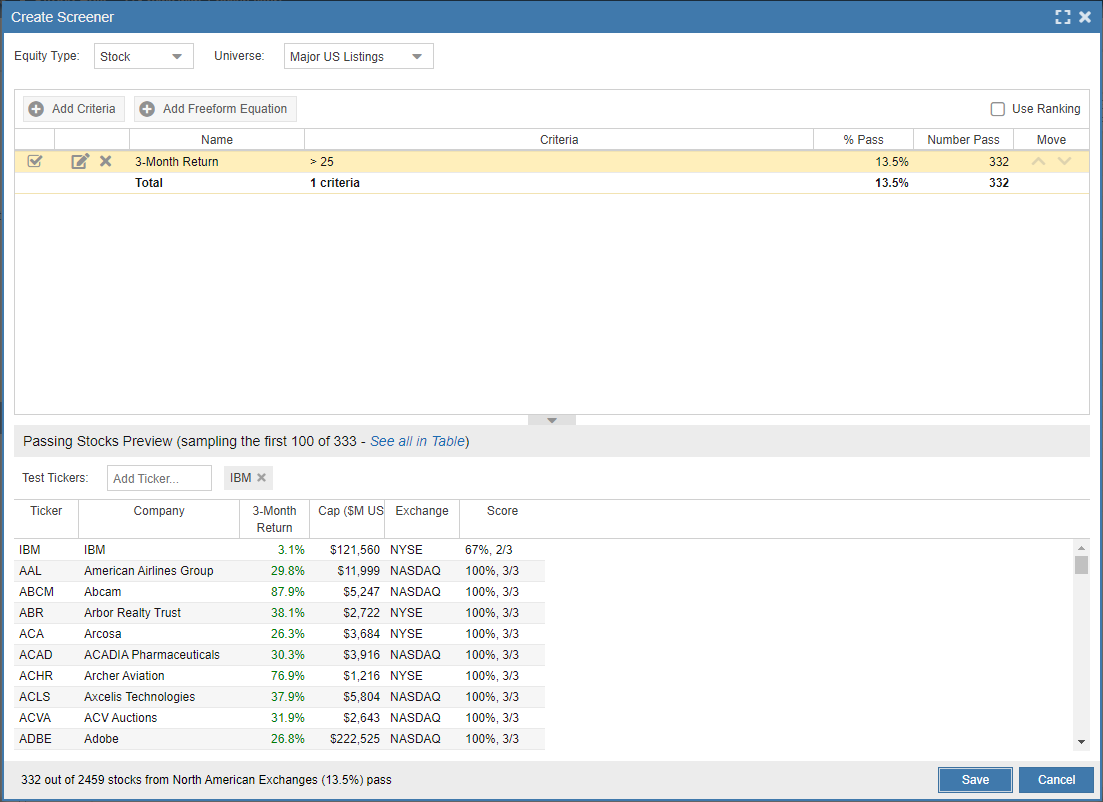
This will open a new Create Screener window as seen below.
Saving the Table as a Portfolio or Watchlist
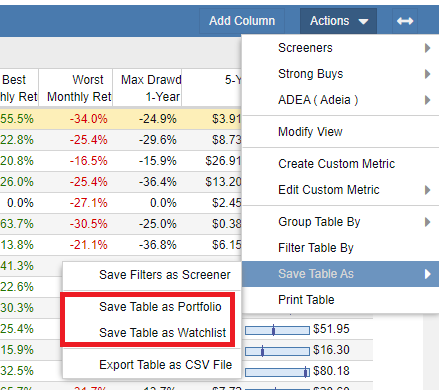
To save the dataset in the Table as a watchlist or portfolio, click the ‘Actions’ button in the Table’s toolbar, mouse over ‘Save Table As’, and select either option from the menu.
Exporting the Table to Excel
To export the data displayed in the Table to a CSV file, click the ‘Actions’ button in the Table’s toolbar, mouse over ‘Save Table As’, and select ‘Export Table as CSV File’.
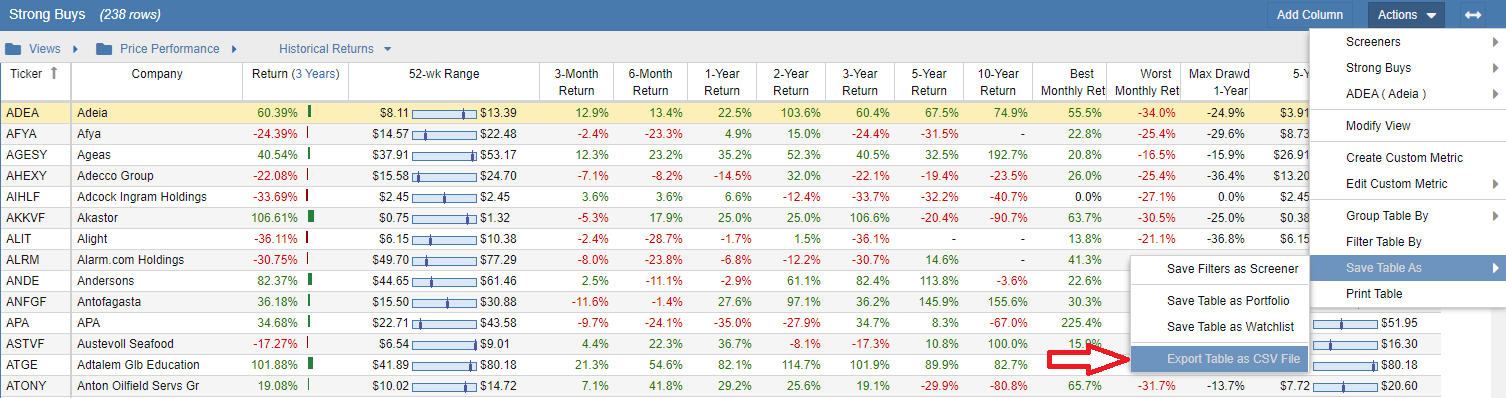
This will download all displayed tickers and columns to a CSV file in the folder designated by your browser. The file will only contain the tickers displayed in the Table, so if there are tickers spread over multiple pages, you will have to export each page individually. Please note that range-style graphical columns (such as 52-wk range) will display the lower and upper limit values, whereas histogram-style graphical columns cannot be exported and will show a blank value.
Printing the Table
To print the data in the Table, click the ‘Actions’ button in the Table’s toolbar and select ‘Print Table’.
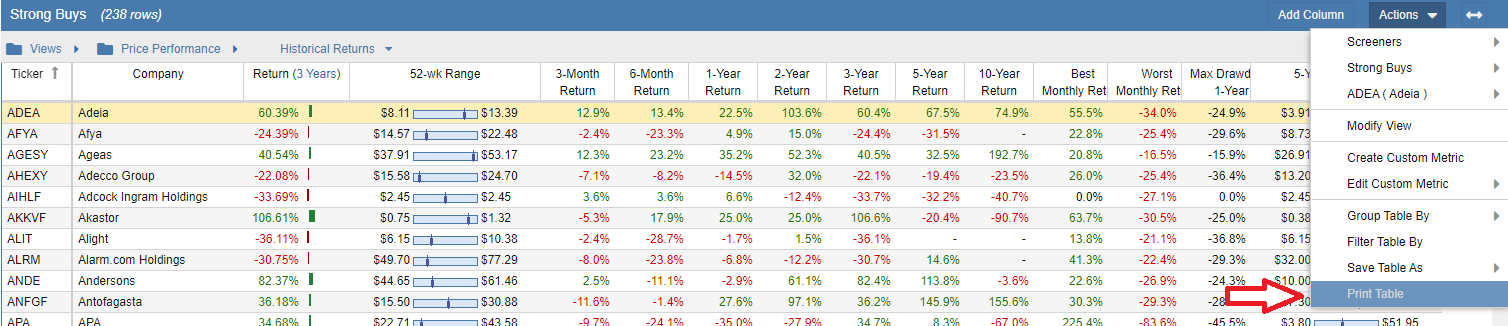
This will open a new tab in your browser’s window with the data from the Table in an easy-to-print format. Just click the ‘Print Table’ button on this page to print the data. If the printed data is more than one page, please note that the column headers print at the top of the first page only.
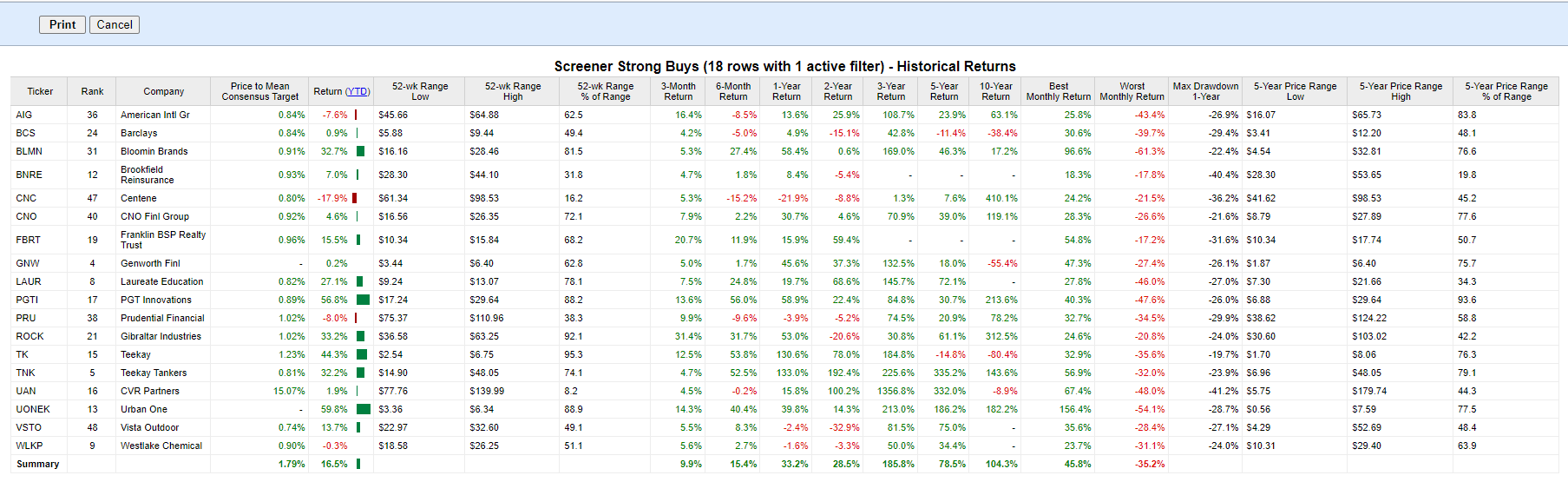
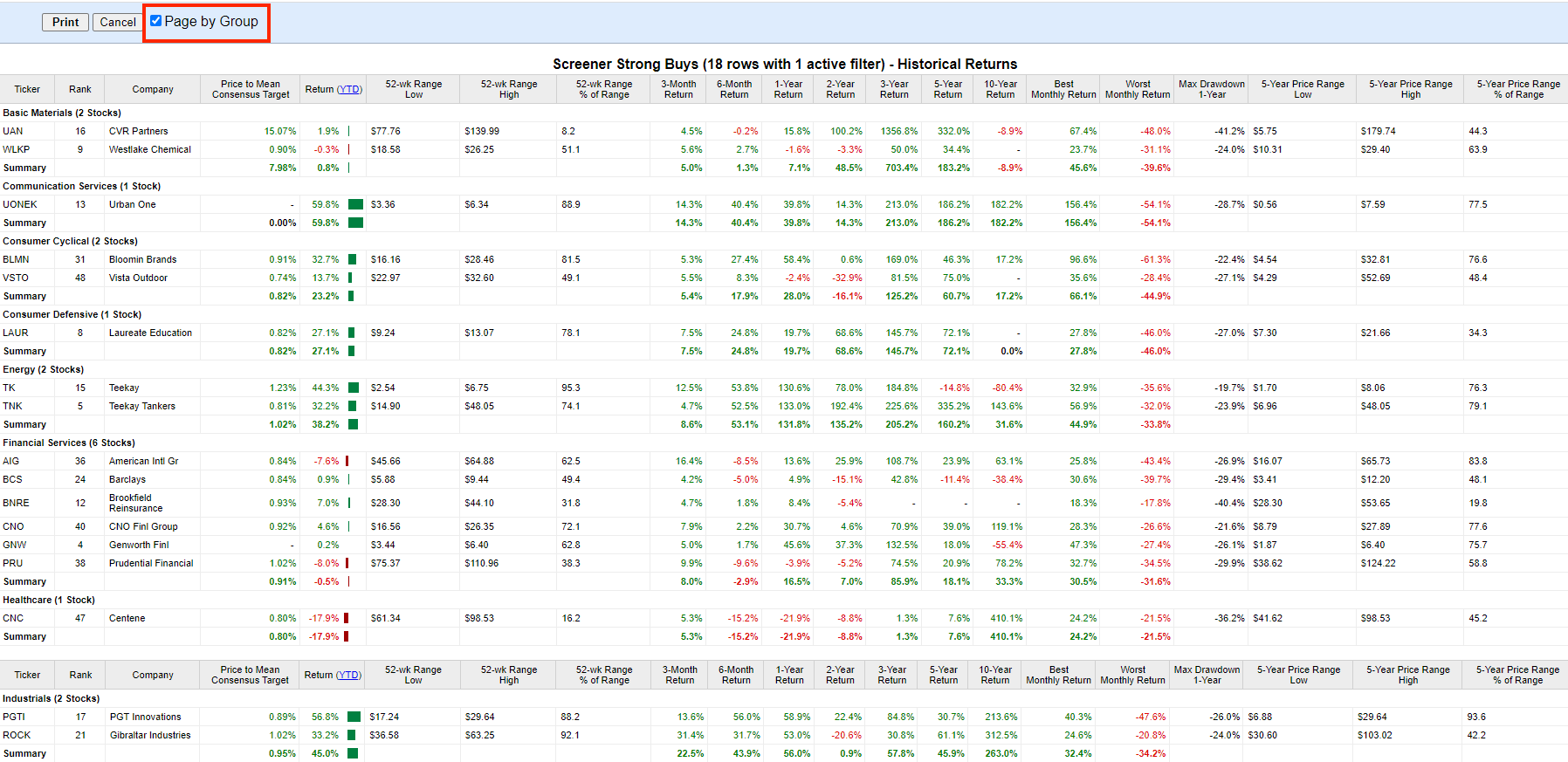
If your table is using the Group By option, you will see the option to “Page by Group,” which puts each group on its own page and adds the column headers for each group. Please note that if some groups are small, they may be listed on the same page.