

Creating a Trade Bundle
What is a Trade Bundle?
Let’s briefly discuss what a Trade Bundle is and how they are organized.
The simplest description for a Trade Bundle is that it acts as a container for your trades. The performance of the transactions within this “bundle” can then be evaluated either individually or as a collective group by the Trade Evaluator.
The trades in a Trade Bundle consist of buys and/or sells for a ticker or group of tickers that you wish to analyze. You can manually input these trades, import them via .CSV or .XLSX files, or pull them directly from an existing Stock Rover portfolio.
You can create multiple Trade Bundles, each containing its own unique set of trades. Because Trade Bundles operate independently of one another, you can include the same trade in different bundles or clone a bundle to modify specific variables for “what-if” testing.
Trade Bundles are organized in a folder hierarchy. You can keep your bundles in the ‘Default’ folder or create your own custom folders by right-clicking and then dragging and dropping the Trade Bundles into the appropriate folder.
Accessing the Create New Trade Bundle Window
To begin using the Trade Evaluator, you first create a Trade Bundle. This involves specifying which trades to include and giving the bundle a unique name.
There are three ways to create a Trade Bundle in Stock Rover: manual entry, importing from an external file, or importing from an existing Stock Rover portfolio. You select your preferred method via the Create New Trade Bundle window, shown below.
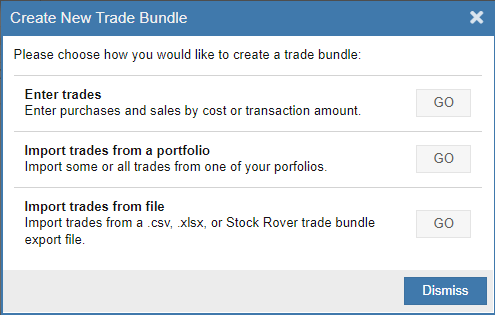
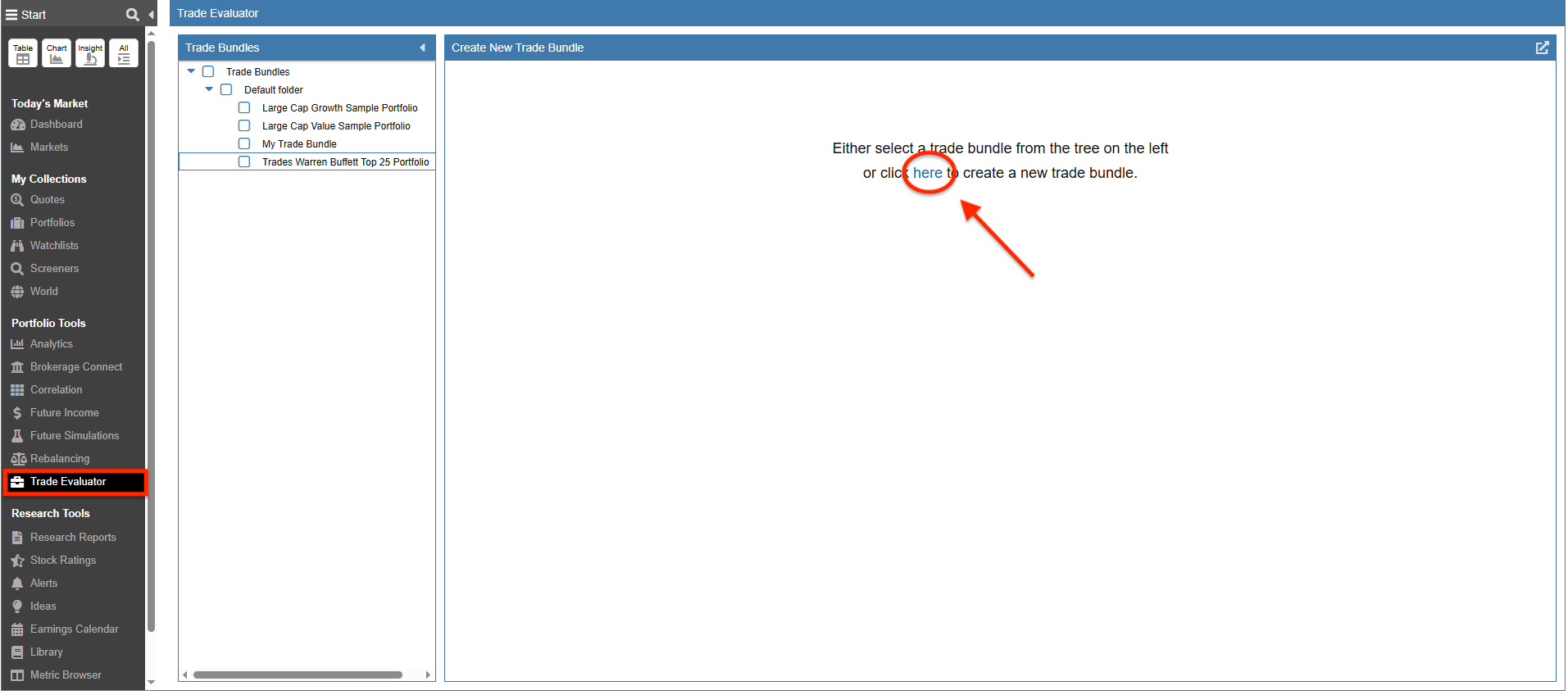
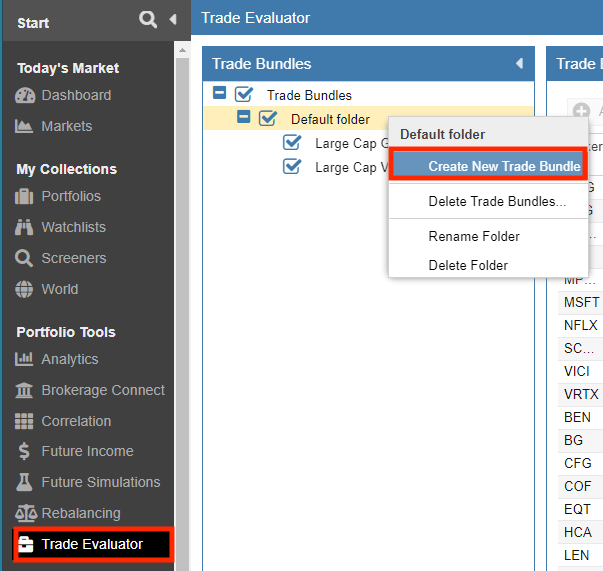
To access this window, first select the Trade Evaluator from the Start Menu. From there, the Create New Trade Bundle window can be invoked in several different ways:
- When no Trade Bundles are currently selected, the right-hand pane will prompt you to click “here“.
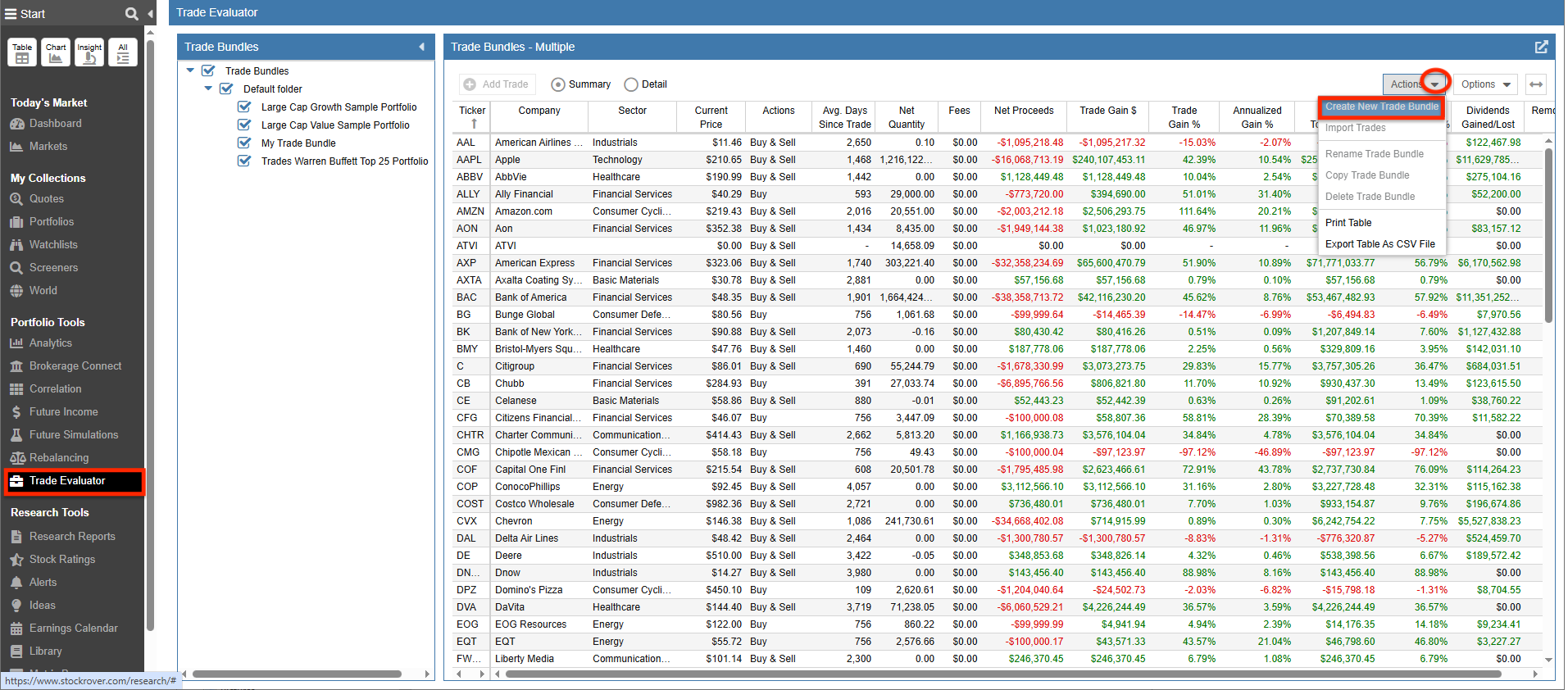
- If existing Trade Bundles are already selected, you can click on the ‘Actions’ pulldown to create a new Trade Bundle.
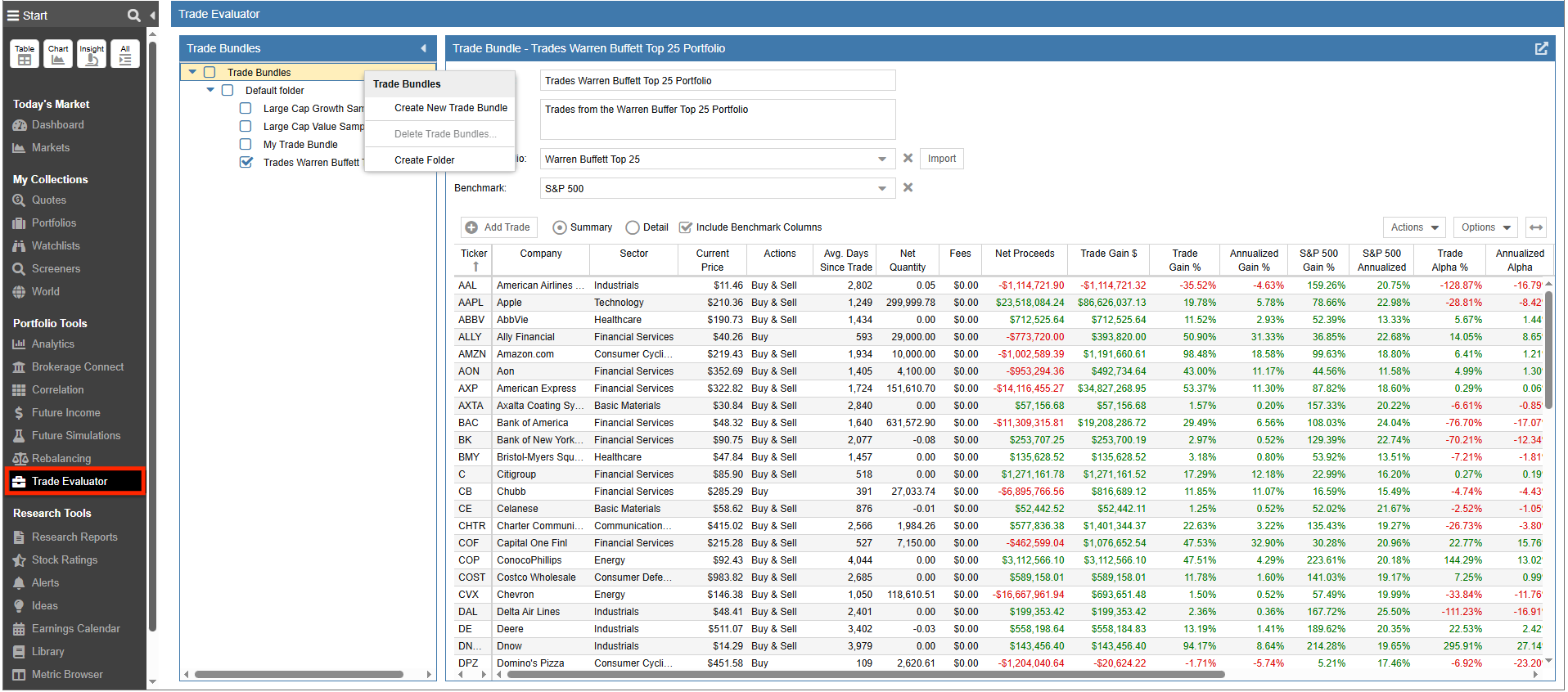
- You can also right-click on any folder in the Trade Bundles panel to create a new Trade Bundle.
Entering Trades Manually
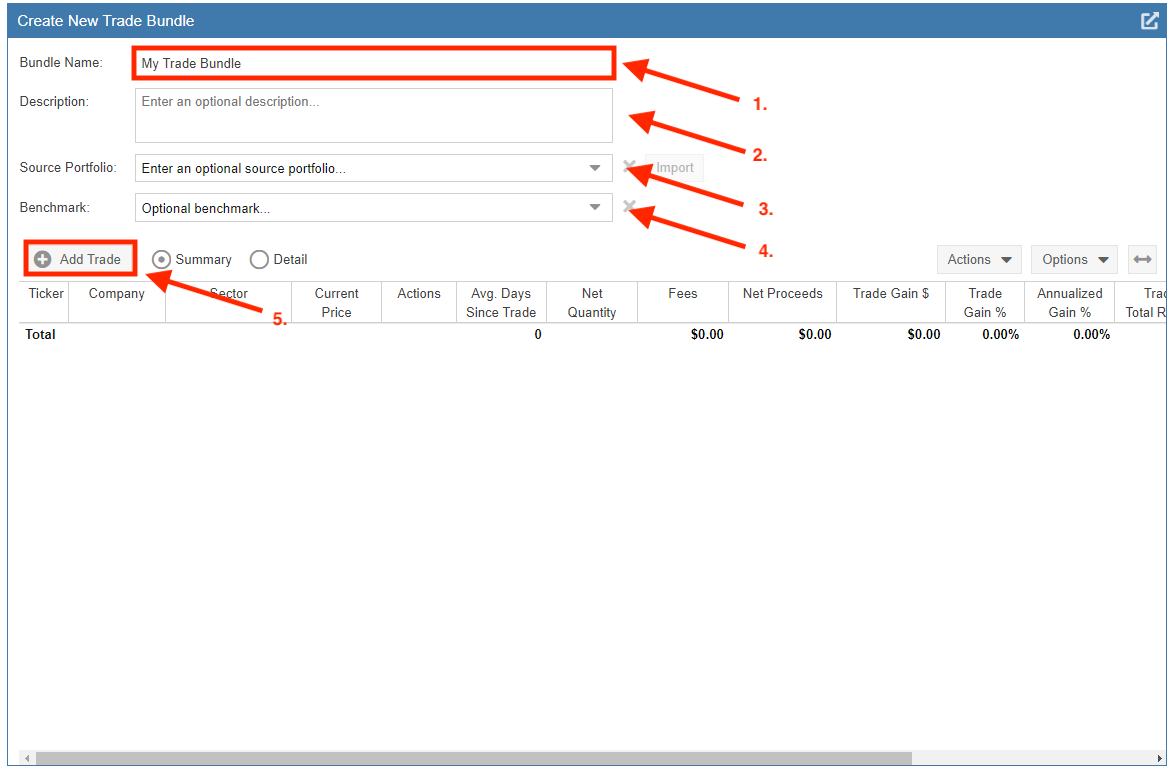
To manually build a Trade Bundle, follow these steps:
- Enter a name for the Trade Bundle
- Optionally enter a description
- Optionally select a source portfolio to indicate where the trades are from
- Optionally enter a benchmark index
- Click ‘Add Trade’ to manually add individual trades
In the Enter Trade window, you can specify the Ticker symbol, the Date, the Type (Buy or Sell), and the Quantity. The Price will default to the closing price for the selected date (or the current price for today’s date), but it can be edited. You can also enter any trading fees associated with the transaction.
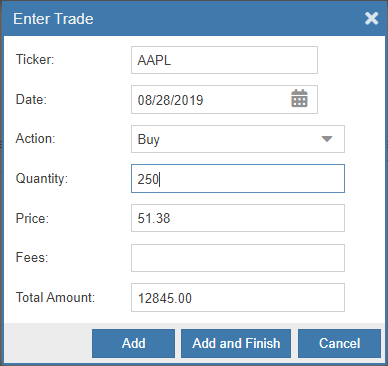
Note: The Total Amount is automatically calculated when you enter the Price and Quantity. Conversely, if you enter the Price and Total Amount, Stock Rover will calculate the Quantity for you.
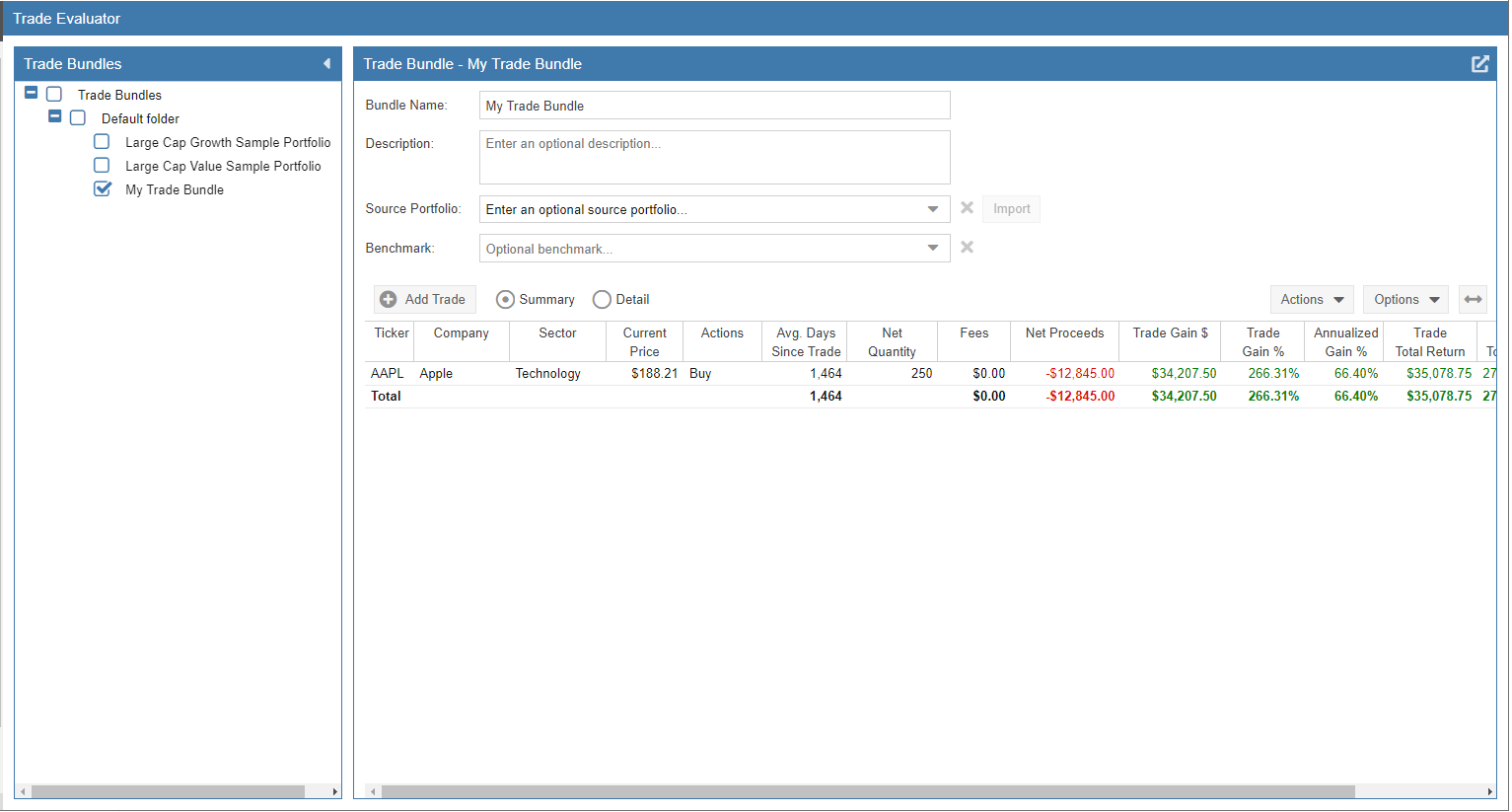
Once you have entered the trade details, click ‘Add’ to include another trade or ‘Add and Finish’ if you are done. The Trade Bundle and its contents will then be displayed in the Trade Evaluator.
Importing Trades from a Stock Rover Portfolio
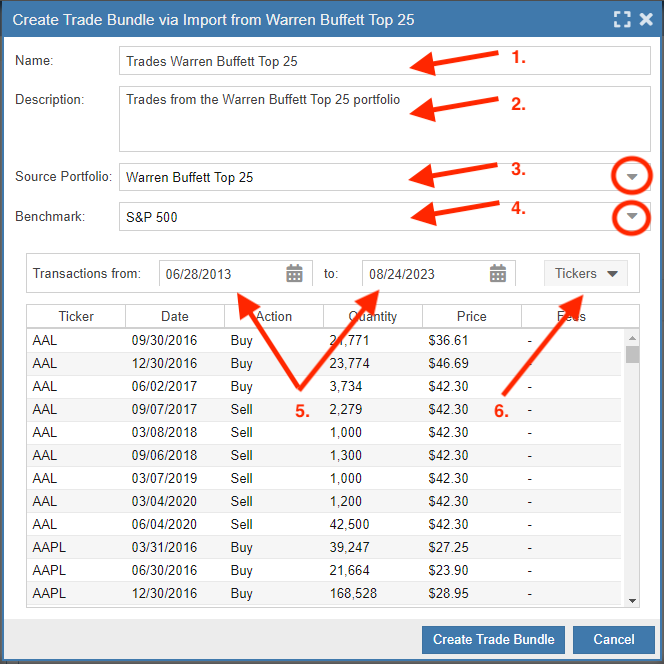
To import trades directly from an existing Stock Rover portfolio, follow these steps:
- Enter a name for the Trade Bundle
- Optionally enter a description
- Select a source portfolio for the trades from within Stock Rover
- Optionally enter a benchmark index
- Optionally select a date range of trades
- Optionally select trades of specific tickers
Once completed, click ‘Create Trade Bundle’.
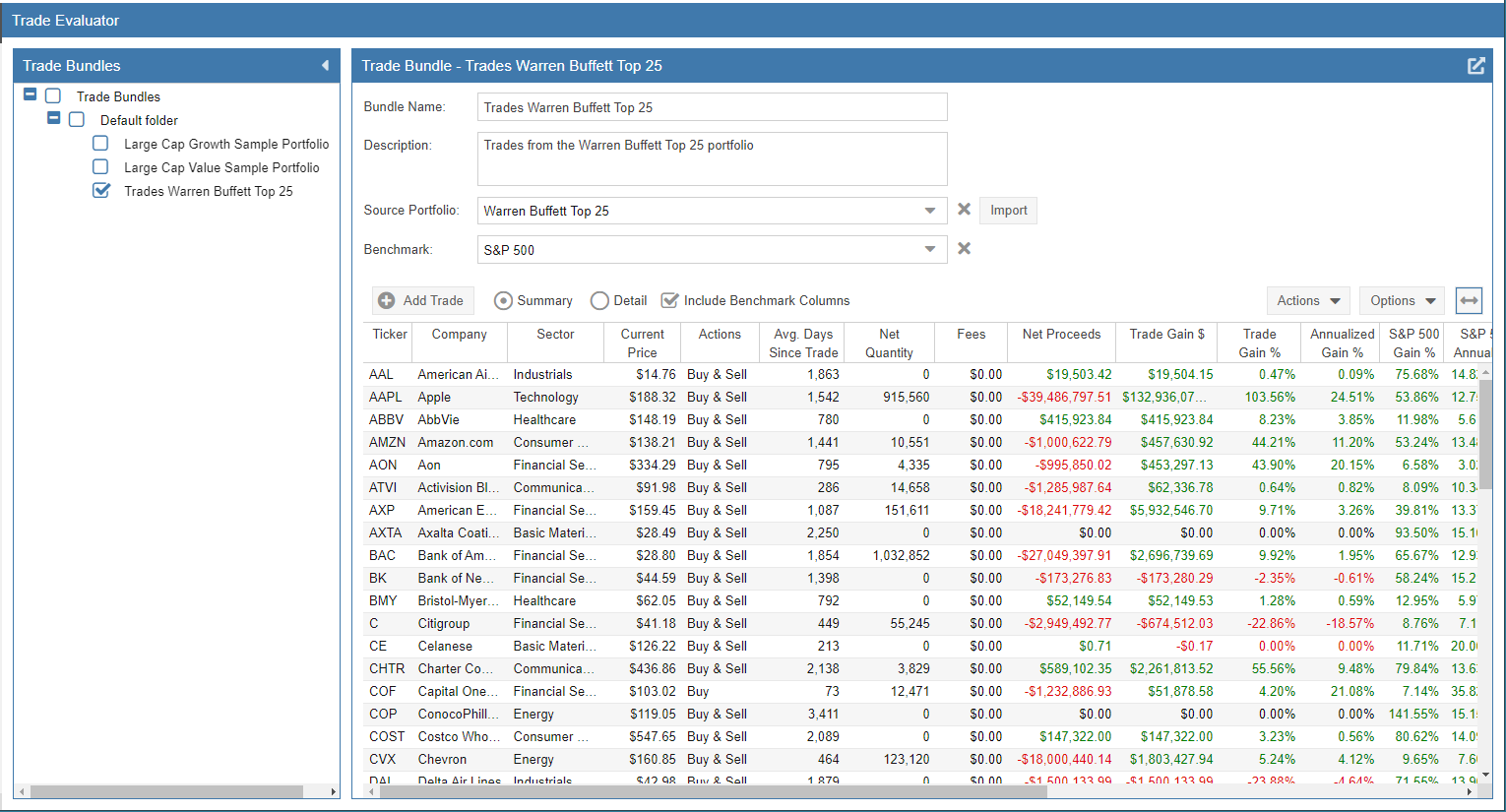
The Trade Bundle, along with the imported trades, will then appear in the Trade Evaluator.
Importing Trades from a File
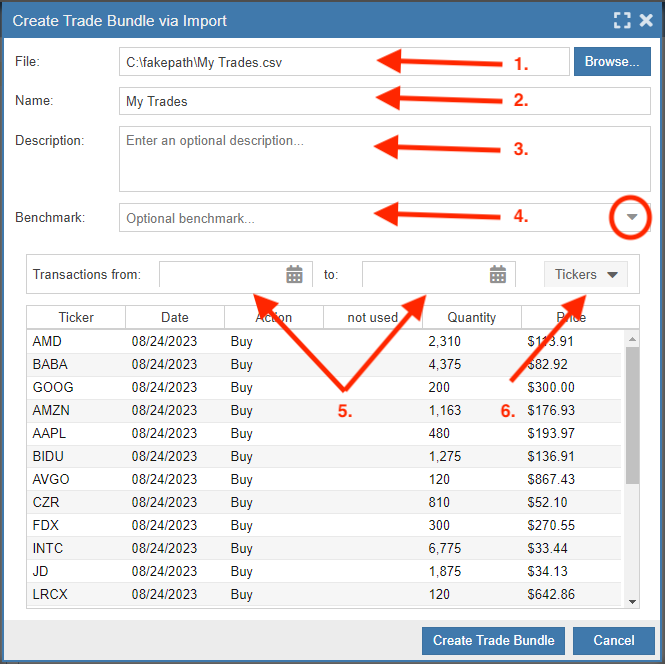
This option allows you to create a Trade Bundle using a .CSV or .XLSX file, or a Trade Bundle file previously exported in Stock Rover format. Follow these steps:
- Enter the .CSV, .XLSX, or Stock Rover format file containing the trades
- Enter a name for the Trade Bundle
- Optionally enter a description
- Optionally enter a benchmark index
- Optionally select a date range of trades
- Optionally select trades of specific tickers
Once completed, click ‘Create Trade Bundle’.
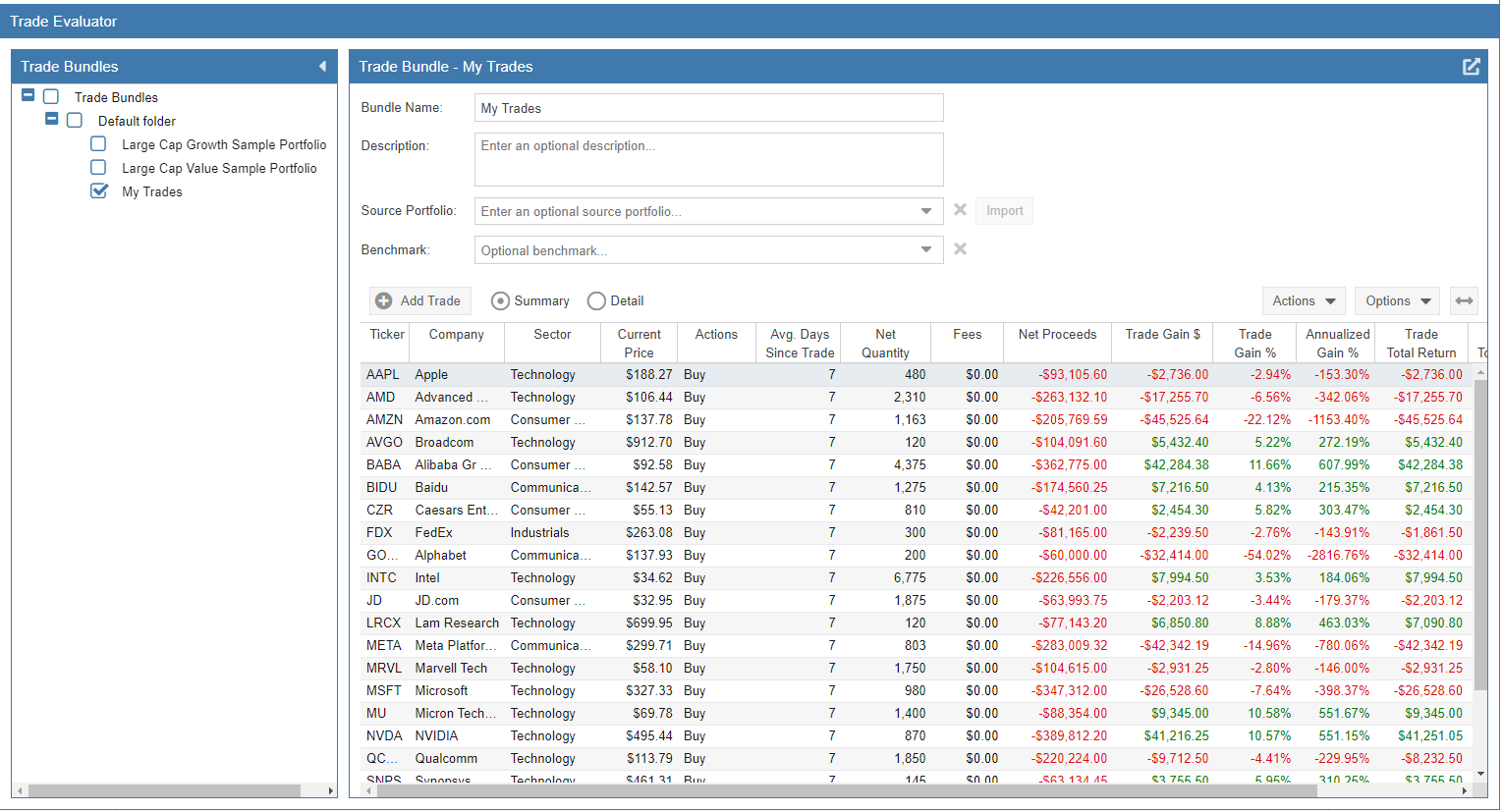
The Trade Bundle will then be visible in the Trade Evaluator.
If you are importing from a .CSV or .XLSX file, the file must include a title row with these specific headings:
Ticker, Date, Action, Quantity, Price, Fees
Each subsequent row must contain:
- A valid ticker symbol
- The trade date (formatted as YYYY-MM-DD or MM/DD/YY)
- The trade action (“Buy” or “Sell”)
- The trade quantity
- The execution price
- Optionally, any commission or trading fees