Mechanics
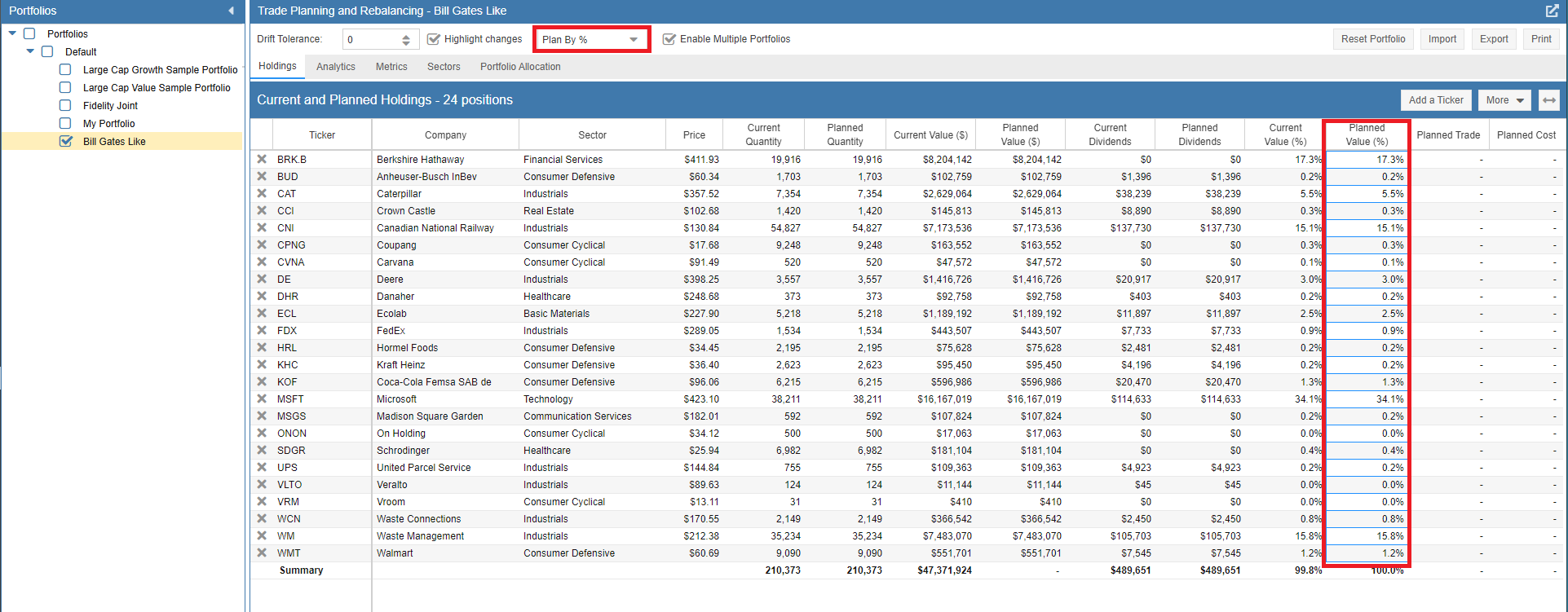
Plan Portfolio by %
With ‘Plan By %’ selected, the ‘Planned Value %’ column becomes editable. You can enter your desired allocation percentage for each position. The tool will automatically calculate the necessary trades to reach these targets.
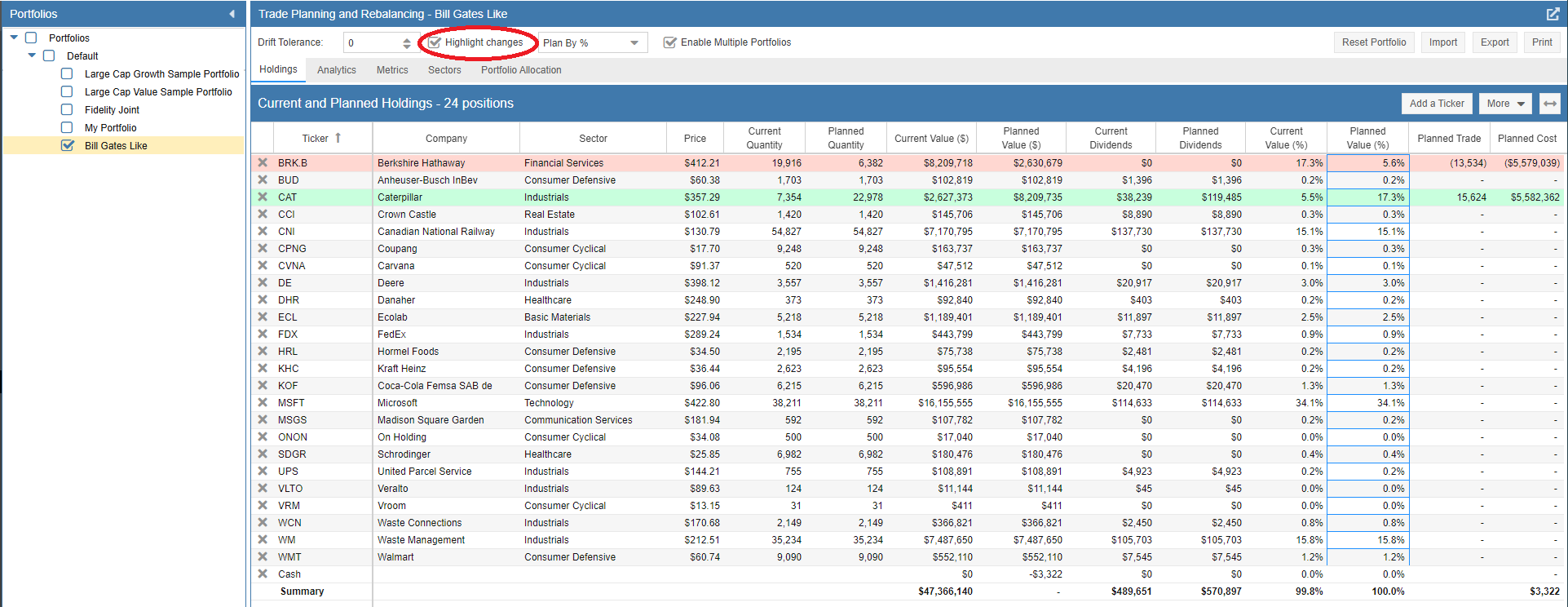
Once percentages are entered, Stock Rover highlights the required actions: a green row indicates shares should be added, while a red row indicates a reduction is needed. You can uncheck ‘Highlight Changes’ to remove this color-coding. The Planned Trade and Planned Cost columns will display the exact number of shares and the total dollar amount required for the adjustment.
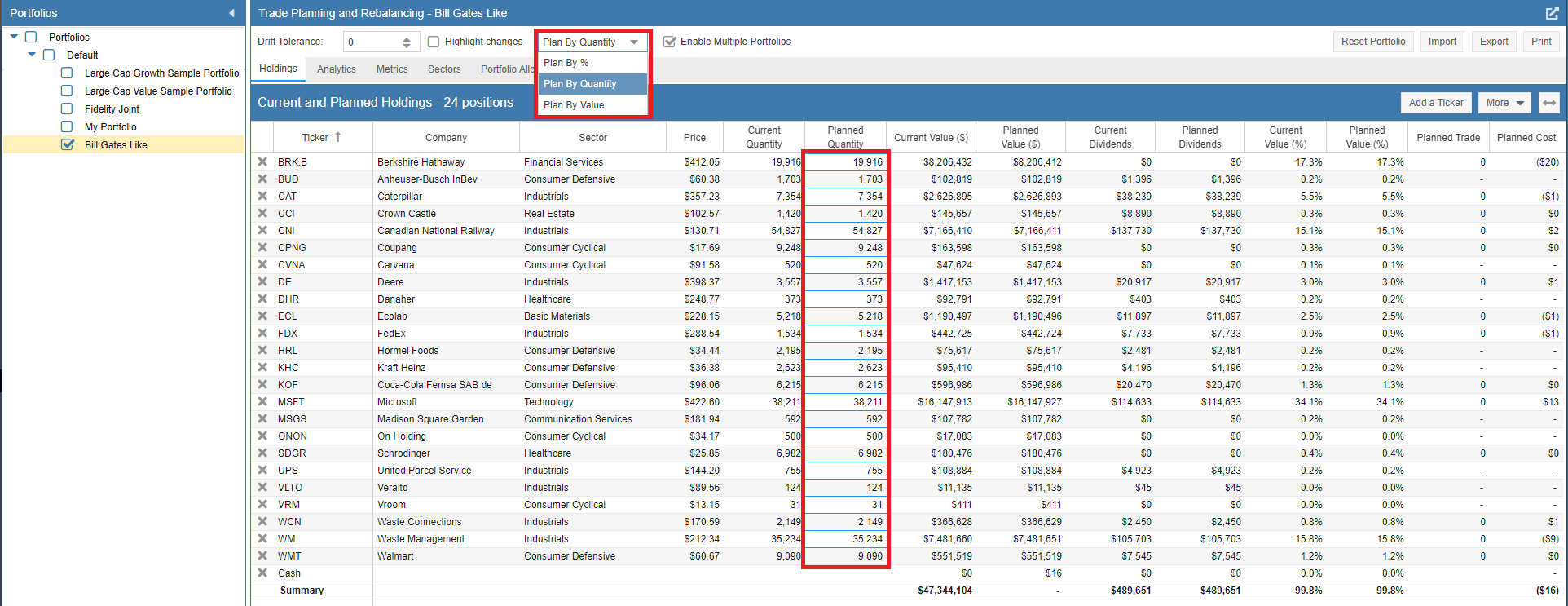
Plan Portfolio by Quantity
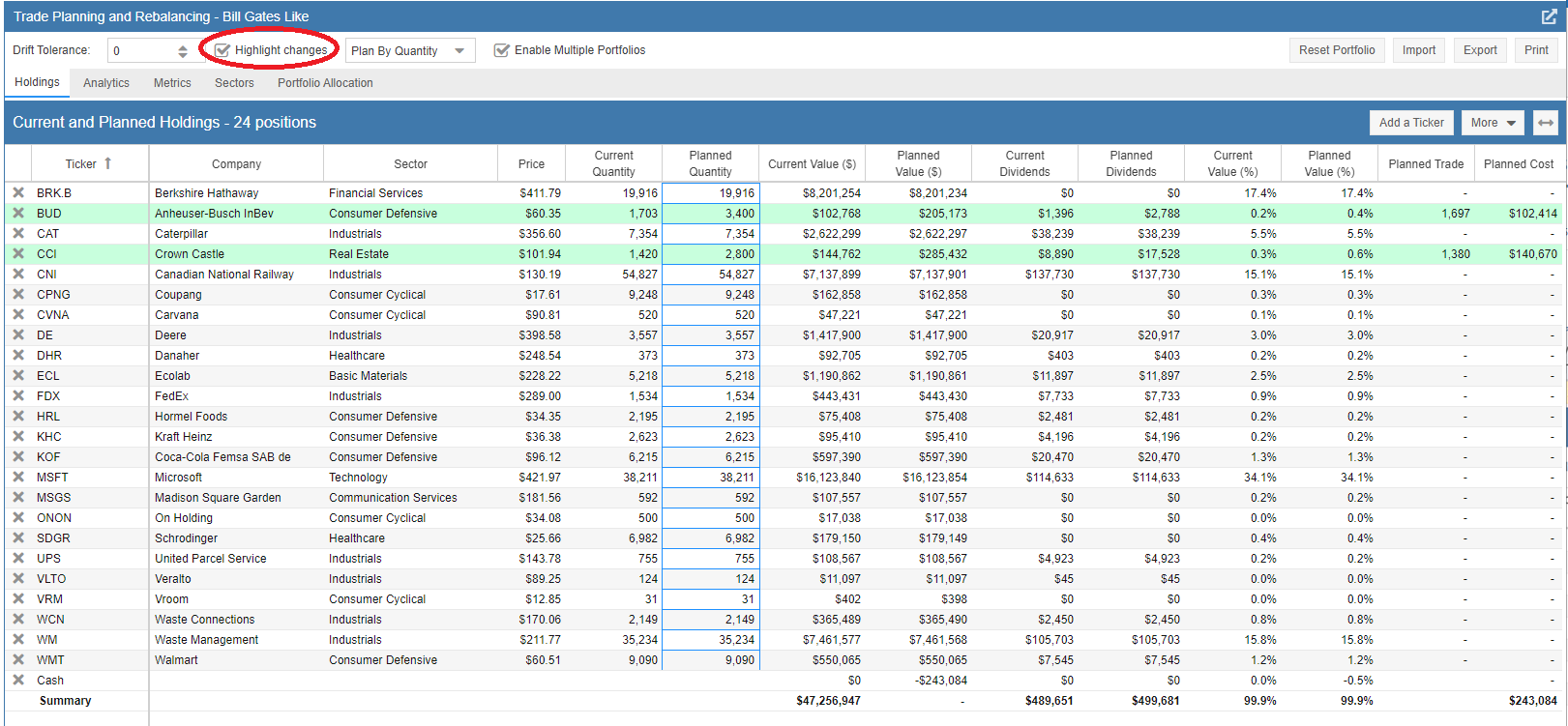
In ‘Plan By Quantity’ mode, the ‘Planned Quantity’ column becomes editable. This allows you to enter specific share counts for each position, which is ideal for precise trade execution planning.
Once the quantities are entered, the tool highlights the changes. A green row indicates adding shares, and a red row indicates reducing them. The Planned Trade and Planned Cost columns will indicate the number of shares needed and the amount to trade to get there.
Plan Portfolio by Value
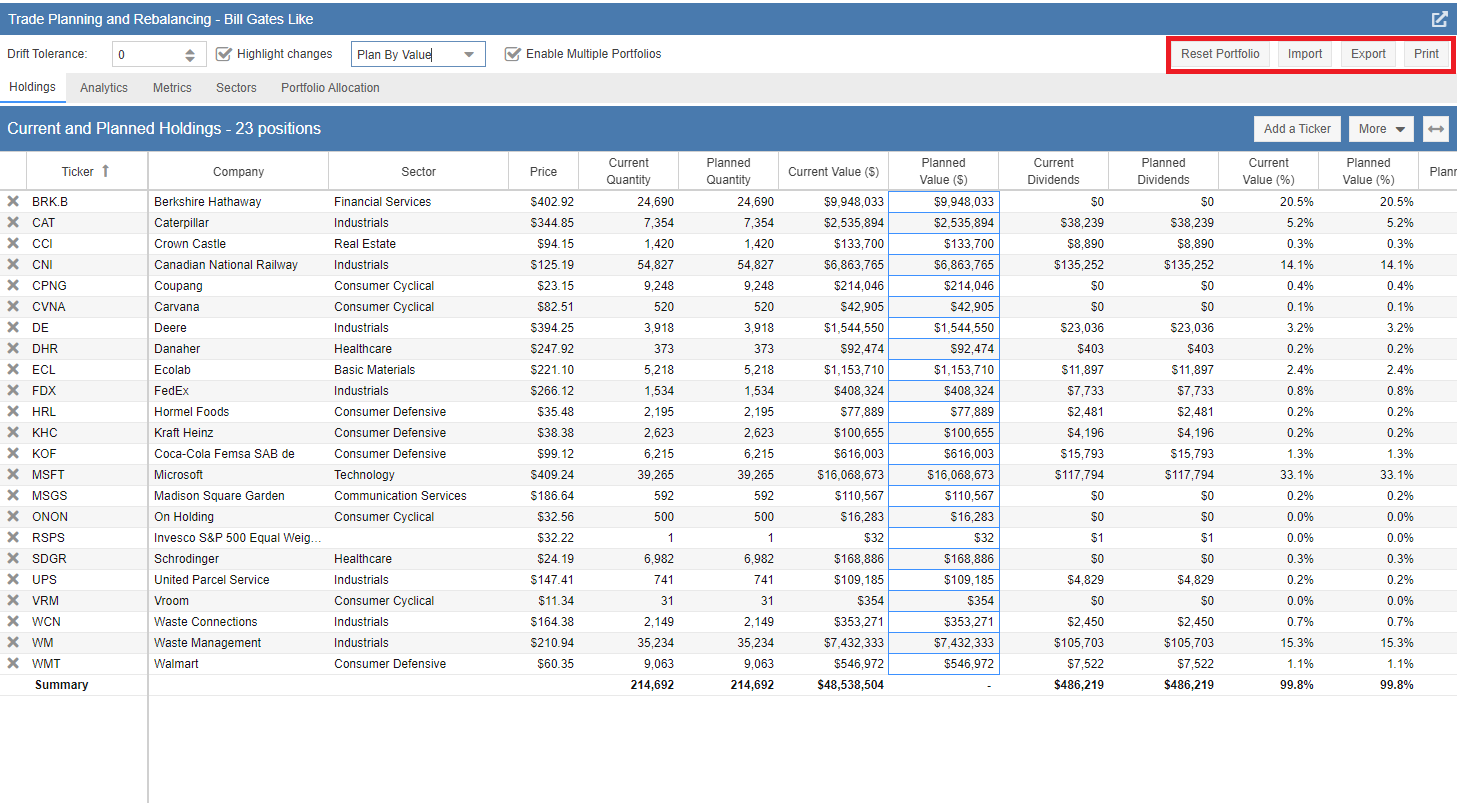
With ‘Plan By Value’ selected, the ‘Planned Value’ column becomes editable. You can enter the specific dollar amount you wish to hold for each position in your portfolio, as shown in the screenshot below.
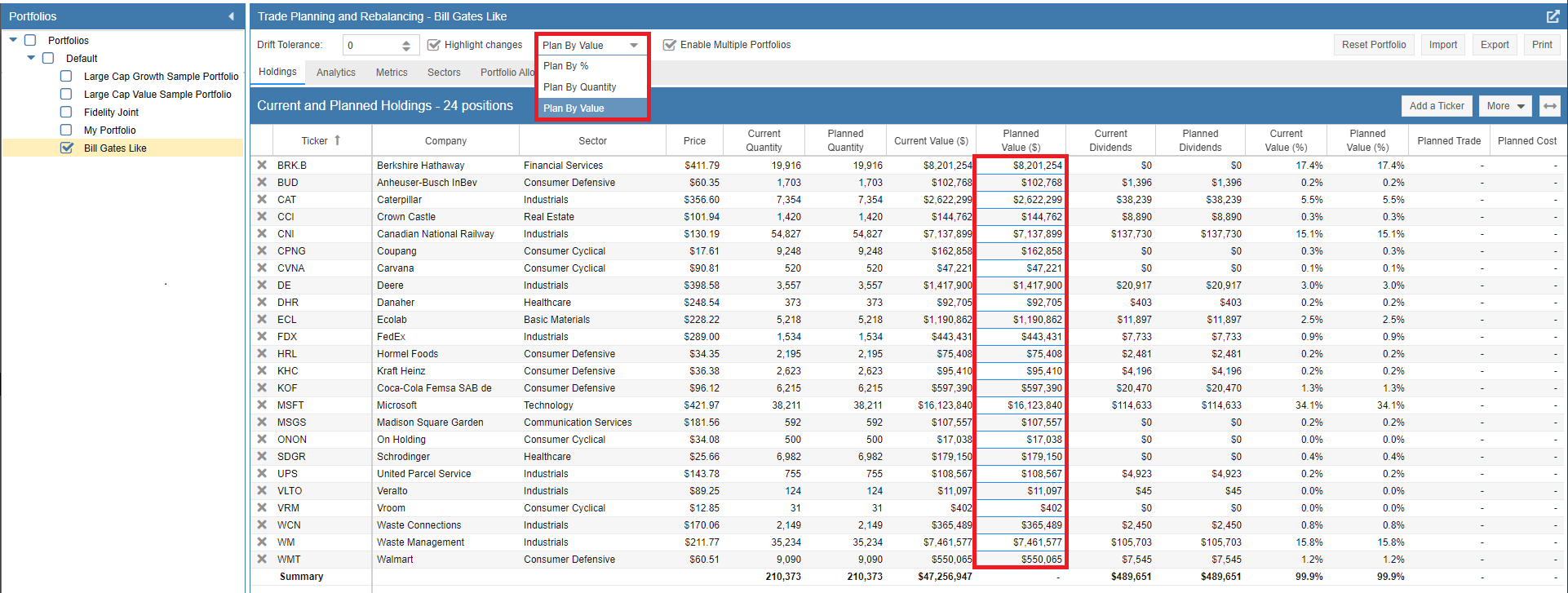
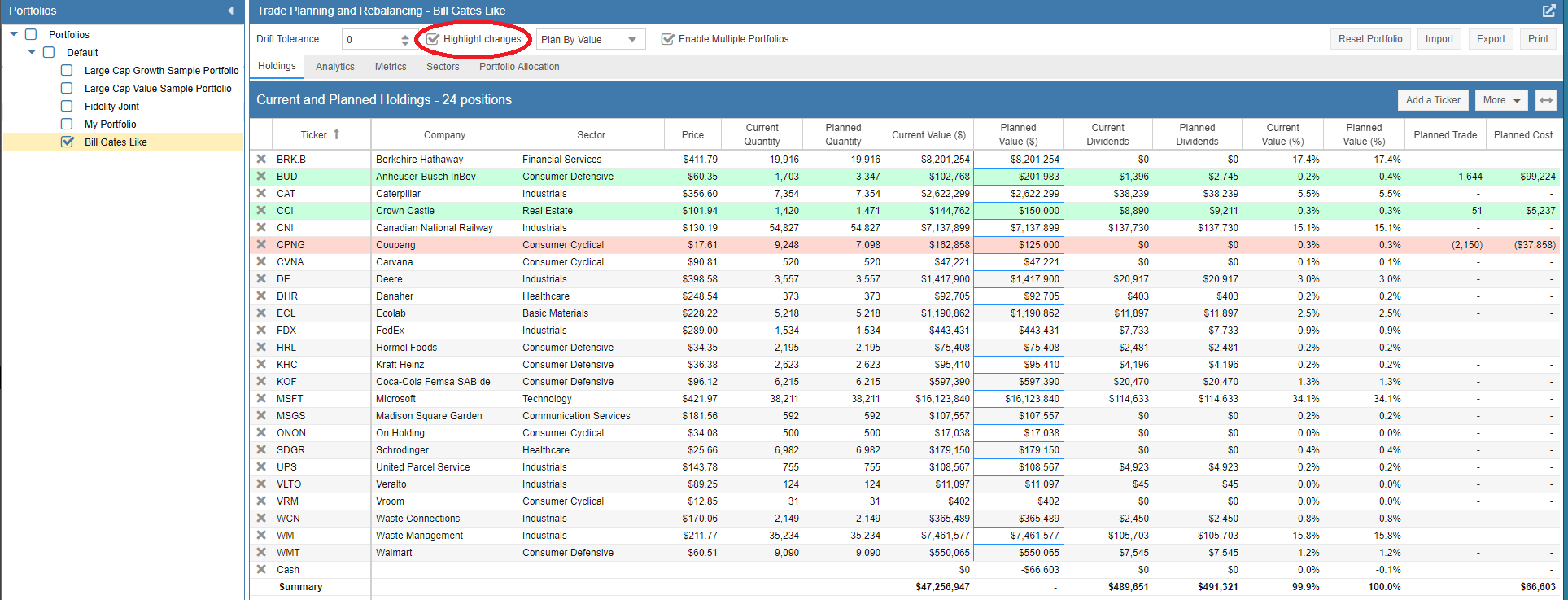
Once your target values are entered, Stock Rover will highlight the necessary changes: a green row indicates you need to add shares to reach the target value, while a red row indicates you need to reduce shares. If you prefer to remove the row coloring, simply uncheck the ‘Highlight Changes’ box.
In either case, the Planned Trade and Planned Cost columns will automatically calculate and display the exact number of shares required and the total dollar amount to trade to achieve your desired portfolio value.
Add or Remove Tickers
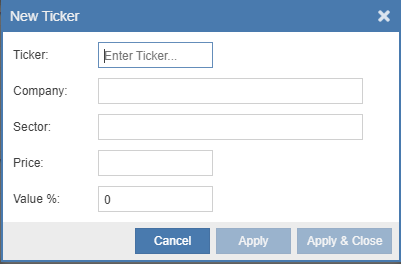
To add a new security to your model portfolio, click ‘Add Ticker’ in the top right. To remove a position entirely, click the ‘x’ next to the ticker name.
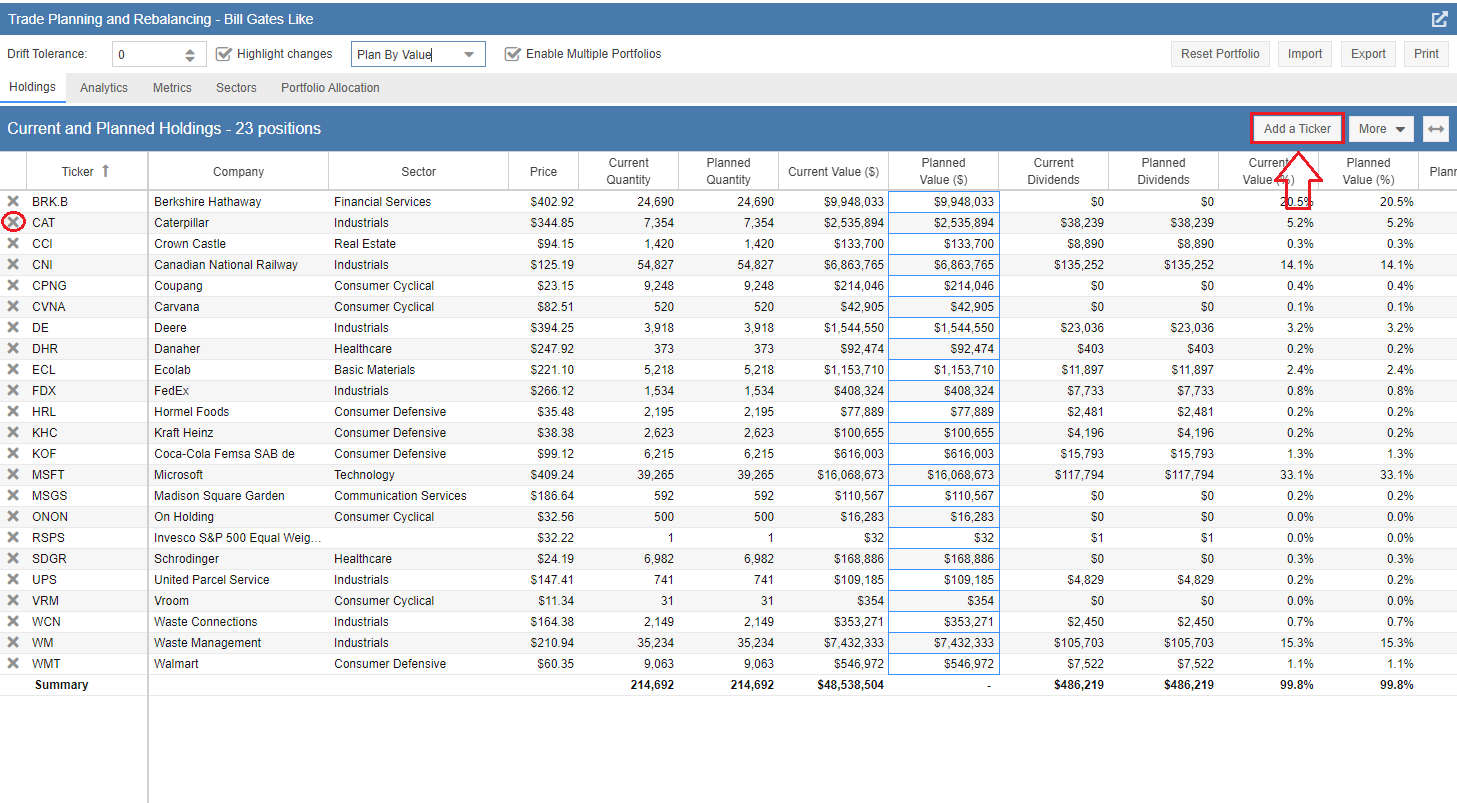
When adding a ticker, a search window will appear. Start typing the name or symbol to find and select the desired asset.
Advanced Adjustments
Changes to Multiple Tickers
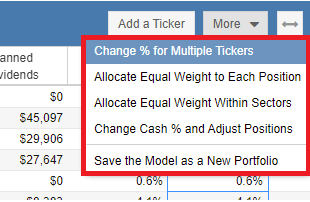
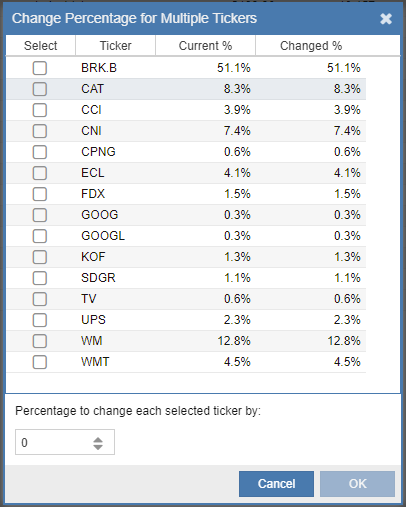
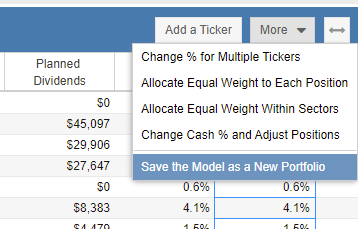
The ‘More’ dropdown menu offers bulk adjustment tools. ‘Change % Multiple Tickers’ allows you to apply percentage changes to several assets simultaneously.
Allocate Equal Weight
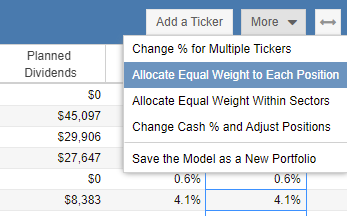
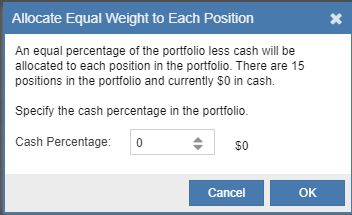
Use ‘Allocate Equal Weight to Each Position’ to instantly assign an identical percentage to every holding in the portfolio.
Allocate Equal Weight Within Sectors
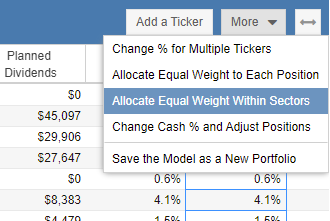
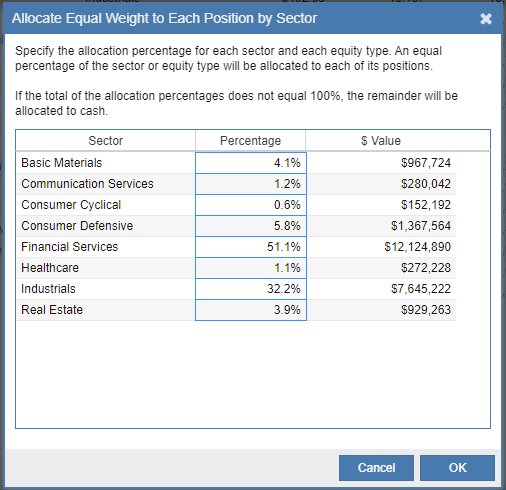
This option allows you to set a target percentage for an entire Sector. Stock Rover then distributes that weight equally among all positions held within that specific sector.
Change Cash % and Adjust Positions
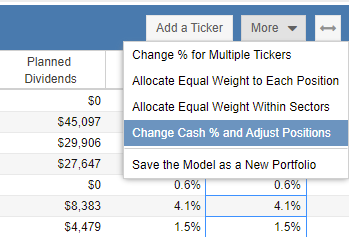
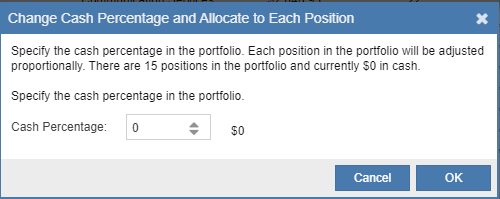
Set a specific Cash % for your portfolio, and the tool will proportionally adjust all other positions to achieve that liquidity target.
Save Model as a New Portfolio
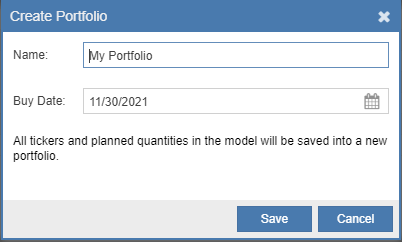
You can save your planned model as a permanent new portfolio. You will be prompted to name the portfolio and select a Buy Date (establishing the cost basis). Note: The new portfolio will not inherit the history of the original.
Management Tools
Reset Portfolio
Clicking ‘Reset’ will delete your rebalancing model, clearing all planned changes and making the planned values identical to your actual holdings again.
Import / Export
The Export feature saves your planned portfolio as a .CSV file. This is ideal for saving complex models to be Imported back into Stock Rover later. Important: Do not manually edit the CSV file if you plan to re-import it.
Generate a hard copy or PDF of your planned trade list and resulting portfolio structure.
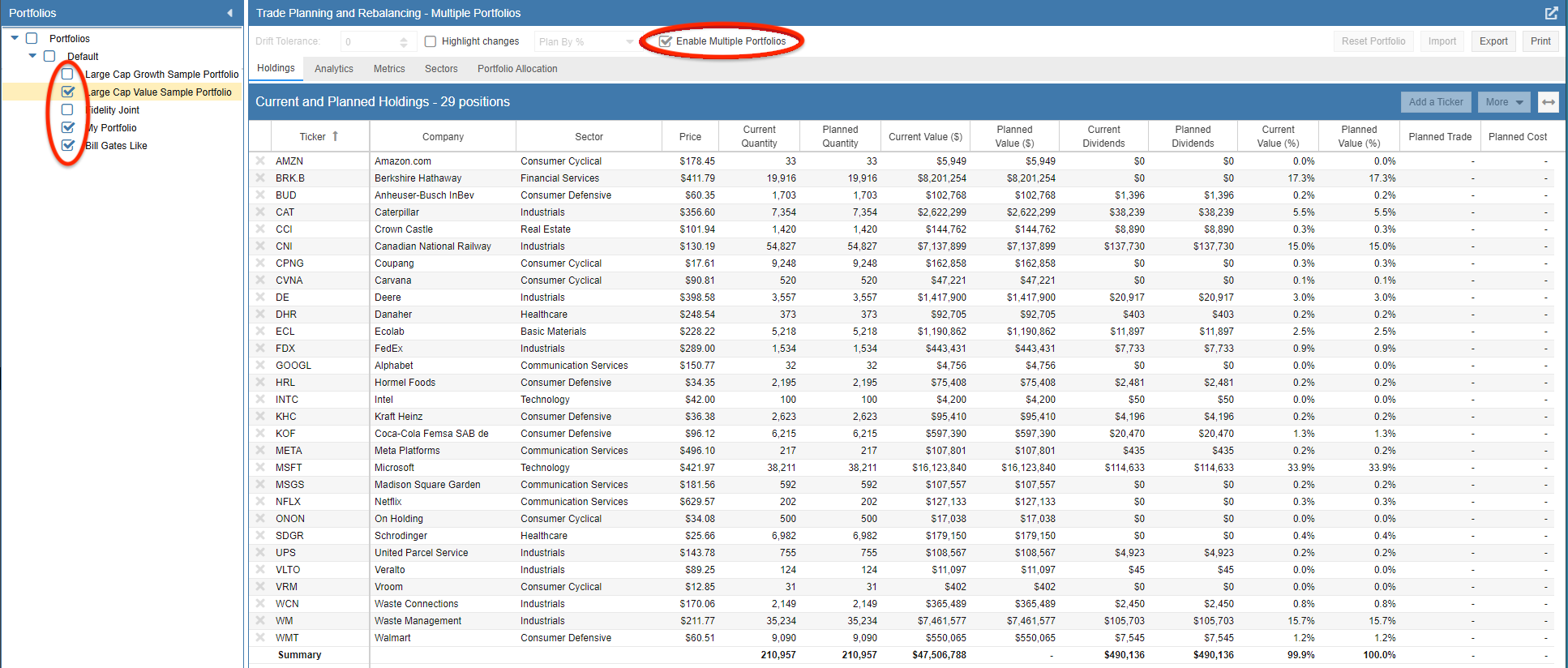
Enable Multiple Portfolios
Checking ‘Multiple Portfolios’ allows you to view aggregated holdings across several accounts simultaneously. However, you cannot make rebalancing changes in this view, as the quantities are merged into a single display.