

Managing Alerts
Modifying Alerts
To update the parameters of an existing alert, navigate to the ‘Current Alerts’ tab and click the pencil (Edit) icon located in the ‘Edit’ column.

This action opens a configuration window where you can adjust the alert criteria and change the delivery method (Email, Text, or both) by toggling the corresponding checkboxes.
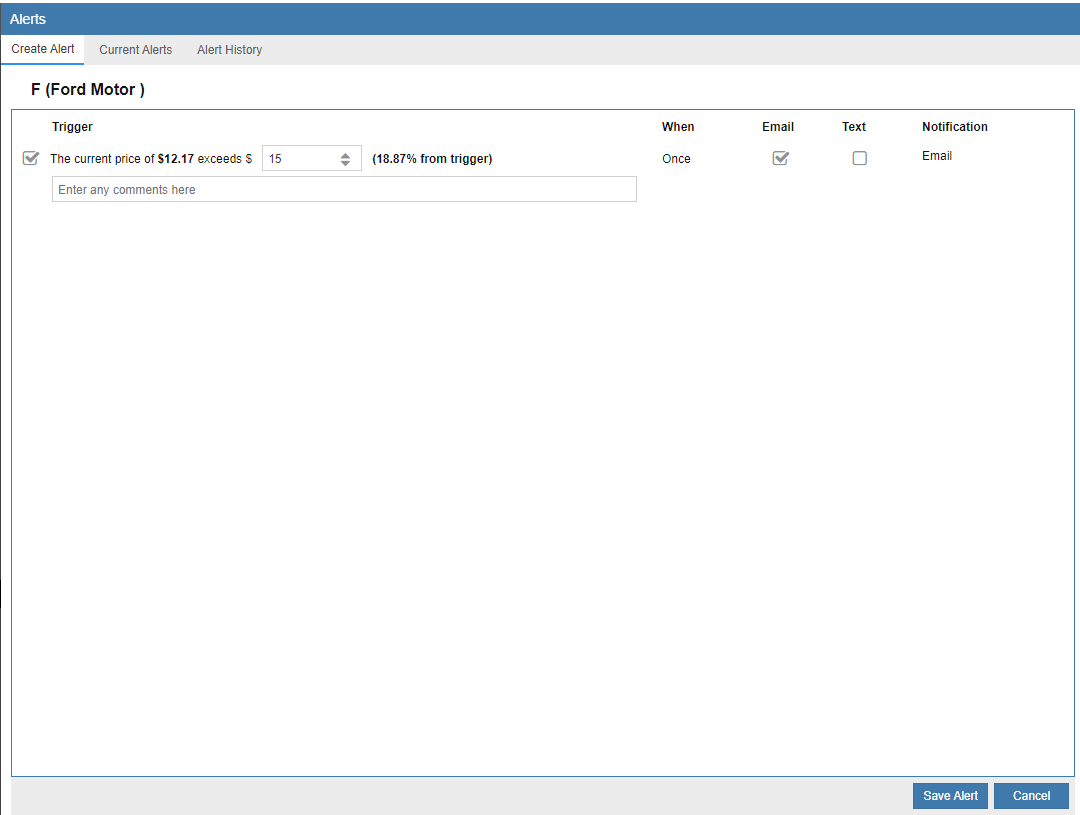
Alternatively, you can right-click any alert row and select ‘Edit’ from the context menu to access the same configuration settings.
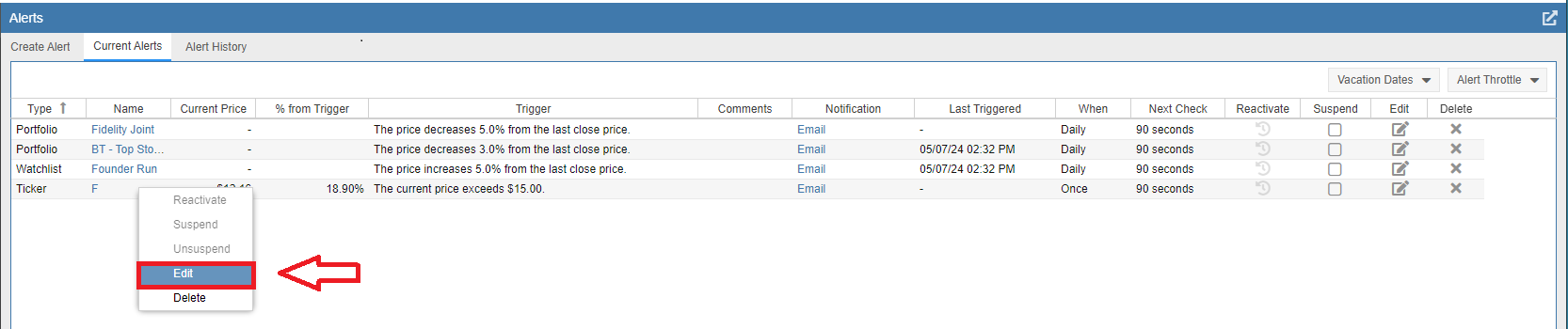
You can also click directly on the symbol in the ‘Name’ column; this will open a view displaying all potential alerts that can be configured for that specific ticker.

Suspending Alerts
If you wish to temporarily disable an alert without deleting it, navigate to the ‘Current Alerts’ tab and click the box (Suspend) icon in the ‘Suspend’ column. You can also right-click the alert row and choose ‘Suspend’ from the drop-down menu.

Reactivating Alerts
To reactivate an alert that has already been triggered, click the curved clock arrow in the ‘Reactivate’ column. For ‘Once’ alerts, this manual step is required to enable the alert again. For ‘Daily’ alerts, the system will automatically reactivate at the start of the next market day; however, clicking the arrow allows a daily alert to trigger more than once within the same day.

Deleting Alerts
To permanently remove an alert, click the ‘x’ icon in the delete column as highlighted below.

Daily vs. Once Alerts
Stock Rover categorizes alerts into two types, visible in the ‘When’ column:
- Once Alerts: Triggered once a specific threshold (e.g., a price crossover) is met, then automatically disabled. These must be manually reset using the reactivate icon.
- Daily Alerts: Designed for recurring movements (e.g., a specific percentage gain). These automatically reset when the market opens the following day. Note that modifying any setting on an alert also triggers an automatic reactivation.
Vacations
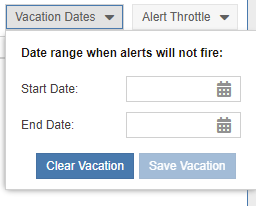
If you prefer not to receive notifications during a specific period, you can set a vacation range. Click the ‘Vacation Dates’ pull-down menu in the top right-hand corner of the Alerts facility.

This allows you to define a start and end date during which all alert notifications will be suppressed.
Throttling Alerts
To prevent notification fatigue, Stock Rover imposes default limits on daily messages (6 emails and 4 texts). To adjust these limits, click the ‘Alert Throttle’ pull-down menu in the top right-hand corner to set your preferred values.

Behaviors and Limits
Behaviors
Individual ticker alerts operate independently of portfolio or watchlist alerts. This means a single ticker can have multiple active tests. For example, if you set a 2% decline alert for a specific stock and a 3% decline alert for the portfolio containing that stock, both alerts will function independently, notifying you at each respective threshold.
Limits
To ensure system stability and avoid overloading your inbox or phone, the following default constraints are applied:
- Text Messages: Maximum of 4 per day (default).
- Email Messages: Maximum of 6 per day (default).
- Email Delay: A 60-minute delay is implemented after the 3rd email is sent; subsequent emails for that day will be delivered at 60-minute intervals.
- Bundling: A maximum of 10 alerts can be bundled into a single email.
- Daily Generation: A maximum of 250 alerts can be generated per day.
- History: The ‘Alerts History’ tab maintains a rolling record of the last 250 alerts.