

Creating and Viewing Custom Metrics
 Printer Friendly
Overview
Stock Rover provides over 800 metrics that measure company performance across many different financial dimensions. Our broad coverage includes areas such as financial statements, growth, profitability, financial strength, capital efficiency, price performance, momentum, dividends, analyst ratings, stock ratings, and industry/sector deciles.
This includes advanced metrics such as:
- Fair Value
- Margin of Safety
- Piotroski F-Score
- Price to Graham Number
- Shiller P/E
- Beneish M-Score
- Altman-Z score
One of the many unique capabilities Stock Rover offers is the ability to extend your investment research and analysis beyond out-of-the-box metrics. With a Premium Plus subscription, you can create custom financial metrics and integrate them into Stock Rover as if they were natively built-in. Custom Metrics are easy to create and incredibly powerful, allowing you to source current data from any of the 800+ existing metrics, as well as historical data for a broad selection of key indicators.
At its most basic level, the Custom Metrics tool allows an investor to:
- Display custom metrics for comparative analysis in the Stock Rover Table.
- Use custom metrics as filtering criteria in a Screener.
The focus of this post will be on #1: creating Custom Metrics for display in the Table. These metrics can then be leveraged to perform advanced comparative analysis.
Note: The Table consists of multiple sections called Views. Each view contains a set of related columns, where each column contains a single Stock Rover metric. As we’ll see shortly, Views are entirely customizable.
Let’s say we’d like to display companies’ Earnings Per Share (EPS) over the last eight consecutive quarters as columns in a View in the Table Layout. Here is how to do it:
Step 1: Go to the Table
We’ll start by navigating to the Table. We do this by selecting Table in the Start Menu. Stock Rover will then display the tickers selected from the navigation pane using the selected View.
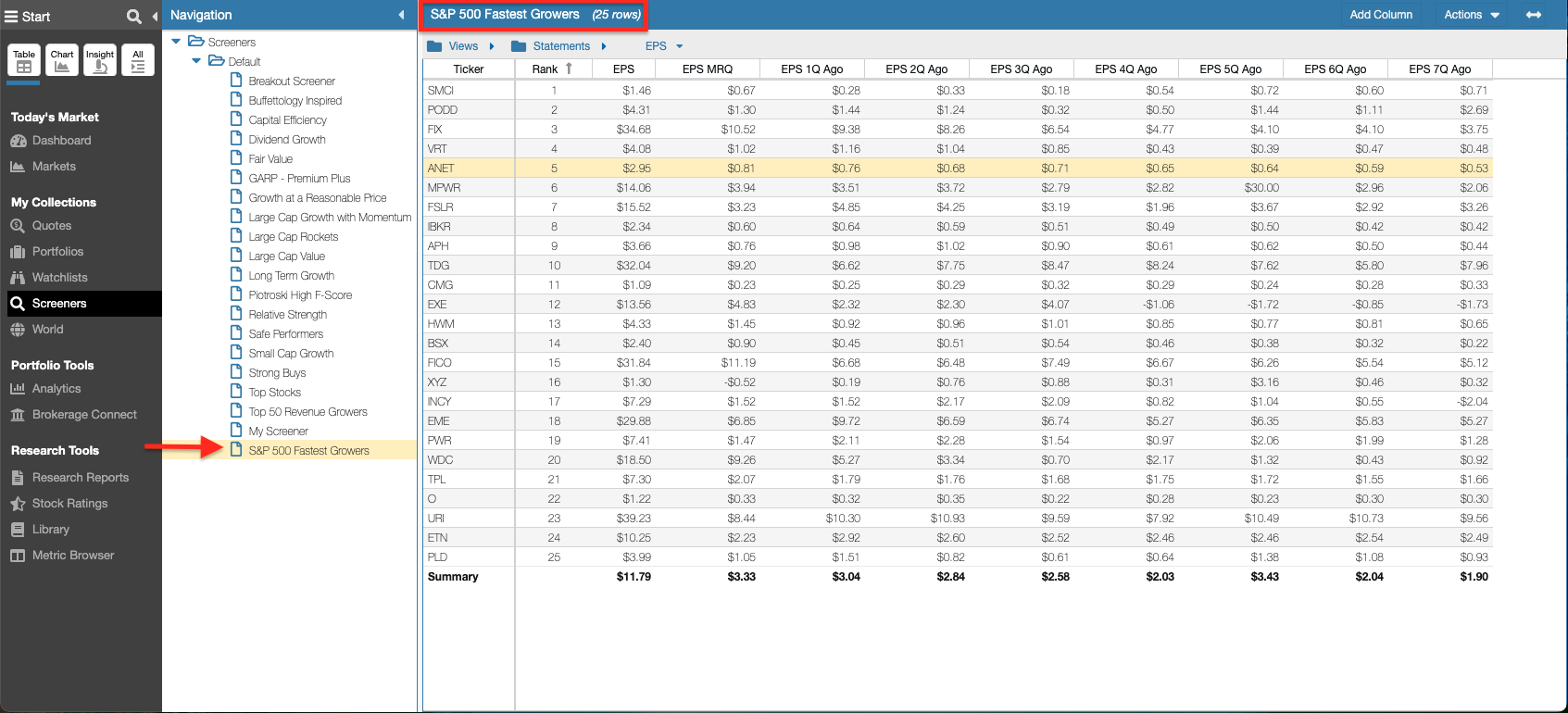
In the example below, we are displaying the results of Stock Rover’s S&P 500 Fastest Growers screener in a custom view called EPS.
The custom EPS View displays the tickers’ rank based on the screening criteria, as well as their Earnings Per Share.
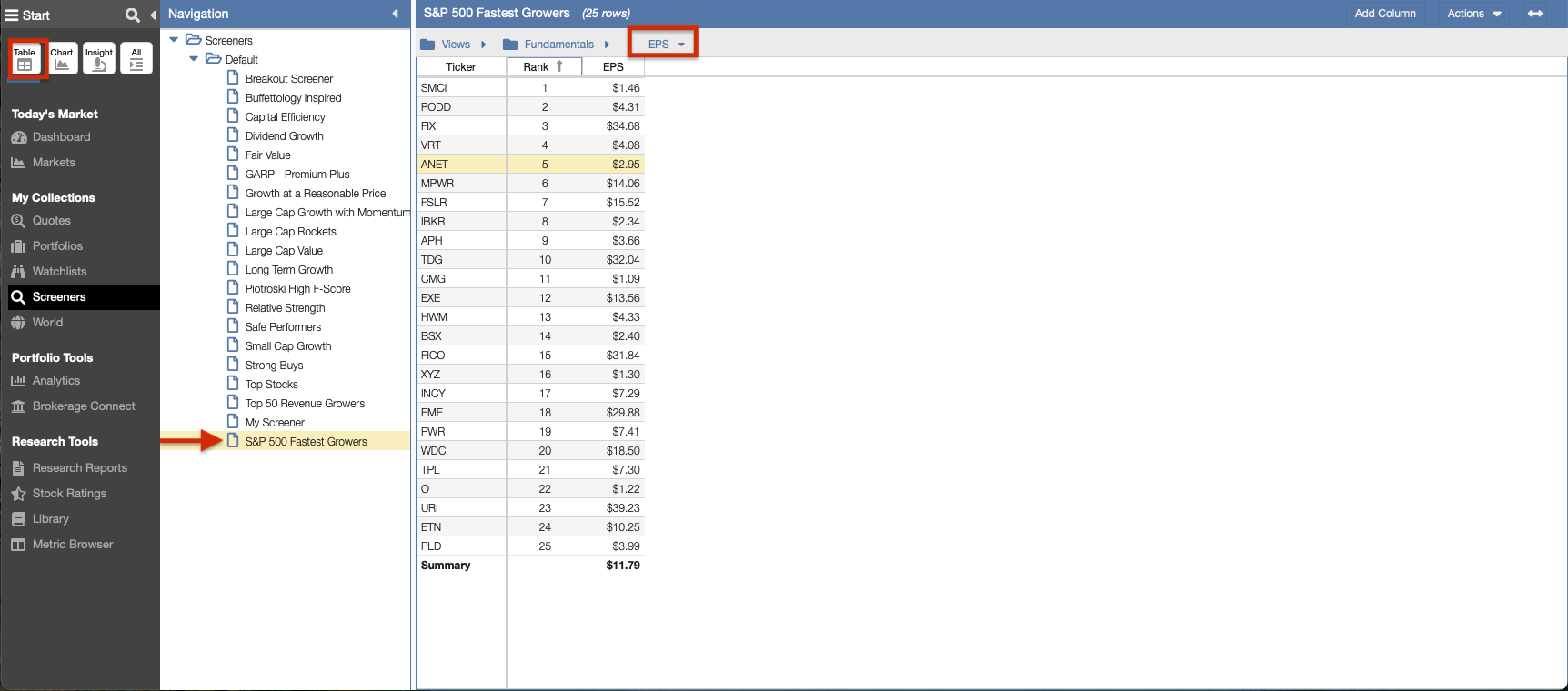
The Table layout displaying the S&P 500 Fastest Growers using a custom EPS View.
Historical data for a given ticker is easily accessible:
- Right-click on a row and select Historical Data.
- This opens the historical data window where you can choose TTM (Trailing Twelve Months), Quarterly, or Yearly data.
Because we are interested in performing comparative analysis across multiple tickers, we’ll add quarterly EPS metrics as columns to our view. When completed, our EPS view will contain a row for each ticker and columns with the Earnings Per Share for the most recent quarter, and consecutive quarters through eight quarters ago.
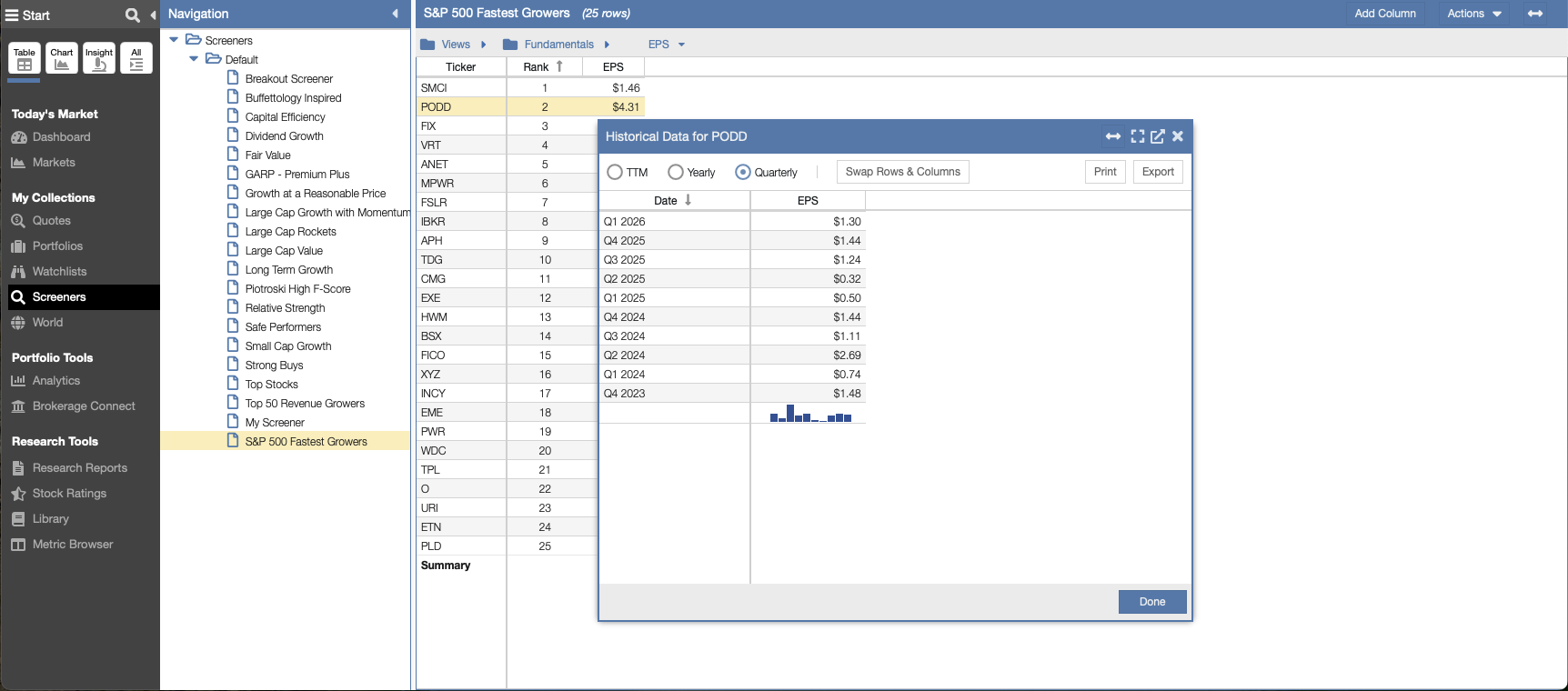
Right-click on any row to access rich historical data for a specific ticker.
Step 2: Create Custom Metrics
To create our Custom Metrics, we will access the Custom Metric facility, located in the Actions Menu at the top of the Table.
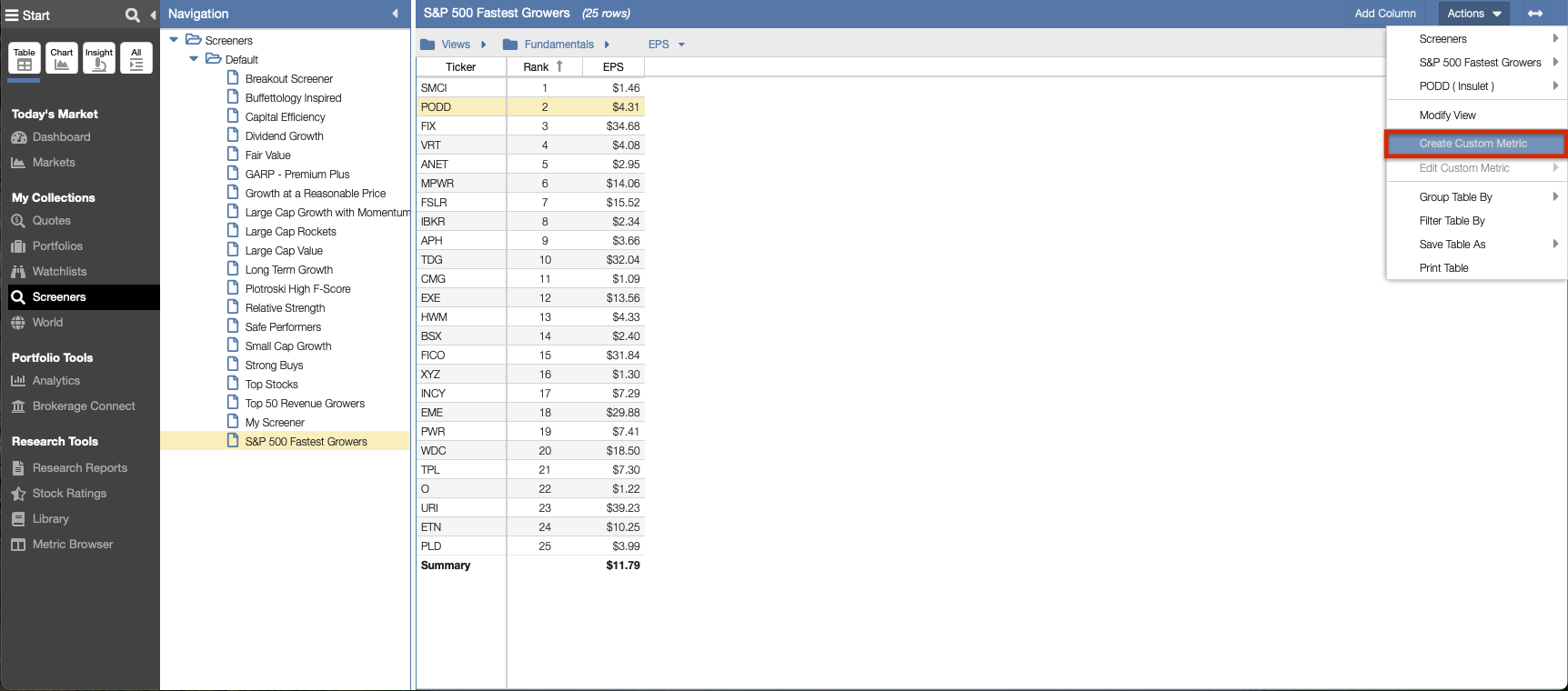
The Custom Metric facility is easily accessible from the Actions Menu at the top of the Table.
The Add Custom Metric window will launch. Here, we will:
- Give the custom metric a Name.
- Write a brief Description.
- Select a Display Format.
There is a built-in search capability to make it easy to find the source metrics. (Partial matching is supported, and you can modify the search to include metric descriptions).
In our example, we want to use the EPS metric as our source. When we input “EPS” as a search term, all metrics with the word “EPS” in the name are displayed.
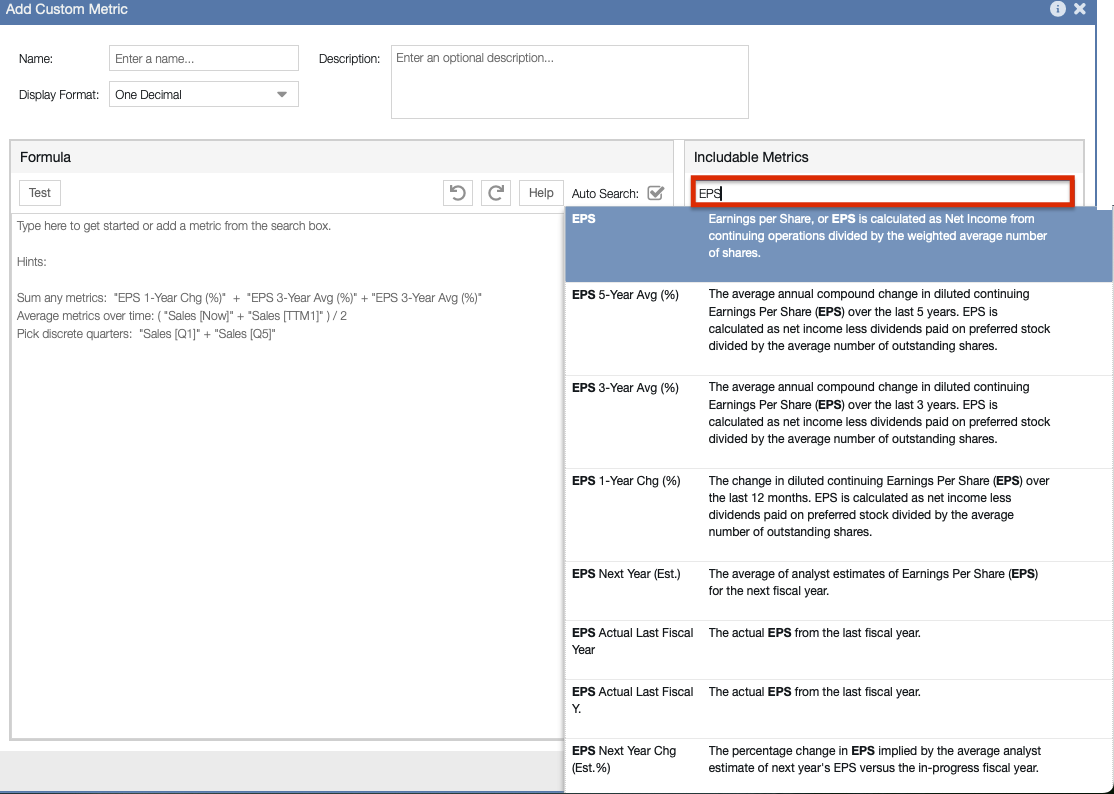
Searching for the EPS metric to use as the source data for our new custom metric.
Since we are looking at EPS over consecutive quarters, we’ll start by creating a metric for the Most Recent Quarter:
- Select EPS and hit return.
- Name the metric “EPS MRQ”.
- Select Dollars and Cents for the Display Format.
- Click the pencil next to the name of your custom metric in the header bar to access historical data.
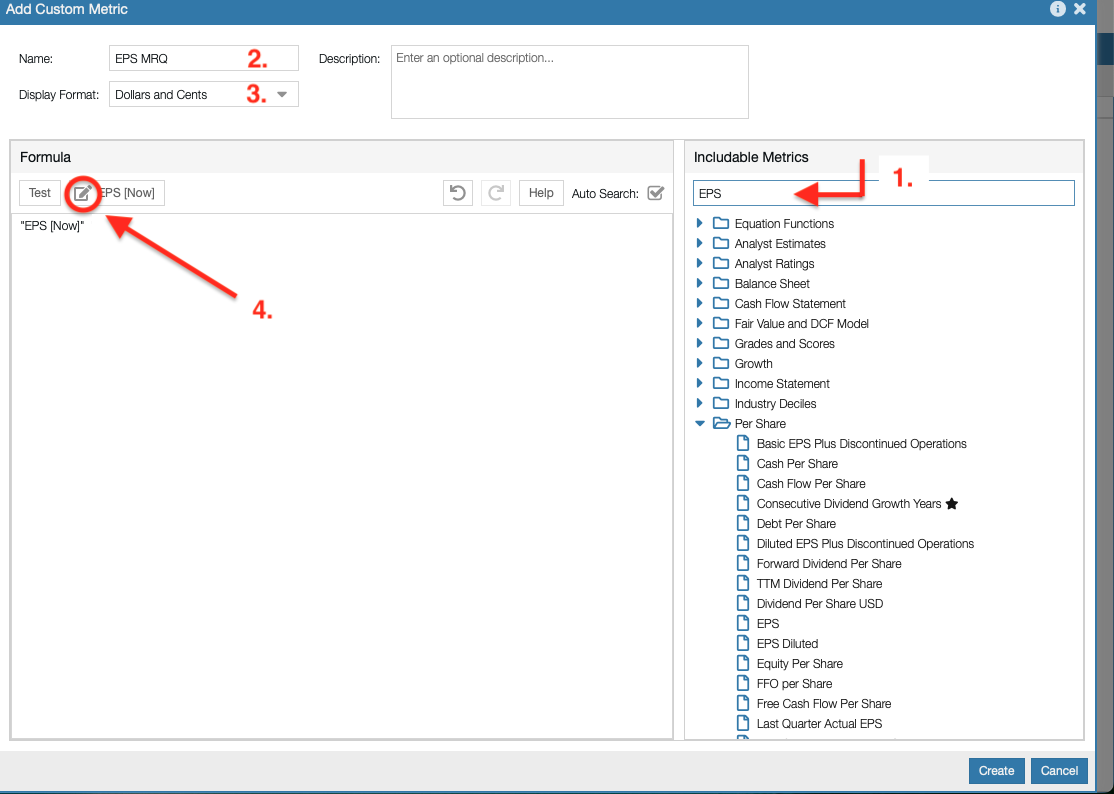
Clicking the pencil icon to configure the historical time period for the metric.
Select your desired historical period from the list (shown below).
When accessing historical data, you can create Custom Metrics based on multiple time periods, including:
- Quarterly (Back 9 quarters)
- Trailing Twelve Months (Back 10 years)
- Calendar Year (Back 10 years)
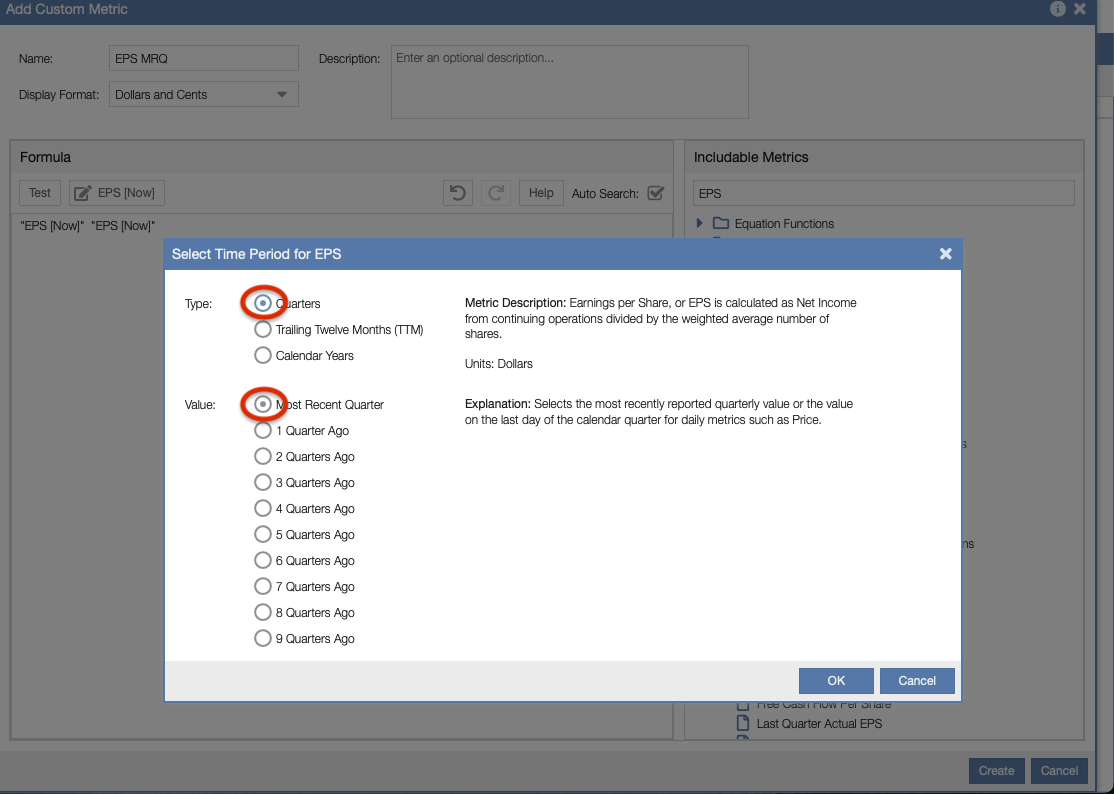
Selecting the desired historical period (e.g., Trailing Twelve Months, Quarterly, or Yearly).
Below we see our new Custom Metric called “EPS MRQ”, ready to be used for comparative analysis in the EPS view.
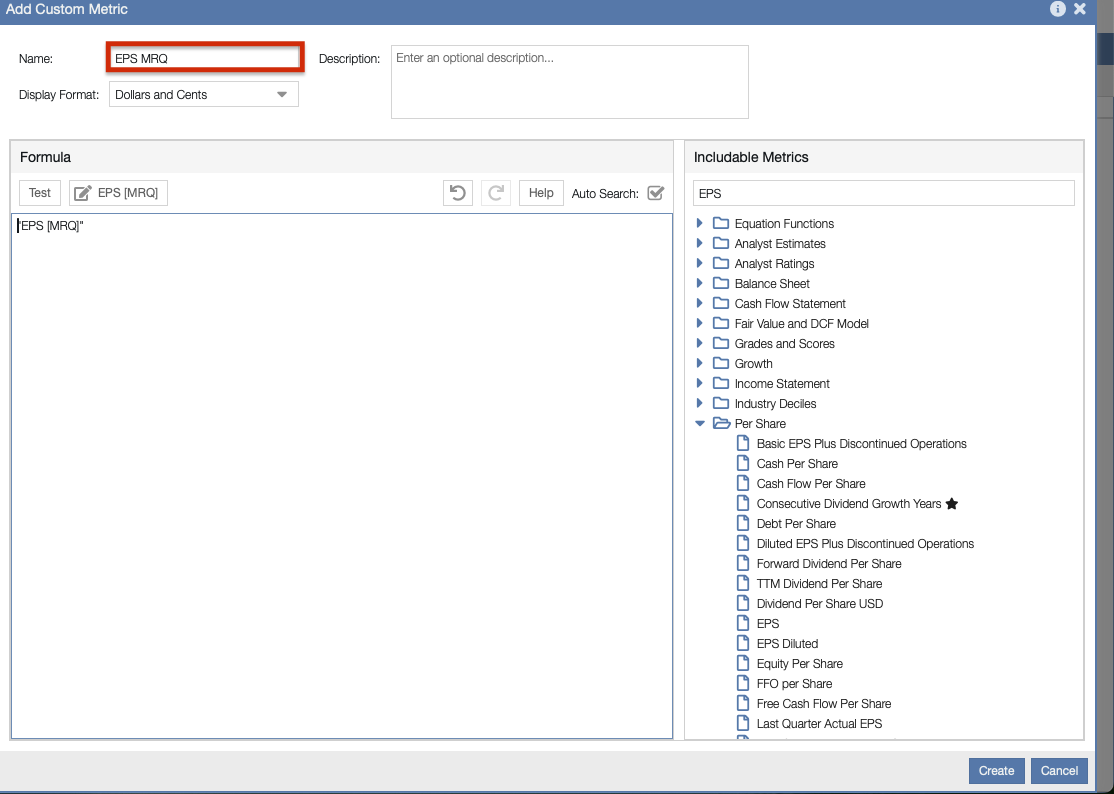
Our newly created “EPS MRQ” custom metric, ready to be added to our Table Views.
To finish the process, simply repeat this Custom Metric creation process for each of the eight quarters back in time.
Step 3: Use Custom Metrics in a View
The final setup step is updating our EPS View to include the new Custom Metrics we just created. Normally, this is done using the change column feature.
However, to make this easy for you, we’ve added this exact View to the Stock Rover Investor’s Library! You can import the EPS View directly into your account. The library import will automatically generate all of the Custom Metrics used in the view for you.
To import the View:
- Select Library in the Start Menu
- Select Views from the list of importable types.
- Select the EPS View for import.
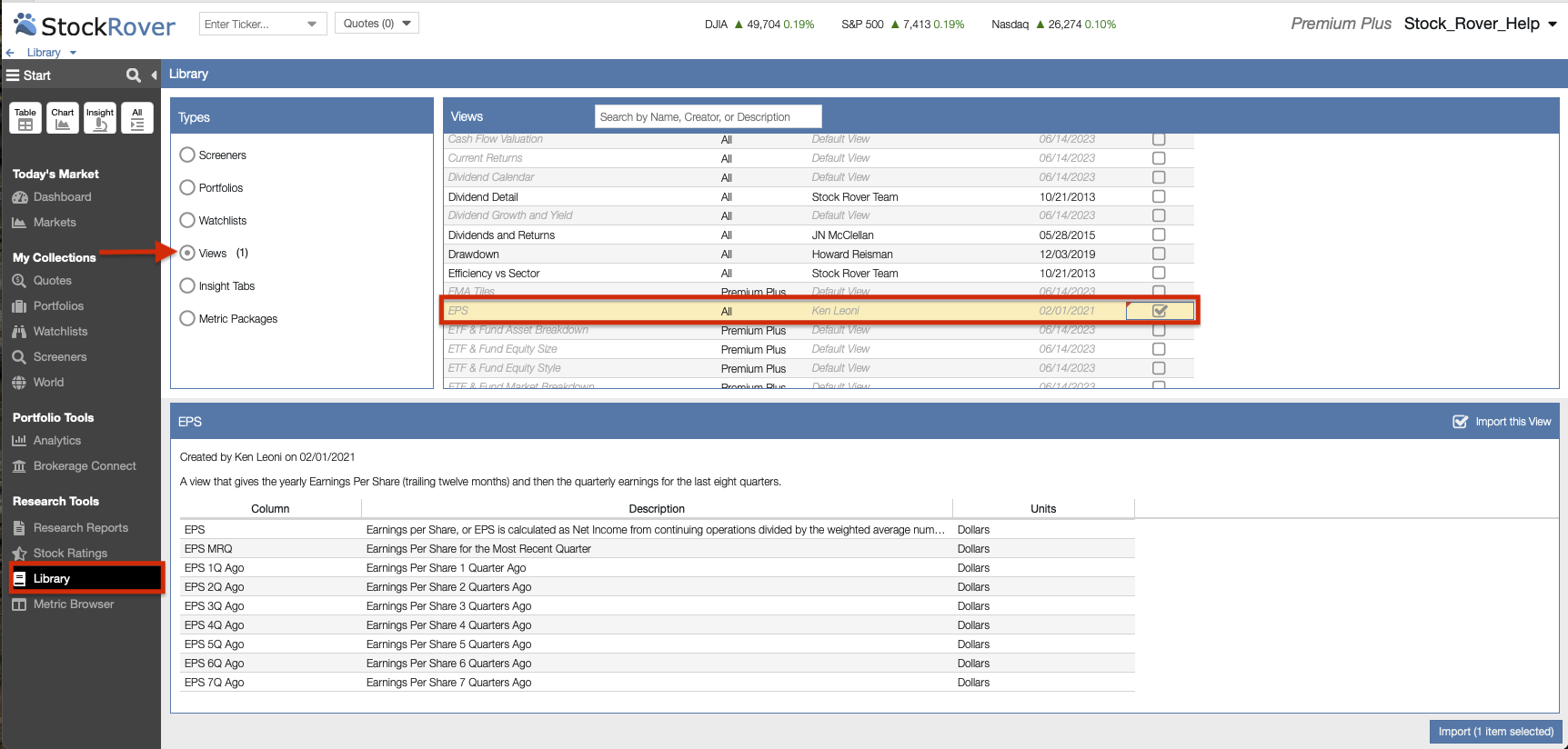
Importing the pre-built EPS View directly from the Stock Rover Investor Library.
Step 4: Perform Comparative Analysis
Now that we have our updated EPS View, we can dive into the data.
In the screenshot below, we see a comparative analysis of EPS over eight consecutive quarters for our S&P 500 Fast Growers screener results, utilizing our newly created Custom Metrics.
The final comparative analysis displaying EPS over eight consecutive quarters.
The View construct is highly flexible. We could navigate to any other dataset in Stock Rover—including Portfolios, Watchlists, or other Screeners—and leverage our EPS View to perform the exact same analysis.
Because Custom Metrics are fully integrated into Stock Rover, you can utilize them in multiple Views simply by adding them to any of your existing Table layouts.
Summary
Custom Metrics allow you to build personalized financial metrics and integrate them seamlessly into Stock Rover. They are intuitive to set up and incredibly robust, allowing you to source current data from any of the 800+ built-in metrics, as well as historical data for a wide array of financial indicators.
By incorporating Custom Metrics into the Stock Rover Table, you can elevate your comparative analysis and evaluate investment opportunities across unique dimensions of financial, operational, and price performance.
Custom Metrics can also be incorporated into Screeners to greatly enhance their filtering power and flexibility.
Editor’s Note: This post was originally published in February 2021 and has been updated for freshness, accuracy, and comprehensiveness.
Comments
Leave a Reply
Top
I am constantly amazed by the many Stock rover features that I have missed in using the program. Thanks for the great explanations and samples.