

Screener Snapshots - Tracking Screener Results Over Time
 Printer Friendly
A common challenge for quantitative investors is understanding how a screening strategy evolves over time. The Screener Snapshot Facility addresses this by allowing you to “freeze” screener results at any point in time, creating a persistent historical record for future analysis.
Rather than viewing only the current output of a screener, you can compare present results against one or more historical snapshots. This makes it easy to identify securities that consistently meet your criteria, those that appear intermittently due to changing conditions, and those that drop out over time. You can also compare results across multiple screeners to identify overlap between different strategies.
Please note: The Screener Snapshot Facility is available to Premium and Premium Plus subscribers.
Taking a Snapshot of a Screener
The foundation of long-term analysis is the regular creation of snapshots. A snapshot captures a static list of all securities that met your screening criteria at a specific point in time.
Because snapshots cannot be recreated retroactively, the value of your historical archive begins the moment you create your first snapshot.
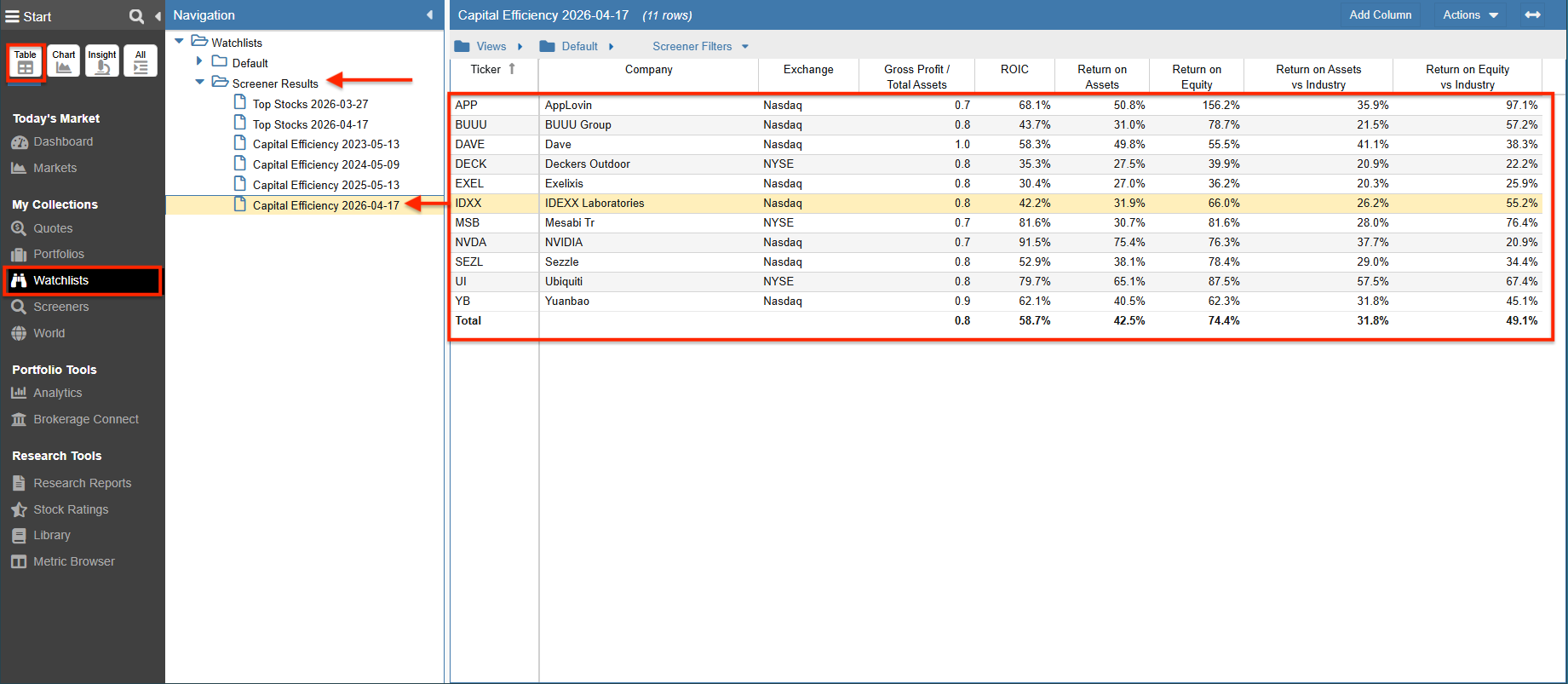
Snapshots are stored as watchlists within the Screener Results folder, using a standardized naming convention (Screener Name yyyy-mm-dd) for clarity and organization.
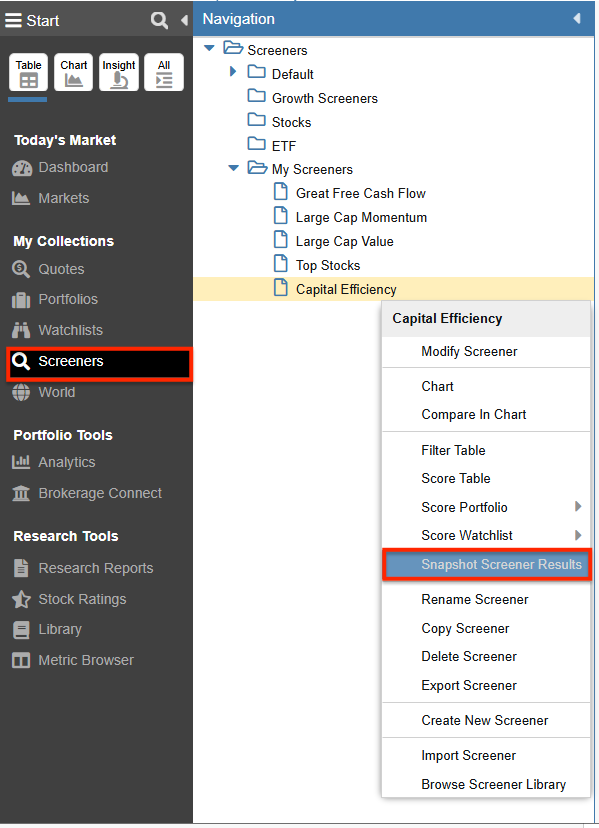
To create a snapshot, right-click a screener in the Navigation panel and select ‘Snapshot Screener Results’.
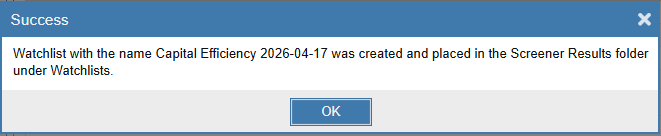
A confirmation message will appear, and your new static watchlist will be added to the Screener Results folder under Watchlists.
In the example below, a snapshot of the Capital Efficiency screener is shown. By maintaining snapshots over time, you build a structured historical database of your strategy’s output.
Using the “Group By Watchlist” Feature
To analyze changes between snapshots, use the Table Layout along with the Group By function.
- Select the desired historical screener snapshots using the checkboxes.
- Right-click any column header in the Table and choose Group By ➡ Watchlist.
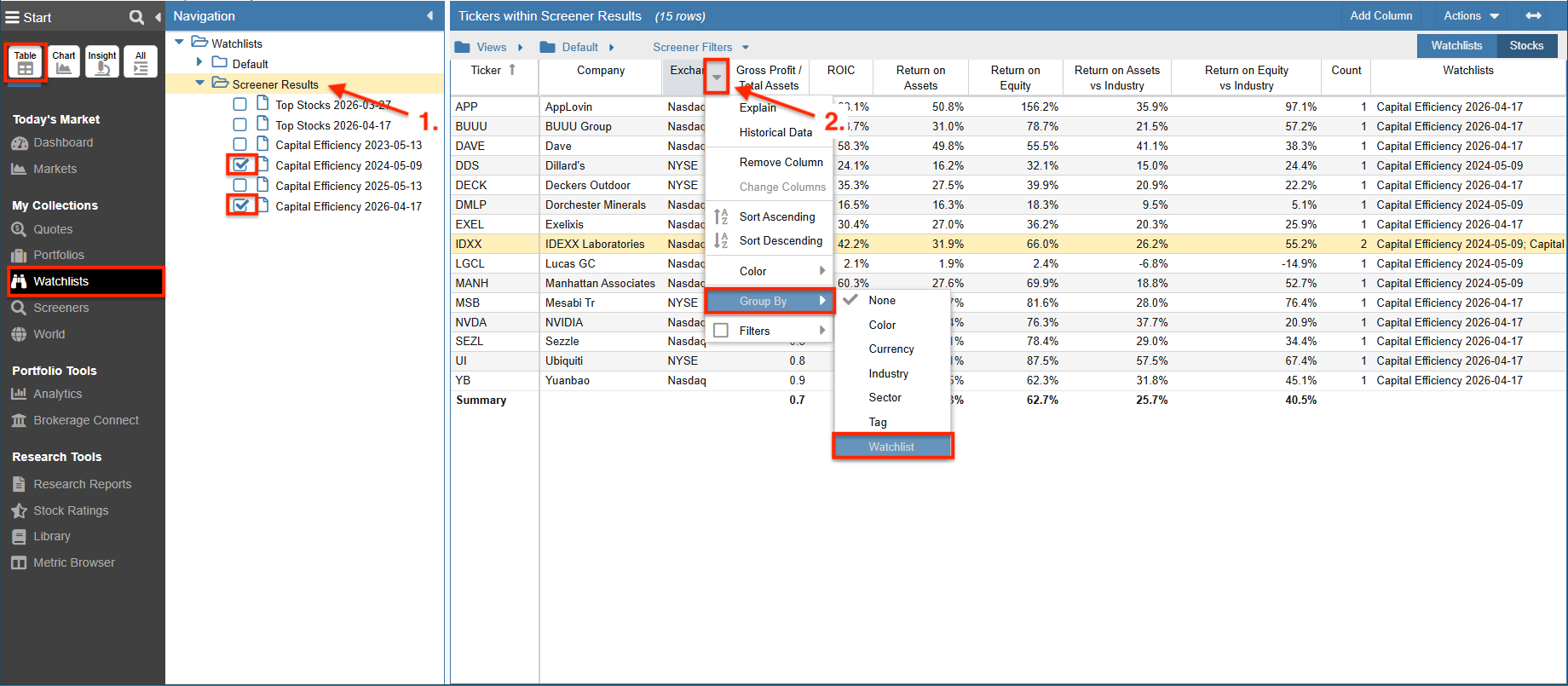
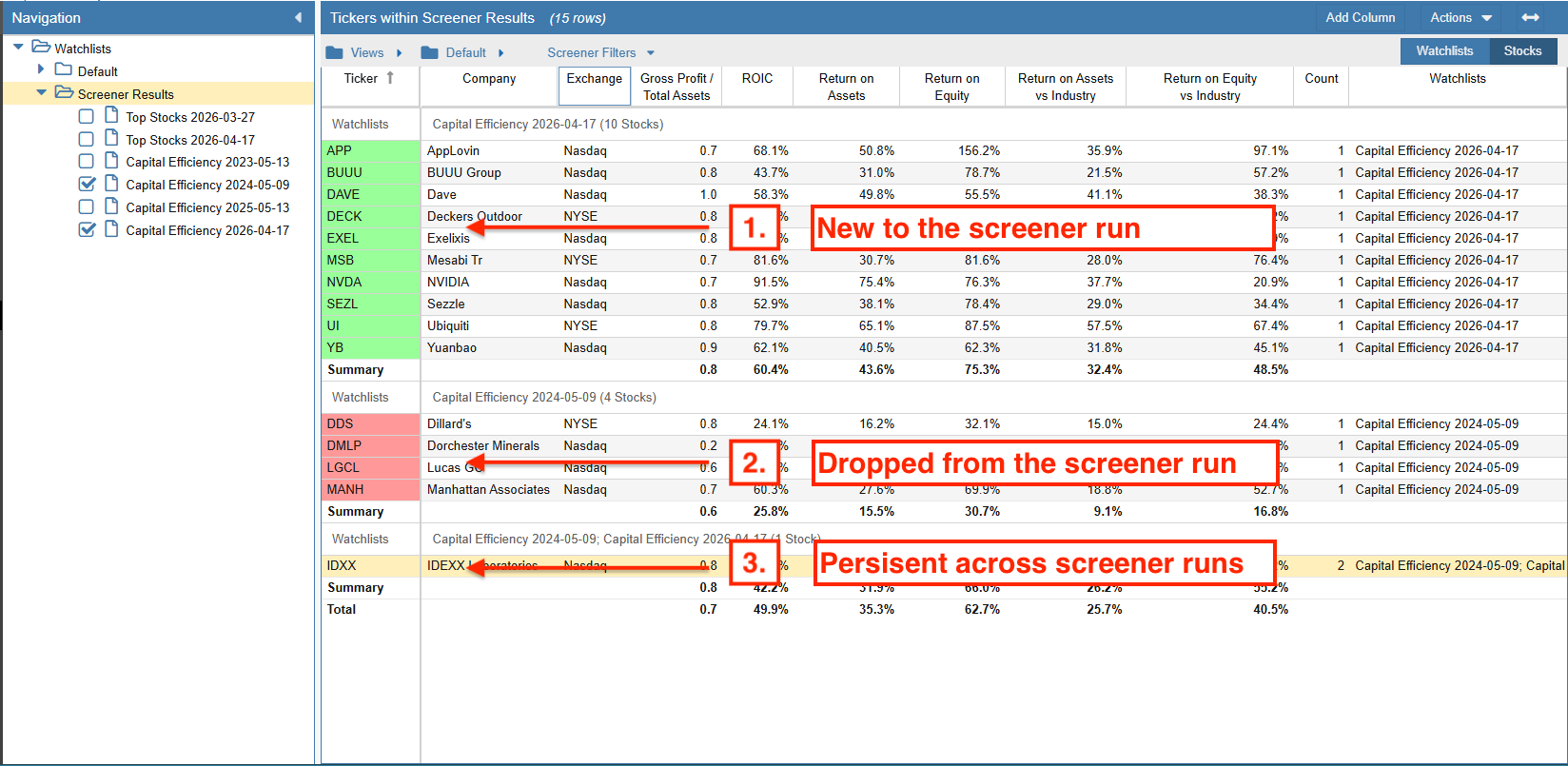
When comparing two snapshots, the visual breakdown is immediate:
- Green: Securities that are newly added.
- Red: Securities that no longer meet the screening criteria.
- Plain: Securities that appear in both snapshots.
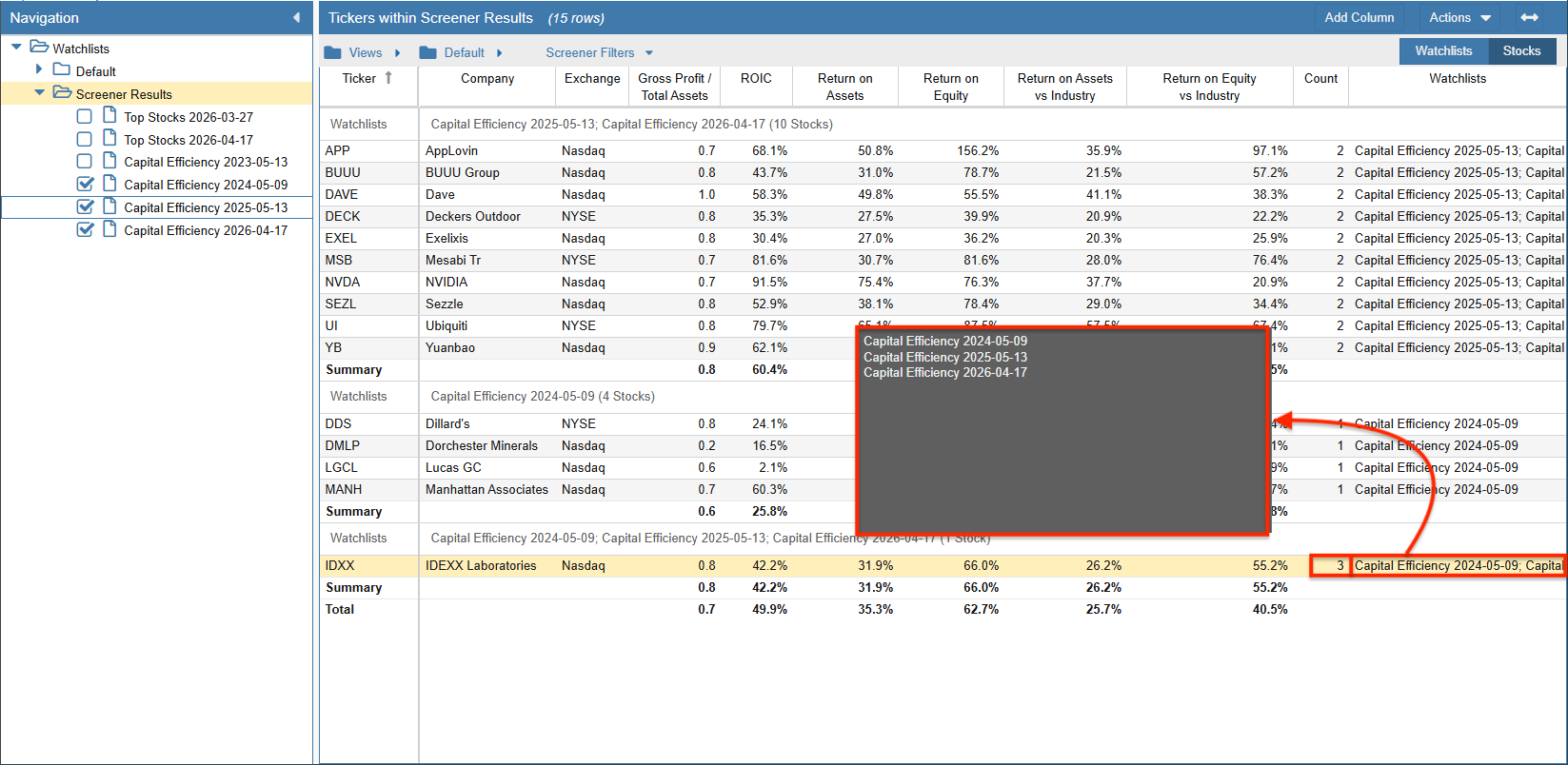
If you compare more than two snapshots, Stock Rover groups securities by occurrence across time. Hovering over a ticker’s Count or Watchlists column displays a tooltip showing exactly which snapshots it appeared in.
Why Historical Snapshots Matter
The primary value of this feature is not only tracking short-term changes, but identifying long-term consistency. By reviewing snapshots over multiple periods, you can distinguish between stocks and ETFs that appear due to short-term market conditions and those that consistently meet strong fundamental criteria. This helps reduce portfolio turnover and increases confidence in your holdings.
In addition, snapshots serve as a powerful performance validation tool. By preserving the exact securities that passed your criteria on a given date, you can track their subsequent performance over time within the Table. This enables you to evaluate the real-world effectiveness of your screening strategy and assess how past selections perform in current market conditions.
Summary
The Screener Snapshot Facility is one of the most effective tools for adding historical context to your research process. Whether you are identifying new opportunities, validating strategy performance, or analyzing portfolio turnover, snapshots provide the structured data needed for more informed decision-making.
Frequently Asked Questions
What is a Screener Snapshot?
A Screener Snapshot is a saved, static watchlist that captures screener results at a specific point in time. Unlike a live screener, which updates continuously with market data, a snapshot preserves the exact results as they existed on that date.
Can I use snapshots to evaluate past strategy performance?
Yes. By taking regular snapshots, you create a historical archive of your strategy’s outputs. You can then review these snapshots at any time to analyze subsequent performance and fundamental changes in the selected securities.
How many snapshots can I compare?
You can compare two or more snapshots. Two-snapshot comparisons highlight additions and removals, while multi-snapshot comparisons help reveal longer-term persistence patterns.
What do the red and green colors indicate?
In a two-snapshot comparison, green indicates newly added securities, while red indicates securities that no longer meet the screening criteria.
Can I export snapshot comparisons?
Yes. After grouping snapshots in the Table view, you can use Stock Rover’s export functionality to download the results as a CSV file for further analysis.
Top