In our first post [1], we looked at how to find a company’s “Fair Value” based on its internal cash flows. However, even a great company can be a poor investment if you pay too much compared to what the rest of the market is paying for similar businesses. This is where Relative Valuation comes in.
Contents
What is Relative Valuation?
Relative valuation judges a stock by comparing its valuation metrics against other companies in the same industry. It essentially asks: “Am I paying more or less for $1 of earnings or cash flow than I would for this company’s closest peers?” While absolute valuation tells you what a stock is worth in a vacuum, relative valuation provides the necessary market context to determine if a stock is a true bargain among its peers.
How Stock Rover Simplifies Relative Valuation
Stock Rover cuts through the noise to help you compare a stock against the market and its peers. It goes beyond a basic quote page, offering tools that do the heavy lifting for you:
- Automated Peer Groups: Stock Rover automatically hunts down a company’s closest peers by finding companies within the same Industry Group and Industry with a similar market cap, saving you the hassle of building a watchlist.
- The Insight Panel: A dedicated “vs Peers” section automatically zooms out to show you exactly where a company ranks against its specific Industry Peer Group in areas like valuation, growth, and efficiency.
- Comprehensive Stock Ratings: Instead of checking metrics one by one, use Stock Rover’s proprietary Stock Ratings facility [7]. It calculates a weighted average for key metrics to generate simple 0-100 rating, ranking companies directly against their industry group.
Step-by-Step: Analyzing Relative Value in Stock Rover
-
Start with the Insight Panel:
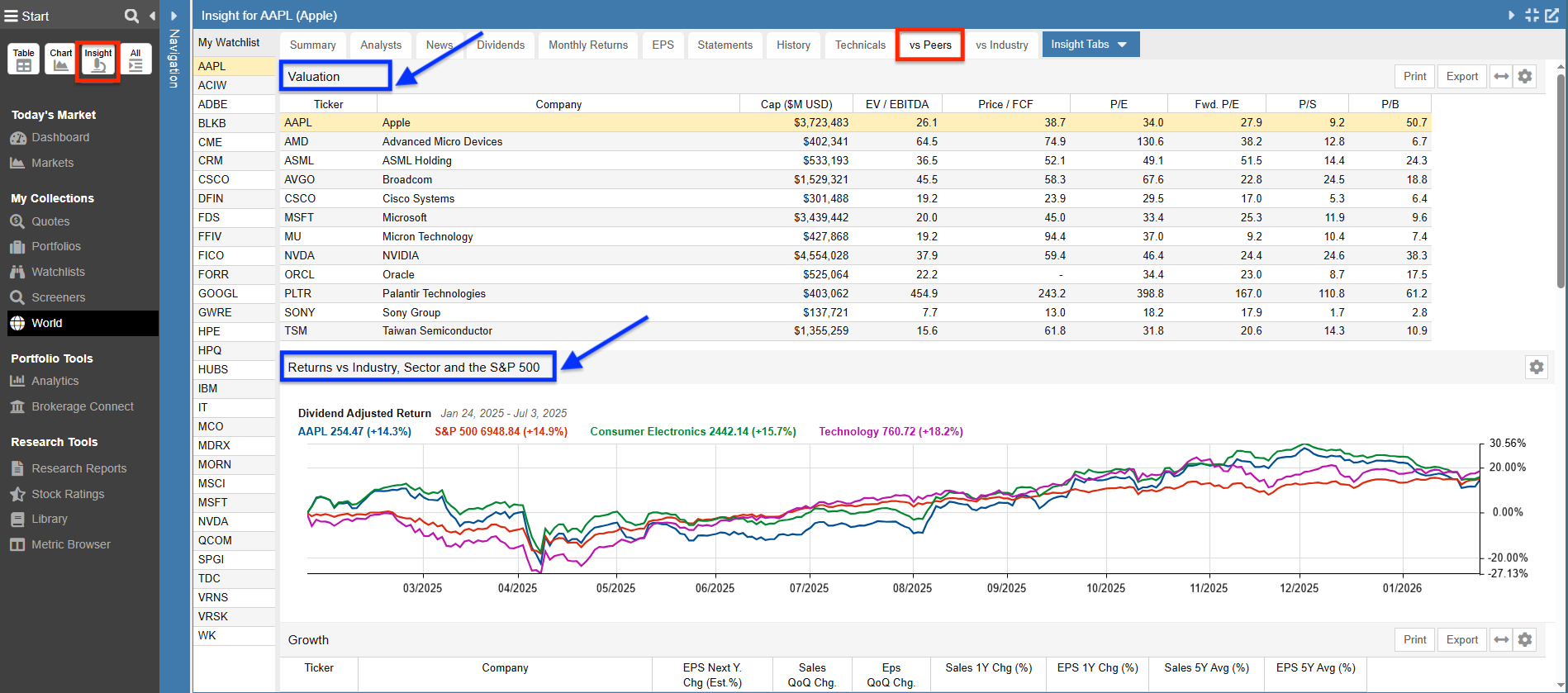
Select a target in the Table, open the Insight Panel, and select the vs Peers [8] tab. This provides an immediate benchmark:• Valuation: The first of five tables lines up your stock against its top peers on key relative metrics like EV/EBITDA, P/E, and Price/Sales. It instantly reveals if the stock is trading at a premium or discount to the group.
• Returns vs Industry, Sector, and the S&P 500: This chart plots your stock’s returns directly against its Industry, Sector, and the S&P 500. This visual check ensures that a “cheap” valuation isn’t just a result of poor price momentum. (Note: In the screenshot below, the chart was repositioned to appear below the Valuation table).
 [9]
[9] -
Review Peer Analysis in a Research Report:
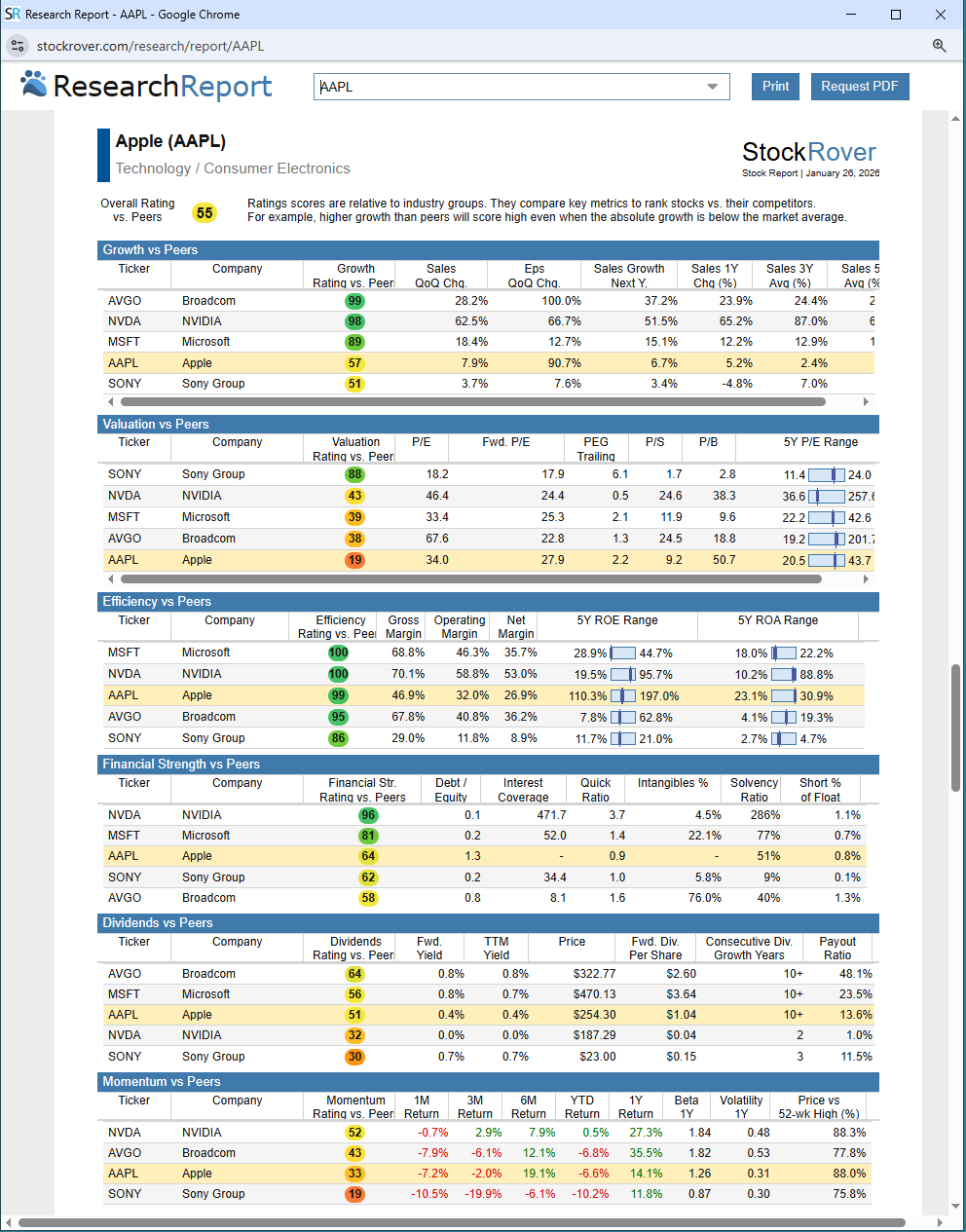
Right-click on the ticker in the Table and generate a Research Report [10]. Navigate to the “Peers Analysis” section of the report. This gives you an analyst-grade summary of how the company stacks up against its industry group.
 [11]
[11] -
Validate with Stock Ratings:
For a comprehensive check, navigate to the Summary [12] tab of the Insight Panel and look for the “Ratings vs Peers” section. This gives you a high-level rating (0-100) across seven dimensions. The first six ratings—Overall, Growth, Valuation, Efficiency, Financial Strength, and Dividends—compare the stock against its peers, while Momentum ranks against the entire market.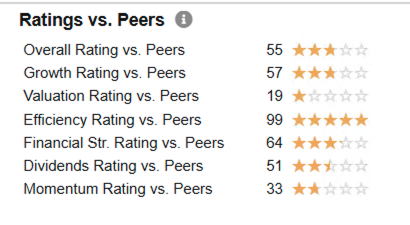 [13]
[13]The “Drill Down”: Click on any specific rating (e.g., Growth Rating vs. Peers) to open the detailed Stock Ratings Facility. This view breaks down the rating so you can see exactly what’s driving it:
- Precise Ranking: See exactly where the stock ranks within its industry group (e.g., “Apple’s (AAPL) growth rating is in the 57th percentile in the Hardware Industry Group, ranking 74th out of 174 companies“).
- Metric Breakdown: View the underlying factors that actually drove the rating.
- Peer Comparison Table: A side-by-side table displaying peer ratings alongside key metrics, allowing you to directly compare your stock.
Pro Tip: Prefer a list view? You can also see these ratings for your entire portfolio, watchlist, or screener at once by selecting the “Peer Ratings” view in the main Table.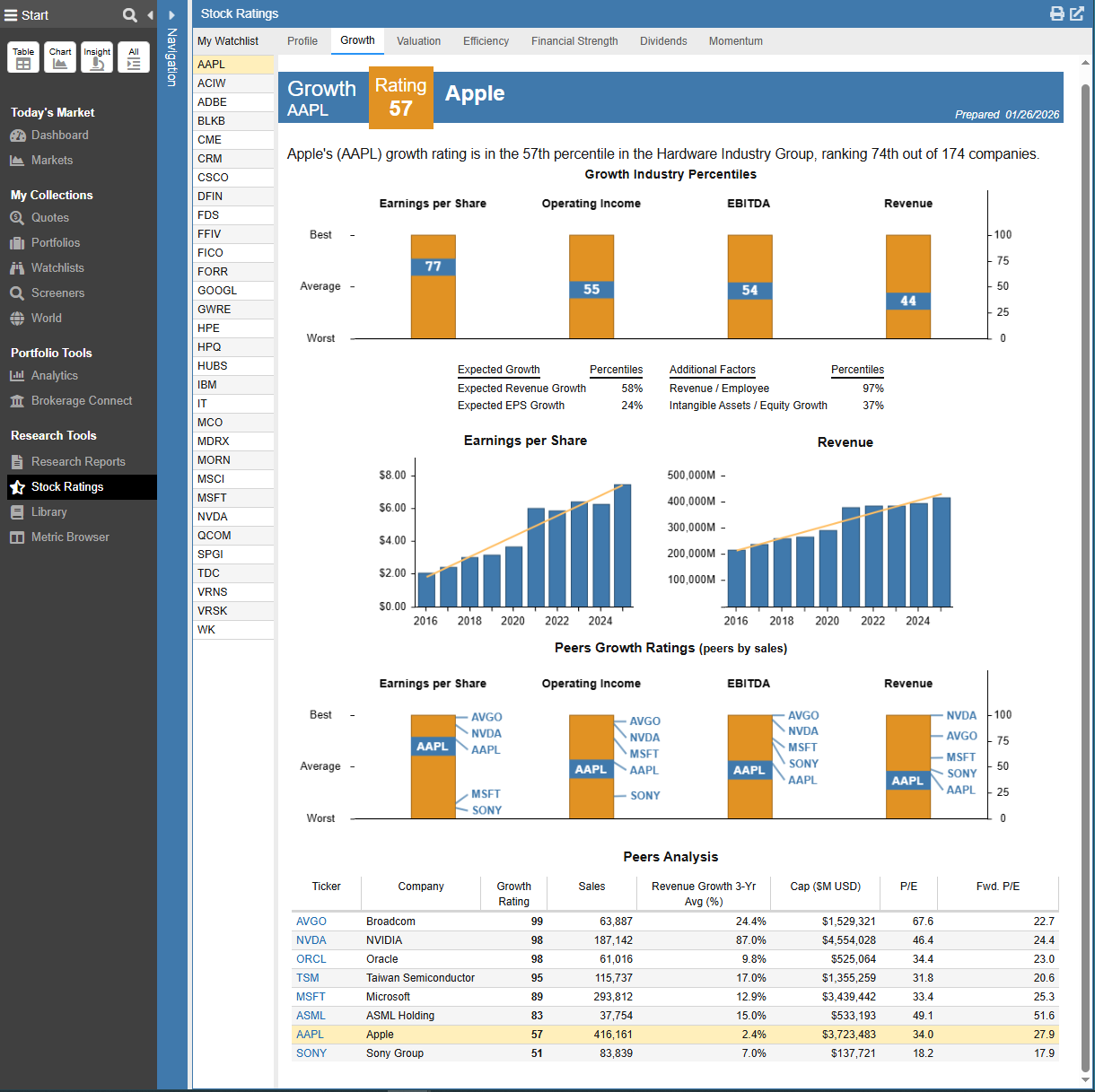 [14]
[14]



Key Relative Metrics at a Glance
You will encounter many valuation multiples in the Insight Panel and Table. If you are unsure which to prioritize, start with these three core metrics.
Frequently Asked Questions
How do I perform a peer comparison for stocks in Stock Rover?
In Stock Rover, you can perform peer comparisons using the ‘vs Peers’ and ‘vs Industry’ tabs in the Insight Panel. These views allow you to compare a specific stock directly against its industry peers across metrics like valuation, growth, and returns.
Can I customize the companies in the Peer Group?
Yes. While Stock Rover automatically selects the best peers based on industry and size, you can fully customize this comparison. Simply create a custom watchlist of your preferred peers, select a ticker from that watchlist, and then reference the Table to compare your stock specifically against that group.
Note: Some features shown are available with a Premium or Premium Plus plan, while others require a separate Research Reports subscription. You can explore all plan options here [15].